
Last updated: October 1, 2026
Set a Monthly Budget
Set a monthly spending limit on your Dash0 organization to maintain full control over your observability costs. The monthly budget caps the total amount due on your invoice, so you never pay more than you expect.
The monthly budget is an optional hard cap on your total monthly spend. When enabled, Dash0 monitors your usage against the configured limit and proactively notifies you as your spending approaches the threshold. If the budget is reached, a grace period ensures you have time to react before telemetry ingestion is paused.
Key features of the monthly budget:
- Single, unified limit - one budget covers your whole invoice: Ingest and Index charges across all signal types, plus synthetic API checks.
- Advance warnings - Dash0 notifies you at 75% and 90% of your budget via the UI and email.
- Grace period - a 4-day grace period begins when your budget is reached, giving you time to adjust.
- No surprise charges - data ingested during the grace period is not billed, for either Ingest or Index.
- Full flexibility - modify or remove your budget at any time.
Prerequisites
You must have the Admin role in your organization. Members without the Admin role cannot view or modify the monthly budget.
Setting a monthly budget
-
Navigate to Settings > Billing & Plans in your organization.
-
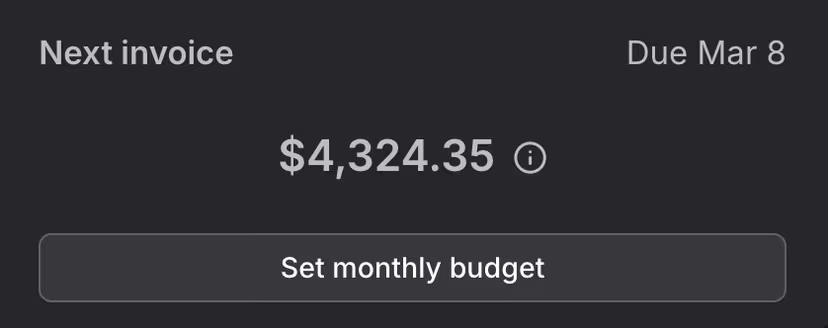
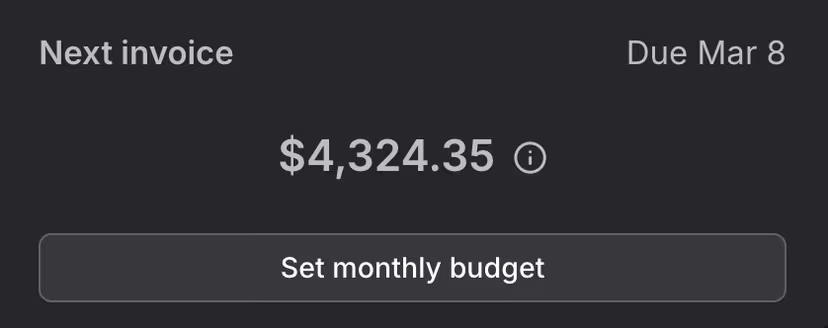
In the Next invoice card in the top-right corner, click Set monthly budget.
-
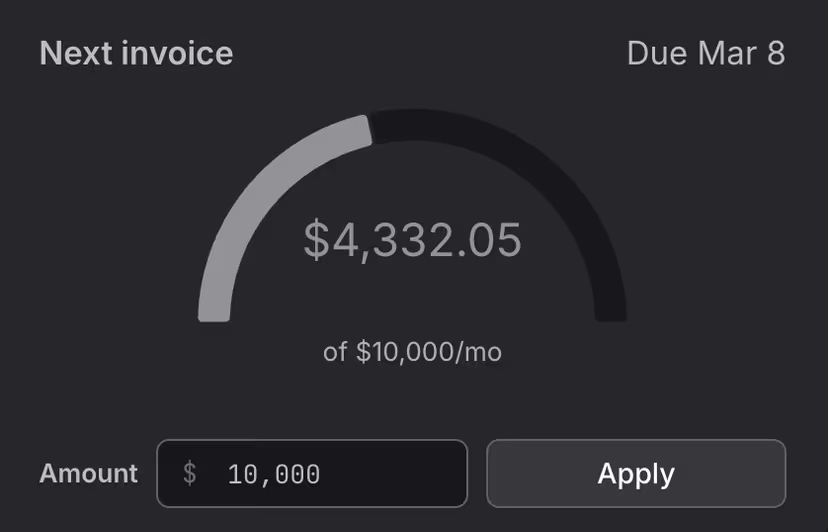
Enter your desired monthly budget in the Amount field. The value must be a whole dollar amount and at least $10 above your current amount due.
-
Click Apply to save your budget.
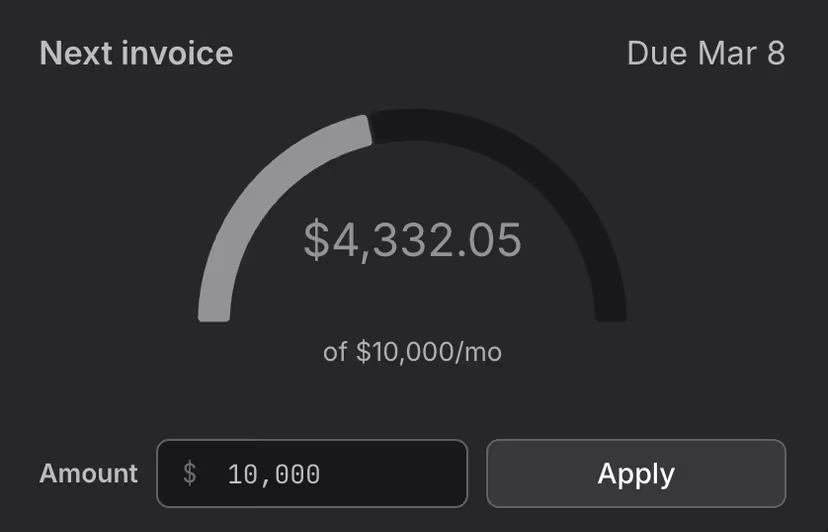
Once set, the Next invoice card displays a gauge visualization showing your current amount due relative to your configured budget.
The minimum budget must be at least $10 above your current amount due for the billing cycle. This buffer prevents the budget from being exceeded immediately after it is set.
Modifying your budget
You can increase or decrease your monthly budget at any time, provided the new value is not lower than your current amount due for the billing cycle.
- Navigate to Settings > Billing & Plans.
- Click the budget amount in the Next invoice card.
- Enter the new amount and click Apply.
The updated budget takes effect immediately and applies to the current billing cycle. If no changes are made, your monthly budget will be applied in the next billing cycle automatically.
Removing your budget
To remove the monthly budget entirely:
- Navigate to Settings > Billing & Plans.
- Click the budget amount in the Next invoice card.
- Click the delete icon next to the amount field.
- Confirm the removal in the dialog.
After removal, your organization will have no spending limit and billing will be based entirely on usage.
How warnings work
Dash0 issues advance warnings as your spending approaches your configured budget. Warnings are triggered at fixed percentage thresholds:
| Threshold | In-app banner | Email notification |
|---|---|---|
| 75% of budget | Shown on the Billing & Plans page | Sent to organization admins |
| 90% of budget | Shown on the Billing & Plans page | Sent to organization admins |
| 100% of budget (reached) | Shown on the Billing & Plans page with grace period countdown | Sent to organization admins |
| After grace period (ingestion paused) | Shown on the Billing & Plans page | Sent to organization admins |
The in-app banner is visible on the Billing & Plans page. Email notifications are sent exclusively to organization administrators and include a direct link to the Billing & Plans settings.
What happens when your budget is reached
When your amount due reaches 100% of your configured budget, the following sequence begins:
Grace period (4 days)
A 4-day grace period starts immediately. During this time:
- Telemetry data continues to be ingested normally.
- Data ingested during the grace period is not charged, for either Ingest or Index.
- A notification is displayed in the UI showing the remaining time until the grace period ends.
- An email is sent to all organization administrators with the subject: "Important: You've reached your Dash0 usage limit."
This gives you time to either increase your budget or reduce your telemetry volume with SignalControl.
After the grace period
If the budget is not increased above the current amount due before the grace period expires, Dash0 will pause telemetry ingestion. While ingestion is paused:
- No new telemetry data (spans, logs, metric data points, web events, or synthetic API check results) is collected.
- Alerting and monitoring stops functioning for new data.
- Historical data remains accessible - you can still query dashboards, traces, logs, and metrics that were collected before the pause.
- Configuration is preserved - check rules, dashboards, views, and other settings remain intact.
An email is sent to all organization administrators with the subject: "Action Required: Dash0 telemetry has been paused."
Restoring ingestion
There are two ways to restore telemetry ingestion after it has been paused:
- Increase your monthly budget above the current amount due. Ingestion resumes immediately.
- Wait for the billing cycle to reset. At the start of the next billing period, your amount due resets and ingestion resumes automatically with your existing budget carried over.
If you increase the budget during the grace period (before ingestion is paused), the grace period ends and billing resumes normally. The budget increase takes effect immediately.
Budget and cost forecasting
The Forecast tab on the Billing & Plans page shows a tier-aware projection of your spend for a full billing cycle, based on your recent usage rate, so you can check whether you're on track to exceed your budget before it happens.
Frequently asked questions
- What does the monthly budget apply to?
The budget applies to the total amount due on your invoice, covering both Ingest and Index charges across every signal type.
- Can I set different budgets for spans, logs, and metrics separately?
No. The monthly budget is a single, unified limit that covers all signal types combined — spans and span events, logs, metric data points, web events, and synthetic API checks.
- What happens if I set a budget mid-cycle?
The budget takes effect immediately for the current billing cycle. It must be at least $10 above your current amount due.
- Can non-admin members see the budget?
No, members without the Admin role cannot view or modify the monthly budget.
- When does the monthly budget take effect?
Monthly budget takes effect immediately and applies to the current billing cycle. If no changes are made, your monthly budget will be applied in the next billing cycle automatically.
Further Reading
- About Cost Control — Overview of Dash0's cost control features.
- Forecast Your Spend — Project your usage and cost for a full billing cycle.
- Set Spam Filters — Create and manage spam filters in the Dash0 UI.
- Manage Spam Filters as Code — Deploy spam filters using the Dash0 Operator for Kubernetes, the Dash0 Terraform Provider, or the Dash0 CLI.