
Last updated:
Check the Output
The Output panel of the transform rule editor shows the sample record from the Input sample data panel after your transformations ran on it. Dash0 runs the rule on the sample without saving it, so you can try changes freely. Nothing here changes your stored data.
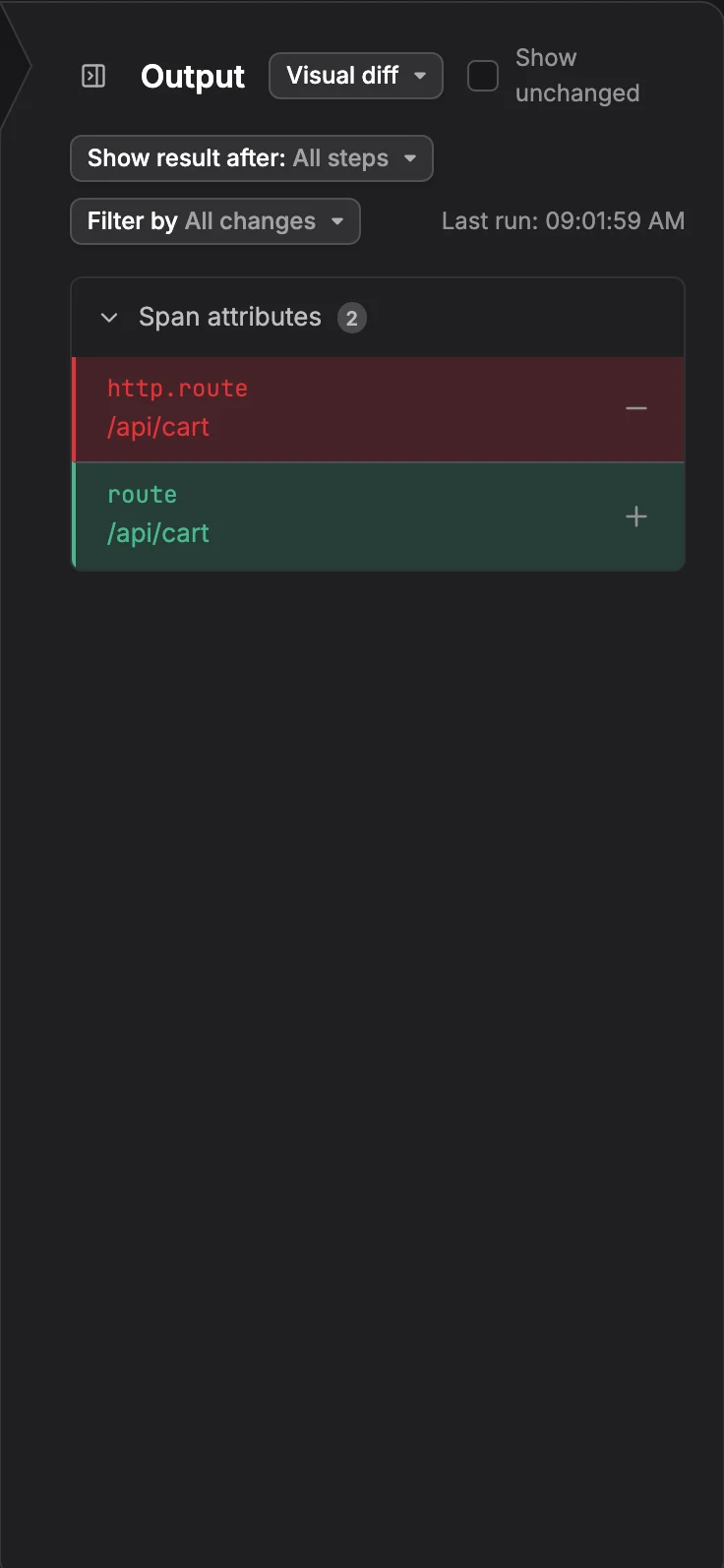
When the Output Runs
- Automatically: Once a sample is loaded, the output runs again shortly after you change a transformation, the rule's condition, its priority, or Enabled, and when you pick another sample.
- On demand: Click Run in the Output panel or Run all in the Transformations panel. To see the record partway through, click Run transformations up to here on a step.
- Paused: While a transformation is incomplete, the output does not run again and keeps its last result.
Last run shows when the output last ran.
Read the Changes
The View select switches between two views:
- Visual diff: Marks every attribute the transformations changed. Added rows are green, Removed rows are red, and Modified rows show the previous value struck through.
- Result: The record as the transformations leave it. Removed attributes are left out, so switch back to Visual diff to see them.
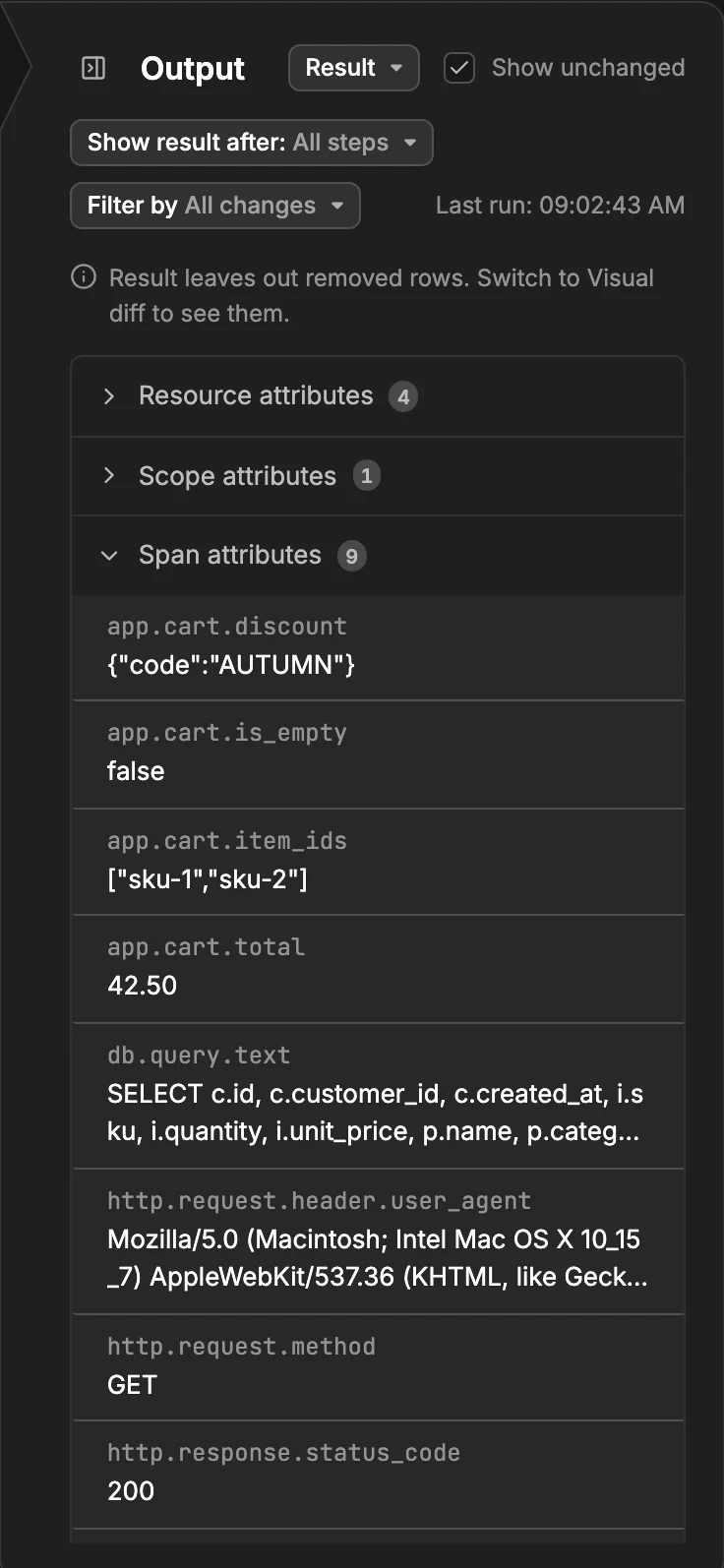
Narrow the list with:
- Show unchanged: Also lists the attributes the transformations did not change. Turn it off to see only the changes.
- Filter by: Shows All changes, or only Added, Removed, or Modified attributes.
- Show result after: Shows the record after All steps, or after a single step, such as Step 1. Use it to find the step that made a change.
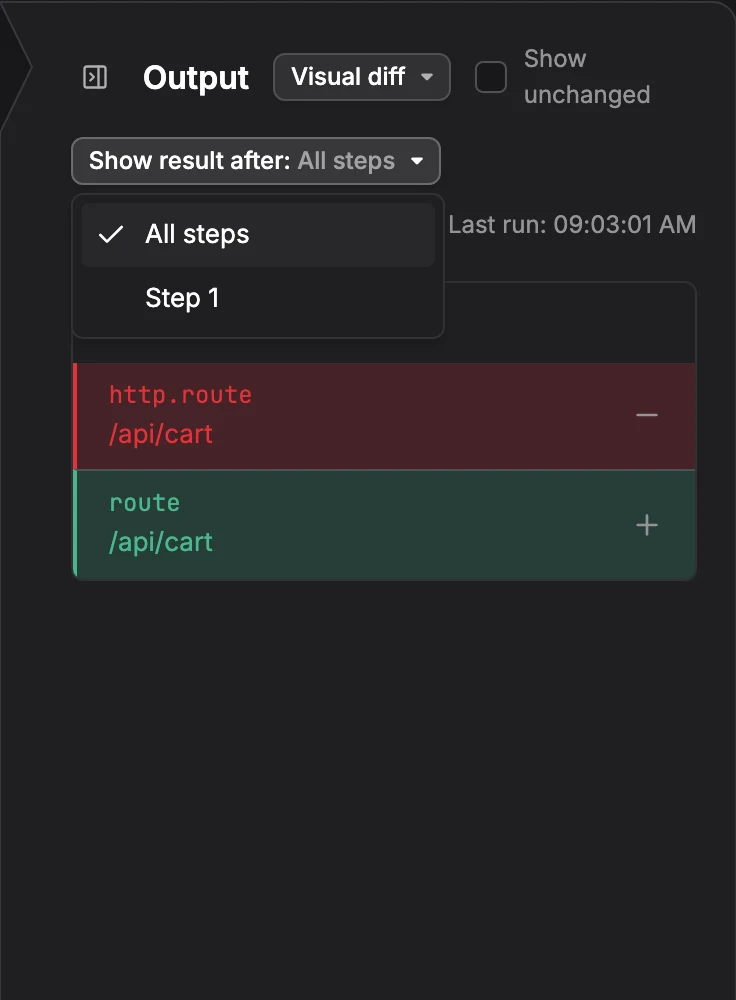
Resource and scope attributes start collapsed unless something in them changed.
When Something Goes Wrong
The Output panel tells you when the rule can't produce a result:
- Load an input record to run the transformations on it. No sample is loaded yet. Pick one in Input sample data.
- The transformations don't change this record. The rule ran, but nothing on this sample changed. Check the step's attributes and contexts.
- The rule's conditions match nothing in this sample. The rule's condition doesn't match the sample, so the rule wouldn't transform it. Check the condition, or pick another sample.
- The rule doesn't compile, so the output is unchanged. A statement isn't valid OpenTelemetry Transformation Language (OTTL). The step with the problem shows what is wrong.
- The transformations couldn't be run. Try again. The run failed. Click Retry.
A statement that fails on the sample shows its error on its step, under Preview problems.
Further Reading
-
About Signal Transformation. Add a transform rule and learn the parts of the rule editor.
-
Extract Values. Capture parts of a text value into new attributes.
-
Write Custom OTTL. Run your own OTTL statements in a step.