
Last updated:
About Signal Transformation
Transform rules change telemetry at ingestion, before Dash0 stores it. Each rule runs a list of transformations, such as renaming an attribute, masking part of a value, or extracting fields from a log body, on every record that matches its condition. Dash0 writes each transformation as an OpenTelemetry Transformation Language (OTTL) statement, which you can read and edit.
Transform rules apply to logs, metrics, and spans. In the pipeline, the Transform stage sits after the spam pre-filter step and before signals are converted to metrics.
Transform rules run in Dash0, also on telemetry that a SignalControl Edge collector forwards. Edge collectors don't run transform rules themselves yet.
Add a Transform Rule
- From the pipeline, open the Transform stage for Logs, Metrics, or Spans. If the signal has no transform rules yet, click Add transform rule. Otherwise, click New rule in the rule list. The rule editor opens.
- Name the rule, and select a priority if needed.
- Add a condition that selects the records to transform. See Write a Condition.
- Use sample data to add the transformations the rule applies.
- Check the result in the Output panel and click Save.
You can also start from the log and span explorers. Filter down to the records you want to change and click Transform. The rule editor opens with a condition that matches the current filter. The button stays disabled until you add a filter. The metrics explorer has no Transform button; start metric rules from the pipeline.
Manage Transform Rules
Opening the Transform stage of a signal lists its rules, grouped by priority that defines a relative execution order of the rules.
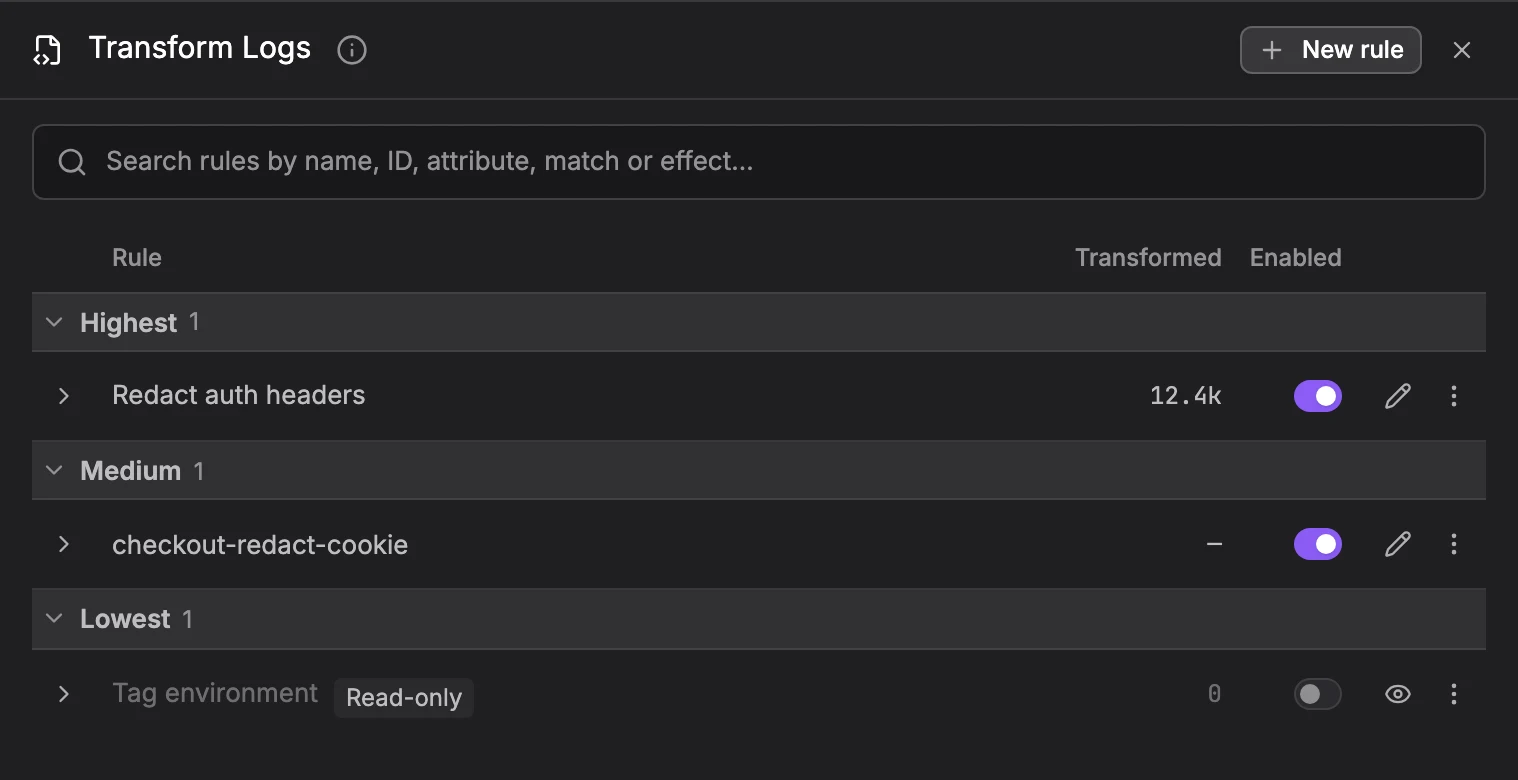
- Search: Finds rules by name, ID, attribute, match, or effect.
- Transformed: How many signals the rule transformed in the selected time range.
- Enabled: Switches the rule on or off without opening it.
- Rule details: Hover the rule name to see its ID, its condition, and how many statements it runs. A rule without a condition shows All and the signal, for example All logs.
- Expand: Click the arrow next to a rule to see the Signals transformed over time chart, with Open in Query Builder. Turn on Show statement to read the rule's OTTL.
- Edit rule: The pencil button opens the rule in the editor. A read-only rule shows an eye button, View rule, instead. You can also click a row to open the rule.
- Row menu: See matching logs, Download YAML, Copy rule ID, and Delete rule. See matching logs opens the explorer filtered by the rule's condition. For span and metric rules, it reads See matching spans or See matching metrics.
The Rule Editor

- Rule name: Click the name next to the breadcrumb to rename the rule. Click Transform Spans (or Logs, or Metrics), the back arrow, or press Escape to go back to the rule list without losing your changes.
- Context and Priority: Dash0 derives the context from the rule's steps, so you don't pick it. While you edit, the rule runs on the record itself, such as the span or the log record. When you save, Dash0 stores the rule in the narrowest context its steps need: Resource when every step reads and writes only resource attributes, Scope when the steps stay on the resource and the scope, and the record otherwise. A rule condition, a step condition, or a Custom step keeps the record's context. The header shows the context, and a saved rule keeps its context. The ? next to Priority explains the levels. Rules for the same signal run from the highest priority to the lowest: Highest, High, Medium, Low, or Lowest. New rules default to Medium. Every matching rule runs, so a later rule sees the changes of an earlier one.
- Save, Discard, and Enabled: Save stores the rule. It stays disabled while a transformation is incomplete or the rule uses an attribute rules may not change; hover it to see why. Discard drops your changes. Enabled switches the rule on or off.
- Condition: Selects the records the rule transforms, as filters or as an OTTL condition, for example
attributes["http.route"] == "/health". Combine several OTTL conditions withor. See Write a Condition. - Input sample data: The record you test the rule on. See Load Sample Data.
- Transformations: The steps the rule applies, top to bottom. See Transformation Steps.
- Output: The sample after the transformations, with every change marked. See Check the Output.
Drag the edges between the panels to resize them. The Transformations and Output panels collapse with the button next to their title.
Write a Condition
Always give a rule a condition. The condition is optional, but a rule without one transforms every record of the signal, which is rarely what you want and can change telemetry you didn't mean to touch.
Where you can, include a resource attribute in the condition, such as service.name or k8s.namespace.name, so the rule only transforms telemetry from the services it is meant for. For example, resource.attributes["service.name"] == "checkout" and attributes["http.route"] == "/health".
Load Sample Data
The Input sample data panel holds the record you test the rule on. Pick a source:
- From your telemetry: Pick a record from your data that matches the rule's condition. Use Previous and Next to step through the matches. These samples show attributes as Dash0 stored them, which can include attributes Dash0 adds after transform rules run. A rule can't read those, so check Attributes Rules Can't See before you build a rule on one.
- Import a sample: Paste or upload one record with its resource and scope, as JSON or YAML.
- Create from scratch: Start with an empty record and add the attributes you need.
Nothing you do in this panel changes your stored data. From your telemetry needs a sample of the rule's context: it works for span, log, metric, and data point rules, and for resource and scope rules on logs and spans. For other rules, such as span event rules, import a sample or create one from scratch.
Next to each sample, the panel shows whether it matches the rule's condition. You can preview the transformations on a sample that doesn't match, but the saved rule wouldn't transform it.
Type in Search to show only the attributes whose key or value contains the text.
Import a Sample
Paste or upload one record with its resource and scope, as JSON or YAML. The top level holds resource, scope, and the record: span, logRecord, or metric. A full OTLP/JSON export request, such as {"resourceSpans": [...]}, also works. If it holds several records, the first one is used. The sample must be of the rule's signal, and profiles can't be imported. An imported sample stays in the editor and isn't saved.
Edit a Sample
Click Customize to edit the sample. Hover an attribute to edit or delete it in this sample only, and use the + next to a section to add an attribute to this sample only. Changed values are marked Edited. To undo every edit, click Revert and discard all changes.
These edits only change the sample you test on. To change the telemetry itself, add a transformation step.
Pin Examples
Click Pin as example to keep a sample with the rule. A rule holds up to 10 examples, each at most 64 KiB, and everyone who opens the rule can run them. Give each example a name, or delete it, in the examples list. A sample you don't pin is kept until you save or cancel. Examples are stored as rule configuration, so telemetry retention does not apply to them. Don't pin samples that contain sensitive data.
An example the rule can no longer read is marked Can't be read as a sample for this rule.
Act on an Attribute
Hover an attribute to act on it:

- Only transform records where … has this value: Adds the attribute to the rule's condition.
- Don't transform records where … has this value: Excludes the value in the rule's condition.
- Add a transformation step: Opens the Set transformation menu, which adds a step for this attribute with its fields filled in.
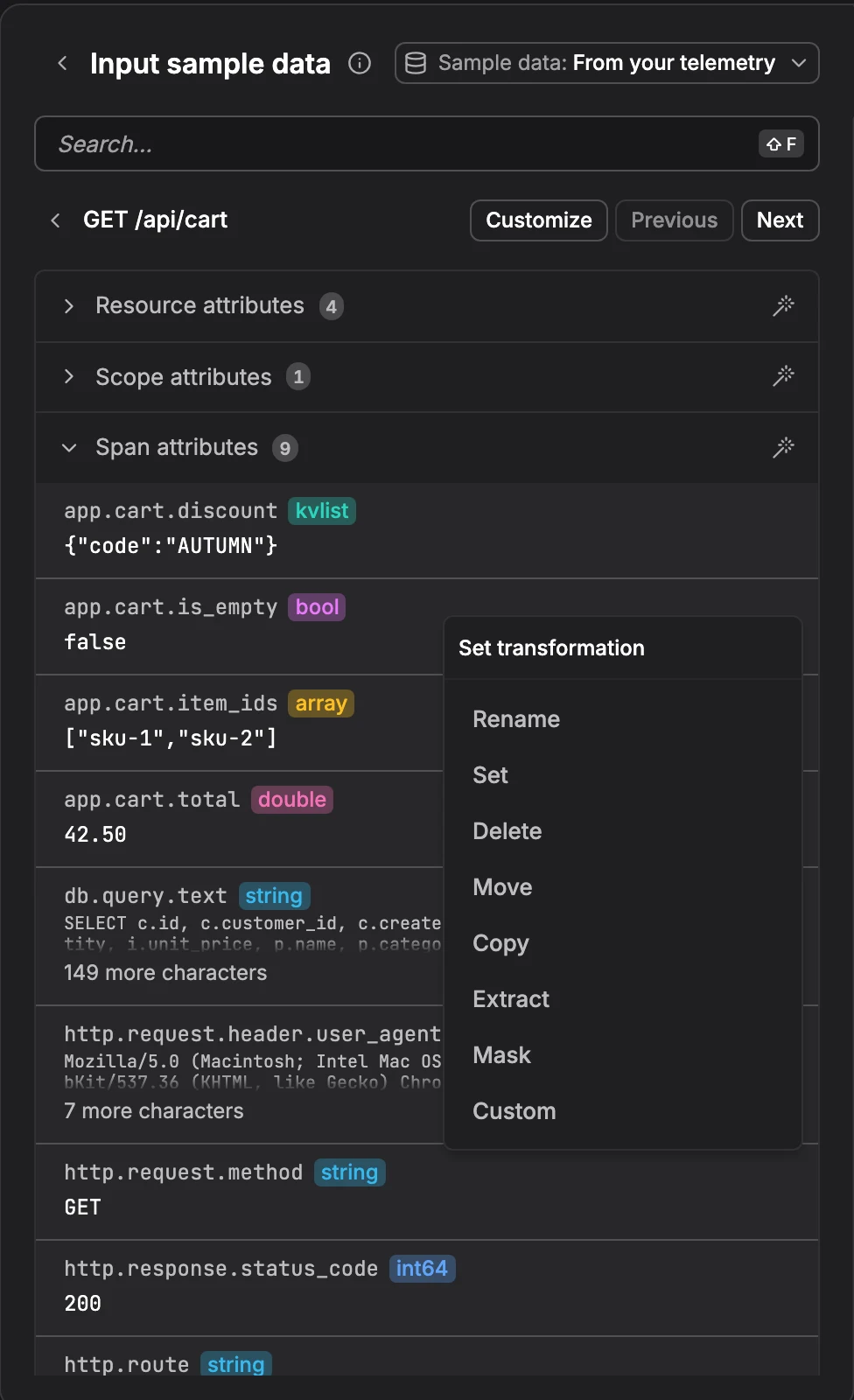
To extract or mask only part of a text value, select that part of the value and click Extract or Mask in the toolbar that appears.
Transformation Steps
Transformations are applied sequentially, top to bottom. Each step changes the data the next one sees. Click + Transformation to add a step, then pick its type in Transformation:
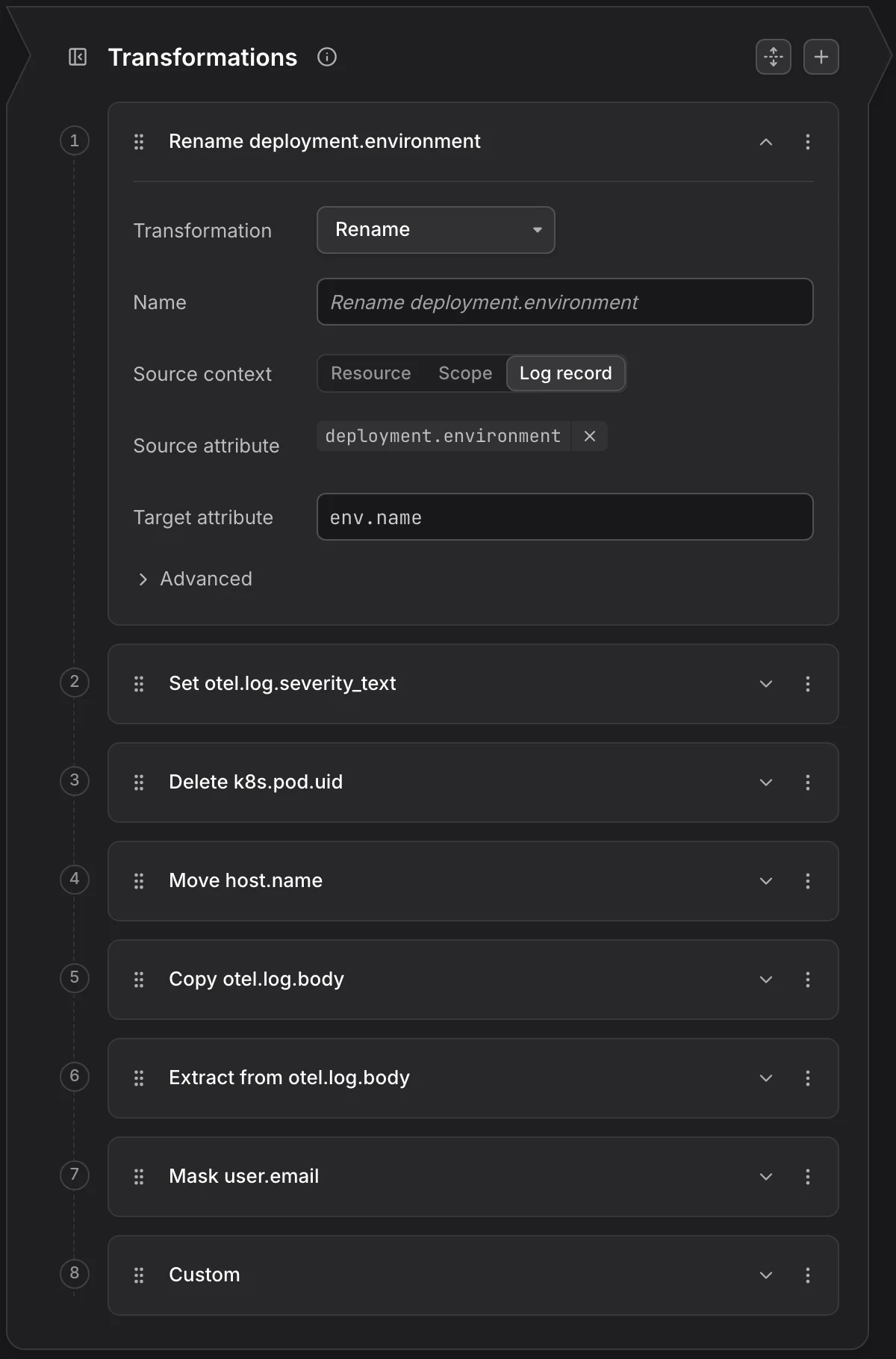
- Rename: Gives an attribute a new key.
- Set: Sets an attribute or field to a value.
- Delete: Removes an attribute, or resets a field.
- Move: Moves an attribute to another context, for example from the log record to the resource.
- Copy: Copies an attribute or field into another one.
- Extract: Captures parts of a text value into new attributes.
- Mask: Replaces parts of a text value with
*****. - Custom: Runs OTTL statements you write yourself.
Every step also has:
- Name: Shown in the step list. Leave it empty to use a generated name, such as Rename http.route.
- Advanced: Holds the step's own Condition, which limits the step to the records that match it, and the OTTL the step writes. To edit that OTTL directly, change the step to Custom.
- Run transformations up to here: The play button in the step header shows the output after this step.
- Transformation actions: The menu in the step header has Move up, Move down, and Delete transformation. You can also drag a step by its handle.
A step with a missing required field is marked This transformation is incomplete, writes no OTTL, and blocks saving.
In a rule without steps, click Ask Agent0 to describe the change you want. Agent0 checks which attributes your matching telemetry carries and proposes the OTTL statements, one per step. The button is not shown when Agent0 is turned off for your organization.
Attributes Rules Can't Change
Dash0 reserves some attributes for its own processing:
- Protected attributes: Attributes that start with
dash0.are reserved for Dash0, so rules can't read or change them. A few, such asdash0.operation.nameanddash0.resource.name, are exceptions that rules may change. - Read-only attributes: Rules can read these but not change them, for example the trace and span IDs on span rules.
The editor underlines an attribute a rule may not use, and you can't save until you fix it.
Attributes Rules Can't See
Transform rules run early in the pipeline, on telemetry as Dash0 receives it. Dash0 adds some attributes later, while it enriches telemetry for storage or when you query it. A rule can't read those attributes because they don't exist yet when it runs. A condition on one never matches, and a step that reads one does nothing.
Samples from your telemetry show attributes as Dash0 stored them, so they can include attributes the rule can't see. The Output preview can then show a change that the saved rule won't make. If a rule doesn't transform the records you expect, check whether Dash0 adds the attribute it reads after ingestion, and use the key the telemetry arrives with.
Manage Rules Through the API
Send API requests to your region's API endpoint from the endpoint table, with an Authorization: Bearer <token> header. See Dash0 API for the general conventions.
- List:
GET /api/telemetry-transformation-rules?dataset=<dataset> - Create:
POST /api/telemetry-transformation-rules?dataset=<dataset> - Read, update, or delete:
GET,PUT, orDELETE /api/telemetry-transformation-rules/<origin-or-id>?dataset=<dataset>
This request body creates a span rule with the highest priority, which replaces the authorization header on every span that has one:
{
  "kind": "Dash0TelemetryTransformationRule",
  "metadata": {
    "name": "redact-auth-headers",
    "labels": { "dash0.com/origin": "redact-auth-headers" }
  },
  "spec": {
    "enabled": true,
    "display": { "name": "Redact auth headers" },
    "signal": "traces",
    "context": "span",
    "priority": 0,
    "conditions": ["attributes[\"http.request.header.authorization\"] != nil"],
    "transformations": [
      {
        "name": "Redact the header",
        "statements": ["set(attributes[\"http.request.header.authorization\"], \"REDACTED\")"]
      }
    ]
  }
}
The fields map to the rule editor:
signal:logs,metrics, ortraces.context:resource,scope, or a record context:spanorspaneventfor traces,logfor logs,metricordatapointfor metrics.priority:0(Highest),100,200(Medium, the default),300, or400(Lowest). Rules with the same priority run in order ofmetadata.name.conditions: OTTL conditions, combined withor. Leaving the list out transforms every record, so always set one; see Write a Condition.transformations: The steps, each with anameand its OTTLstatements.dash0.com/origin: An ID you choose, so your scripts can address the rule on every run without storing the ID Dash0 generates. It can't change after the rule is created.
To start from a rule you built in the editor, click Download YAML in its row menu. A rule that doesn't compile, or that uses an attribute rules can't change, is refused with a 400 that lists each problem.
Managed Rules
A rule created through the API is marked Read-only in the UI. You can open it and delete it, but not edit it or switch it on or off, because the next update from the tool that manages it would overwrite your change. Change it with that tool.
Further Reading
-
About SignalControl. Overview of the full pipeline and how the stages compose.
-
Check the Output. Read the result of your transformations before you save the rule.
-
Convert Signals to Metrics. Produce metrics from logs and spans, using the attributes your transform rules set.
-
Filter Out Spam. Drop noisy records before they reach the Transform stage.
-
Dash0 Operator Configuration. Transform telemetry with OTTL inside your Kubernetes cluster, before it leaves your network.