
Last updated: October 2, 2026
Set Up GitHub Integration
Connect GitHub repositories to Dash0 to enable Agent0 to read source code, propose fixes, and open pull requests during investigations. The same GitHub integration also powers productivity metrics in AI SDLC Insights, tracking cycle time from session to merged pull request.
This is the same GitHub integration used by Agent0 Chat, Automations, and AI SDLC Insights. Set it up once in Settings → Integrations, and all three capabilities use it automatically.
Prerequisites
Before setting up the GitHub integration:
- GitHub account with appropriate permissions to install apps
- Organization administrator role in Dash0
- Admin access to GitHub repositories or organizations you want to connect
Setup
Install the Dash0 GitHub App in your organization or user account to enable Agent0 to access repositories.
-
Navigate to Settings → Integrations.
-
Click + Add and select GitHub.
-
Click Connect to GitHub to begin the installation process.
-
A new browser tab opens to GitHub.
-
Select whether to install on your personal account or an organization.
-
Choose repository access:
- All repositories: Grant access to all current and future repositories.
- Selected repositories: Choose specific repositories to connect.
-
Review the permissions requested by the Dash0 GitHub App.
-
Click Install to complete the installation.
-
Return to Dash0 to verify the integration status.
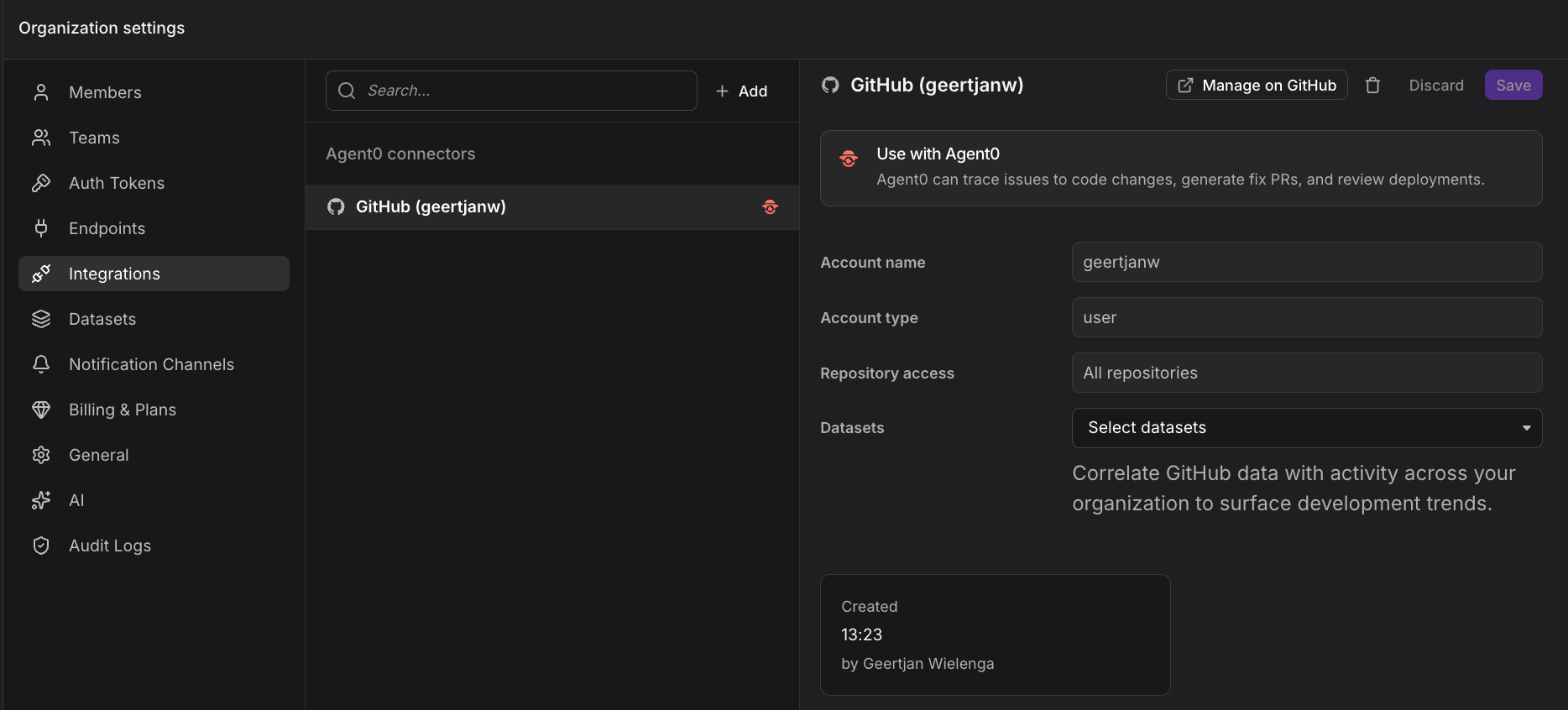
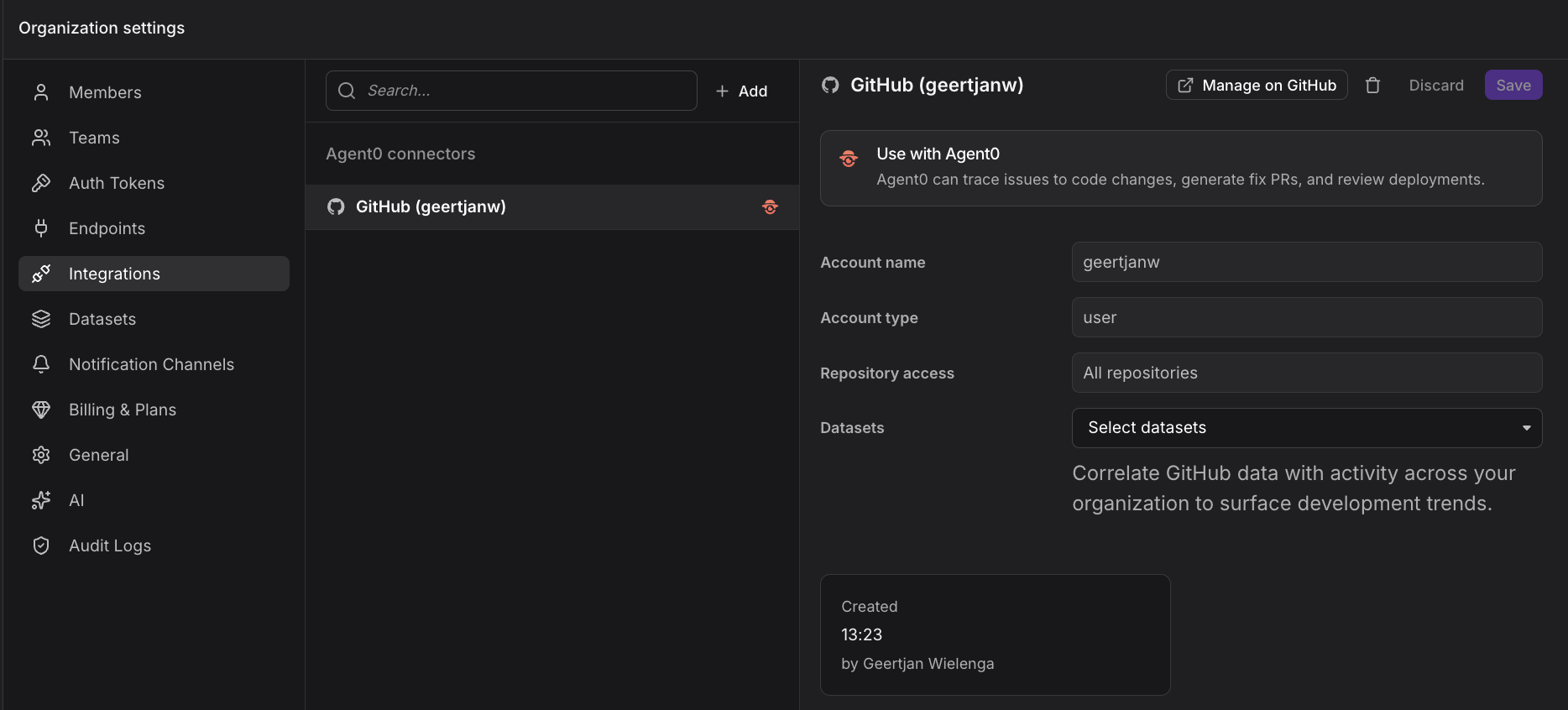
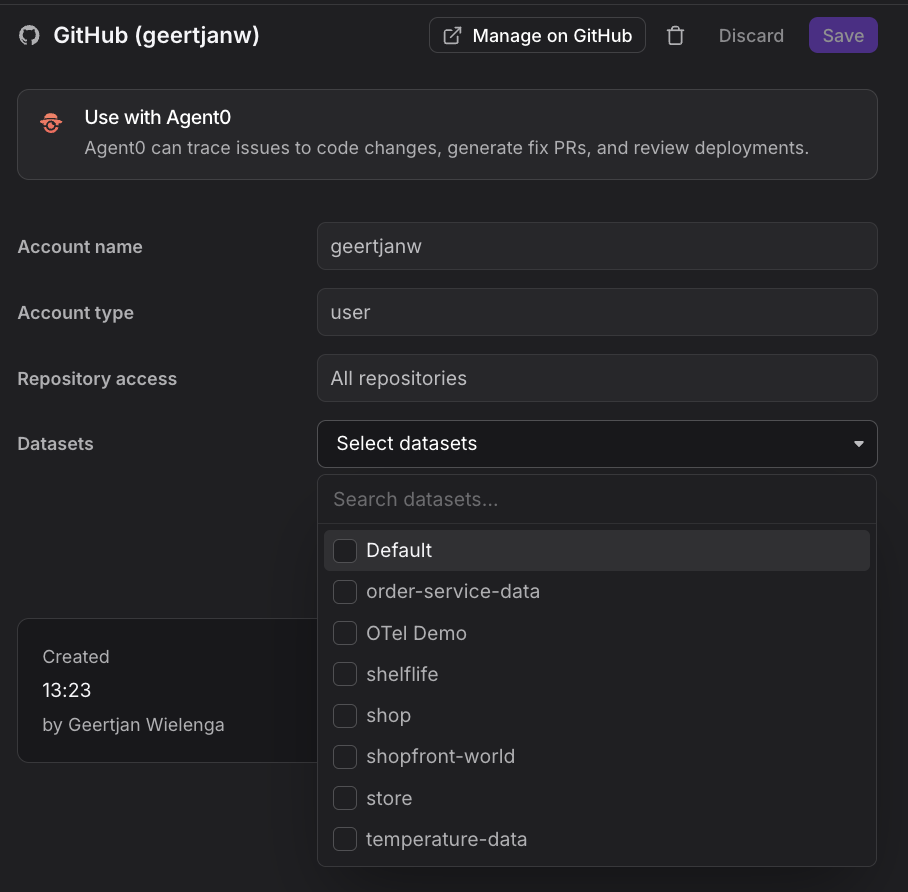
After connecting to GitHub, select the dataset in Dash0 where you want to send productivity metrics for AI SDLC Insights. By default, nothing is connected. Once you select a dataset, metrics begin flowing into Dash0.
Configuration
Configure repository access and review the permissions granted to the Dash0 GitHub App.
GitHub App Permissions
The Dash0 GitHub App requests the following permissions for Agent0:
Read Permissions
- Repository Metadata: Access basic repository information (name, description, topics).
- Contents: Read file contents, branches, and tags for code investigation.
- Pull Requests: Read pull request metadata and merge information.
- Issues: Read issue information for context during investigations.
Write Permissions
- Contents: Create branches and commits for proposed fixes.
- Pull Requests: Open pull requests with Agent0-generated fixes.
Agent0 only creates branches and pull requests when explicitly requested during Chat or Automations. It never modifies existing branches or commits without user direction.
Repository Selection
Control which repositories Agent0 can access:
- Organization-Wide: Install for all repositories in a GitHub organization.
- Selective Access: Choose specific repositories to connect.
- Repository Management: Add or remove repositories after installation through GitHub's app settings.
- Multiple Organizations: Install the app in multiple GitHub organizations as separate integrations.
Manage the Integration
View integration status, add or remove repositories, and manage the GitHub App installation through settings.
View Integration Status
Navigate to Settings → Integrations → GitHub to view:
- Installation Status: Connected GitHub account or organization.
- Repository Count: Number of repositories connected.
- Webhook Status: Health of GitHub webhook delivery.
Add More Repositories
- Navigate to Settings → Integrations → GitHub.
- Click Manage Repositories on GitHub.
- You're redirected to GitHub's app installation settings.
- Update repository access to include additional repositories.
- Return to Dash0; new repositories are automatically available to Agent0.
Removing Repositories
- Navigate to GitHub's app installation settings.
- Update repository access to exclude specific repositories.
- Agent0 can no longer access removed repositories.
Uninstalling the Integration
- Navigate to Settings → Integrations → GitHub.
- Click Delete Integration.
- Confirm deletion.
- Agent0 can no longer access any GitHub repositories.
- Optionally uninstall the Dash0 GitHub App from GitHub's settings.
Troubleshooting
Common issues with the GitHub integration and their solutions.
Agent0 Cannot Access Repository
- Repository Access: Verify the repository is included in the GitHub App installation.
- Permissions: Ensure the Dash0 GitHub App has access to the repository (check private repository settings).
- Branch Protection: Verify Agent0 can create branches (check branch protection rules).
Installation Failed
- Permissions: Ensure you have admin access to the GitHub repository or organization.
- App Restrictions: Check if organization policies restrict third-party app installations.
- Popup Blockers: Ensure popup windows are allowed for the Dash0 domain.
Agent0 Cannot Create Pull Requests
- Write Permissions: Verify the GitHub App has write permissions to Contents and Pull Requests.
- Branch Protection: Check that branch protection rules allow the Dash0 GitHub App to create branches.
- API Rate Limits: GitHub API rate limits may temporarily block PR creation.
Security
GitHub integration security relies on granular permissions, webhook signing, and audit logging.
GitHub App Security
- Granular Permissions: The Dash0 GitHub App requests only permissions necessary for Agent0 functionality.
- Webhook Signing: All webhook payloads are cryptographically signed by GitHub.
- Secure Storage: GitHub App credentials are encrypted at rest in Dash0.
- Audit Trail: All GitHub API requests from Agent0 are logged in Dash0 audit logs.
Data Privacy
- Code Access: Agent0 reads code only during active investigations or when explicitly requested.
- No Code Storage: Dash0 does not persistently store source code; cloned repositories are temporary.
- Pull Request Context: PR descriptions include links to Dash0 telemetry but no sensitive data.
Further Reading
- Use GitHub in Chat and Automations — How Agent0 uses GitHub
- Create Pull Requests — Raise IaC configurations as PRs
- Integrations — All available Dash0 integrations
- Key Concepts — Reference terminology and mental model