
Last updated:
Configure Sandbox
Use Sandbox in the automation editor to prepare the runtime where Agent0 runs commands and define reusable prompt values. Expand it when creating an automation or editing its settings.
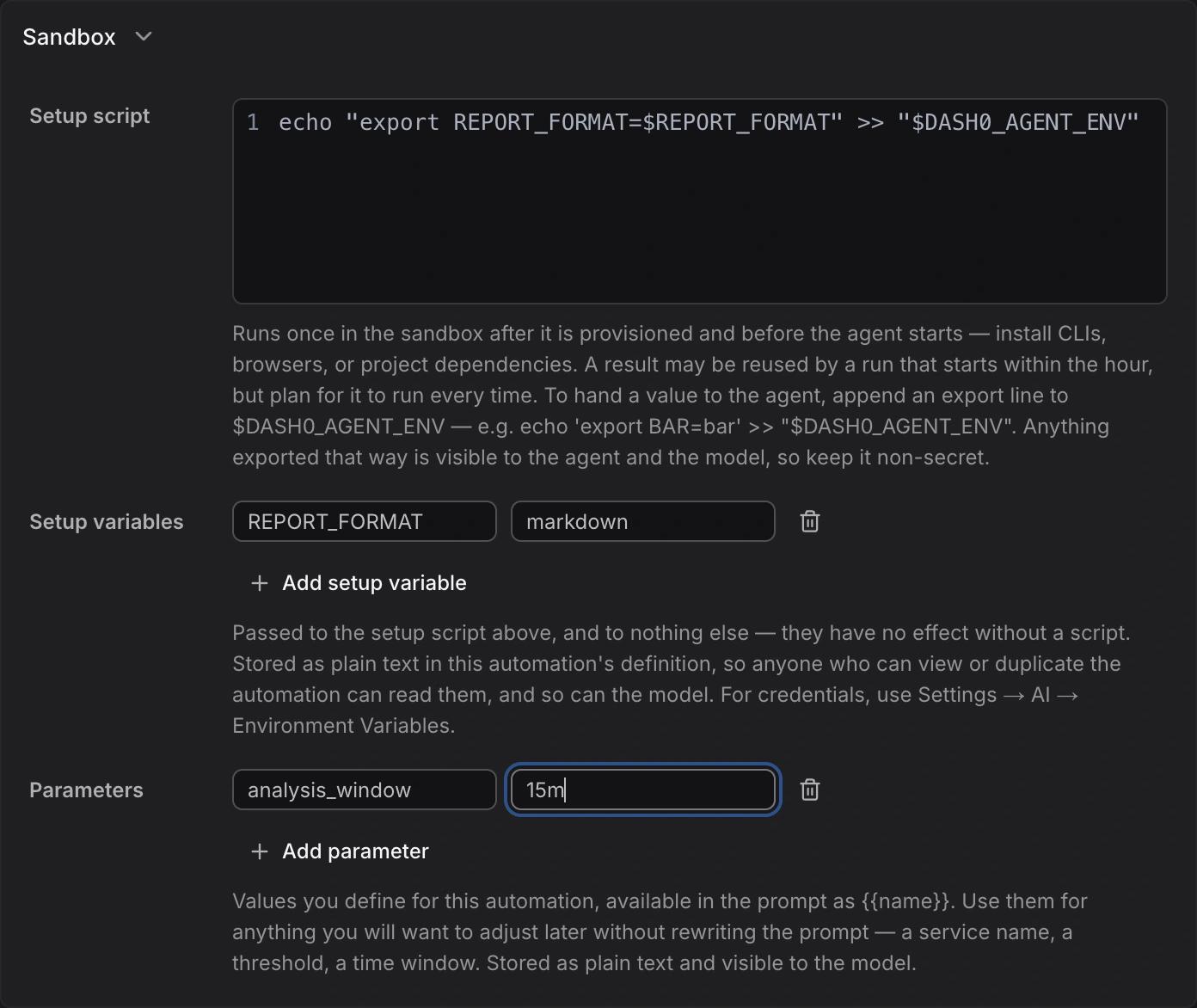
The fields serve different purposes:
| Field | Used by | Reference syntax |
|---|---|---|
| Setup script | Bash, before Agent0 starts working in the sandbox | Shell commands |
| Setup variables | The setup script's process only | $REPORT_FORMAT in the script |
| Parameters | The automation's prompt | {{analysis_window}} in the prompt |
Parameters do not become shell environment variables. Setup variables do not become prompt variables.
Available controls depend on your deployment. Some deployments show an Environment selector instead of the inline setup fields, or a Profile selector with resource controls. See Environment and profile controls. Setup-script execution also needs to be enabled for your deployment.
Setup script
Enter a Bash script in Setup script to install command-line tools, browsers, or project dependencies before Agent0 starts working. This is the automation's own script, separate from your personal and organization Chat setup scripts.
Keep the script non-interactive and safe to repeat. A later run can reuse a prepared sandbox, but reuse is not guaranteed. Do not depend on files from a previous run or assume that setup executes exactly once per automation run.
The sandbox's network access policy applies to setup commands too. Package downloads and repository clones need access to their destination hosts.
Setup variables
Click Add setup variable, then enter a Variable name and Value. Names can contain letters, numbers, and underscores, but cannot start with a number. For example, set REPORT_FORMAT to markdown as shown above.
These values are passed only to the setup script's process. They have no effect without a script and are not automatically available to later Agent0 commands. To pass a non-secret value to those commands, append an export line to the file named by $DASH0_AGENT_ENV.
For the REPORT_FORMAT=markdown example, this script passes the format to the agent's shell:
echo "export REPORT_FORMAT=$REPORT_FORMAT" >> "$DASH0_AGENT_ENV"Later Agent0 Bash commands can read $REPORT_FORMAT as markdown. A plain export REPORT_FORMAT=markdown in the setup script would only affect that script's process. Writing to $DASH0_AGENT_ENV does not create a {{REPORT_FORMAT}} prompt variable.
Setup scripts, setup variables, and parameters are stored as plain text in the automation definition. Anyone who can view or duplicate the automation can read them, and they can be exposed to the model. Retained automation versions can keep old values. Do not put credentials in these fields or write them to $DASH0_AGENT_ENV. Use Settings → Agent0 → Environment Variables for credentials instead.
Parameters
Use Parameters for values you want to change without rewriting the prompt, such as a service name or analysis window. These values were previously labeled Constants.
- Under Sandbox → Parameters, click Add parameter.
- Enter a Parameter name, such as
analysis_window, and a Value, such as15m. - Reference it in the prompt as
{{analysis_window}}.
For example, the parameter in the screenshot supplies the time window in this prompt:
Analyze service errors over the last {{analysis_window}} and summarize the findings.Parameters work across trigger types. They override event-supplied variables with the same name, but cannot override built-in variables such as {{now}} or {{dash0.dataset}}.
Inspect setup results
Open an automation run in Agent0 and select Setup in the sidebar when setup information is available. Check the recorded script and output to diagnose a missing dependency. A reused setup result is marked as cached rather than showing a new execution.
A setup script that finishes with a nonzero exit code records a warning but does not necessarily stop Agent0. Changes made before the failure are not rolled back. A setup timeout is different: Dash0 discards that sandbox rather than letting Agent0 use it while setup may still be running.
Before testing an automation, review its script, network access, and allowed tools. Run test starts a real automation run, including setup and permitted external actions. A simulated trigger does not make those actions a dry run.
Environment and profile controls
These controls are available only in deployments that enable them. The screenshot above shows the inline setup fields, not these variants.
Environment
When Environment replaces the inline setup fields, select an organization sandbox environment to supply its setup script, variables, secrets, and network settings. Leaving the selection on the organization default follows the environment marked as default, not your personal Chat environment.
Selecting a specific environment replaces the automation's inline setup script and setup variables when you save. Following the organization default can retain an existing automation's own setup. Review the help text before changing an existing automation.
The environment configuration is captured when a thread starts. Editing an environment does not update a thread that is already running. The automation's network access cannot exceed the environment's network ceiling.
Profile
When available, Profile selects the sandbox's resources. You can also adjust CPU reservation, CPU limit, Memory reservation (MiB), and Memory limit (MiB). Adjusting a resource selects a custom profile. Each limit must be at least its corresponding reservation.
A profile change applies to new threads started by the automation. An automation that continues an existing thread keeps that thread's profile. In this editor variant, Network access appears under Sandbox instead of Guardrails.
Further reading
- Configure Triggers — Choose the events and variables an automation receives
- Set Guardrails — Control network access, tools, and execution limits
- Use a Setup Script in Chat — Configure setup for interactive Chat threads
- Write Prompts — Reference parameters and event data