
Last updated: October 1, 2026
Configure Notifications
Set up alerts when automation runs complete successfully or fail.
Configure notifications to receive alerts when automations complete successfully or fail. Notifications use Dash0's existing notification channel system to send alerts to Slack, email, PagerDuty, or other destinations.
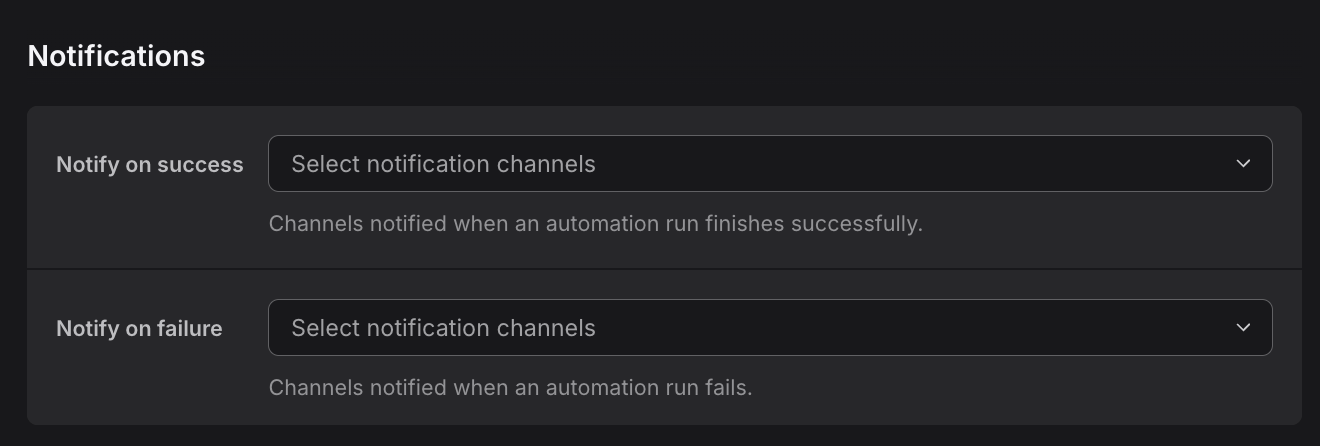
Notification Settings
Each automation supports two notification configurations:
- Notify on success: Channels that receive alerts when an automation run finishes successfully. Channels are notified when the automation completes its execution without errors.
- Notify on failure: Channels that receive alerts when an automation run fails. Channels are notified when the automation encounters an error, times out, or fails to complete.
Configure Notification Channels
- Navigate to the Notifications section in the automation editor.
- Click the Notify on success dropdown to select channels that should receive success notifications.
- Click the Notify on failure dropdown to select channels that should receive failure notifications.
- Choose one or more notification channels from the list.
Notification channels are configured in Settings → Notifications and must be created before they can be assigned to automations.
Tip
For details on configuring notification channels and managing notification settings, see About Notification Channels.
When to Use Notifications
Use notifications to:
- Stay informed: Monitor automation health without constantly checking the Runs tab.
- Critical failures: Ensure critical automations that fail receive immediate attention.
- Team coordination: Alert different teams based on automation ownership and importance.
- Audit trail: Keep a record of automation executions in team communication channels.
Notification Content
Notifications include:
- Automation name
- Run status (success or failure)
- Timestamp when the run completed
- Link to the run details in Dash0
For failed runs, notifications include error details when available.
Best Practices
- Failure notifications: Configure failure notifications for all production automations to ensure issues don't go unnoticed.
- Success notifications: Use success notifications sparingly. Consider them for critical scheduled reports or high-value automations where confirmation is needed.
- Channel selection: Route notifications to channels appropriate for the team that owns the automation. Avoid sending all automation notifications to a single catch-all channel.
- Notification fatigue: Don't enable success notifications for high-frequency automations unless the team explicitly needs confirmation of every run.
Further Reading
- About Notification Channels — Create and manage notification channels in Dash0.
- Configure General Settings — Set up basic automation information.
- Set Guardrails — Control what Agent0 can access and do.