
Last updated:
Use a Setup Script in Chat
A setup script is a Bash script that runs once in each new Agent0 chat sandbox, after the sandbox starts and before Agent0 begins working. Use it to install the CLIs, runtimes, or dependencies you want Agent0 to have available, so it doesn't have to install them in the middle of an investigation.
There are two setup scripts, and both are edited at Settings → Agent0 → General:
| Script | Where | Who can edit it | Applies to |
|---|---|---|---|
| Personal | Your preferences → Setup script | Any member, for themselves | Your own chat threads |
| Organization | Organization settings → Setup script | Organization admins | Every member's chat threads |
These personal and organization scripts apply to Agent0 Chat and the Agent0 panel inside Dash0. They do not run for automations, for Agent0 in Slack, or for Agent0 invoked over the Dash0 MCP Server. Configure an automation's own setup under Sandbox in its editor; see Configure Sandbox for setup scripts, setup variables, and environment-based configuration where available.
Which Script Runs
By default, exactly one script runs:
- If you have a personal setup script, it runs instead of the organization's script.
- If you don't, the organization's script runs.
- If neither is set, nothing runs.
An admin can turn on Make setup script mandatory next to the organization's script. Then the organization's script always runs first, followed by the member's personal script if they have one. Both run in the same shell, so:
- Your personal script can use anything the organization's script installed or defined, and can override it.
- If the organization's script ends the shell — an
exit, or a failing command underset -e— your personal script does not run at all.
The organization editor and mandatory setting appear together. Add and save an organization script before you can make it mandatory.
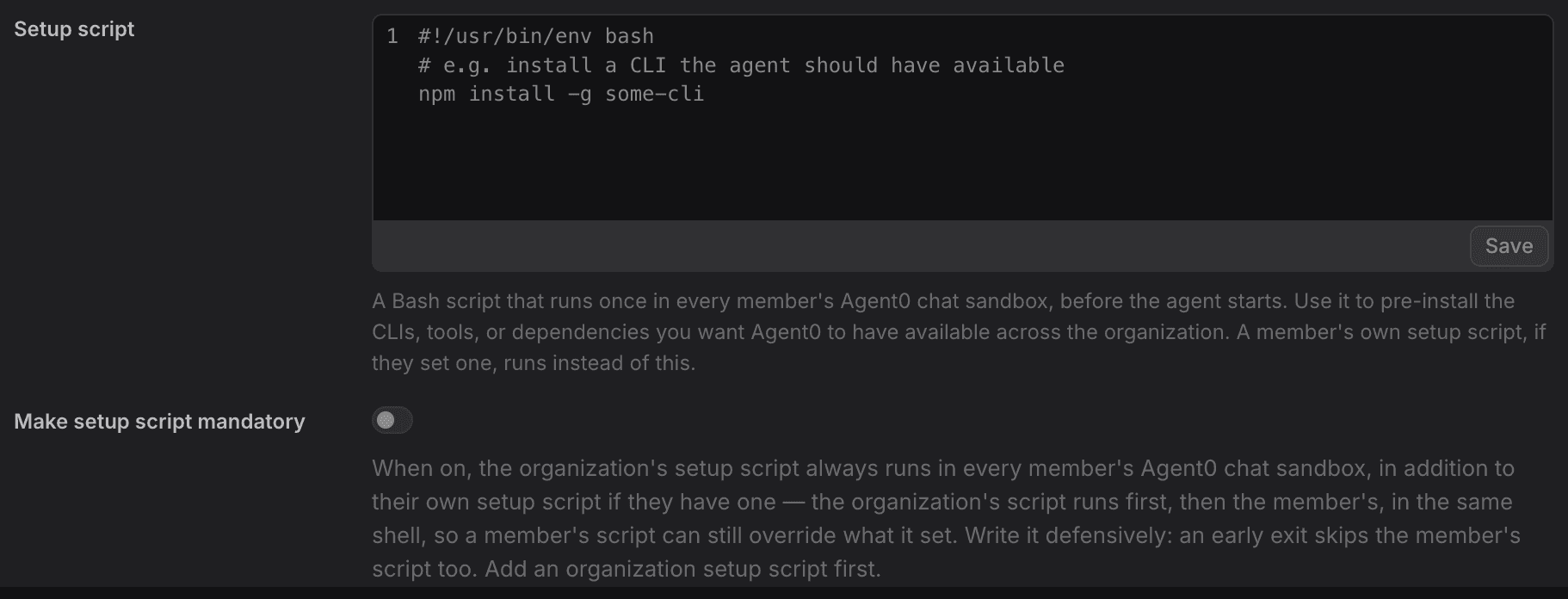
A change to a setup script applies to chat threads started after you save it. A thread that is already running keeps the sandbox it started with.
Write a Setup Script
#!/usr/bin/env bash
# Install the CLIs Agent0 should have available, skipping any already present.
command -v redocly >/dev/null || npm install -g --silent @redocly/cli || echo "[setup] redocly install failed"
command -v vercel >/dev/null || npm install -g --silent vercel || echo "[setup] vercel install failed"
A few rules keep a script reliable:
- Allow network access for installs. Anything downloaded from the internet needs the thread's network access to reach that host. In a thread with No network access, downloads fail. Trusted hosts only reaches common registries and source-control hosts; see Trusted hosts.
- Keep it fast. The script runs before every new chat thread can start, so a slow install delays every thread.
- Make each step safe to repeat. Check before installing (
command -v tool || …) and use non-interactive flags such as-yor--yes. - Contain failures in an organization script. Avoid
exitand a top-levelset -e; with Make setup script mandatory on, either one silently skips every member's own script. Handle failure per step instead, as in the example above. - Don't put secrets in it. The script is stored as plain text. Every member can see the organization's script, and the script text is saved with each thread. Credentials Agent0 needs belong in the Environment Variables tab on the same settings page instead.
See What Ran
Open a thread's Setup tab in the Agent0 sidebar to see which script ran for that thread (personal, organization, or both) and its output. Start with this tab when a tool you expected is missing from the sandbox.
Ask Agent0 for Help
In a chat thread, Agent0 can read your personal script and the organization's script, tell you which one runs for you, and propose a changed script — for example, "add the GitHub CLI to my setup script". When the thread's network access allows it, Agent0 tries the proposed script in its own sandbox first and tells you whether it worked.
Agent0 cannot save a setup script. It gives you the complete script and tells you where to paste it; the change takes effect once you save it in Settings → Agent0 → General.
Further Reading
- AI settings — All Agent0 settings
- Use Bash in Chat — How Agent0 uses the sandbox shell
- Investigate & Analyze — Choosing a thread's network access
- Key Concepts — Reference terminology and mental model