
Last updated: October 1, 2026
About Creating Automations
Create automations by defining triggers, writing prompts, configuring guardrails, and setting permissions. Dash0 provides several ways to create and manage automations to fit your workflow.
Create from Templates
The fastest way to start is with a pre-built template.
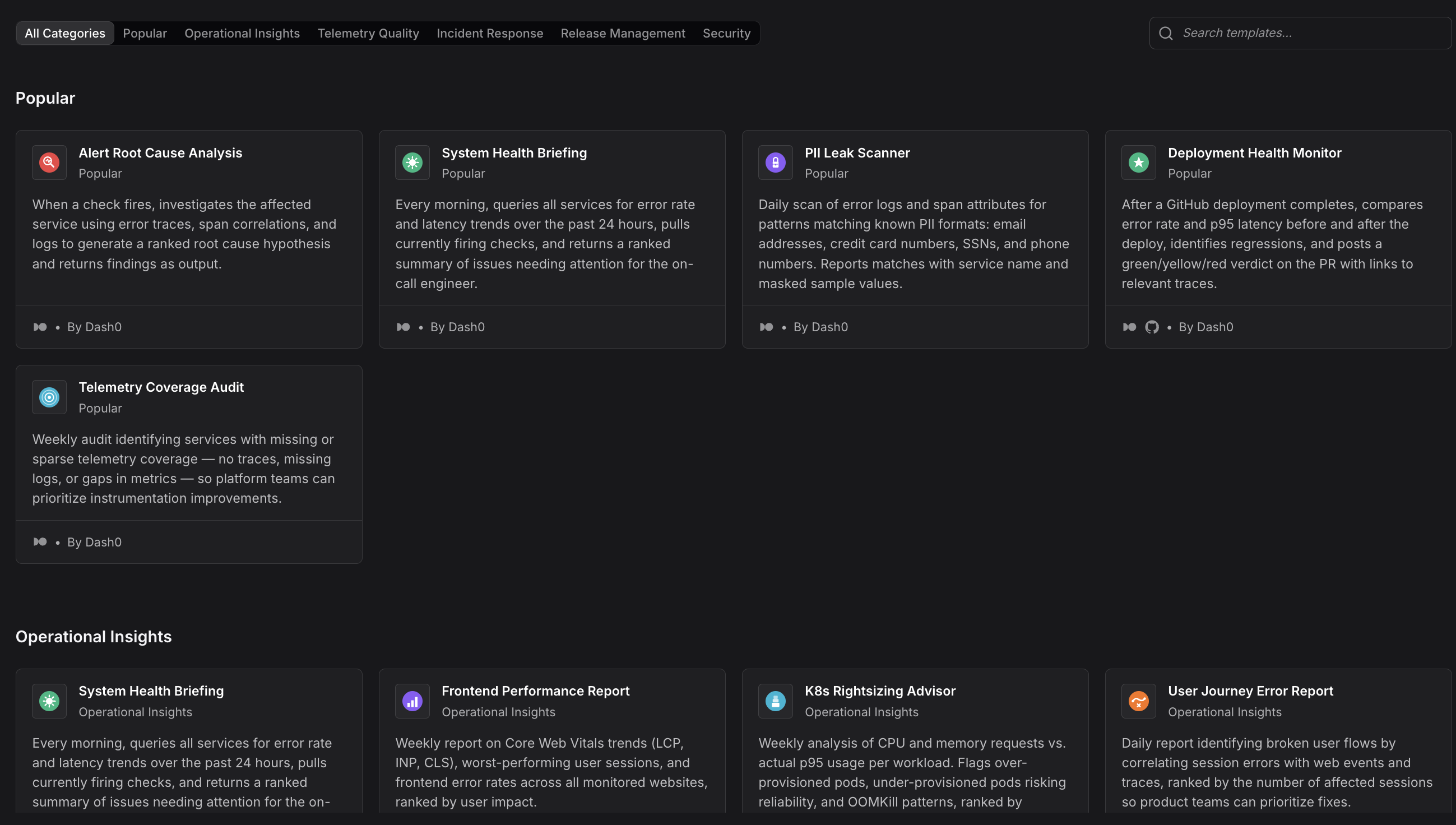
Templates include working configurations for common scenarios like incident triage, PR reviews, and deployment health monitoring.
- Navigate to Automations in the Dash0 sidebar.
- Click Templates to browse the catalog.
- Select a template that matches your use case.
- Review the pre-configured triggers, prompt, notifications, and guardrails.
- Customize the template to fit your needs.
- Click Create Automation.
See Use Templates for details on available templates.
Create from Scratch
Build automations step-by-step with full control over every configuration setting. Follow these guides for each component:
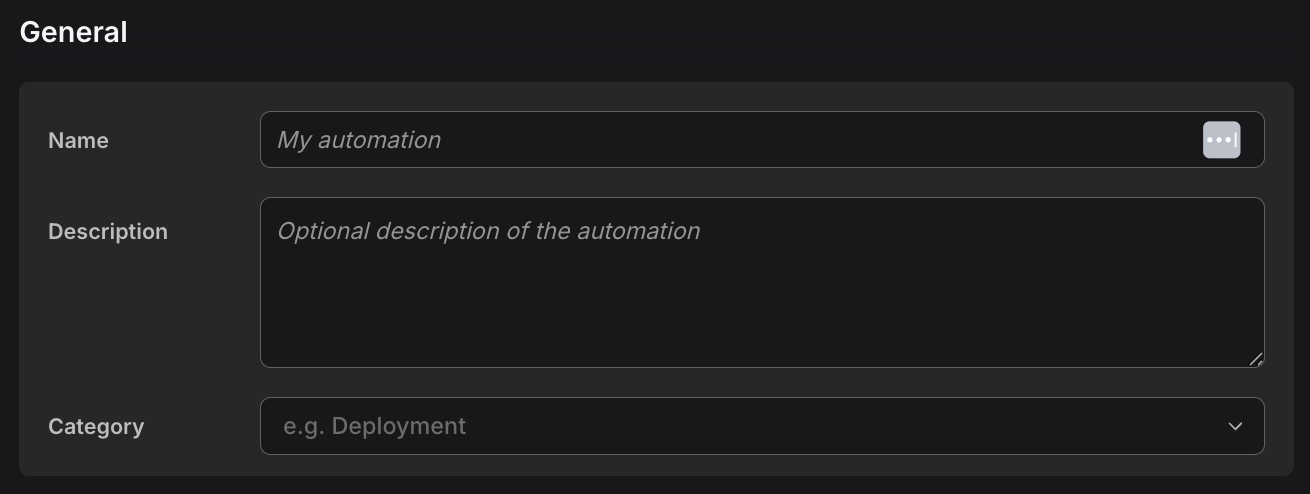
See Configure General Settings to set up basic automation information.
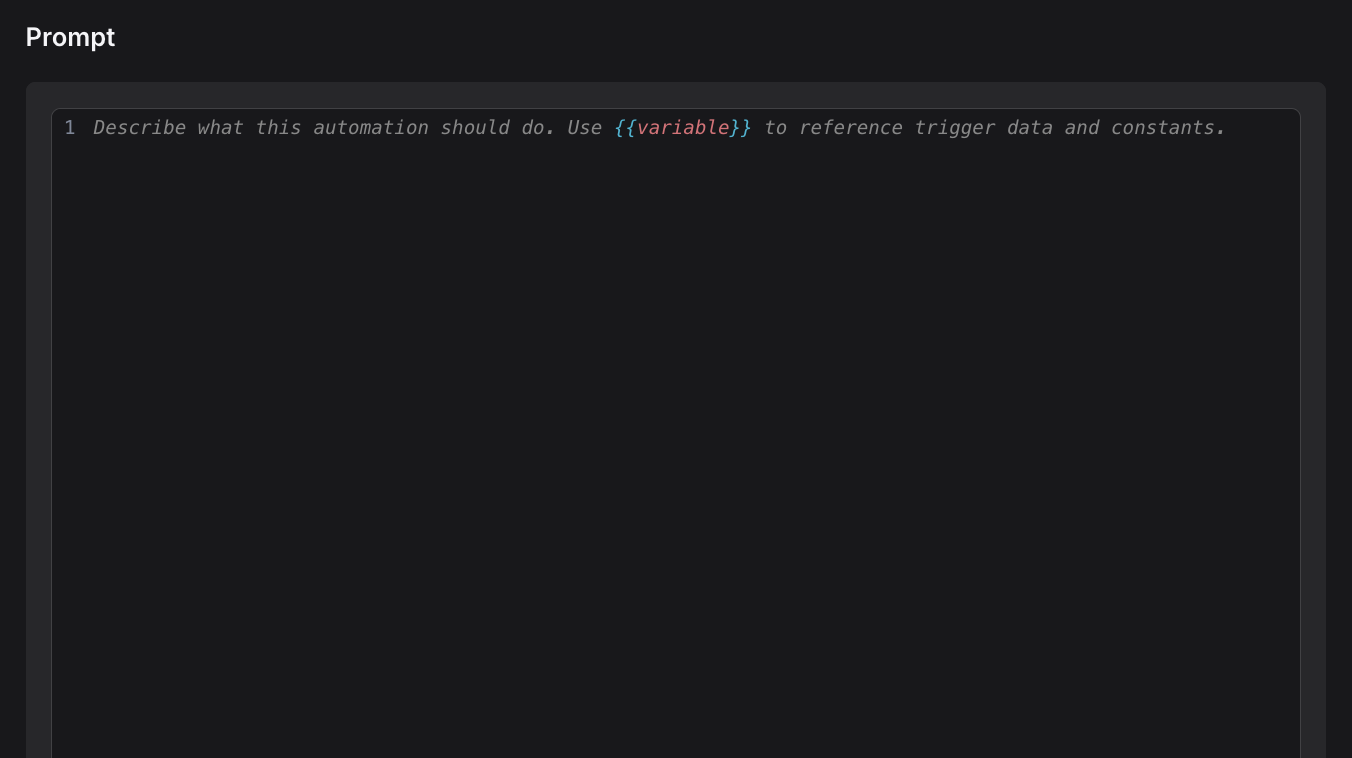
See Write Prompts to create effective instructions for Agent0.
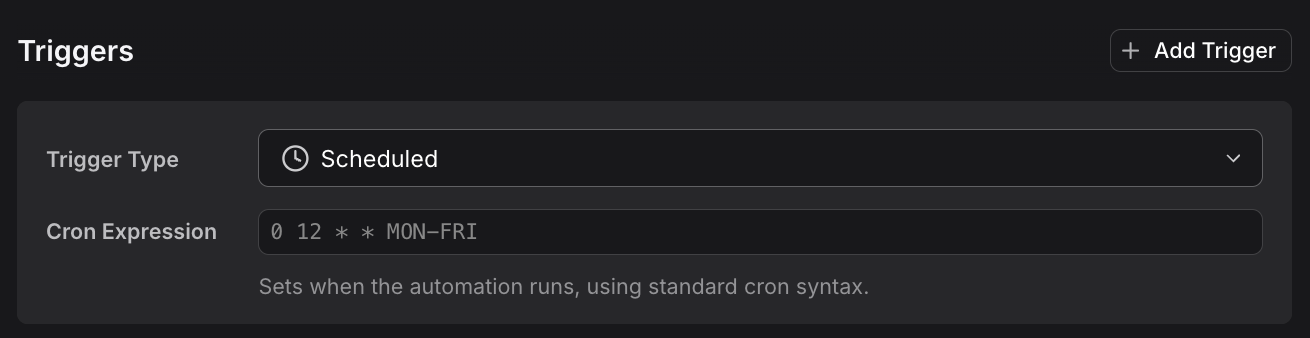
See Configure Triggers to define when automations run.
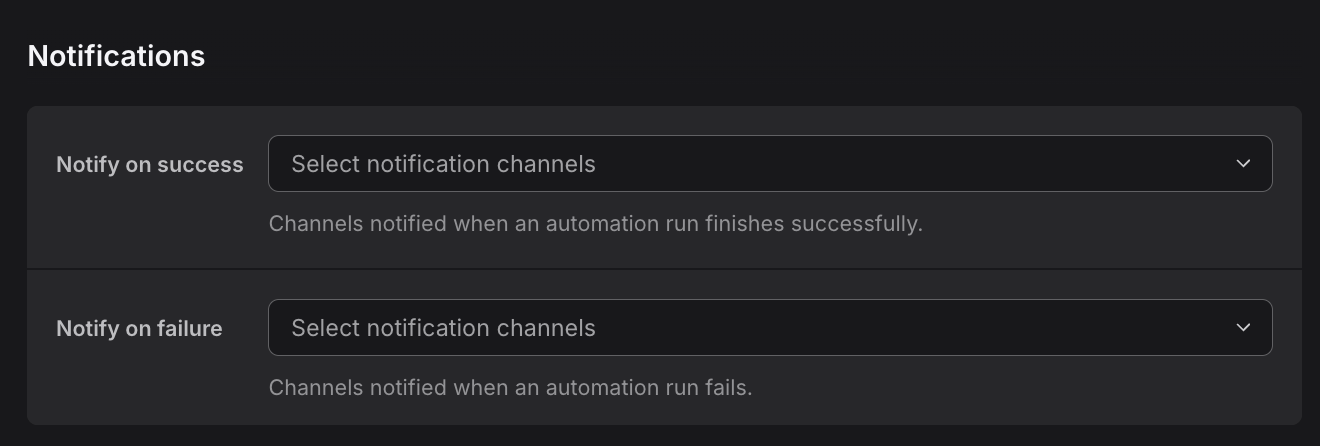
See Configure Notifications to set up alerts when automation runs complete or fail.
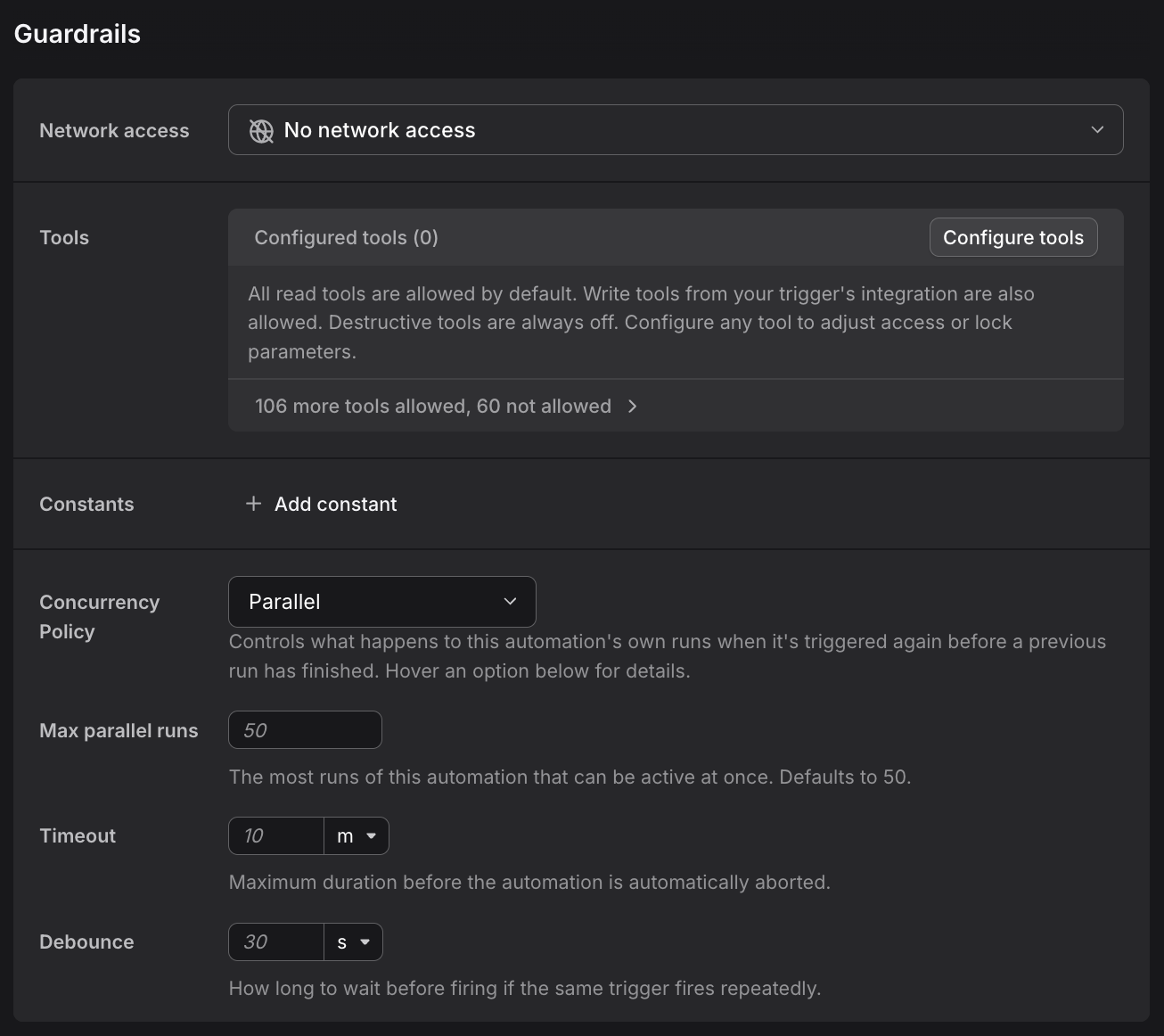
See Set Guardrails to control Agent0's behavior and ensure safe execution.
Test Your Automation
Before enabling an automation, test it using the Test automation button:

-
Open the automation in the editor.
-
Click Test automation to open the test dialog.
-
Choose your test method:
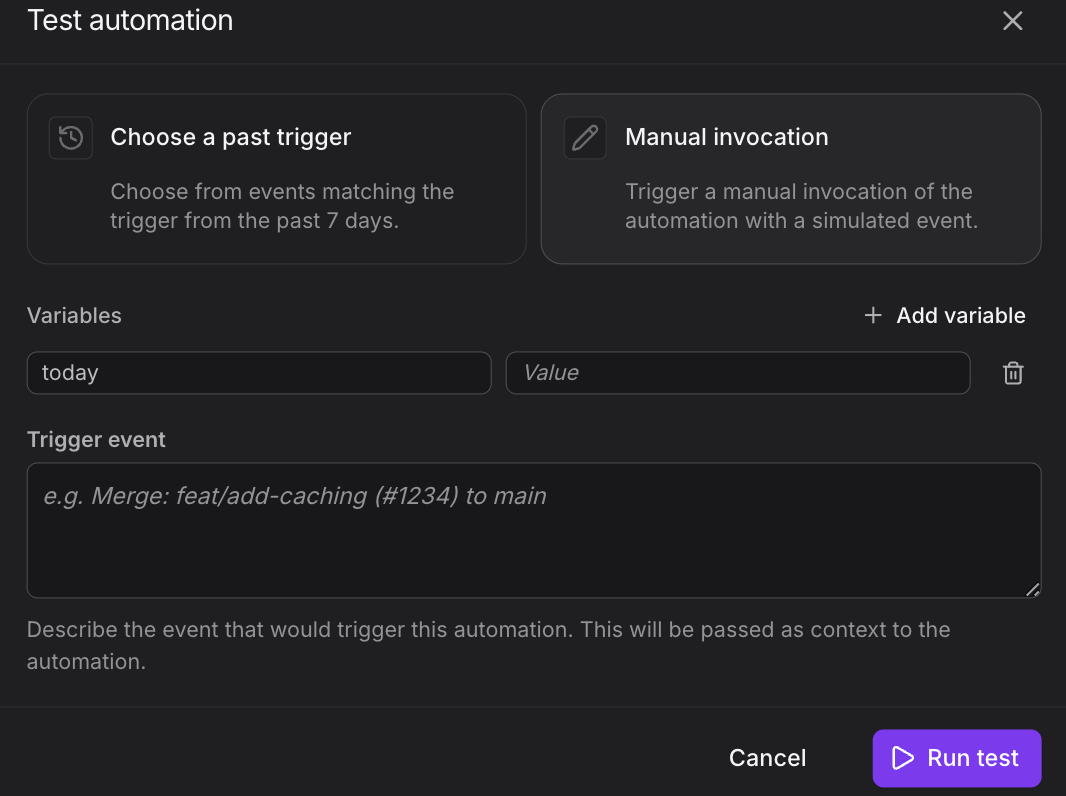
- Manual invocation: Trigger a manual invocation of the automation with a simulated event. Enter custom values for variables to test different scenarios.
- Choose a past trigger: Choose from events matching the trigger from the past 7 days. Replay a previous run's event data to debug "why did this behave differently?"
-
Click Run test.
-
Review the summary, tool calls, and status in the Runs tab.
-
If the run failed or didn't do what you expected, adjust the prompt or guardrails and test again.
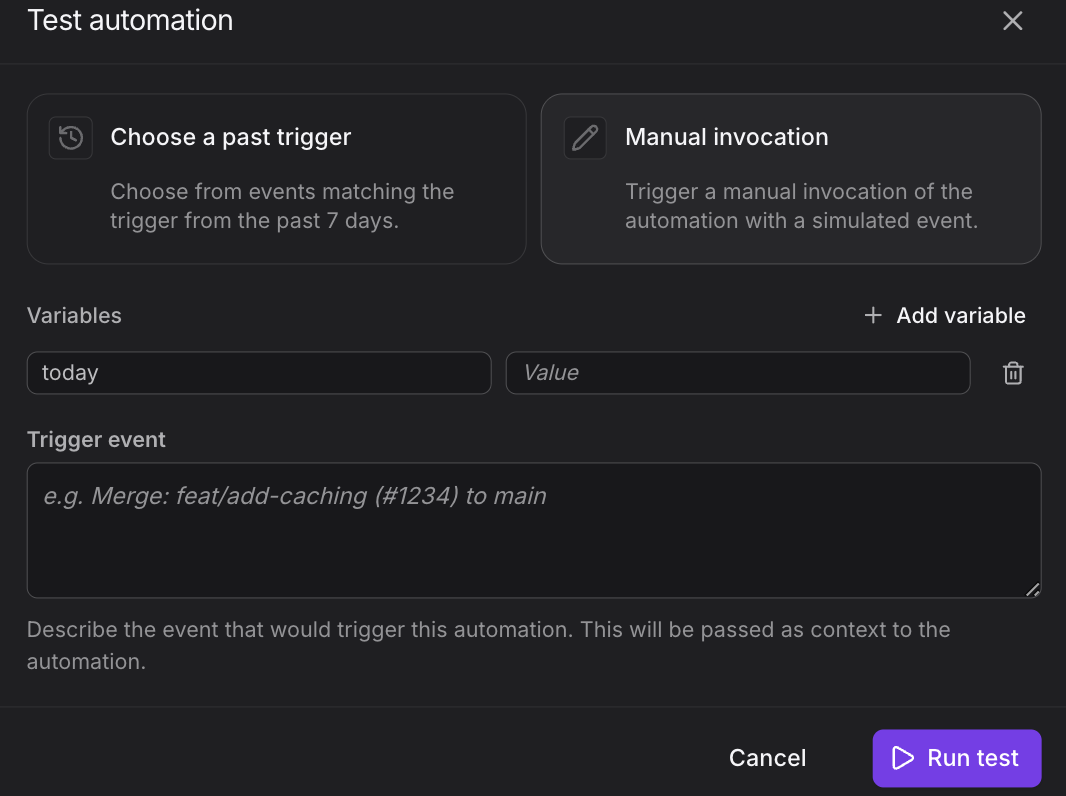
Use "Choose a past trigger" to reproduce issues. It replays the exact variables from a previous run, making it easy to debug unexpected behavior.
About Manual Invocation:
- Use built-in variables like
{{now}}and{{today}} - Trigger-specific variables will be empty unless you enter values
- Marked as "manual" trigger type in run history
- Don't actually trigger external events (safe to test Slack posting)
Enable and Monitor
Once testing is complete:
- Set Enabled to
truein the automation editor. - Click Save.
- Monitor runs in the Runs tab. Filter by status, trigger kind, or date range.
- Provide feedback on runs to help improve future executions.
Automations run in the background. You'll see results in the run history, and Agent0 will take actions like posting to Slack as configured.
Common Patterns
These patterns demonstrate typical automation use cases. Use them as inspiration when designing your own automations.
- Incident response: Trigger on failed checks or Slack mentions. Query Dash0 for metrics, logs, and traces related to the failing service. Post findings to a Slack channel.
- PR review assistance: Trigger on GitHub pull requests. Analyze the changed services for historical performance issues. Post recommendations to Slack. (Note: PR comments require Full Network access to use
ghCLI via bash.) - Scheduled reports: Run on a cron schedule. Query Dash0 for service health, error rates, and SLO compliance. Post a summary to Slack or send via webhook to an external system.
- Slack-driven queries: Trigger on Slack messages containing specific keywords. Parse the question, query Dash0, and respond in thread with the answer.
Troubleshooting
If automations don't behave as expected, see the Troubleshooting section for detailed solutions to common issues:
- Automation Doesn't Trigger — Why automations don't fire
- Run Fails with Guardrail Failure — Understanding guardrail violations
- Agent0 Doesn't Call Expected Tools — Tool access issues
- Variables Show as {{...}} — Variable resolution problems
- Missing Integration Warnings — Integration connection issues
Further Reading
- Configure General Settings — Set up basic automation information
- Configure Notifications — Set up alerts when automation runs complete or fail
- Configure Triggers — Define when automations run
- Set Guardrails — Control Agent0's behavior
- Use Templates — Pre-built automation templates
- Write Prompts — Create effective instructions for Agent0