
Last updated: October 1, 2026
Use Templates
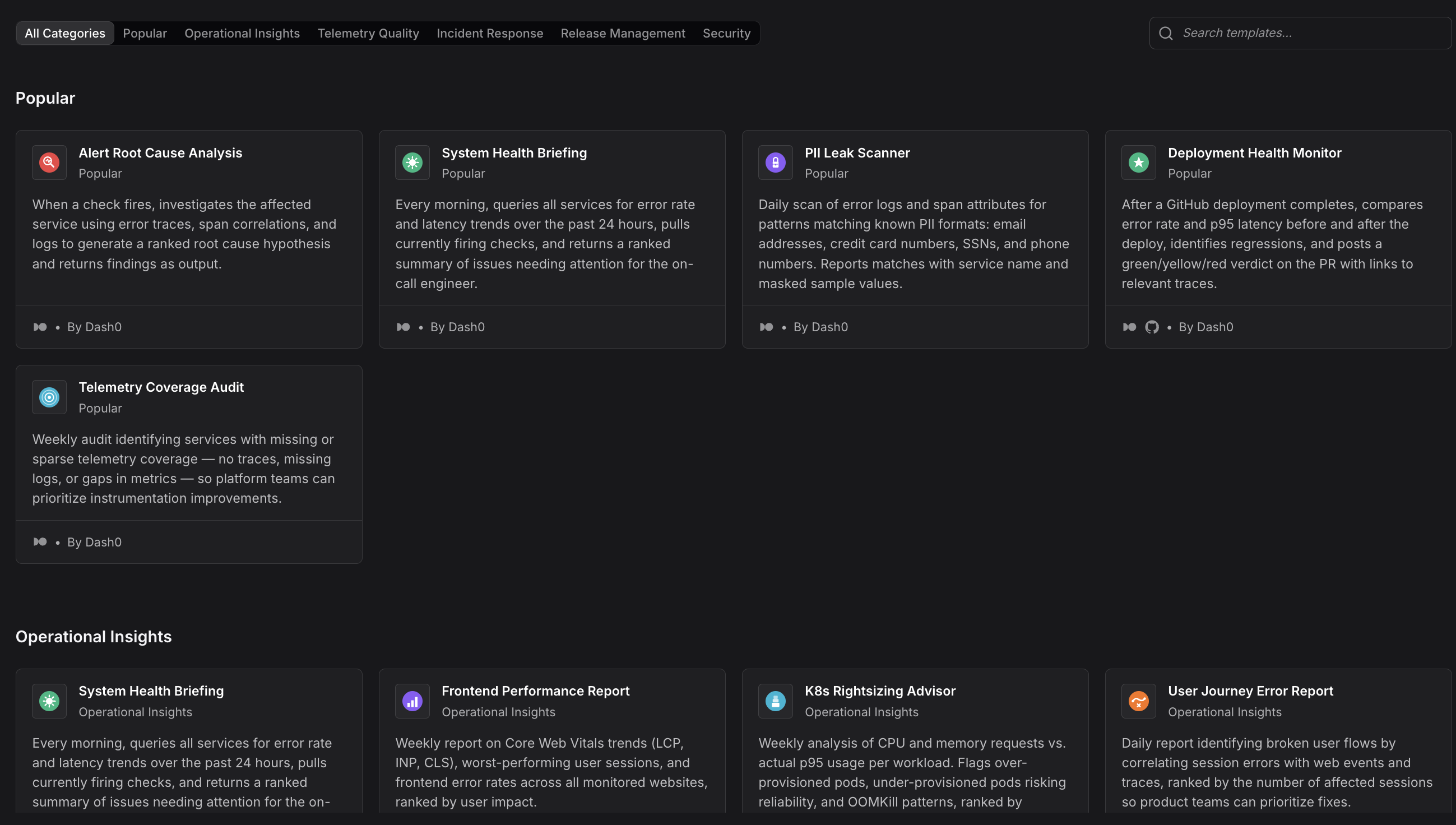
Use templates to start with pre-built automations for common use cases. Templates include working trigger configurations, well-crafted prompts, and guardrails tuned for safety and effectiveness.
Why Use Templates?
Templates provide:
- Quick start: Create a working automation in minutes without writing prompts or configuring guardrails from scratch.
- Best practices: Each template follows proven patterns for prompt clarity, tool selection, and guardrail configuration.
- Learning by example: Study templates to understand how triggers, variables, and guardrails work together.
- Customization starting points: Templates are fully editable. Adjust them to fit your specific needs, team conventions, and workflow requirements.
Browse Templates
- Navigate to Automations in the Dash0 sidebar.
- Click Templates to open the catalog.
- Browse by category or search by keyword.
- Click a template to view its configuration.
Each template shows:
- Description: What the automation does and when it's useful.
- Triggers: Pre-configured event types and filters.
- Prompt: The instruction Agent0 receives, with variables highlighted.
- Guardrails: Tool restrictions, timeouts, and concurrency policies.
- Variables: Event data exposed to the prompt.
Create from a Template
- Select a template from the catalog.
- Click on the template to open it in the automation editor.
- Review the pre-filled configuration.
- Customize the name, triggers, prompt, notifications, and guardrails as needed.
- Click Create Automation.
Templates are starting points. Feel free to adjust them to match your team's needs, such as changing Slack channels, adding filters, or modifying the prompt to include additional context.
Template Categories
Templates are organized by use case to help you find the right starting point quickly.
Incident Response
Automate initial investigation and triage when issues are detected.
- Triage Failed Checks: When a Dash0 check fails, query metrics, logs, and traces for the affected service. Post findings to Slack with recommended actions.
- Slack Incident Investigation: Respond to Slack messages mentioning specific keywords (like "incident" or a service name). Query Dash0 for recent errors, latency spikes, and active alerts. Reply in thread with analysis.
- Escalation Automation: When a critical check fails, query for root cause indicators and notify on-call engineers via Slack.
Pull Request Review
Help developers identify potential issues before merging.
- PR Performance Analysis: When a PR is opened, analyze changed services for historical performance issues. Check error rates, latency trends, and active alerts. Post findings to Slack if concerns are found. (Note: PR comments require Full Network access to use
ghCLI via bash.) - Dependency Review: List services that depend on code modified in a PR. Query Dash0 for health metrics of those services and post to Slack if any are experiencing issues.
Scheduled Reporting
Generate regular summaries of system health and performance.
- Daily Service Health Report: Every morning, query the top services by traffic, error rates, and latency. Post a summary to Slack with any services requiring attention.
- Error Rate Digest: Every hour, summarize new errors by service and severity. Post to Slack if error rates exceed thresholds.
Slack-Driven Queries
Empower team members to ask questions about system behavior directly in Slack.
- Service Status on Demand: Respond to Slack messages asking about service health. Parse the service name from the message, query Dash0, and reply with current status.
- Metric Queries from Slack: Let users request specific metrics via Slack commands. Agent0 parses the request, queries Dash0, and posts the result.
- Log Search Assistant: Respond to Slack requests for log searches. Query Dash0 logs based on keywords or filters provided in the message.
GitHub Automation
Respond to GitHub events with context from Dash0.
- Deployment Health Check: When a deployment completes, query Dash0 for the deployed service's error rate and latency. Post a summary to Slack.
- Release Notes with Observability Context: When a release is published, include a summary of service health changes since the last release. Post to Slack. (Note: Adding comments to GitHub requires Full Network access to use
ghCLI via bash.)
Customize Templates
Templates are fully editable and designed to be adapted to your specific needs. Common customizations include:
Change Slack Channels
Templates often reference specific Slack channels like #incidents or #daily-reports. Update these in:
- Trigger filters: Change
channelNamesin Slack triggers to match your channels. - Prompt: Update channel references in the prompt text.
- Tool parameter overrides: If the template pins a channel ID in guardrails, update it to your channel's ID.
Add Filters
Narrow trigger matching by adding filters:
- Slack triggers: Add
userHandlesto limit to specific users, orthreadOnly: trueto ignore top-level messages. - Check triggers: Add
checkRuleIDsto respond only to specific checks, orlabelFiltersto match checks with certain labels. - GitHub triggers: Add
repositoriesto limit to specific repos, oractionsto respond only to certain event types likeopenedorready_for_review. - GitLab triggers: Add
groupsorprojectsto scope to specific paths,actionson a Merge Request trigger to respond only to actions likeopenormerge, orkeywordon a Comment trigger to fire only on matching comments.
Adjust Prompts
Modify the prompt to:
- Add context: Include background information about your system, team conventions, or escalation procedures.
- Change output format: Ask for bulleted lists, tables, or specific data points instead of free-form summaries.
- Reference different variables: Use additional trigger variables or constants to pass more information to Agent0.
Tune Guardrails
Adjust guardrails to fit your risk tolerance and use case:
- Reduce timeouts: For simple queries, lower the timeout to catch runaway executions faster.
- Restrict tools: Remove write tools if the automation should only analyze data, not take actions.
- Add required tool calls: Ensure critical tools are always invoked by adding them to
requiredToolCalls. - Change concurrency: Switch from
paralleltoqueueif overlapping runs would conflict.
Create Your Own Template-Like Automations
Build a library of reusable automation patterns tailored to your team's specific needs.
If you create an automation that works well for a common use case, consider documenting it for your team:
- Export the automation definition (available via the API or UI).
- Replace organization-specific values (channel IDs, user handles) with placeholders or comments.
- Add documentation explaining the use case, expected triggers, and customization points.
- Share with your team as a starting point for similar automations.
Over time, your team can build a library of proven automation patterns tailored to your systems and workflows.
Template Best Practices
Well-designed templates share common characteristics that make them effective and easy to customize.
Templates follow these patterns:
- Clear, actionable prompts: Agent0 knows exactly what to do and what output is expected.
- Variables for flexibility: Prompts use variables like
{{check.name}}instead of hardcoding values, making templates reusable across different events. - Safe guardrails: Network access, allowed tools, and required tool calls are set to prevent unintended actions.
- Explicit output destinations: Prompts specify where to post results (Slack channel, webhook endpoint) instead of leaving it to Agent0's judgment.
- Testing instructions: Templates include guidance on how to test before enabling, such as sending a test Slack message or triggering a manual run.
Apply these patterns when customizing templates or creating new automations from scratch.
Limitations
Templates provide a starting point but require customization for production use.
Templates are general-purpose and may need adjustments for:
- Organization-specific integrations: If your Slack workspace, GitHub organization, or Linear workspace has specific conventions, update the template accordingly.
- Custom labels and annotations: Templates use generic label/annotation filters. Replace them with your actual label keys.
- Dataset-specific queries: Some templates reference default datasets. Update to match your organization's dataset structure.
Templates are starting points, not production-ready configurations. Always test and customize before enabling in production.
Find the Right Template
Locate the best template for your use case using search, filters, and trigger matching.
Use the catalog's search and filter features:
- Search by keyword: Enter terms like "incident", "deploy", "PII", or "telemetry" to find relevant templates.
- Filter by category: Narrow to incident response, reporting, or GitHub automation.
- Review trigger kinds: Check which triggers the template uses to ensure they match your integration setup.
If no template fits perfectly, pick the closest match and customize it. Combining elements from multiple templates is also effective — use the trigger from one and the prompt structure from another.
Further Reading
- About Automations — Overview of event-driven AI workflows
- Create Automations — Getting started with automations
- Write Prompts — Create effective instructions for Agent0
- Configure Triggers — Define when automations run
- Set Guardrails — Control Agent0's behavior