
Last updated: October 1, 2026
Configure Triggers
Configure triggers to define when an automation runs. Each trigger responds to specific events like Slack messages, failed checks, GitHub activity, or scheduled times. When an event matches your trigger configuration, the automation executes with variables populated from that event.
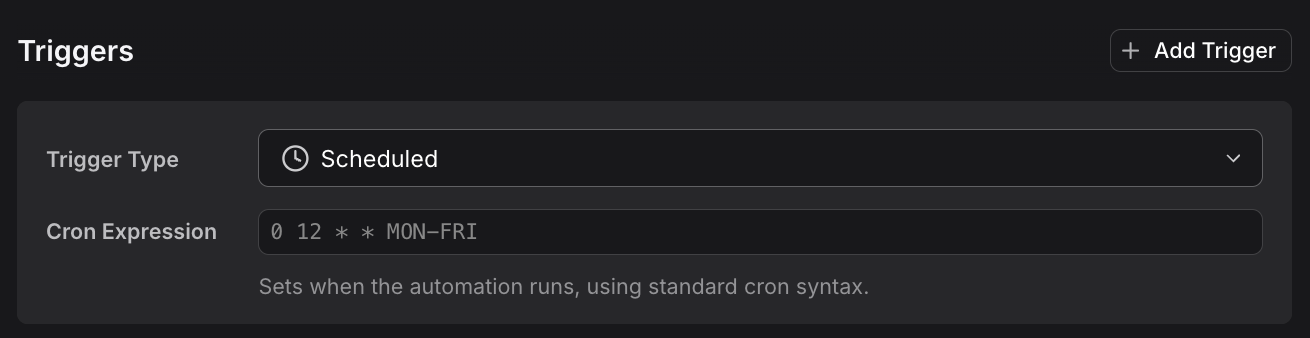
Add a Trigger
- Click Add Trigger in the automation editor.
- Select the trigger type from the dropdown.
- Fill in the filter fields to specify which events should match.
- Review the available variables you can use in your prompt.
You can add multiple triggers to one automation. The first trigger that matches an incoming event will fire the automation.
Essential Variables
These variables work in every automation, regardless of trigger type:
- {{now}}: Current timestamp (e.g.,
2026-06-13T14:30:00Z) - {{today}}: Current date (e.g.,
2026-06-13) - {{slack.channel.name}}: Slack channel where the trigger fired (Slack triggers only)
- {{slack.message.text}}: Message content (Slack message triggers only)
- {{check.name}}: Name of the failed check (check triggers only)
- {{github.repository}}: Repository name (GitHub triggers only)
- {{gitlab.project}}: Project path (GitLab triggers only)
The prompt editor shows available variables as you type. Start typing {{ to see autocomplete suggestions for the selected trigger type.
When to Use Constants
Constants are custom values you define once and reuse across automation runs. Use constants for:
- Environment names:
{{environment}}set toproductionorstaging - Default channels:
{{alert_channel}}set toincidents - Team identifiers:
{{team}}set toplatform-team - Common timeframes:
{{default_window}}set to1h
To define constants:
- Navigate to the Guardrails section in the automation editor
- Find the Constants subsection
- Click Add Constant
- Enter a key (e.g.,
environment) and value (e.g.,production) - Reference in your prompt:
{{environment}}
Slack Message Trigger
Fires when someone posts a message containing specific text in a Slack channel where the Dash0 bot is a member.
For detailed Slack integration setup, trigger configuration, and usage examples, see Set Up Slack Integration, Configure Slack Triggers, and Use Slack Tools.
Configuration Fields
- Message Keyword: Required. The text that must appear anywhere in the message (case-insensitive substring match). Examples:
"investigate"matches "Let's investigate this issue","checkout"matches "Please checkout service logs","is down"matches "API is down" - Channel Names: Optional. Limit to specific channels (without
#). Leave empty to match all channels. - User Handles: Optional. Only match messages from these users (without
@). Leave empty to match all users. - Thread Only: Optional. Check this to only trigger on threaded replies, not top-level messages.
Available Variables
- {{slack.channel.name}}: Channel name (e.g.,
incidents) - {{slack.message.text}}: Full message text
- {{slack.user.handle}}: Username who posted (e.g.,
jane.doe) - {{slack.thread.timestamp}}: Thread ID if message was in a thread
Example Prompt
12345{{slack.user.handle}} mentioned an issue in #{{slack.channel.name}}.Message: "{{slack.message.text}}"Extract the service name, query Dash0 for error rate and latency over the last hour, and respond in thread with your findings.
The Dash0 Slack bot must be a member of the channel. Invite it with /invite @dash0 in the channel.
Slack Reaction Trigger
Fires when someone adds a specific emoji reaction to a message.
Configuration Fields
- Emojis: Required. Which emojis trigger the automation (without colons). Examples:
eyes,rocket,white_check_mark - Channel Names: Optional. Limit to specific channels.
- User Handles: Optional. Only trigger when these users add reactions.
Available Variables
Same as Slack message triggers, plus:
- {{slack.reaction.emoji}}: The emoji that was added (e.g.,
eyes)
Example Prompt
12345Someone reacted with :{{slack.reaction.emoji}}: to a message. Treat this as a request to investigate.Original message: "{{slack.message.text}}"Parse the message for service names and query Dash0 for recent issues. Post your findings in thread.
Failed Check Trigger
Fires when a Dash0 check fails. Ideal for automatic incident response.
Configuration Fields
- Check rule IDs: Optional. Only trigger for specific checks. Leave empty to trigger on any failed check.
- Label filters: Optional. Filter by check labels (e.g., only checks with
severity: high). - Annotation filters: Optional. Filter by check annotations.
Available Variables
- {{check.name}}: Name of the failed check
- {{check.id}}: Check's unique ID
- {{label.service}}: Service name from check labels (if present)
- {{label.*}}: Any other labels on the check
Use {{label.service}} to automatically target the affected service in your queries. For example: "Query error rate for service {{label.service}}".
Example Prompt
12345678Check "{{check.name}}" failed for service {{label.service}}.Query the following for the last 30 minutes:- Error rate and top 5 error messages- p99 latency trend- Recent log errorsPost your analysis to #incidents with recommended next steps.
Schedule Trigger
Runs periodically based on a cron schedule.
Configuration Fields
- Cron Expression: Required. When the automation should run. Supported formats:
- Standard cron:
0 9 * * MON-FRI(9am weekdays) - Shortcuts:
@hourly,@daily,@weekly - Intervals:
@every 15m,@every 2h
- Standard cron:
Available Variables
- {{cron}}: The cron expression that triggered this run
Example Prompt
12345678Daily health report for {{today}}.Query all services with error rate > 2% in the last 24 hours. For each service, include:- Error count and error rate- p99 latency- Active check failuresPost the summary to #daily-reports.
GitHub Pull Request Trigger
Fires when pull requests are opened, updated, or closed in your connected GitHub repositories.
Configuration Fields
- Actions: Optional. Which PR events to match (e.g.,
opened,ready_for_review,synchronize). Leave empty to match all actions. - Accounts: Optional. Only match repositories from these GitHub accounts or organizations.
- Repositories: Optional. Only match specific repositories (format:
owner/repo).
Available Variables
- {{github.repository}}: Full repository name (e.g.,
dash0hq/dash0) - {{github.action}}: What happened (e.g.,
opened,synchronize) - {{github.account}}: GitHub account or organization name
Example Prompt
12345678Pull request {{github.action}} in {{github.repository}}.Review the changes for services that might be affected. Query Dash0 for:- Error rates over the last 7 days- Latency trends- Active check failuresIf you find concerning patterns, summarize your analysis.
Requires the GitHub integration to be connected. GitHub PR comments require Full Network access (use gh CLI via bash). Each Dash0 organization can connect one GitHub account.
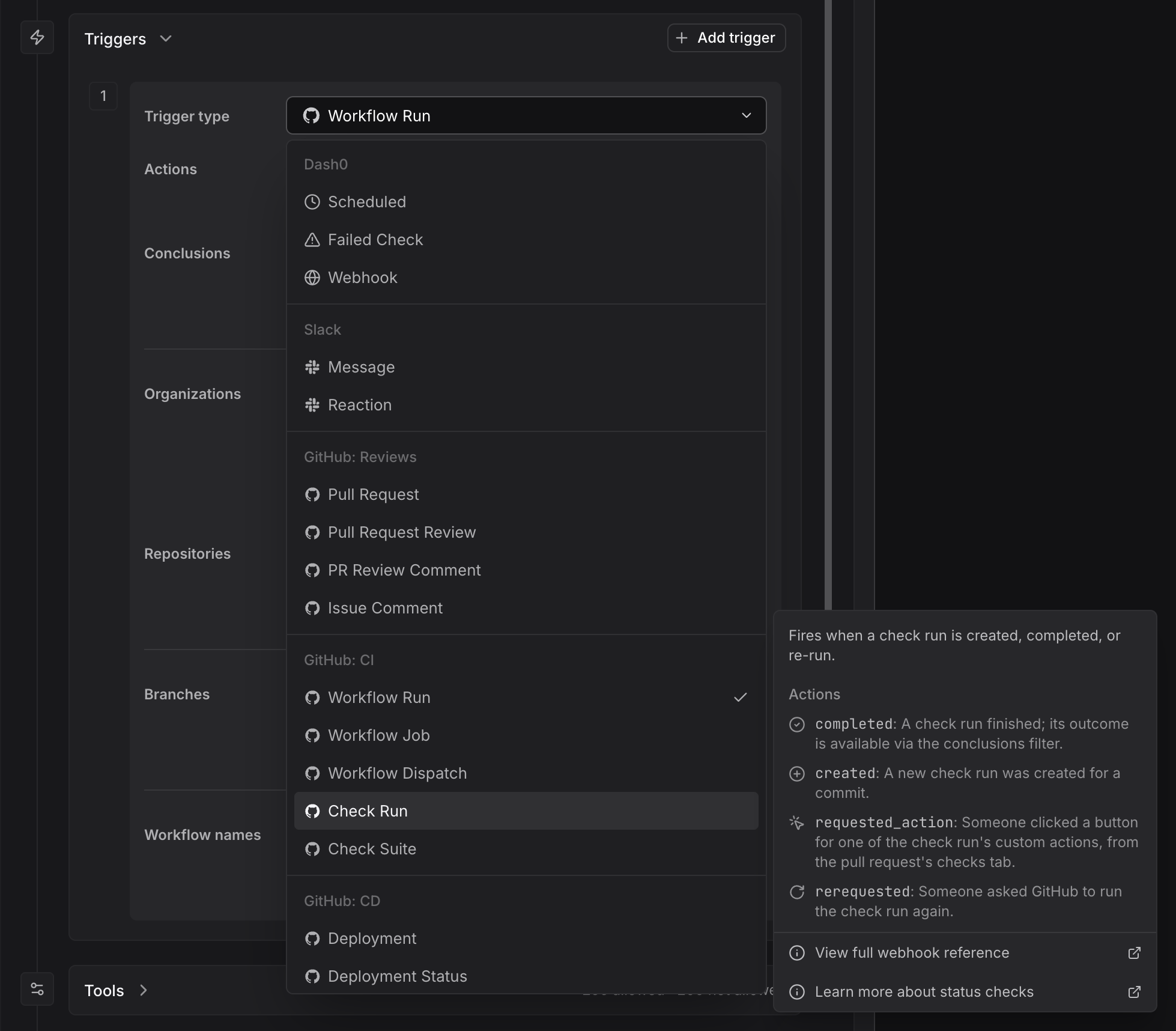
GitHub Workflow Run Trigger
Fires on GitHub Actions workflow run lifecycle events: requested, in progress, or completed.
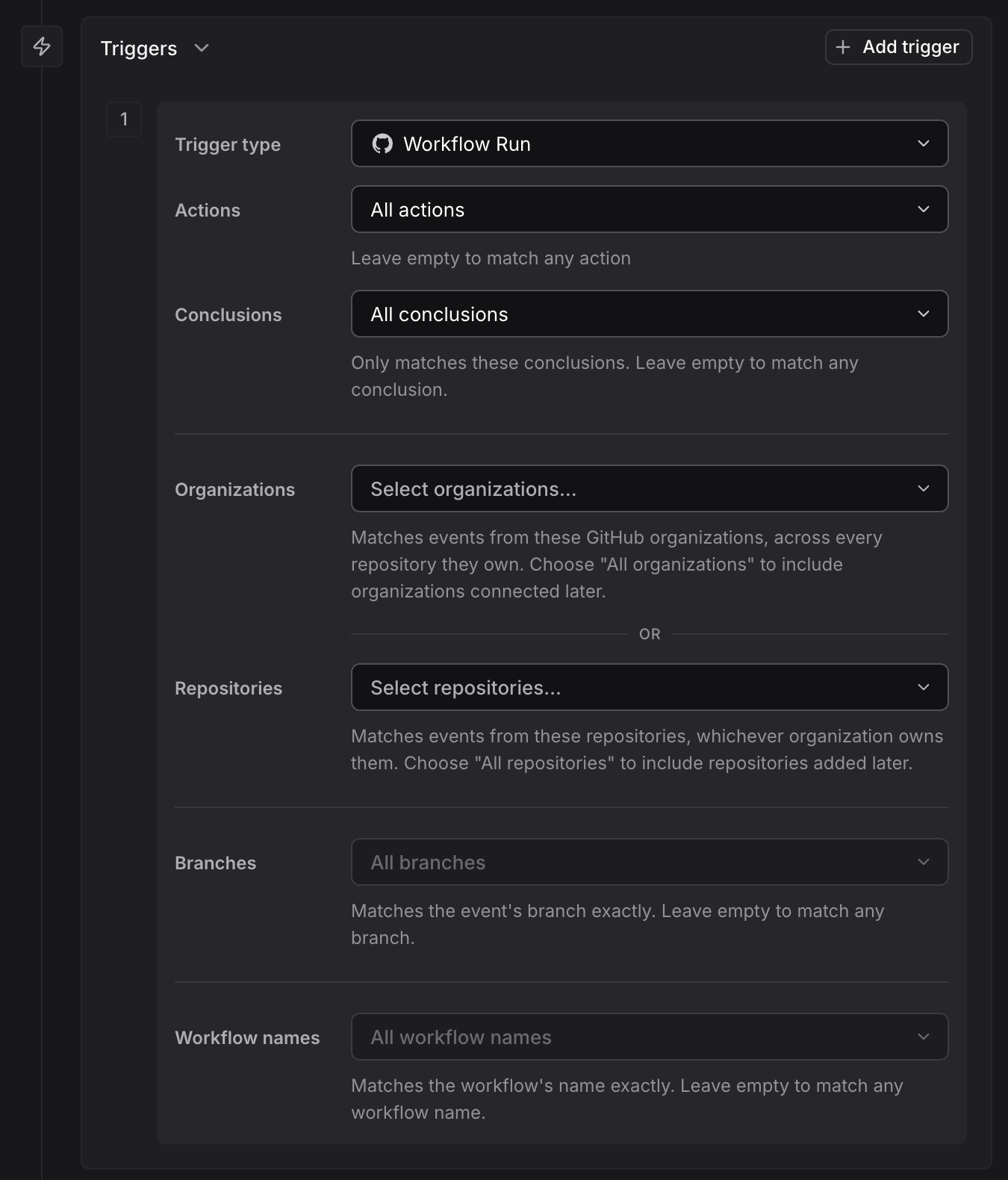
Configuration Fields
- Actions: Optional. Which workflow run events to match:
requested,in_progress,completed. Leave empty to match all actions. - Conclusions: Optional. Only match completed runs with these conclusions (e.g.
success,failure,cancelled). Leave empty to match any conclusion. - Organizations: Optional. Only match repositories from these GitHub organizations.
- Repositories: Optional. Only match specific repositories (format:
owner/repo). - Branches: Optional. Only match runs on these branches. Leave empty to match any branch.
- Workflow names: Optional. Only match these workflows by their display name (e.g.
CI). Leave empty to match any workflow.
Available Variables
- {{github.repository}}: Full repository name (e.g.,
dash0hq/dash0) - {{github.workflow_run.id}}: The workflow run ID
- {{github.workflow_run.name}}: The name of the workflow, e.g.
CI - {{github.workflow_run.head_branch}}: The branch the workflow ran on
- {{github.workflow_run.conclusion}}: The conclusion of the run, e.g.
success,failure(empty unless the run has completed) - {{github.workflow_run.url}}: Direct link to the workflow run
Example Prompt
123Workflow "{{github.workflow_run.name}}" {{github.action}} on {{github.workflow_run.head_branch}} in {{github.repository}}.If the conclusion is "failure", query Dash0 for recent deploys and error rates on the affected service, and post a summary to #ci-alerts.
GitHub Workflow Job Trigger
Fires on individual job lifecycle events within a workflow run: queued, waiting, in progress, or completed.
Configuration Fields
Same Organizations, Repositories, and Branches fields as the Workflow Run trigger, plus:
- Actions: Optional. Which job events to match:
queued,waiting,in_progress,completed. Leave empty to match all actions. - Conclusions: Optional. Only match completed jobs with these conclusions (e.g.
success,failure,cancelled). Leave empty to match any conclusion. - Workflow names: Optional. Only match jobs belonging to these workflows by display name (e.g.
CI) — this matches the job's parent workflow, not the job's own name. Leave empty to match any workflow.
Available Variables
- {{github.workflow_job.id}}: The job ID
- {{github.workflow_job.name}}: The job's own name, e.g.
test (3.9) - {{github.workflow_job.workflow_name}}: The name of the workflow the job belongs to, e.g.
CI - {{github.workflow_job.head_branch}}: The branch the job ran on
- {{github.workflow_job.conclusion}}: The conclusion of the job, e.g.
success,failure(empty unless the job has completed) - {{github.workflow_job.url}}: Direct link to the workflow job
Example Prompt
123Job "{{github.workflow_job.name}}" in workflow "{{github.workflow_job.workflow_name}}" {{github.action}}.If it failed, summarize the likely cause from recent commits on {{github.workflow_job.head_branch}} and post to #ci-alerts.
GitHub Workflow Dispatch Trigger
Fires when a workflow is manually or programmatically dispatched (GitHub's "Run workflow" button, or the workflow_dispatch API).
Configuration Fields
- Organizations: Optional. Only match repositories from these GitHub organizations.
- Repositories: Optional. Only match specific repositories (format:
owner/repo). - Branches: Optional. Only match dispatches against these branches or tags. Leave empty to match any.
- Workflow names: Optional. Only match these workflow files by path (e.g.
.github/workflows/ci.yml), not display name. Leave empty to match any workflow file.
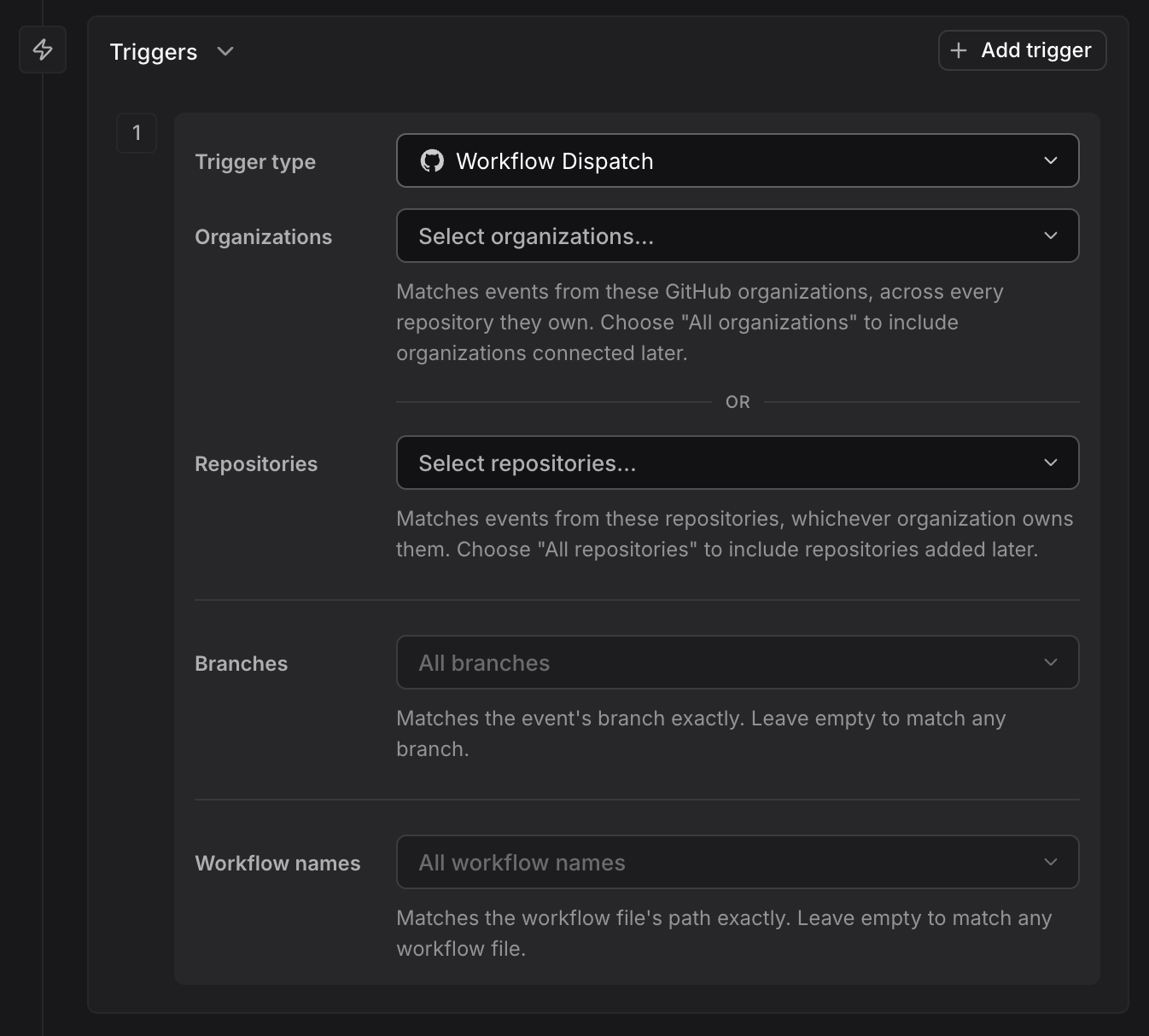
Unlike the other GitHub workflow triggers, Workflow Dispatch has no Actions or Conclusions field — there's only one dispatch event, and no completion state to filter on.
Available Variables
- {{github.repository}}: Full repository name (e.g.,
dash0hq/dash0) - {{github.workflow_dispatch.ref}}: The branch or tag ref the workflow was dispatched against
- {{github.workflow_dispatch.workflow}}: The dispatched workflow's file path, e.g.
.github/workflows/ci.yml - {{github.workflow_dispatch.inputs}}: The inputs provided to the manual dispatch, as JSON
Example Prompt
123Workflow {{github.workflow_dispatch.workflow}} was manually dispatched against {{github.workflow_dispatch.ref}} in {{github.repository}}.Query Dash0 for the last successful deploy to compare against, and post a summary to #deploys.
GitHub Check Run Trigger
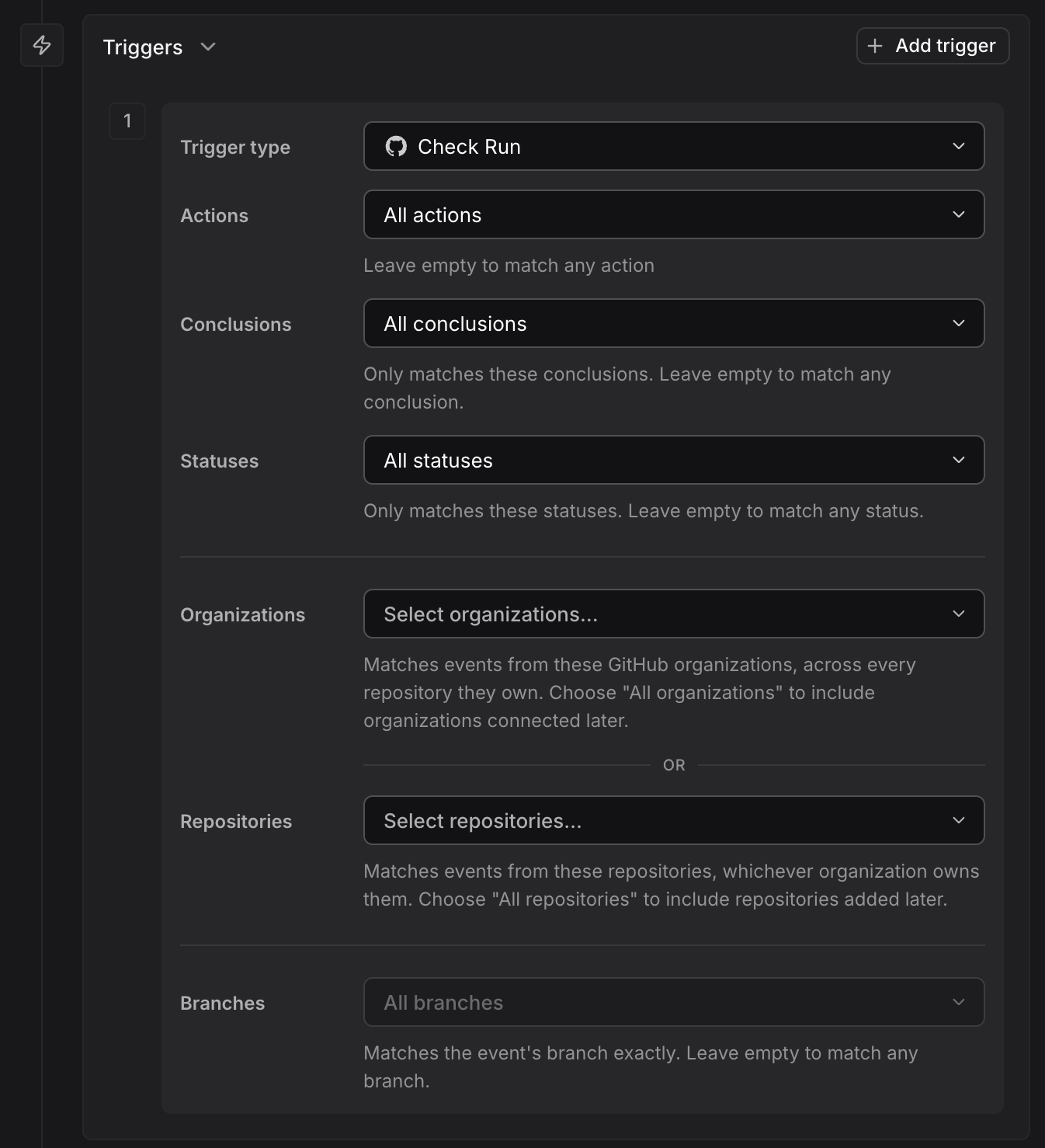
Fires on individual check run lifecycle events — the checks GitHub Apps (including third-party CI tools) report on a commit.
Configuration Fields
- Actions: Optional. Which check run events to match:
created,rerequested,requested_action,completed. Leave empty to match all actions. - Conclusions: Optional. Only match completed check runs with these conclusions (e.g.
success,failure,neutral). Leave empty to match any conclusion. - Statuses: Optional. Only match check runs with these statuses:
queued,in_progress,completed,pending. Leave empty to match any status. - Organizations: Optional. Only match repositories from these GitHub organizations.
- Repositories: Optional. Only match specific repositories (format:
owner/repo). - Branches: Optional. Only match check runs on these branches. Leave empty to match any branch.
Available Variables
- {{github.check_run.id}}: The check run ID
- {{github.check_run.name}}: The name of the check run, e.g.
lint - {{github.check_run.head_branch}}: The branch the check run's commit is on
- {{github.check_run.status}}: The check run's status, e.g.
in_progress,completed - {{github.check_run.conclusion}}: The conclusion of the check run, e.g.
success,failure(empty unless completed) - {{github.check_run.url}}: Direct link to the check run
Example Prompt
123Check run "{{github.check_run.name}}" {{github.action}} on {{github.check_run.head_branch}}.If the conclusion is "failure", query Dash0 for the affected service's recent error rate and post findings to #ci-alerts.
GitHub Check Suite Trigger
Fires on check suite lifecycle events — the aggregate of every check run GitHub groups together for one commit.
Configuration Fields
Same Organizations, Repositories, and Branches fields as the Check Run trigger, plus:
- Actions: Optional. Which check suite events to match:
requested,rerequested,completed. Leave empty to match all actions. - Conclusions: Optional. Only match completed check suites with these conclusions (e.g.
success,failure,neutral). Leave empty to match any conclusion. - Statuses: Optional. Only match check suites with these statuses:
requested,queued,in_progress,completed,pending. Leave empty to match any status.
Available Variables
- {{github.check_suite.id}}: The check suite ID
- {{github.check_suite.head_branch}}: The branch the check suite's commit is on
- {{github.check_suite.conclusion}}: The conclusion of the check suite, e.g.
success,failure(empty unless completed) - {{github.check_suite.status}}: The check suite status, e.g.
completed,in_progress
Example Prompt
123Check suite {{github.action}} on {{github.check_suite.head_branch}}, status {{github.check_suite.status}}.If the conclusion is "failure", summarize which checks failed and post to #ci-alerts.
Other GitHub Triggers
Dash0 supports additional GitHub trigger types:
- Deployment: Fires when deployments are created or updated
- Deployment Status: Fires when deployment status changes
- Pull Request Review: Fires when reviews are submitted
- Pull Request Review Comment: Fires on review comments
- Release: Fires when releases are published
All use the same configuration fields and variables as pull request triggers.
GitLab: Merge Request Trigger
Fires on merge request activity: opened, closed, reopened, merged, approved, and updates such as new commits.
The trigger fires only once the integration's webhook URL is registered in GitLab, on a group or on an individual project. See Set Up GitLab Integration for the webhook steps.
Configuration Fields
- Groups: Optional. Comma-separated full group paths (e.g.
acme/backend). A group covers every project beneath it, at any depth. Leave Groups and Projects empty to match every project the integration watches. - All groups: Optional. Fire for every group the organization has connected. Leave off to name a group or project instead.
- Instances: Optional. Comma-separated instance hosts (e.g.
gitlab.com,gitlab.acme.io). Only needed when the organization has more than one GitLab integration, because a group path is unique within an instance, not across them. - All projects: Optional. Fire for every project on the connected instances.
- Projects: Optional. Comma-separated full project paths (e.g.
acme/backend/api). Groups and Projects are alternatives, so an event matching either fires the automation. - Actions: Optional. Comma-separated merge request actions:
open,close,reopen,update,merge,approved,unapproved. Leave empty to match all actions.
Available Variables
- {{gitlab.instance}}: Instance host the event came from (e.g.
gitlab.com) - {{gitlab.project}}: Full project path (e.g.
acme/backend/api) - {{gitlab.group}}: Full group path (e.g.
acme/backend) - {{gitlab.user}}: GitLab user who triggered the event
- {{gitlab.action}}: Merge request action (e.g.
open,merge) - {{gitlab.merge_request.iid}}: Merge request IID (project-scoped number)
- {{gitlab.merge_request.title}}: Merge request title
- {{gitlab.merge_request.url}}: Direct link to the merge request
Example Prompt
123Merge request {{gitlab.action}} in {{gitlab.project}}: "{{gitlab.merge_request.title}}" ({{gitlab.merge_request.url}}).Review the changes for services that might be affected. Query Dash0 for error rates and latency over the last 7 days, and summarize any concerning patterns.
GitLab: Comment Trigger
Fires when a comment is added to a merge request, issue, commit, or snippet. Add a keyword to fire only on comments containing it.
Configuration Fields
Same Groups, All groups, Instances, All projects, and Projects fields as the Merge Request trigger, plus:
- Keyword: Optional. Fires only on comments containing this whole word, case-insensitively. Leave empty to fire on every comment, which on a busy project is a great many.
Available Variables
- {{gitlab.instance}}: Instance host the event came from
- {{gitlab.project}}: Full project path
- {{gitlab.group}}: Full group path
- {{gitlab.user}}: GitLab user who added the comment
- {{gitlab.comment.body}}: Comment text
- {{gitlab.noteable_type}}: What the comment is on (
MergeRequest,Issue,Commit, orSnippet) - {{gitlab.merge_request.iid}}: Merge request IID, when the comment is on a merge request
- {{gitlab.merge_request.title}}: Merge request title, when the comment is on a merge request
- {{gitlab.merge_request.url}}: Link to the merge request, when the comment is on a merge request
Example Prompt
12345{{gitlab.user}} commented on {{gitlab.noteable_type}} in {{gitlab.project}}.Comment: "{{gitlab.comment.body}}"Treat this as a request to investigate. Query Dash0 for the affected service's recent health and reply with your findings.
GitLab triggers require the GitLab integration. When an automation acts in GitLab, it acts as the automation's creator, not as a shared bot, because GitLab has no bot identity to fall back on. The creator must have connected their own GitLab account, and read-write work needs a read-write connection. An automation created through the API, the CLI, or Terraform has no recorded creator and cannot act in GitLab. Agent0 raises gitlab_automation_no_acting_user when there is no one to act as. See Use GitLab in Chat and Automations.
Linear Comment Trigger
Fires when Dash0 is @mentioned or delegated on a Linear issue AND the comment contains a specific keyword.
Configuration Fields
- Keyword: Required. Keyword that must appear in the comment (case-insensitive substring match). Only comments containing this keyword will trigger the automation.
Available Variables
- {{linear.issue.title}}: Issue title
- {{linear.issue.id}}: Issue ID (e.g.,
ENG-123) - {{linear.issue.url}}: Direct link to the issue
- {{linear.comment.body}}: Comment text
- {{linear.comment.user}}: Who added the comment
Example Prompt
123Comment added to Linear issue "{{linear.issue.title}}".The comment contains the keyword indicating investigation is needed. Query the mentioned service's health in Dash0 and summarize your findings.
The Linear connector is read-only. Agent0 can query Linear issues but cannot post comments back to Linear. Results can be posted to Slack or other integrations.
Webhook Trigger
Fires when an HTTP POST request is sent to the automation's unique webhook URL. Use webhooks to trigger automations from external systems, CI/CD pipelines, monitoring tools, or custom integrations.
Configuration Fields
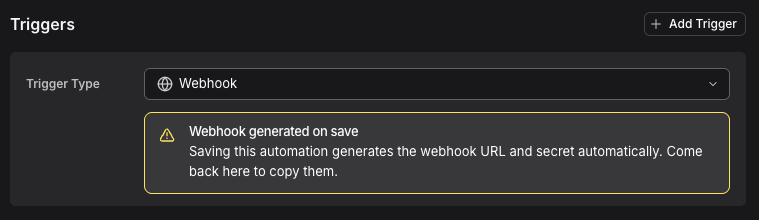
No configuration fields required. Each automation with a webhook trigger gets a unique URL and secret, generated automatically the first time you save.
Webhook URL
After adding a webhook trigger to your automation:
- Save the automation. The webhook URL and secret aren't generated until the first save.
- Come back to the trigger configuration. The webhook URL and secret now appear.
- Copy the URL and configure it in your external system.
The URL path format is /api/agentic-workflows/trigger/{webhookId} where {webhookId} is a unique opaque identifier for this webhook trigger. The full URL is region-specific and shown in the trigger configuration.
Testing the Webhook
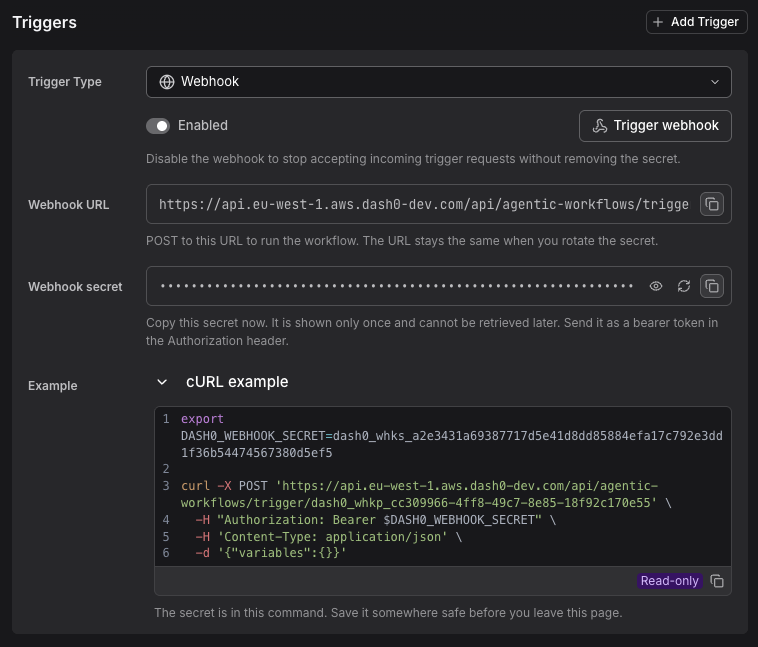
The trigger configuration includes a Trigger webhook button and a ready-to-use cURL example, both scoped to the current page visit:
- Trigger webhook: Sends a test request to the webhook immediately, using the current secret.
- cURL example: A copy-pasteable
curlcommand, pre-filled with the webhook URL and secret, for testing from your terminal.
The webhook secret is shown only once, when generated or regenerated, and only for as long as you stay on the page. Both the Trigger webhook button and the cURL example depend on that secret being available in the page, so they only work while you haven't navigated away. If you leave the page, regenerate the secret to test again.
Working with the Payload
A webhook request sends a JSON payload with a variables map. Agent0 receives this payload with each run, so your prompt can instruct it to read and act on the incoming values.
As with every trigger, the built-in variables ({{now}}, {{today}}, and the {{dash0.*}} variables) and any constants you define are available as {{...}} variables.
Example webhook payload:
12345678{"variables": {"eventType": "deployment","serviceName": "api-gateway","severity": "high","message": "Deployment v2.3.1 to production"}}
Individual payload fields can't be referenced as {{...}} variables in the prompt (for example, {{serviceName}}). The prompt editor doesn't suggest them, and they're flagged as unknown. Instead, write the prompt to tell Agent0 to read the values from the payload.
Example Prompt
123Query Dash0 for the affected service's recent metrics and logs over the last 30 minutes.If the severity is "high" or "critical", post your findings to #incidents with recommended actions.
Security
Webhook authentication uses a bearer token separate from the webhook URL.
Authentication mechanism:
- The webhook URL is not secret — it's a stable endpoint identifier
- Authentication happens via an
Authorization: Bearer <secret>header - The bearer secret is shown once when you create the webhook trigger
- Store the secret securely (e.g., in your CI/CD secrets manager)
Calling a webhook:
1234curl -X POST <webhook-url-from-trigger-config> \-H "Authorization: Bearer <your-secret>" \-H "Content-Type: application/json" \-d '{"variables": {"eventType": "deployment", "serviceName": "api"}}'
Rotating secrets:
- Click the regenerate icon next to the webhook secret to rotate it
- The webhook URL remains the same — only the secret changes
- Regenerating invalidates the old secret immediately and reveals the new one, so you can copy it and use Trigger webhook or the cURL example to test again
Webhook triggers require the sending system to make outbound HTTPS requests. Ensure your firewall and network policies allow connections to your Dash0 region's API endpoint (shown in the webhook URL).
Multiple Triggers and Variables
When an automation has multiple triggers, only variables from the firing trigger are populated. Other variables remain as literal {{...}} text in the prompt.
If you mix trigger types (e.g., Slack + Schedule), handle this in your prompt:
12If this is a Slack message, respond in #{{slack.channel.name}}.If this is a scheduled run, post to #daily-reports.
Alternatively, create separate automations for each trigger type to keep prompts simpler.
Advanced Variables
These variables are available but less commonly needed:
- {{dash0.dataset}}: Dataset the automation runs in
- {{dash0.workflow.id}}: Automation's ID
- {{dash0.workflow.name}}: Automation's display name
- {{dash0.workflow.version}}: Automation's version
- {{dash0.workflow.run.id}}: Unique ID for this specific run
- {{dash0.trigger.kind}}: Trigger type that fired (e.g.,
slack_bot.message)
Slack-specific:
- {{slack.channel.id}}: Slack channel ID
- {{slack.user.id}}: Slack user ID
- {{slack.team.id}}: Slack workspace ID
- {{slack.message.timestamp}}: Message timestamp
GitHub-specific:
- {{github.pull_request.number}}: PR number
- {{github.deployment.environment}}: Deployment environment
- {{github.release.tag}}: Release tag
GitLab-specific:
- {{gitlab.instance}}: Instance host the event came from
- {{gitlab.group}}: Full group path
- {{gitlab.merge_request.iid}}: Merge request IID
- {{gitlab.noteable_type}}: What a comment is on (
MergeRequest,Issue,Commit,Snippet)
Webhook-specific:
- Custom webhook payload fields are not currently available as
{{...}}template variables. See Webhook Trigger for what the payload can and cannot do today.
Use these when you need to reference the automation itself or track specific runs in external systems.
Troubleshooting
For common trigger issues, see:
- Automation Doesn't Trigger — Why automations don't fire when expected
- Variables Show as {{...}} — Why variables aren't resolving
- Missing Integration Warnings — Connect required integrations
Further Reading
- Write Prompts — Create effective instructions using variables
- Set Guardrails — Control what Agent0 can access
- Configure General Settings — Set up basic automation information
- Use Templates — Start with pre-built trigger configurations