
Last updated: October 1, 2026
Configure General Settings
General settings provide the basic information that identifies and organizes your automation. These fields help you and your team understand the automation's purpose at a glance.
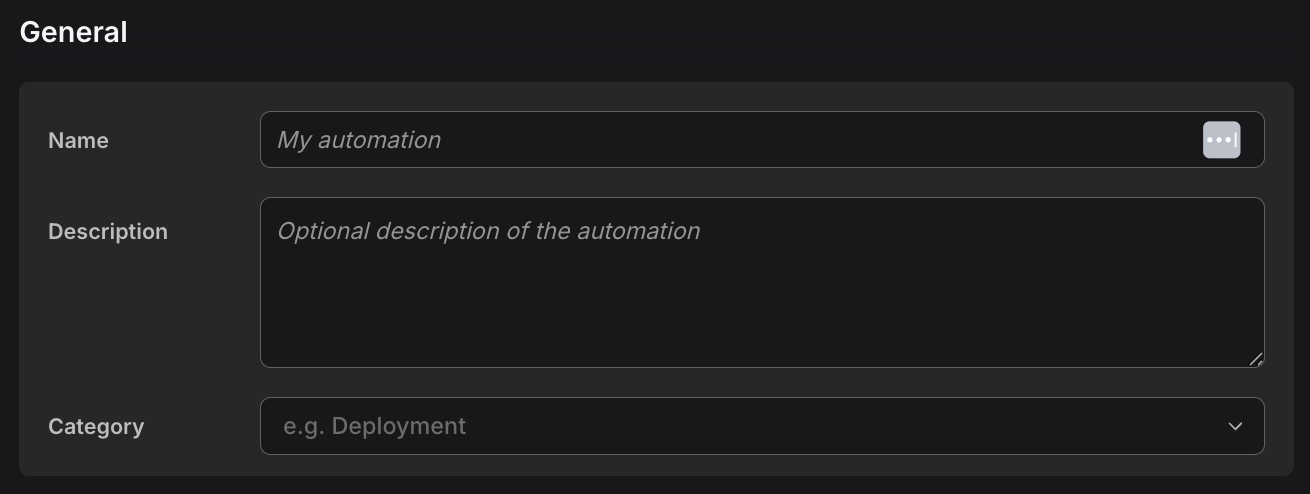
Name
The automation name appears in the automations list, run history, and audit logs. Choose a name that clearly describes what the automation does.
- Best practices: Use descriptive names like "Failed Check Triage" or "Daily SLO Report" rather than generic names like "Automation 1".
- Uniqueness: Names are not required to be unique. However, using unique names helps distinguish automations in lists and logs.
Description
An optional description provides additional context about the automation's purpose, behavior, or configuration. This field supports plain text and appears in the automation detail view.
- Best practices: Describe what triggers the automation, what it does, and any important configuration details.
- Visibility: Visible to anyone with read access to the automation.
Category
The category field organizes automations into logical groups. Use categories to group related automations together.
Common categories:
- Incident Response: Automations that investigate or respond to failures.
- Monitoring: Scheduled checks and reports.
- Deployment: Automations triggered by deployments or releases.
- PR Review: GitHub pull request analysis and feedback.
- SLO Tracking: Service level objective monitoring and alerting.
Categories appear in the automations list, making it easier to find and organize related automations.
Model
The Agent section holds the prompt and, above it, the Model field. The automation stores its own model level and reasoning effort there, resolved to the current model on every run.
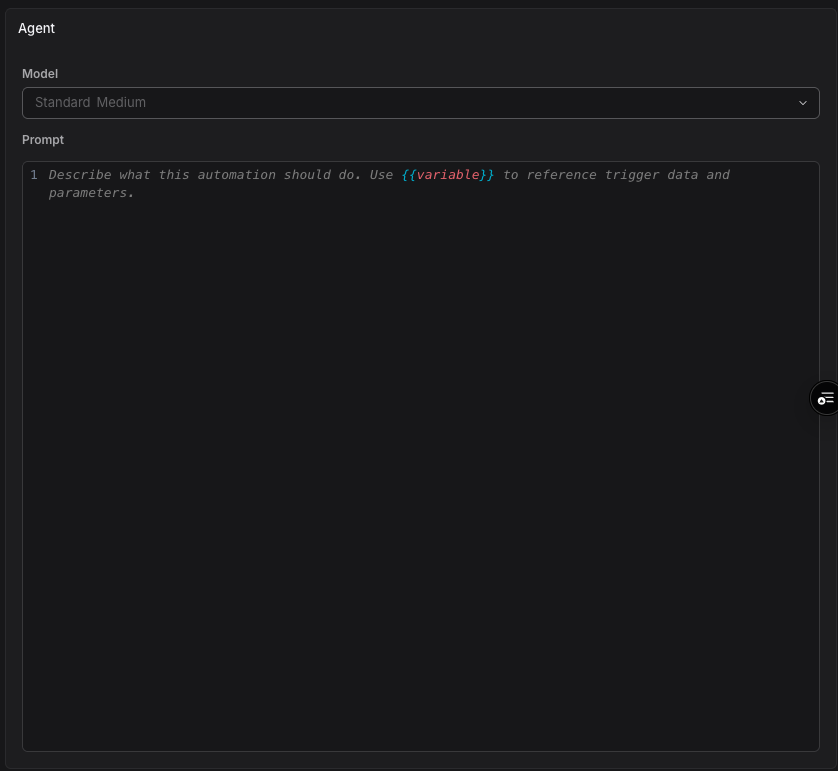
- Default state: an automation that stores nothing runs on the Automations default from Settings → Agent0.
- Cost: a scheduled automation pays its level on every run, so the choice compounds in a way a one-off Chat thread does not.
See Model Selection for what each level is for and what it costs.
Permissions
Everyone who can read a dataset can read its automations. Only admins and the members and teams an automation is shared with can edit or delete it. When you create an automation, it is shared with you. Admins can also delete automations managed as code.
To choose who can edit an automation, see Control Automation Sharing and Access.
Enabled State
The Enabled toggle controls whether the automation responds to trigger events. When disabled, the automation remains configured but won't execute.
- Disabled automations: Still appear in the automations list and can be edited, but won't run when triggered.
- Default state: New automations are enabled by default. Consider disabling during initial testing, then re-enable for production use.
- Use case: Disable automations temporarily during maintenance or when troubleshooting.
Further Reading
- About Creating Automations — Overview of automation creation methods
- Write Prompts — Create effective instructions for Agent0
- Configure Triggers — Define when automations run
- Set Guardrails — Control Agent0's behavior
- Model Selection — Model levels, reasoning effort, and what each costs