
Last updated: October 1, 2026
Set Guardrails
Set guardrails to control what Agent0 can do when your automation runs. Guardrails ensure automations are safe, predictable, and only perform the actions you intend.
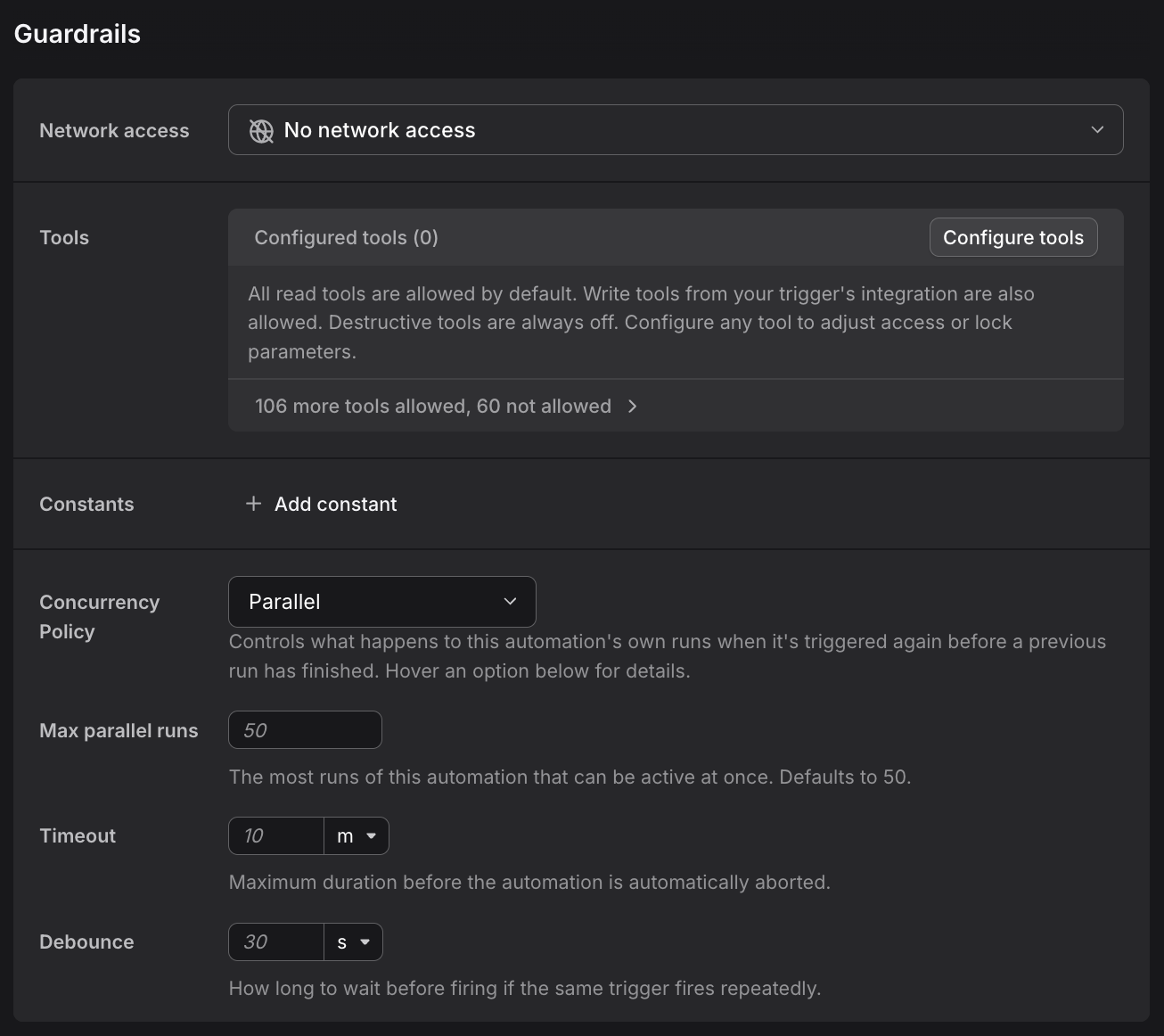
Network Access
Controls whether Agent0 can make outbound network requests to external systems.
Options
- No Network: Agent0 can query Dash0 data and use integration tools (Slack, Linear, GitHub API). The sandbox cannot make direct network requests (git/gh CLI operations, webhooks, curl).
- Trusted hosts only: Everything Agent0 can do with No Network — query Dash0 data and use integration tools (Slack, Linear, GitHub API, and installed MCP servers) — and Agent0 can additionally reach a curated allowlist of pre-approved hosts to fetch dependencies, clone repositories, and pull container images: Dash0's own properties and the source-control, package-registry, container-registry, and cloud-provider hosts an agent typically needs to build and run code. Everything else is blocked. The list is global (the same for every organization) and maintained by Dash0; see the full trusted hosts list.
- Full Network: Agent0 can make any outbound request, including sandbox-native operations like git/gh CLI and webhooks.
Start with No Network and only enable Full Network when needed. This prevents accidental external actions during testing.
Timeout
Maximum time Agent0 can run before the automation stops. Default is 10 minutes.
Set higher timeouts for automations that:
- Query large time ranges
- Analyze many services
- Perform complex calculations
Set lower timeouts to catch runaway executions quickly during testing.
Examples:
- Simple Slack response: 1-2 minutes
- Daily health report: 5-10 minutes
- Deep incident analysis: 15-20 minutes
Allowed Tools
Controls which Dash0 tools and integrations Agent0 can use.
Default Behavior (Recommended)
Leave this section empty to use smart defaults:
- Agent0 can always query Dash0 data (metrics, logs, traces, services, checks)
- Agent0 can post to Slack only when triggered by a Slack event
- Agent0 can comment on GitHub only when triggered by a GitHub event
- Agent0 can act in GitLab only when triggered by a GitLab event, and only as the automation's creator
- Agent0 can post to Linear only when triggered by a Linear event
This prevents scheduled automations from accidentally posting to Slack, or Slack-triggered automations from modifying GitHub.
When to Customize
Override allowed tools when you need:
Scheduled automations that post to Slack:
- Allow
slack:slackSendMessage - Agent0 can now post daily reports or scheduled alerts
Read-only automations:
- Allow only
dash0:* - Agent0 can query data but not use integration tools
Specific tool restrictions:
- Allow
slack:slackSendMessagebut notslack:slackAddReaction - Fine-tune which actions are permitted
Tool Namespaces
- dash0:* — All Dash0 data queries (always safe to allow)
- slack:* — All Slack actions (posting, updating, reading channels)
- github:* — All GitHub actions (requires GitHub integration)
- linear:* — All Linear actions (requires Linear integration)
Specific Tools
Common tools to allow individually:
- slack:slackSendMessage — Post messages to Slack
- slack:slackAddReaction — Add emoji reactions to messages
- github:githubListRepos — List accessible GitHub repositories
Denying Specific Tools
If you allow a namespace but want to block specific tools within it, use the Manage Tools dialog in the UI:
- Click Manage Tools in the Allowed Tools section
- Find the tool you want to block
- Set its status to Denied
Example use case: Allow slack:* (all Slack tools) but deny slack:slackAddReaction (allow posting messages but prevent adding reactions).
This gives you fine-grained control: allow broad access while blocking specific risky operations.
Required Tool Calls
Tools that Agent0 must call for the automation to succeed.
Why Use This
Agent0 sometimes writes a summary and exits without taking action. For example:
- Automation should post to Slack, but Agent0 only analyzes data
- Automation should query metrics, but Agent0 responds from memory
- Automation should post findings, but Agent0 just writes a report
Required tool calls ensure critical actions happen.
How It Works
If Agent0 finishes without calling a required tool:
- Agent0 gets one retry with an explicit reminder to call the missing tool
- If still missing, the run is marked as
guardrail_failure - You can see which tools were called in the run history
Example Use Cases
Slack alert automation:
- Require
slackSendMessage - Ensures findings are always posted, not just analyzed
Metric analysis:
- Require
getMetricQuery - Ensures Agent0 queries fresh data instead of guessing
Data-driven investigations:
- Require both
getMetricQueryandgetLogRecords - Ensures Agent0 checks multiple data sources, not just one
Use bare tool names (e.g., slackSendMessage), not namespaced names (e.g., slack:slackSendMessage).
Concurrency
Controls what happens to this automation's own runs when it's triggered again before a previous run has finished.
Policies
Parallel (Default):
- Runs process concurrently. A new trigger starts immediately alongside an active run, up to the Max parallel runs limit
- Further triggers beyond that limit wait in line
- Best for: Read-only analysis with controlled parallelism
- Example: Analyzing multiple failed checks concurrently
Max parallel runs:
- Only shown when Parallel is selected
- Sets the most runs of this automation that can be active at once (1-50, defaults to 50)
Queue:
- Only one run of this automation is active at a time
- A new trigger waits until the current run finishes, then runs next
- Best for: Posting sequential reports, updating shared resources
Skip:
- Drops a new trigger instead of running it if the automation is already at its concurrent-run limit
- Best for: When only the first event matters
Supersede:
- A new trigger cancels all currently running instances of this automation and starts fresh
- Best for: When fresh data is more valuable than completing old runs, e.g. a schedule that should never run two overlapping instances
When to Change
Most automations work fine with Parallel (the default). Consider changing if:
- Automation posts sequential updates or updates a shared resource → Queue
- Automation takes long and new data makes old runs obsolete → Supersede
- Automation should only run once at a time → Skip
Debounce
Delays automation execution until events stop arriving.
How It Works
Each matching event resets a timer. The automation only runs after the timer expires with no new events.
Example: Set to 10 seconds
- Message arrives → timer starts
- Another message arrives 5 seconds later → timer resets
- No messages for 10 seconds → automation runs with latest message
When to Use
Useful when events arrive in bursts:
- Multiple Slack messages about the same issue
- Several commits pushed to a PR in quick succession
- Rapid check failures during an incident
Debounce ensures Agent0 responds once after activity settles, not after every single event.
Pitfall
If events arrive more frequently than the debounce window, the automation never runs (timer keeps resetting).
When in doubt, leave debounce empty and use Concurrency settings instead. Concurrency is more predictable and won't silently prevent execution.
Credit Budget
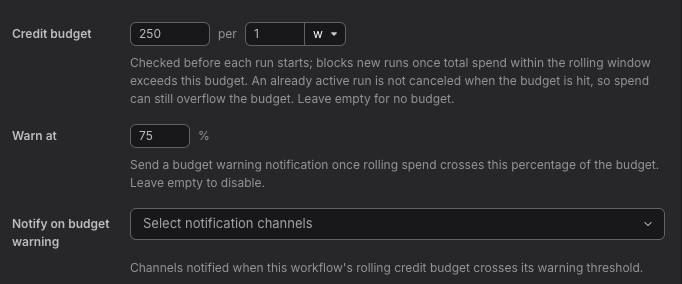
Caps how many credits an automation can spend within a rolling time window.
How It Works
- Credit budget: The number of credits allowed per rolling window (for example,
250per1week). Every new automation gets a default budget of 250 credits per week. - The budget is checked before each run starts. Once total spend within the rolling window exceeds the budget, new runs are blocked.
- An already active run is not canceled when the budget is hit, so spend can still overflow the budget by the cost of that in-flight run.
- Leave the field empty for no budget.
Warn At
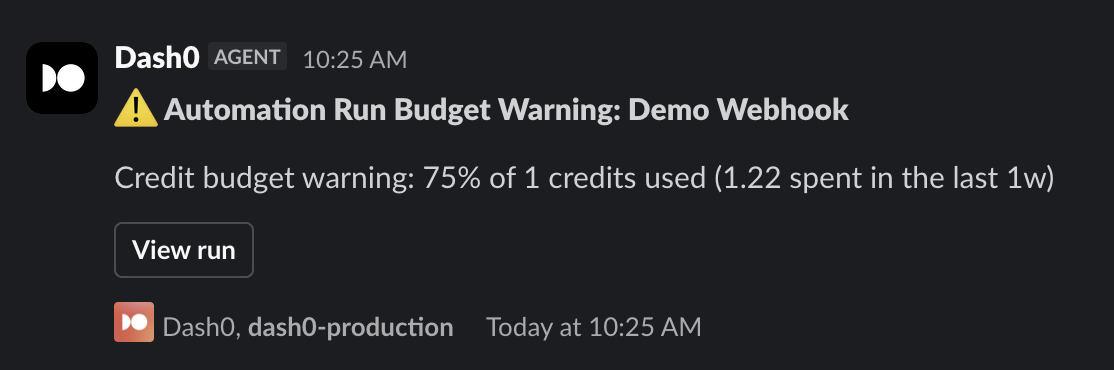
Set a percentage threshold (default 75%) to receive a warning before the budget is fully consumed. Once rolling spend crosses this percentage, a budget warning notification fires. Leave empty to disable warnings.
Notify on Budget Warning
Select one or more notification channels to receive an alert when the rolling credit budget crosses its warning threshold. This uses the same notification channels configured in Settings → Notifications.
When to Use
- Prevent runaway costs: Cap spend on automations that could loop or run more often than expected.
- Budget accountability: Give each team-owned automation its own spend limit instead of relying on org-wide monitoring.
- Early warning: Route the warning notification to the automation owner so they can investigate before the budget is exhausted.
When a run is blocked because the credit budget is exceeded, its status shows as Guardrail Failure. See Run Fails with Guardrail Failure for details.
Tool Parameter Overrides
Force specific values for tool parameters, overriding what Agent0 chooses.
When to Use
Lock down Slack channels:
- Always post to
#incidentsregardless of what Agent0 decides - Prevents posting to wrong channels
Enforce time ranges:
- Always query the last 1 hour
- Prevents Agent0 from using different timeframes
Pin dataset:
- Ensure queries use the automation's dataset
- Prevents accessing wrong data
Configuration
In the Tool Parameter Overrides section:
- Select the tool to override (e.g.,
slack.slackSendMessage) - Add parameter overrides (e.g.,
channelId: C12345678) - Values can include variables:
{{slack.channel.id}}
Example Use Cases
Force Slack responses to triggering channel:
- Tool:
slack.slackSendMessage - Override:
channelId={{slack.channel.id}} - Result: Agent0 always responds in the same channel where the trigger fired
Pin metric query timeframe:
- Tool:
dash0.getMetricQuery - Override:
timeframe.from=now-1h - Result: Agent0 always queries the last hour
Common Issues
For detailed troubleshooting, see:
- Agent0 Doesn't Call Expected Tools — Why Agent0 skips tools or can't post to Slack
- Run Fails with Guardrail Failure — Understanding guardrail violations, including credit budget failures
- Automation Doesn't Trigger — Issues with debounce and concurrency
Best Practices
- Start restrictive: Begin with No Network, minimal Allowed Tools, and test thoroughly before enabling full access
- Use defaults when possible: Leave Allowed Tools empty to use smart defaults based on trigger type
- Require critical tools: If posting to Slack is the automation's main purpose, require
slackSendMessage - Test with manual runs: Click Run Now to verify guardrails work as expected before enabling the automation
- Prefer Concurrency over Debounce: Concurrency policies are more predictable and won't accidentally prevent execution
Further Reading
- Write Prompts — Create effective instructions for Agent0
- Configure Triggers — Define when automations run
- Configure General Settings — Set up basic automation information
- Use Templates — Start with pre-configured guardrails