
Last updated: July 28, 2026
Use List Variables
A list variable presents a set of selectable values and behaves like an "is one of" selection: users pick a single value or multiple values from the list. Unlike a filter variable, which interpolates into the entire label matcher, a list variable interpolates only to the values; the surrounding label key and operator come from the query. The operator that applies — and whether you get to choose it — depends on the panel's query mode; see Bind a List Variable.
Use a list variable when you want an explicit, curated set of options rather than a free-form filter.
When to Use a List Variable
Use a list variable when:
- You want to offer a specific, enumerated set of choices, such as a hardcoded list of environments.
- The options should be derived from your telemetry, such as the values of a time-series label.
- You need single- or multiple-value selection with a fixed operator in the query.
If you want the operator itself to be selectable at runtime by the user, use a filter variable instead.
Reference a List Variable in a Query
Because a list variable interpolates only to the values, the surrounding label key and operator come from the query — for example:
1{otel_metric_name="dash0.spans", my_label=~"$variable_name"}
In a PromQL query you pick the operator, and it must match the selection method; in a visual Query Builder panel the operator is fixed. For the full rules, see Bind a List Variable.
Configure a List Variable
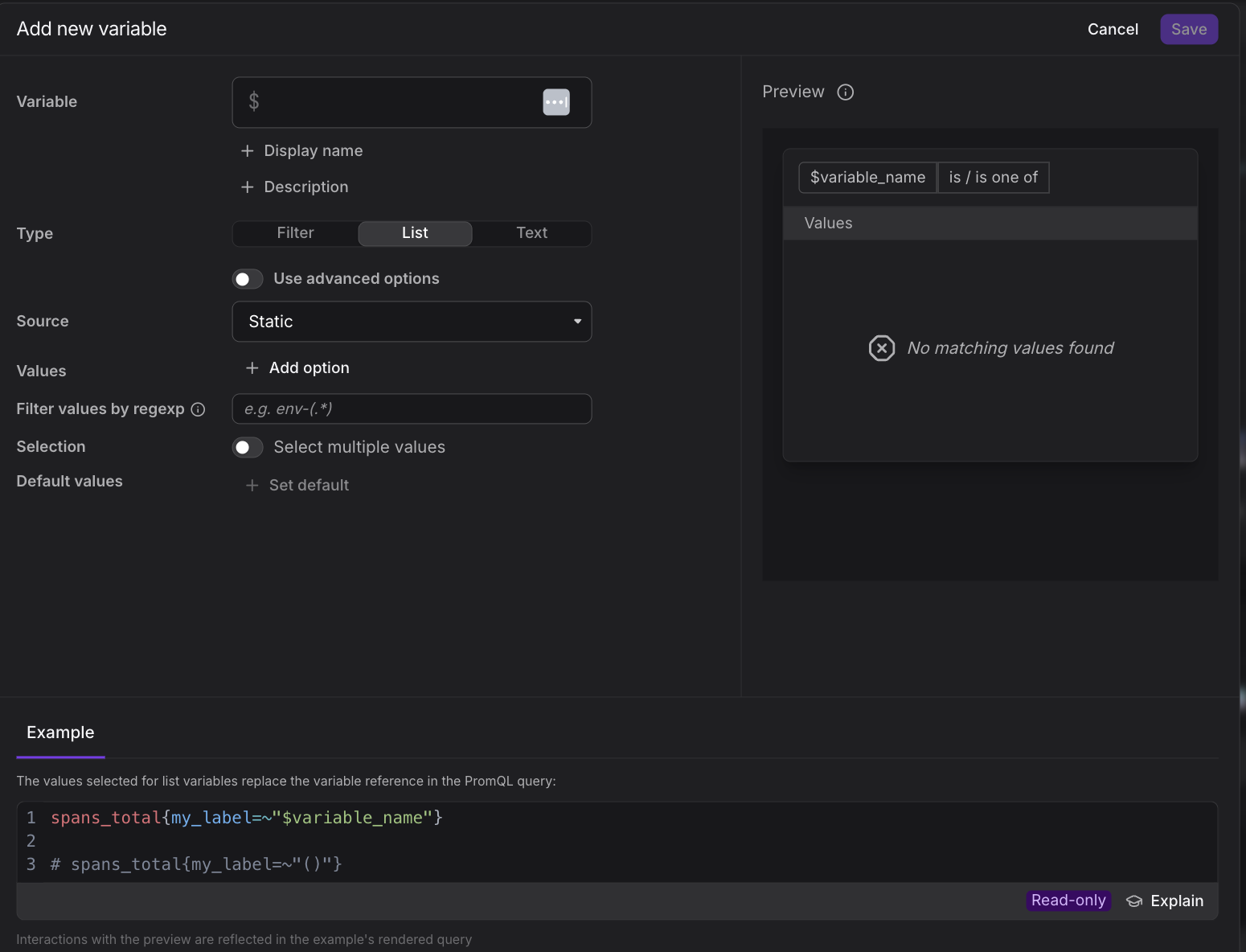
The list variable dialog exposes the following fields:
- Name: The identifier you reference in queries as
$variable_name. - Display name: The human-readable label shown in the variable selector. Optional.
- Description: Optional notes about the variable's purpose. The text is shown to dashboard users in the variable's tooltip, so use it to explain what the values represent or which panels the variable affects.
- Type: Set to List.
- Source: Where the list of options comes from. See Value sources.
- Selection: The Select multiple values toggle controls whether users pick one value or several. See Single vs. multiple selection.
- Default values: The value or values selected when the dashboard first loads.
Single vs. Multiple Selection
The Selection field's Select multiple values toggle changes how the variable behaves at runtime.
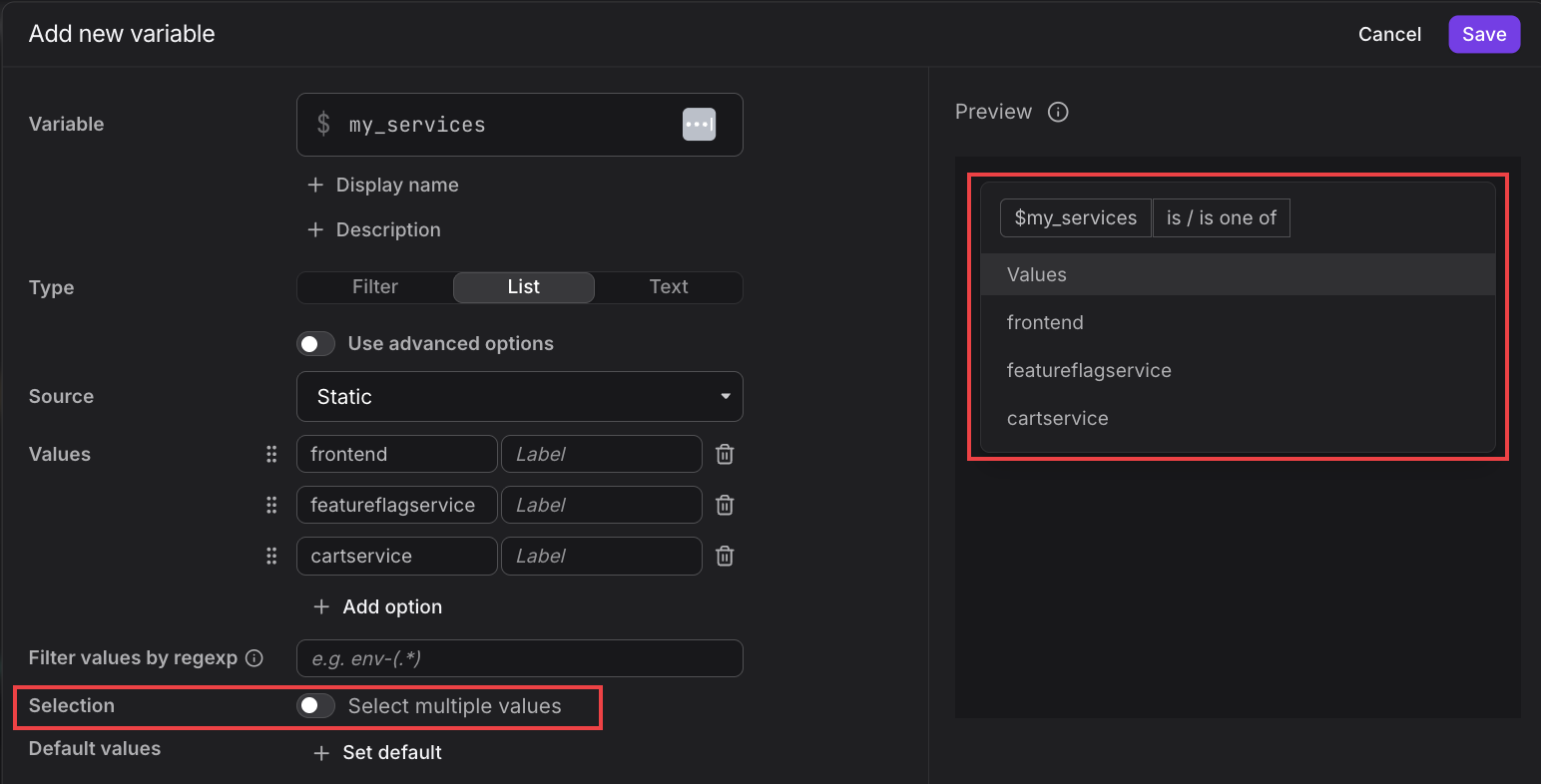
When the toggle is off, the variable is single-select. The preview shows an is / is one of selector and users pick one value at a time.
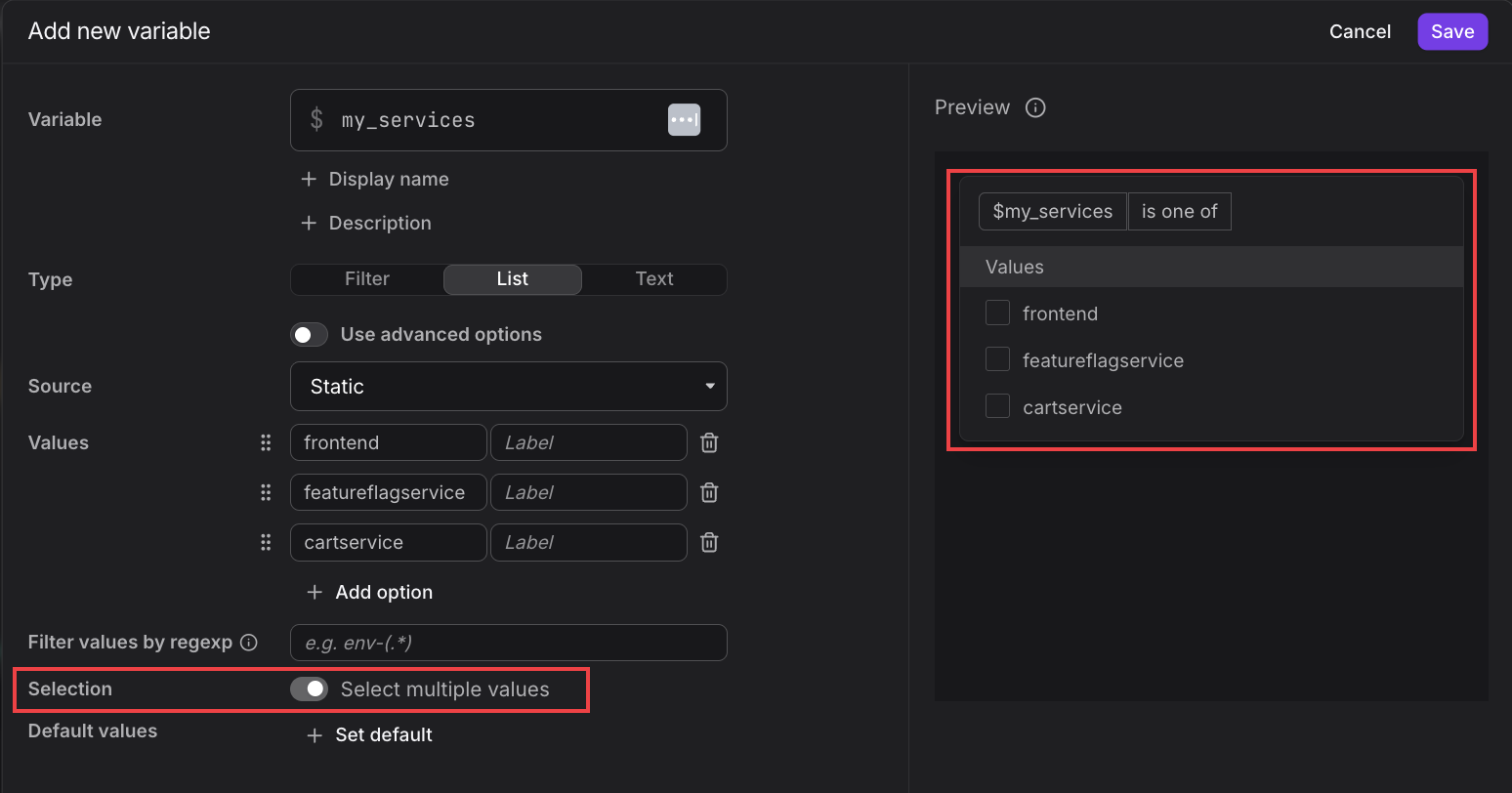
When the toggle is on, the variable is multi-select. The preview shows a checkbox for each value so users can select several at once. Selected values are interpolated as a regex alternation like a|b|c.
The selection method determines which operator you must use in a PromQL query — see Bind a List Variable.
Value Sources
A list variable can draw its options from several sources:
- Static list: A hardcoded enumeration of values you type in. Best for a small, stable set of options such as
production,staging, anddevelopment. - Time-series label values: The distinct values of a label across the matching time series. Useful for populating the list from live telemetry, for example every value of
service.name. This is the right source when you simply want every value of one label, because you pick the label directly and Dash0 enumerates its distinct values for you. - Time-series label names: The label names present on the matching time series, rather than their values.
- PromQL query: The result of a PromQL query. This is the most flexible source but the hardest to configure.
The source only controls how the dropdown is populated. Once a value is selected, every list variable interpolates into a panel query the same way — the rules described in Reference a List Variable in a Query and Bind a List Variable apply regardless of whether the source is a static list, a label enumeration, or a PromQL query.
If you are about to configure a list variable with the Time-series label values source and no time-series-name matcher, use a filter variable instead. You get the same value pool plus a runtime operator switcher and automatic dependencies between variables.
PromQL query source requires a Label
When the source is PromQL query, Dash0 runs your query and then reads the option values from a single named label on the returned series. You name that label in the Label field (placeholder e.g. cloud_region). If the Label field is empty, the query has no label to read values from and the preview shows No matching values found, even when the query returns series.
For example, suppose you are building a Kubernetes services dashboard and want a Namespace dropdown that lists only namespaces currently reporting resources to Dash0, rather than every value of service_namespace Dash0 has ever seen. A PromQL query source lets you express that filter:
1group by (service_namespace) ({otel_metric_name="dash0.resources"})
Each returned series carries a service_namespace label. Set Label to service_namespace so Dash0 reads the dropdown options from those series. Leaving Label empty here would produce No matching values found even though the query returns results, because Dash0 would not know which label to pull option values from.
If your goal is simply to list every value of one label across all telemetry, prefer a filter variable — it exposes the same value pool with less setup, adds a runtime operator switcher, and supports automatic dependencies. The Time-series label values source is the right choice only when the values must be scoped to a specific time series, for example every service_namespace present on dash0.resources rather than every service_namespace in the dataset.
Reference Other Variables in Value Sources
The query-based sources — Time-series label values, Time-series label names, and PromQL query — can reference other dashboard variables so the option pool adapts to the user's other selections. For example, a pod list variable that lists only pods in the currently selected namespace.
Use the same $variable_name substitution syntax you would use in a panel query, and the same interpolation rules described in Bind a Variable to a Query: a filter variable expands to the entire matcher, a list variable interpolates to values with an operator you write, and a text variable substitutes verbatim.
For example, given a filter variable $namespace on k8s.namespace.name, a PromQL query source for a pod list variable can be:
1group by (k8s_pod_name) ({otel_metric_name="k8s.pod.info", $namespace})
When the user changes the namespace selection, the query re-runs and the pod dropdown refreshes.
If you only need to scope one filter variable's options to another filter variable's selection, Chain filter variables with dependencies achieves the same effect with less setup — Dash0 narrows the child variable's options automatically.
Debugging Query-Driven List Variables
Query-based value sources (time-series labels and PromQL queries) are significantly harder to configure than static lists. When a variable's query returns nothing, the cause is often not obvious:
- The PromQL query source has no Label set, so Dash0 has no label to read values from and returns No matching values found even though the query produces series. Set Label to the label your query groups by, or switch to the Time-series label values source.
- The interpolated operator does not match the selection method (for example, a multi-value selection used with
=instead of=~). - Query syntax is swallowed implicitly, so the effective query differs from what you wrote.
- An incorrect assumption about how values interpolate produces a valid-looking but empty result.
When a query-driven list variable produces no options or a panel returns no data, verify that the operator in your panel query matches the selection method and that the variable's own query returns the values you expect.
Further Reading
- About Adding Variables — Overview and preferential order of variable types
- Bind a List Variable — Wire a list variable into a panel query in Query Builder or PromQL mode
- Build Queries — Write the PromQL that references your variables
- Use Filter Variables — Create attribute-based filters with automatic dependencies
- Use Text Variables — Reuse a single text value across panels