
Last updated: July 28, 2026
Use Filter Variables
Filter variables are the recommended default for parametric dashboards. A filter variable is bound to a fixed attribute key, but the operator and matching values are chosen at runtime. Because the variable interpolates into the entire label matcher, the same panel can filter with is, is not, is one of, and other operators without editing the query.
Filter variables are unique to Dash0 and, unlike list or text variables, handle dependencies between variables automatically.
A filter variable's value pool is effectively the same as what a list variable using the Time-series label values source with no time-series-name matcher would enumerate — the same distinct values of the same attribute, drawn from the same telemetry. What a list variable cannot give you, and a filter variable does, is a runtime operator switcher and automatic dependencies between variables.
When to Use a Filter Variable
Use a filter variable when:
- You want users to filter panels by an attribute such as
service.name,k8s.namespace.name, ordeployment.environment. - The operator (equals, one of, contains, and so on) should be selectable at runtime rather than fixed in the query.
- You want variables to depend on one another, for example a namespace variable that narrows the available pods.
For a fixed enumeration of values with a locked operator, or to see PromQL queries to calculate possible values offered to the user, use a list variable instead. For free-form text, use a text variable.
Reference a Filter Variable in a Query
A filter variable interpolates to the full label matcher, so you place the variable name directly inside the curly braces:
1{otel_metric_name="dash0.spans", $variable_name}
At runtime, Dash0 expands $variable_name into the complete matcher, including the operator and values the user selected, for example service.name="checkout" or service.name=~"checkout|payments".
Place $variable_name on its own inside the braces rather than wrapping it in a matcher of your own. A filter variable already carries the attribute key, operator, and values, so writing something like:
12# BAD — filter variables interpolate the whole matcher, not just the value{otel_metric_name="dash0.spans", service_name="$my_services"}
is the most common mistake in PromQL — the interpolation collides with the surrounding matcher and the query either fails to parse or silently returns nothing. That value-only style is what a list variable is for.
Configure a Filter Variable
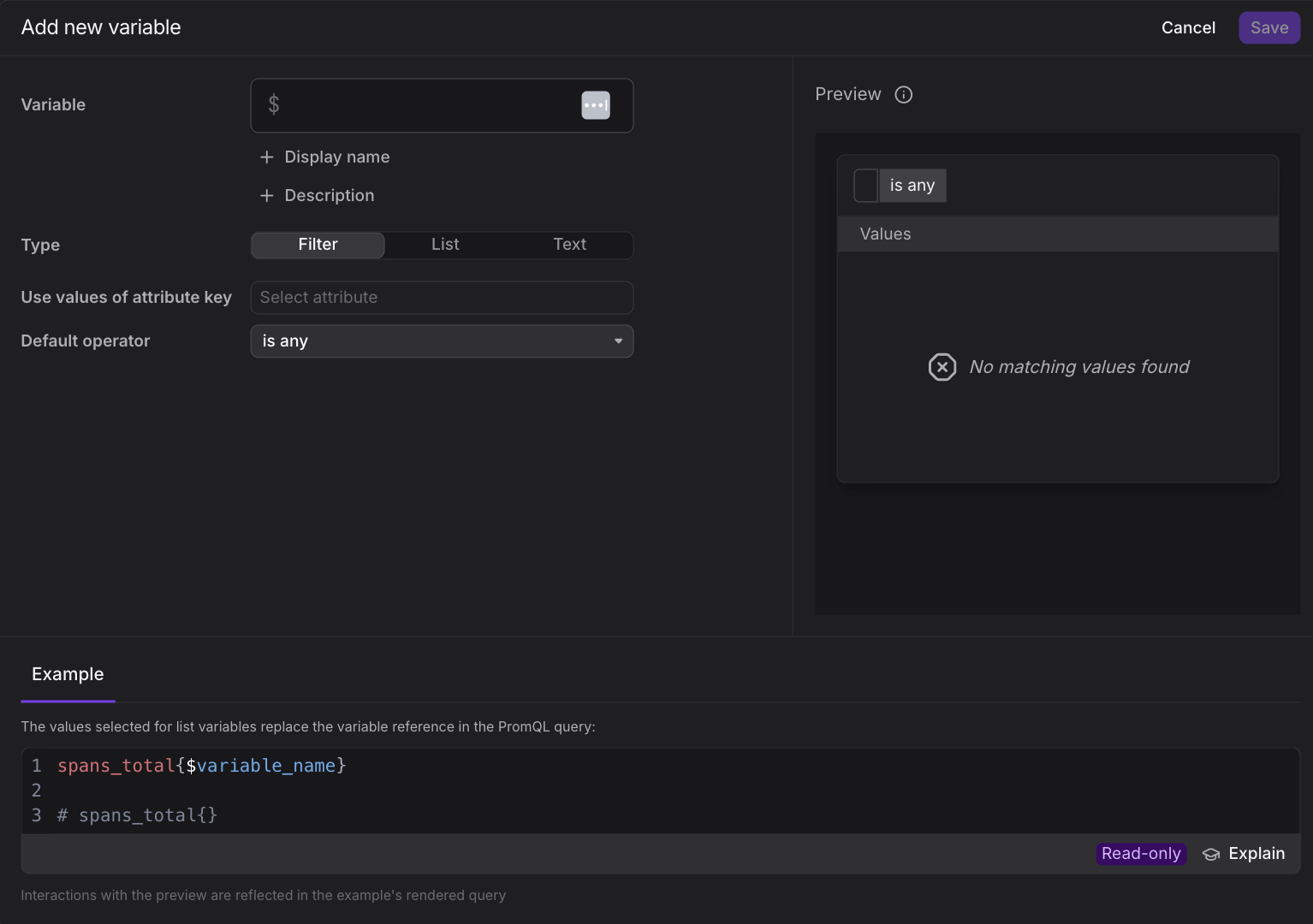
The filter variable dialog exposes the following fields:
- Variable: The identifier you reference in queries as
$variable_name. Use a stable, query-safe name. - Display name: The human-readable label shown in the variable selector on the dashboard toolbar. Optional; the name is used when omitted.
- Description: Optional notes about the variable's purpose. The text is shown to dashboard users in the variable's tooltip, so use it to explain what the variable filters on or when to change its selection.
- Type: Set to Filter.
- Use values of attribute key: The fixed attribute the filter applies to, such as
service.name. The key does not change at runtime; only the operator and values do. - Default operator: The operator applied when the dashboard first loads, for example is any, is, or is one of. Users can change it at runtime. The initial choice is is any, which effectively disables the filter — every series matches, whether or not it carries the attribute.
- Depends on filter variables: The parent filter variables this variable depends on. This field only appears once the dashboard has more than one filter variable. See Chain filter variables with dependencies.
Prefer a specific default operator like is or is one of over is any. A meaningful default makes the dashboard immediately useful on first load — the panels reflect the starting point you recommend — and it is encoded into Deeplink URLs you share.
Set a Default Value from the Preview
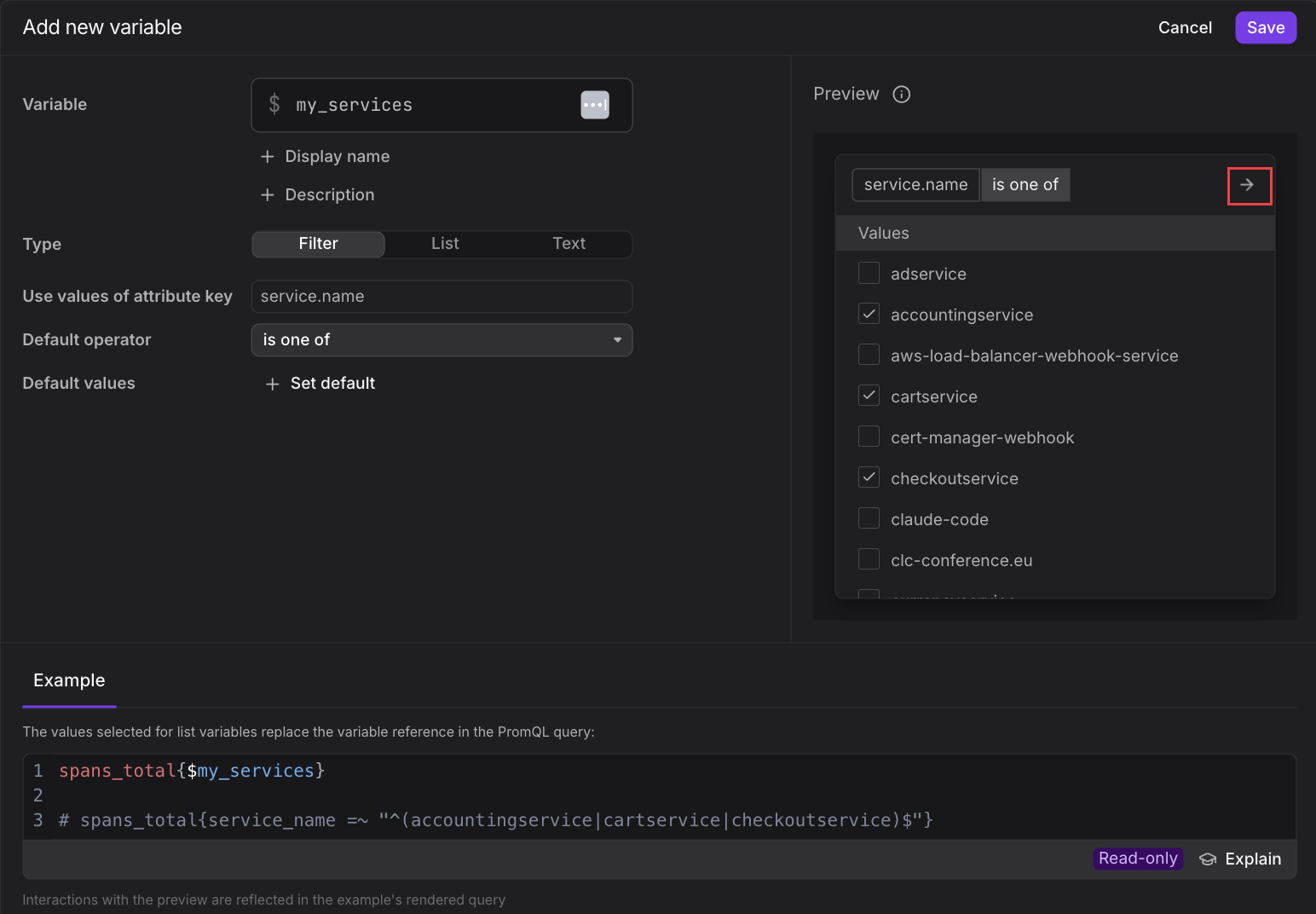
The Preview panel on the right of the dialog lets you try the variable interactively. Choose an operator and tick the values you want, then click the arrow in the top-right corner of the preview to apply that selection as the variable's default.
Chain Filter Variables with Dependencies
Filter variables support hierarchical dependencies, which let you chain filters together for drill-down exploration. A dependent variable populates its available options based on the parent selections and adapts its operators accordingly.
The Depends on filter variables field only appears when the dashboard has at least one other filter variable. It lists those variables as checkboxes, and you tick the parent variable each variable should depend on. A dashboard with a single filter variable, or with only list or text variables, does not show this field.
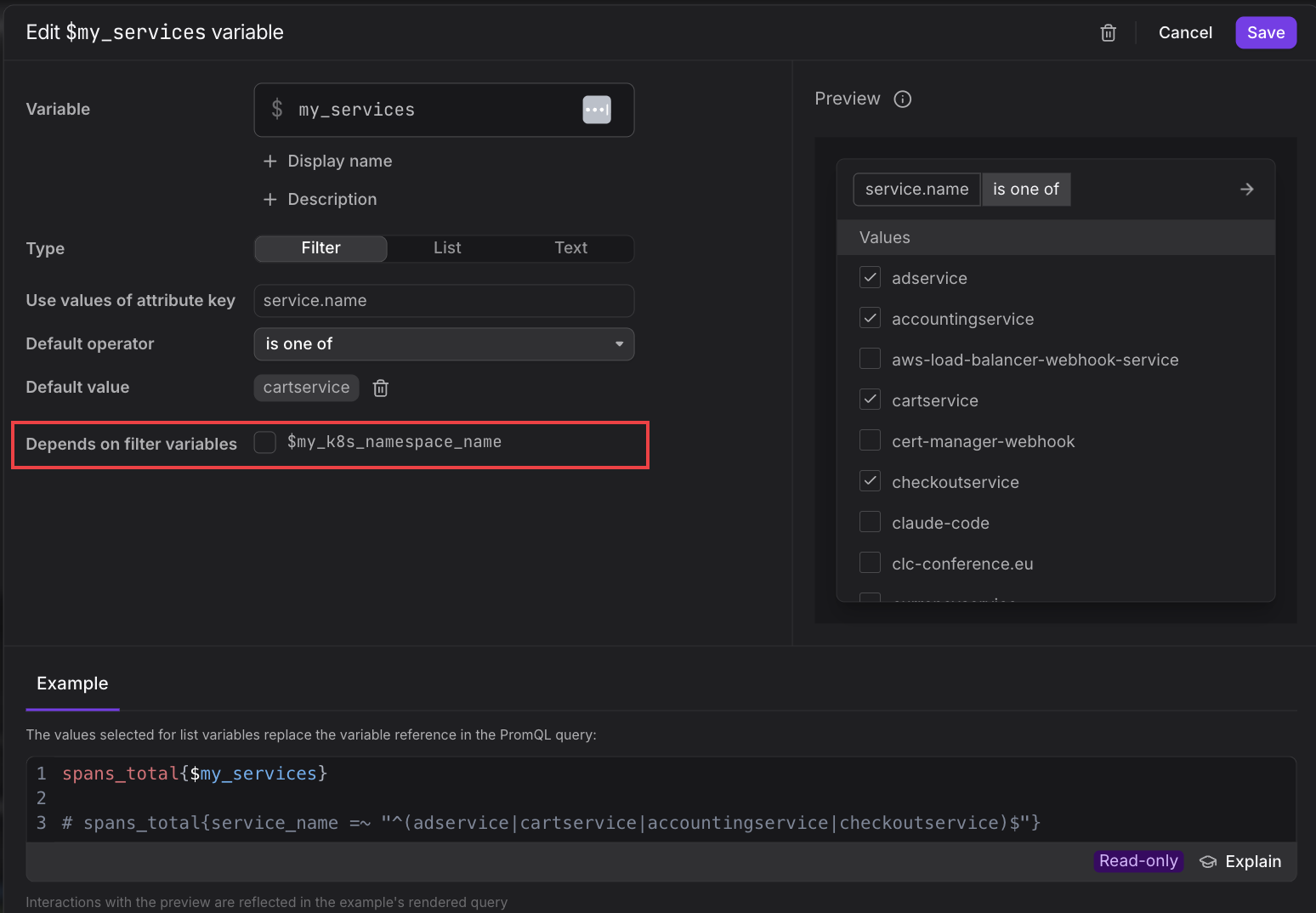
- Configure parent-child relationships with the Depends on filter variables setting.
- Dependent variables narrow their options to only the values that are valid given the parent selections.
- When the combined constraints leave no available values, Dash0 tells you rather than silently returning an empty result.
For example, a k8s.namespace.name filter variable can be depended upon by a k8s.pod.name filter variable, so choosing a namespace limits the pod list to that namespace.
Further Reading
- About Adding Variables — Overview and preferential order of variable types
- Bind a Filter Variable — Wire a filter variable into a panel query in Query Builder or PromQL mode
- Filtering — How Dash0's attribute-based filters and operators work
- Use List Variables — Offer a fixed or query-driven list of values
- Use Text Variables — Reuse a single text value across panels