
Last updated:
Managed Agents
Managed agents are in beta. Behavior and UI may change.
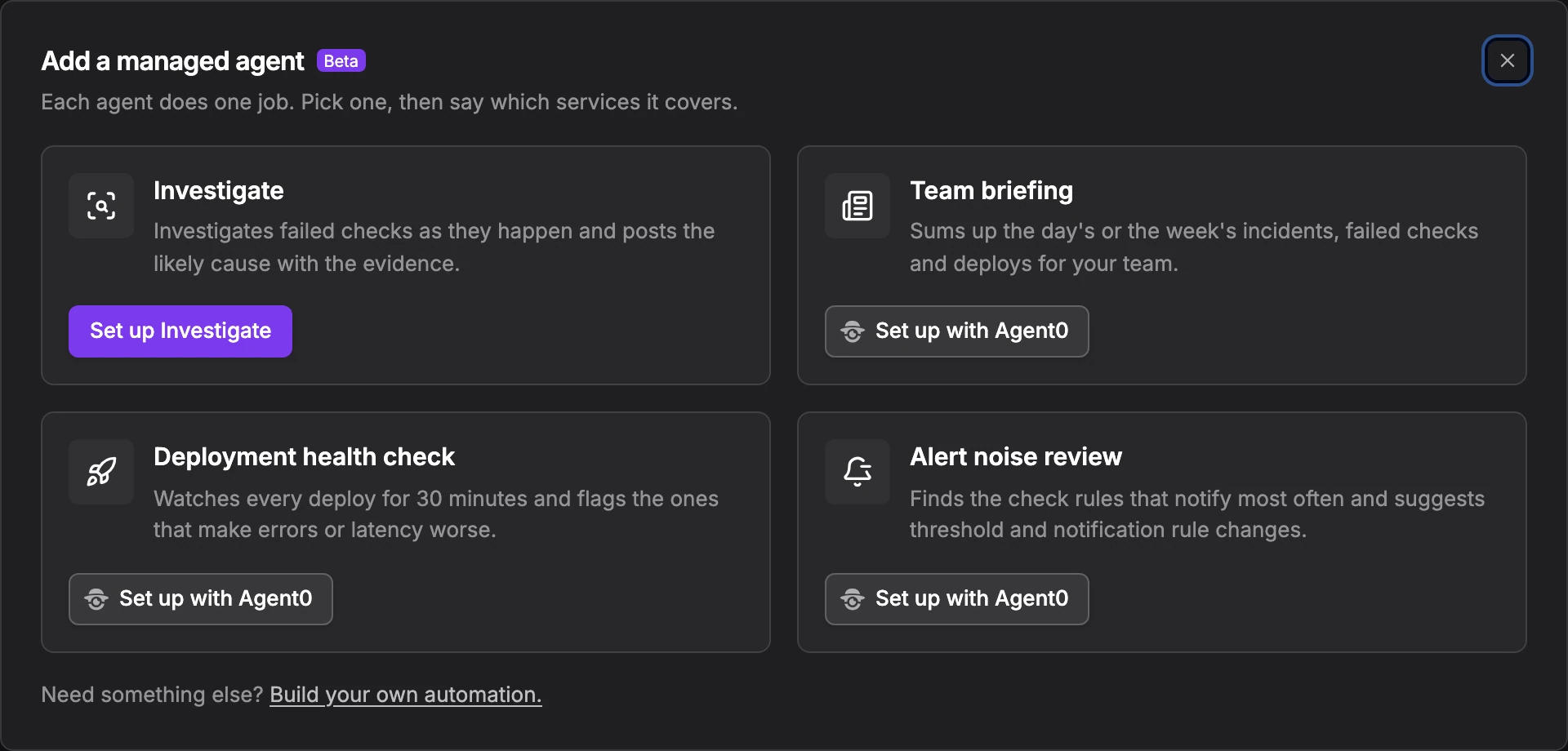
Managed agents are ready-made agents that Dash0 builds and keeps up to date. Each one does a single job. You don't write a prompt or configure tools. You only choose what the agent runs on, where it posts, and how many credits it can spend.
Investigate is the first managed agent. When a check fails, it finds the likely cause and posts it with the evidence.
Managed Agents and Automations
Managed agents run on the same engine as automations, and both are listed on the Automations page. They differ in who owns the definition.
| Managed agent | Automation | |
|---|---|---|
| Prompt, tools, and guardrails | Defined and updated by Dash0 | Written and maintained by you |
| What you configure | Name, scope, output destinations, and a credit limit | Everything: triggers, prompt, tools, sandbox, guardrails, and notifications |
| Default credit limit | 1,000 credits per 30 days | 250 credits per week |
Use a managed agent when one does the job you need. Create an automation for anything else.
Investigate
Investigate runs when a failed check matches its scope. It has two levels, which you choose when you create the agent:
- Investigate: Finds the likely cause of each failure and posts it with the evidence. It reads the failed check, its query, and the spans behind it, and correlates traces, logs, deploys, and Kubernetes events. It posts the likely cause on the failed check and replies in the alert's Slack thread.
- Investigate and fix: Does everything Investigate does, then finds the change behind the failure in the owning repository and opens a pull request with the fix for someone to review. It requires a connected GitHub integration.
Neither level merges or deploys changes, or takes other actions on your behalf.
You can't change the level of an existing agent. To switch between Investigate and Investigate and fix, create a new agent.
Find Managed Agents
You can set up a managed agent from several places in Dash0:
- Automations page: Click Add new automation and select Managed agent to open the gallery.
- Check rules: The check rule's Automations section shows an Investigate card. See Add Automations to Check Rules.
- Failed checks: A failed check that no automation or managed agent covers offers Set up Investigate. See Investigate Failed Checks.
- Agent0 homepage: A Beta suggestion below the prompt offers Set up Investigate.
Managed agents are hidden in organizations that have turned off Agent0.
Set Up Investigate
- Navigate to Automations in the Dash0 sidebar.
- Click Add new automation and select Managed agent.
- In the Add a managed agent gallery, click Set up on Investigate. If you already have an Investigate agent, click Add another.
- Fill in the setup page, described in the sections below. The Preview column beside the form shows which check rules match and an example of the agent's output.
- Click Save and turn on.

Name
Give the agent a name, such as Payments team. Dash0 always puts the agent type before the name, so it shows as Investigate · Payments team. Names must be unique within your organization and can contain letters, digits, spaces, and hyphens.
You can create several Investigate agents, for example one per team, each with its own scope and limit.
What It Can Do
Choose Investigate or Investigate and fix. The card lists what the agent can and can't do. If GitHub isn't connected, Investigate and fix asks you to connect it first.
Runs On
Choose the failed checks that start a run:
- Pick specific check rules, or filter check rules by label or annotation.
- Filter by severity: Critical, Degraded, or both.
- Untick check rules to exclude them.
The panel lists the matching check rules with each rule's severity and number of failures in the last 7 days.
By default, the agent skips silenced checks. A failed check that a silence covers doesn't start a run.
Forecast and Limit
The Forecast shows how many runs and credits to expect per month. It is based on how often the matching check rules failed in the last 7 days, projected to 30 days, and updates as you change the scope.
Limit per 30 days caps what the agent spends in any rolling 30-day window. Choose 100, 500, 1,000, or 2,500 credits, No limit, or Custom for a whole number from 1 to 100,000. The default is 1,000 credits.
If the forecast exceeds the limit, the setup page shows around which day the agent reaches it and about how many runs it skips.
Sends Output To
Investigate always posts its findings on the failed check, and replies in the alert's Slack thread when the alert went to Slack. To send findings to more places, choose Also send to other Slack channels or a webhook and pick the notification channels.
Credit Limits
When an agent has used 80% of its limit, its page shows a warning, and a budget warning goes to its output notification channels.
When the agent reaches its limit, it pauses and failed checks are no longer investigated. Runs already in progress finish. The agent stays paused until you do one of the following:
- Click Raise limit and set a limit above what the agent has used.
- Click Resume once its spend over the last 30 days is below the limit.
A paused agent doesn't resume on its own as older spend leaves the 30-day window.

Manage a Managed Agent
On the Automations page, the Managed agents tab lists your managed agents, and the All tab shows them in a section above your automations. Agents are sorted by credits spent. Disabled agents are collapsed into their own group.
Click an agent to open its page:
- Runs: Runs, credits, and credits per run for the last 7 days, credits used in the last 30 days against the limit, and the run history.
- Settings: The setup form. Click Save changes to apply your edits.
From the agent's page you can also turn it off, test it with Test agent, or delete it. Deleting an agent stops it and removes its settings. You can set it up again at any time.
Further Reading
- About Automations — Event-driven AI workflows you define yourself
- Key Concepts — Triggers, guardrails, credit budgets, and runs
- Investigate Failed Checks — Tools for investigating failed checks
- About Notification Channels — Create the channels managed agents post to