
Last updated:
Watch a Session Replay
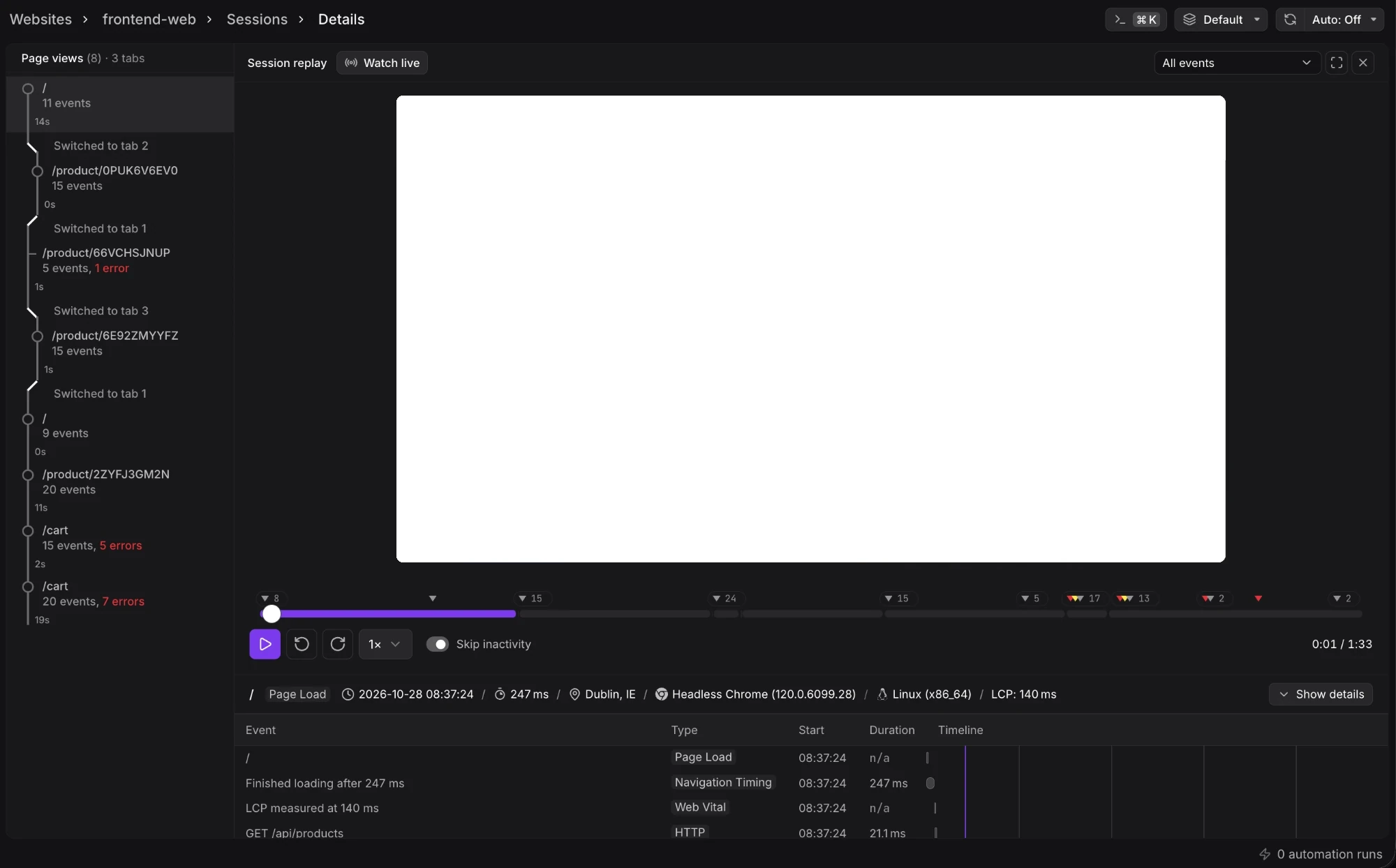
A session replay shows what a user saw and did on your website: the pages, every change on screen, clicks, scrolls, and typing. It plays in the full session view, next to the session's page views, web events, errors, and the backend traces they link to.
Replays exist only for sessions the Web SDK recorded. To start recording, load the recorder as described in Web SDK Setup: Session Replay. Recorded sessions use the same ingestion endpoint, auth token, and dataset as the rest of your website's telemetry. Replays are kept for 30 days.
Recorded sessions are billed as session replays. See Pricing for the current rate. To record fewer sessions, lower the session replay sampling rate in the Web SDK configuration.
Find a Session with a Replay
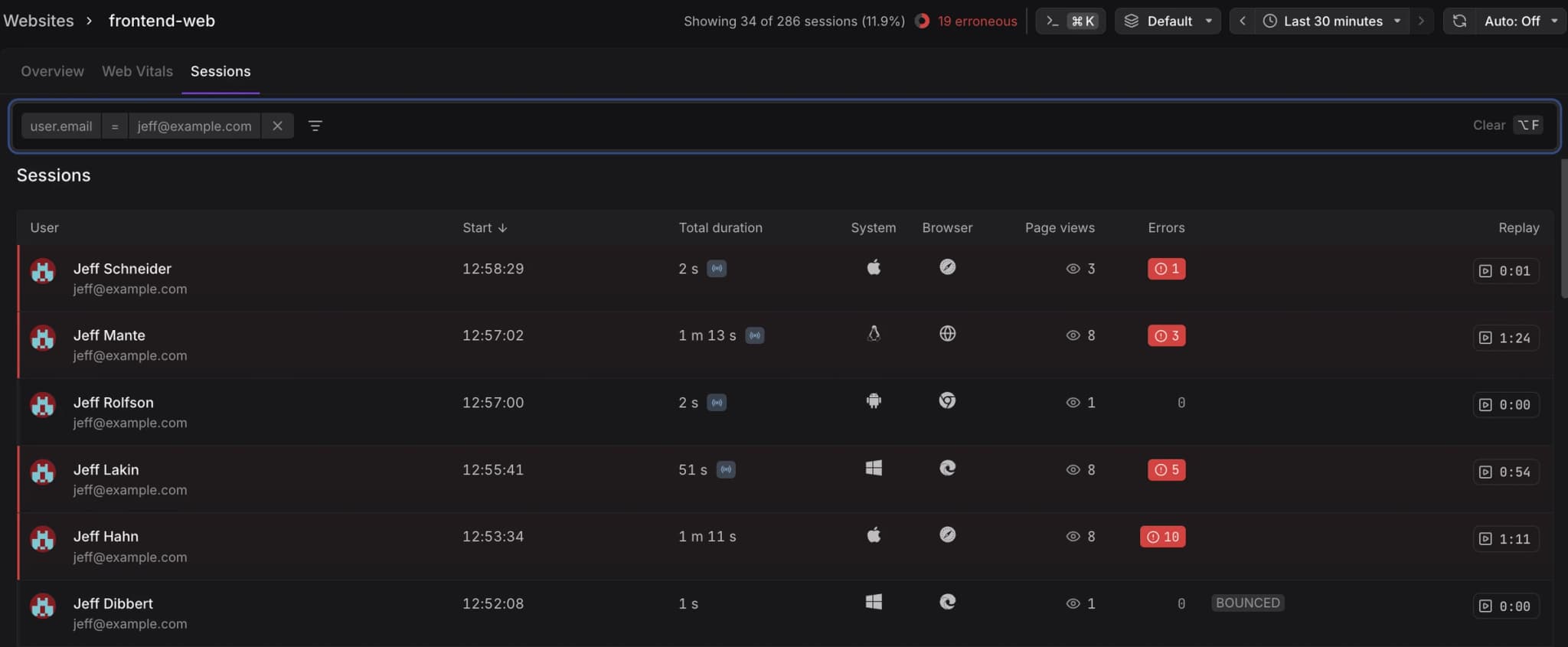
The sessions list and the web events explorer show which sessions have a replay.
To find the session behind a support ticket, filter by user.email or by any other attribute your website sends. The email is there when your website identifies users with identify(). See Filter Sessions and Data for the filter syntax.
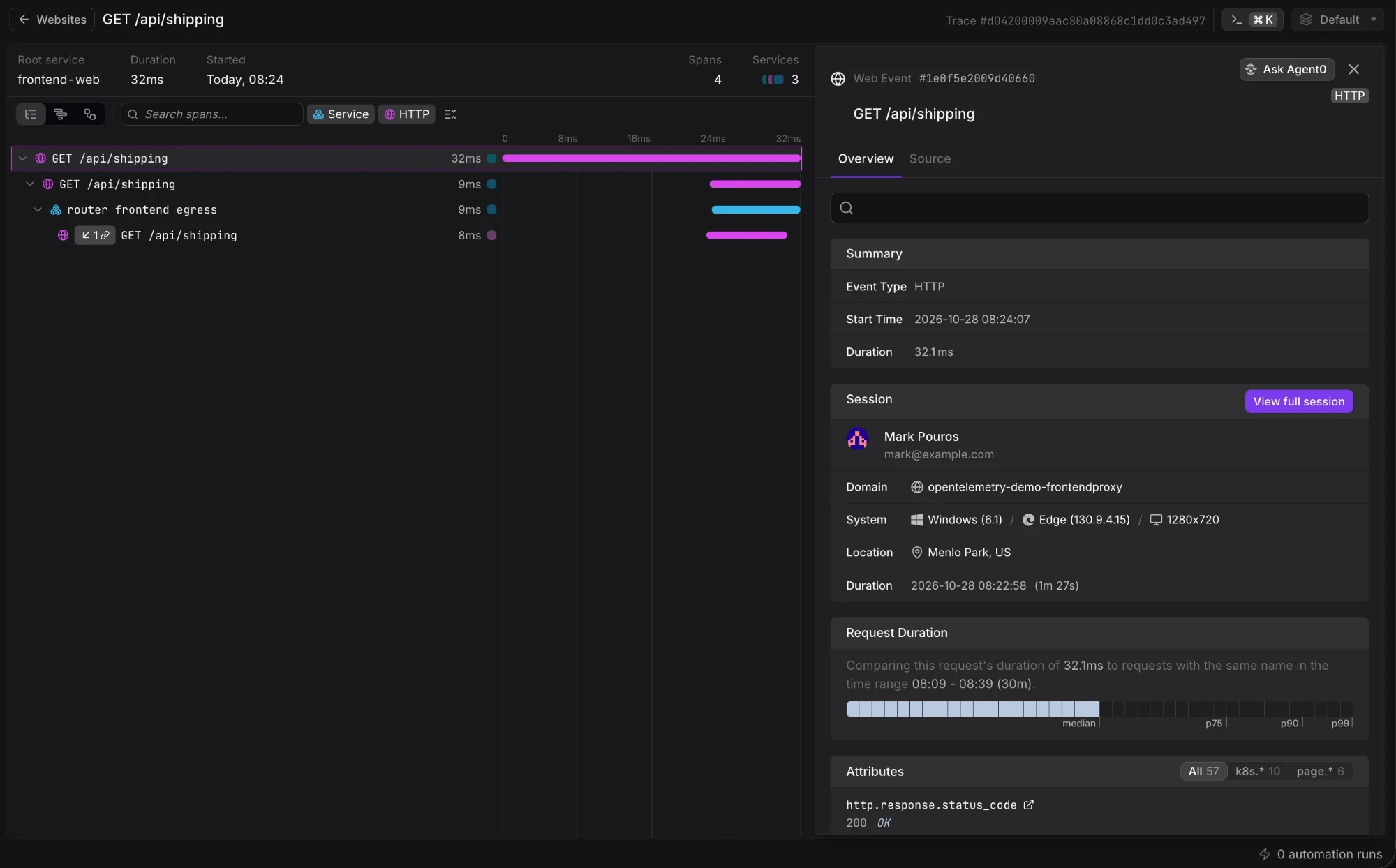
You can also start from the backend. A trace that started in the browser leads back to the session it came from, and from there to the replay.
Follow the Session While It Plays
As the replay plays, the session's events move with it, so what is on screen lines up with the telemetry from that moment.
One session can span several browser tabs. The replay covers all of them in order and shows each switch from one tab to another.
You can skip inactive stretches and change the playback speed.
Go from the Replay to the Backend Trace
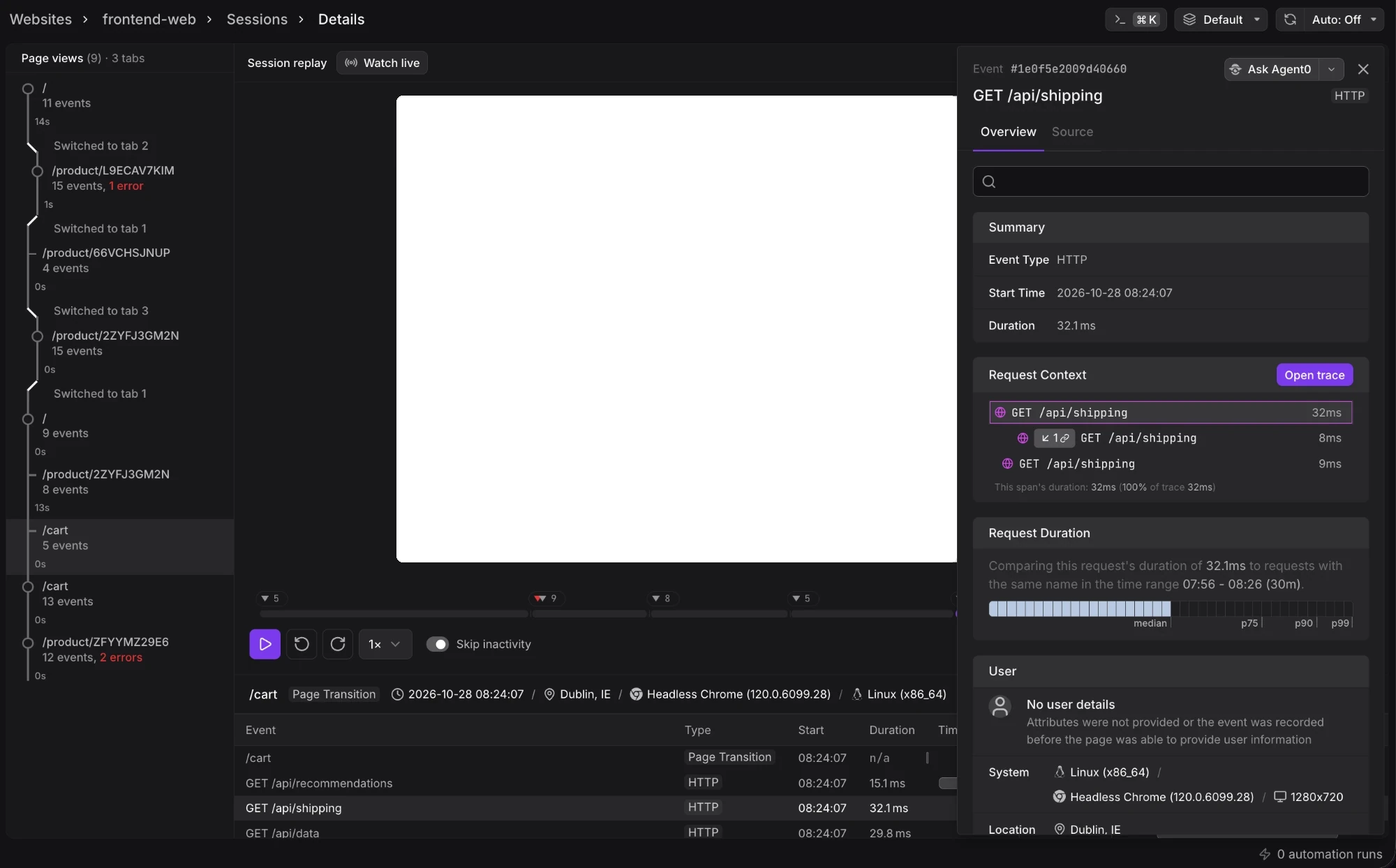
Pause where something goes wrong and look at the events around that moment. Open an HTTP request to see its event details and the backend trace behind it. Correlate Sessions with Backend Traces covers the rest of that workflow, including what to configure for requests to other origins.
Limitations
- Unstyled replays. The replay loads files such as images and fonts from your website. If those files sit behind a login or have changed since the session, the replay can look unstyled or differ from what the user saw.
- Canvas content. Charts and anything else drawn on a canvas do not appear by default. You can turn on canvas recording in the Web SDK configuration, which makes recordings larger.
- Embedded content from other sites. Content in iframes served from another origin, such as payment forms and embedded media, is not recorded. Iframes from your own origin are recorded.
Further Reading
- Web SDK Setup: Session Replay. Load the recorder with npm or a script tag.
- Understand Web SDK and Data Privacy. What a recording captures and how to mask or block content.
- View the Full Session. Everything else the full session view shows around the replay.
- Troubleshoot Website Monitoring Issues. What to check when a session has no replay.