
Last updated:
Create Dashboards from Scratch
Create dashboards from scratch when you need full control over panel configuration, layouts, and variables. This approach is ideal for complex dashboards or when you want to build incrementally.
For faster dashboard creation from natural language, see Generate Dashboards with Agent0. For version control and deployment automation, see Manage Dashboards as Code.
Navigate to Dashboards
After logging into Dash0, navigate to the Dashboards section from the main navigation.
- The dashboard list displays all dashboards you have access to, including indicators for shared dashboards and your personal favorites.
- Use the search bar to locate dashboards by name.
Create a New Dashboard
-
Click the Create button from the dashboard list and then click New dashboard.
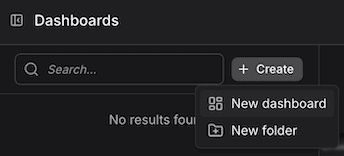
-
The empty canvas opens with a toolbar providing the following controls:
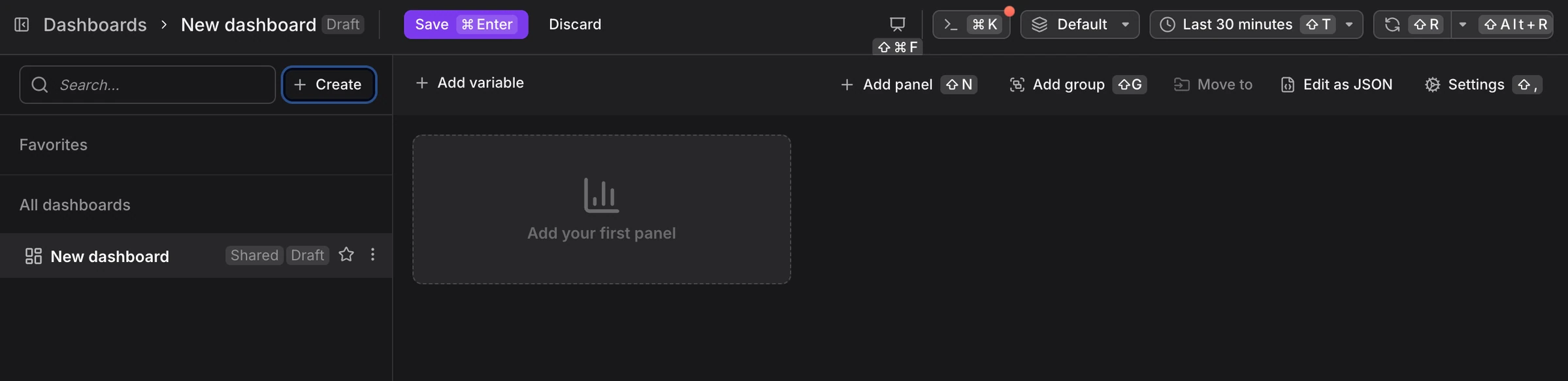
-
Click Settings, in the top right of the horizontal list of controls, to configure the dashboard name and description.
The panel on the right opens and lets you add or change the dashboard's name and description.
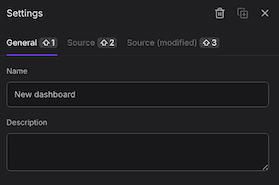
-
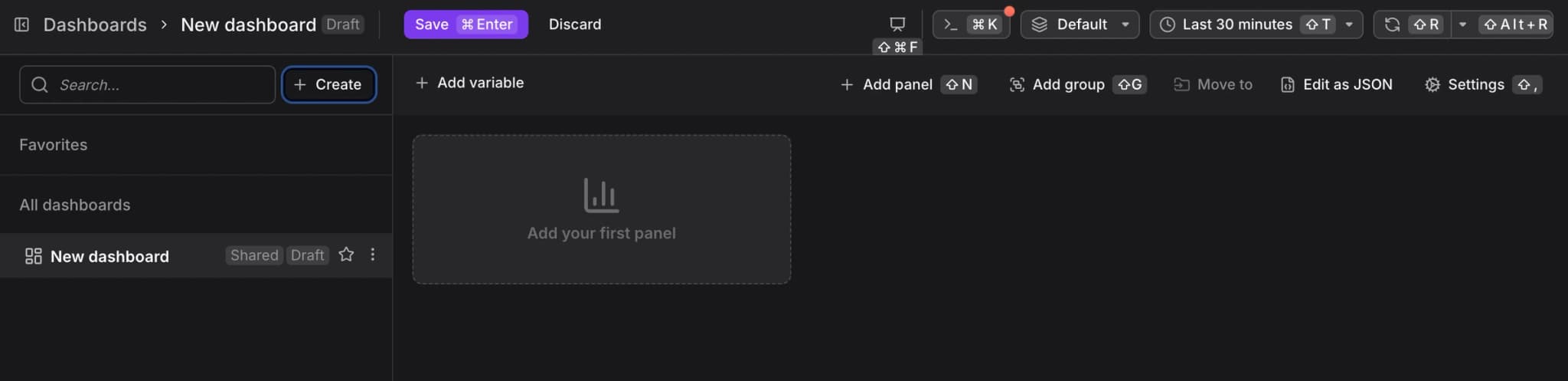
Add Panels to begin building your dashboard.
Install Pre-configured Dashboards (Integrations)
Dash0 provides pre-configured dashboards through the Integration Hub.
For example, installing the Java integration makes a ready-made Java dashboard available.
This is the fastest way to get started with dashboards and is the easiest way to get immediate visibility into your metrics.
Further Reading
- About Dashboards — Overview of Dash0's dashboard capabilities
- Add Panels — Create visualizations within dashboards
- Add Variables — Create dashboard-level filters
- Control Sharing and Access — Configure permissions
- Generate Dashboards with Agent0 — Create dashboards from natural language