Dash0 acquires Polar Signals

Dash0 updates from March 2026

19 updates shipped to Dash0 in March 2026: Fill operator support in PromQL, Convert Span Events to Log Records, Related logs and more.

Fill operator support in PromQL

Binary operations in PromQL silently drop results when one side of the expression has no matching time series. If you divide requests by capacity, and a new instance hasn't reported capacity yet, that instance vanishes from your chart — no error, no gap, just missing data. This makes dashboards unreliable and alerts blind to exactly the moments that matter most. Dash0 now supports the fill modifier for binary operations, giving you explicit control over what happens when one side of an expression has no match.

It is complicated to troubleshoot why particular PromQL expressions to not return timeseries, and the workarounds with the OR operator have been historically difficult to learn.

Dash0 worked with the Prometheus community to fix these gaps, and we just shipped the result in Dash0.

How it works

The fill modifier lets you substitute a default value for missing series in a binary operation. Three variants cover every scenario:

  • fill(<value>) applies the default to whichever side is missing, e.g.
    http_requests_total / fill(1) capacity_total

  • fill_left(<value>) substitutes only when the left-hand side has no match:
    (vector(0) > 1) / fill_left(0) requests_total (the left side is always empty, and the fill operator handles it)

  • fill_right(<value>) substitutes only when the right-hand side has no match: requests_total / fill_right(1) (vector(0) > 1) (the right side is always empty, and the fill operator handles it)

Notice that, however, when both sides of an operator are missing, no time series is generated.

(We did wonder if the fill behaviour should have been the default, using fill(0) for addition and subtraction, fill(1) for multiplication, and fill_right(1) for division, but that would have been a breaking change for the Prometheus community.)

What changed

The fill operator is now available via the UI and the API in Dash0. Enjoy :-)

Want to know more?

For a detailed walkthrough of the problem and the fill solution, see the excellent Filling in Missing Series in Binary Operator Matching blog from PromLabs.

Want to learn more about PromQL in general?

We cannot recommend enough the Understanding PromQL course by PromLabs. Taking that course is effectively a right of passage for Dash0 engineers and product people :-)

Read more

Convert Span Events to Log Records

Span events are being deprecated in OpenTelemetry. With one click, you can transform them into logs in Dash0.

A deprecation long overdue

OpenTelemetry is deprecating span events in favour of log records linked with trace context. Given just how many times we are asked "Should it be a span event or a log record?" by our customers, we are overjoyed at this streamlining in OpenTelemetry.

Span events exist because, in the beginning of the OpenTelemetry project, tackling logs as a separate signal felt like trying to bite off too much. But events like uncaught exceptions were still needed in the model, and so span events were introduced.

Now that logs in OpenTelemetry are stable in terms of specification, and implementation is complete or well underway in pretty much all SDKs, span events are no longer necessary. But, realistically, instrumentations generating span events will remain in use for a considerable time.

The new world, today

To help you with the transition, we have introduced an opt-in, per-dataset option to automatically convert span events into correlated log records during ingestion. Admins can turn on this new setting in the Dataset settings page:

The setting in Datasets to turn on the conversion

The resulting log records have the correct trace context on them, and "just work" the way you would expect. And in order for you to find out how many span events have been converted to logs, we add to the latter the dash0.span_event.converted = true log attribute.

That is, you do not need to modify your instrumentation, we just "fix your telemetry" for you. (But if you do want to fix your instrumentation, these agent skills we published a few weeks ago can help with the migration!)

Opting in to converting span events to logs will also hide the "Span events" column in your "All spans" Tracing view, but if you want, you can "bring it back" adding the Span event column to a custom view.

No impact on pricing

Span events and log records have always been equivalent in terms of pricing, as we saw this transition coming a long way.

The only effect on your bill is that the amount for "Spans and span events" will decrease by the same amount that "Logs" increases, based on how many span events you send.

Read more

Investigating a single log record rarely tells the full story. The new Related Logs tab surfaces the surrounding context — every log from the same resource and trace, organized chronologically around the record you're inspecting — so you can reconstruct what happened without leaving the sidebar.

How It Works

Open any log record in the sidebar and switch to the Related Logs tab. Dash0 automatically queries a ±30-minute window centered on the active log and displays the results in a scrollable timeline:

The Related Logs feature in action

The active log is pinned in the center, clearly marked with a THIS LOG badge and a highlighted background. Older logs appear above, newer logs below, each annotated with a relative time offset (e.g. -2m 15s, +50s) so you can instantly gauge how far apart events are. Infinite scroll loads additional records in both directions as you explore, without ever leaving the panel.

Two Ways to Correlate

Related Logs supports two independent correlation modes that can be combined:

  • Resource correlation finds all logs emitted by the same service or infrastructure component, giving you a local timeline of everything that resource was doing.

  • Trace correlation finds all logs sharing the same trace ID, letting you follow a single request across service boundaries.

When both are available, toggle each mode on or off with a checkbox to narrow or widen the view. Correlation badges on each log entry make it clear why a record was included.

Read more

Audit Log Export

Dash0 now supports exporting audit logs to external systems using the OpenTelemetry Protocol (OTLP). Stream organization-level audit events, including user actions, configuration changes, and access activity, to any OTLP-compatible backend, SIEM, or long-term storage system. Built on OpenTelemetry standards, this capability integrates natively with your existing observability and compliance tooling, giving security and platform teams full control over where audit data lives and how long it is retained.

How it Works

Audit log export is configured in Organization Settings > Integrations. Once enabled, Dash0 continuously streams audit events as structured OpenTelemetry logs to any OTLP-compatible endpoint you specify. Each audit log entry includes attributes such as the acting user, the action performed, the affected resource, and a timestamp.

Audit log export configuration dialog. Allowing configuration of an OTLP endpoint, authorization mechanisms and custom headers.

This means you can route audit logs into any system that speaks OTLP: a self-hosted OpenTelemetry Collector for further processing, a compliance-focused long-term storage backend, or simply back into Dash0 itself for correlation with
your operational telemetry.

Why OTLP?

Rather than building a proprietary webhook or CSV export, we chose OTLP as the export format. This keeps audit data compatible with the same pipelines and tooling you already use for traces, metrics, and logs. No custom parsers, no format translations, no additional agents required. If your infrastructure already ingests OTLP, audit logs slot right in.

The screenshot below shows how the exported audit logs appear as structured log entries inside Dash0.

The logging area in Dash0 showing audit logs
Read more

Agent mode for the Dash0 CLI

AI coding agents are rewriting how teams build and operate software. But most CLIs were designed for humans — with colored tables, interactive prompts, and prose help text that agents struggle to parse reliably. Agent mode makes the Dash0 CLI a first-class tool for AI coding agents, with zero configuration required.

What changed

Agent mode transforms five aspects of the CLI for machine consumption:

  • JSON output by default: All data retrieval commands (list, get, query, etc.) return JSON instead of tables, without needing the -o json flag.

  • Structured help: The --help flag returns a JSON object with command metadata, flags, subcommands, and usage patterns, so agents can discover capabilities programmatically.

  • Structured errors: Errors are emitted as JSON objects on stderr, with separate error and hint fields that agents can parse and act on.

  • No confirmation prompts: Destructive operations like delete and remove skip interactive prompts automatically, just as if the --force flag were passed.

  • No ANSI colors: All escape codes are suppressed like with the --color none flag, so output is clean for downstream parsing.

Zero-configuration activation

Agent mode auto-activates when it detects a known AI agent environment variable. It recognizes Claude Code, Cursor, Windsurf, Cline, Aider, GitHub Copilot, OpenAI Codex, and any MCP server session.

For explicit control, enable it with the --agent-mode flag or the DASH0_AGENT_MODE=true environment variable, and DASH0_AGENT_MODE=false to override and disable.

Why this matters

When an AI coding agent queries your dashboards, investigates error logs, or applies asset definitions, it needs structured, predictable output — not tables padded for terminal width. Agent mode removes that friction. The CLI becomes a tool that agents can drive as naturally as a human types commands, with every response machine-readable by default.

Combined with the comprehensive command reference, consistent naming conventions, and profile-based authentication, the Dash0 CLI is designed to be the interface between your AI coding agent and your observability platform.

Read more

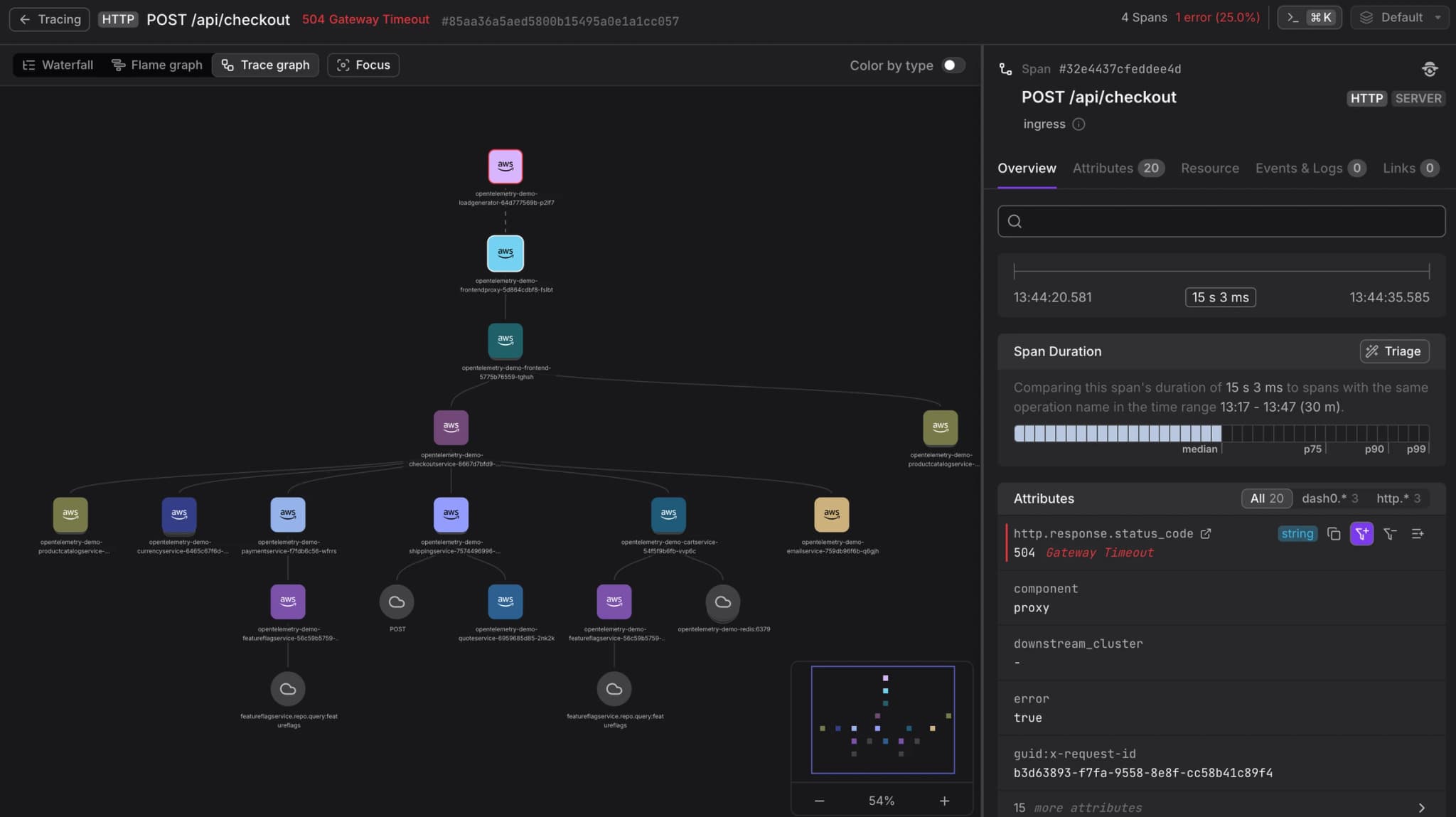
New Trace Visualization: Trace Graph

Visualize the full topology of your distributed traces, dependencies, cross-boundary interactions, and service relationships, for faster root cause analysis.

What changed

The Trace Graph is a new view in Dash0 that transforms a trace into a functional architecture diagram. Each node represents a service or resource involved in the trace, connected by edges that show how they invoke one another, including asynchronous relationships across span links.

Why this matters

The Waterfall and Flame Graph are great for drilling into latency and execution details, but they make it hard to see the big picture. The Trace Graph shows you how your system actually behaved during a request: which services called which, where errors propagated, and how independent flows connected. It's the fastest way to understand the shape of a trace before diving into the details.

Read more

Changing filter operators now preserves values

Change the operator on an existing filter and keep the values you already picked. No more re-selecting the same things twice.

Editing a filter operator used to be a small annoyance: pick a new operator, watch your values disappear, and have to re-select them all over again.

Now that friction is gone.

Changing operator now pre-selects existing values

When you change an operator in an existing filter, Dash0 keeps your selected values intact whenever they're compatible with the new operator. Switch from "is" to "is not"? Your values carry over. Change from "is one of" to "is not one of"? Same thing. Going from a multi-select operator to a single-value operator like "contains" works too, as long as you only had one value selected.

A small change, but one less thing interrupting your flow when building filters.

Read more

Teach your AI coding agent OpenTelemetry best practices

AI coding agents are transforming how teams write code, but they have a blind spot: observability. When an agent scaffolds a new service or adds a feature, it rarely sets up instrumentation — and when it does, the result is often noisy, non-standard telemetry that obscures more than it reveals. Dash0 Agent Skills close that gap.

Dash0 Agent Skills are packaged instructions that plug into any agent that supports the Agent Skills format — including Claude Code, Cursor, and Windsurf — and give it the knowledge to emit high-quality, cost-efficient OpenTelemetry telemetry from the start or to fix existing setups. All of it is guidance that will serve you well with any OpenTelemetery-based observability setup, grounded in semantic conventions and present and (soon-to-be) future best practices in OpenTelemetry.

One command to install

sh
npx skills add dash0hq/agent-skills

Once installed, the skills activate automatically whenever the agent works on a relevant task: instrumenting application code, configuring a Collector pipeline, choosing span attributes, or writing OTTL expressions.

Four skills, one coherent observability strategy

otel-instrumentation: Expert guidance for emitting traces, metrics, and logs across 10 languages and frameworks: Node.js, Go, Python, Java, Scala, .NET, Ruby, PHP, Browser, and Next.js. The agent learns when to use which signal, how to set resource attributes, how to handle errors and span status, and how to keep cardinality under control. Kubernetes-specific guidance covers the Downward API, environment variables, and pod-spec configuration.


otel-collector: Everything the agent needs to configure and deploy the OpenTelemetry Collector: receivers, processors, exporters, and pipelines. Covers agent-vs-gateway deployment patterns, memory limiting, batching, tail sampling, RED metrics, and four deployment methods — raw manifests, the Collector Helm chart, the OpenTelemetry Operator, and the Dash0 Operator.


otel-semantic-conventions: A decision framework for selecting, placing, and reviewing OpenTelemetry semantic convention attributes. The agent searches the Attribute Registry before inventing custom attributes, places them at the correct telemetry level, and flags common mistakes like high-cardinality metric dimensions.


otel-ottl: Guidance for writing OpenTelemetry Transformation Language expressions for the Collector's transform, filter, and routing processors. Covers syntax, contexts, converters, path expressions, and common patterns like sensitive-data redaction and attribute enrichment.

Prescriptive, not descriptive

Every rule is written so that an agent can act on it without human interpretation. Decisions are enumerable — lookup tables and explicit criteria replace open-ended advice. Code examples accompany every actionable rule, showing both the correct pattern and the anti-pattern.

Get started

Install the skills, open your agent, and ask it to add OpenTelemetry instrumentation to your app. The agent handles the rest: correct resource attributes, set span status code and message properly, the right metric instrument type, a Collector pipeline that actually works, and so much more.

**Read our guide: **Read our guide at https://www.dash0.com/guides/teach-your-ai-coding-agent-opentelemetry

Read more

Automatically monitor all namespaces with the Dash0 operator

Monitor the complete Kubernetes cluster with one command

The Dash0 Kubernetes operator just became much more powerful. Previously, you had to enable monitoring separately for each namespace. Now you can let the Dash0 operator automate this! This is very useful if you want to monitor all namespaces in your cluster. It is also useful if you create new namespaces frequently and want to have them monitored right away, without additional setup.

Refer to the operator's documentation for more information.

Read more

Signal Type Restrictions for Auth Tokens

Auth tokens already support restricting ingestion to specific datasets. Now, tokens can also be restricted to individual signal types — logs, spans, metrics, profiles, or web events — giving you fine-grained control over what data each token is allowed to send.

When creating or editing an auth token in Settings > Auth Tokens, a new Signal type dropdown appears between the dataset restriction and permissions fields. Select a signal type to lock the token to that single type of telemetry, or leave it set to "Unrestricted" to accept all signals as before. The restriction is enforced server-side in the collector pipeline: any data that does not match the permitted signal type is silently dropped.

Why this matters for Website monitoring

Website monitoring in Dash0 is powered by the Dash0 Web SDK, which sends both spans and logs over the same OTLP connection. In backend observability, each signal type typically arrives through a separate pipeline with its own token. But the browser is different — a single Web SDK instance emits page loads, web vitals, user interactions (as spans), and console errors or custom events (as logs) through one shared auth token.

With signal type restrictions, you can now issue a dedicated token that only accepts web events. This is valuable for two reasons:

  1. Security boundary. The auth token embedded in your website's JavaScript is publicly visible to anyone who opens the browser's developer
    tools. A token restricted to web events cannot be abused to ingest backend traces, metrics, or profiles into your organization — even if it is
    extracted from the page source.\
  2. Blast-radius reduction. If a web-events-only token is compromised or accidentally shared, the damage is contained to a single signal type.
    Backend observability data, alerting metrics, and profiling data remain unaffected.

Interplay with other features

Signal type restrictions combine with the existing dataset restriction — a token can be scoped to both a specific dataset and a specific signal type for maximum isolation.

And, by the way, you can go and retrofit your existing authentication tokens with the new restrictions!

Read more

Smarter Triage Defaults: Error Comparison Mode

When investigating issues in production, the first question is almost always "what's different about the errors?" Until now, the Triage panel in the Trace Explorer, Logs Explorer, and Web Events Explorer defaulted to comparing against the current timeframe — a useful but generic baseline that required an extra click to switch to error comparison. Starting today, all three explorers default to error comparison mode. The triage panel immediately highlights which attributes correlate with errors, so you can jump straight into root-cause analysis without changing any settings.

What changed

Error comparison as the default baseline. Opening the Triage tab in the Trace Explorer, Logs Explorer, or Web Events Explorer now automatically
compares error spans, error logs, or failed web events against their non-error counterparts. There is no longer a need to manually switch the
analysis method.

Conflicting filter detection. If you already have a general filter restricting data to errors (e.g., otel.span.status.code = ERROR), the error
comparison becomes meaningless — every record matches both the selection and the baseline. When this happens, the triage panel now detects the
conflict and shows a "Remove filter" button that strips the redundant filter in one click, restoring a meaningful comparison.

Why this matters

Error triage is the most common entry point when investigating incidents. Defaulting to error comparison mode removes a step from the most
frequent workflow, while the new conflicting-filter detection ensures users are never stuck on a "No major differences" screen without guidance
on how to fix it.

Read more

Stack Trace Translation with Source Maps

Stack traces from minified JavaScript are now automatically translated into their original source locations.

stacktrace-translated
Successful translated stacktrace

The translation works automatically as long as your JavaScript files and source maps are reachable via HTTP(S).

If your build tool generates source maps and deploys them alongside your JavaScript bundles, no additional configuration is required.

If your source maps are hosted behind authentication, you can configure a Source Map Integration to provide credentials (Basic Auth, Bearer token, or custom headers) for specific URL prefixes.

What’s included:

  • Automatic translation of minified JavaScript stack traces

  • Support for public and authenticated source maps

  • URL prefix–based integration configuration

  • Per-frame translation with detailed error feedback

  • Original stack trace always preserved

Each frame in a stack trace is translated independently. If a frame cannot be resolved, it remains in its original form and shows a warning icon. Hovering over the icon reveals the reason (for example, missing source map, authentication error, or file not found).

You can switch between the original and translated stack trace at any time using the toggle in the UI.

error-stacktrace-translation
Failed translation with error message
Read more

Dash0 Semantic Conventions Are Now Public

Every metric, attribute, and event that Dash0 adds to your telemetry is now defined in a public, machine-readable registry. The Dash0 Semantic Conventions give you a single place to look up what each field means, where it comes from, and how to query it.

At Dash0, we live and breathe OpenTelemetry Semantic Conventions. And in building Dash0, we have defined attributes we add to telemetry you send us, and metrics we make available to you out of the box like the synthetic metrics that you use a lot for alerting.

We like a lot of what we see in the OpenTelemetry Weaver project, which provides the tooling that the OpenTelemetry project uses to publish the OpenTelemetry Semantic Conventions.

And so we did the same ourselves.

Why a public registry?

Dash0 enriches incoming telemetry with attributes such as dash0.operation.name, dash0.resource.type, or dash0.log.pattern.
Until now, the meaning of these fields lived in internal documentation.
Making them public means you can discover every Dash0-specific attribute, metric, and event in one place. And chances are, you may discover the next Dash0 feature you love!

What is in the Dash0 Semantic Conventions registry

The registry covers four areas:

Attributes

Every attribute Dash0 materialises on spans, logs, metrics, and web events is documented — from resource identity (dash0.resource.id, dash0.resource.name and dash0.resource.type) to AI-inferred log fields (dash0.log.ai.message_inferred).

Also OTLP protocol fields that Dash0 maps to queryable attributes (otel.trace.id, otel.span.kind, otel.log.severity.range, and many others) are included as well.

Metrics

All dash0.* metrics are listed with their instrument, unit, and stability level.
Synthetic metrics like dash0.spans and dash0.spans.duration are clearly marked, along with their deprecated Prometheus aliases.


The registry also covers website monitoring (dash0.web.*), synthetic checks (dash0.synthetic_check.*), alerting (dash0.check.*), and so on.

Events

The dash0.deployment event — that you can emit from CI/CD pipelines to mark a service deployment (for example using the brand new Dash0 CLI) is fully specified, including its required resource attributes and optional VCS metadata.

Open in Dash0

Every metric and attribute page includes an Open in Dash0 link that takes you straight to the relevant explorer with the right filters pre-applied.
Click a metric name to open it in the Metrics Explorer.
Click an attribute to jump to the Traces, Logs, Metrics, or Web Events Explorer with the right filters pre-set.

Browse the full registry at dash0hq.github.io/dash0-semantic-conventions. We will also integrate it in the Dash0 Documentation soon.

Read more

Linear integration

Agent0 now integrates with Linear, bridging project management and observability to bring issue context directly into debugging and investigation workflows in Dash0.

What's New

  • Linear integration for Agent0: Agent0 can now reference Linear issues, projects, and teams while investigating production behavior, so you can tie runtime signals to the work your team already tracks.

  • Invoke Agent0 from Linear: Mention @Dash0 in any Linear issue or comment to start an investigation without leaving Linear. Agent0 reads the issue context, runs analysis against your telemetry, and posts results back into the same thread, including tool execution steps and a deep link to the full session in Dash0.

  • Context preserved across tools: Agent0 responses posted into Linear include a deep link that reopens the investigation in Dash0 with organization, dataset, and time range already set.

  • Read-only access: Agent0 reads your Linear workspace but cannot create, modify, or close issues.

Availability

Available now for all Dash0 organizations. Set up in Organization Settings → Integrations → Add → Linear. Open integration settings.

Read more

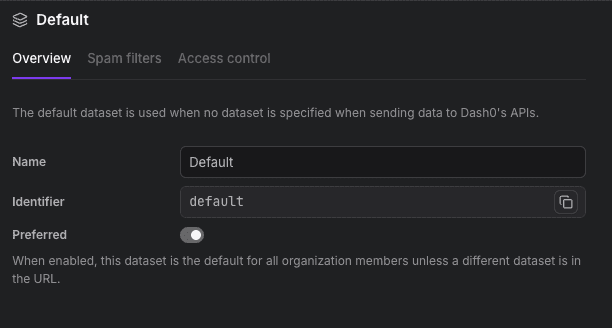
Preferred dataset

Admins can now mark any dataset as preferred for the organization. Dash0 opens the preferred dataset by default for all members of the organization unless a different dataset is specified in the URL or if they previously visited a different dataset.

What's New

Preferred dataset: Enable the Preferred toggle on any dataset's Overview page. Dash0 opens that dataset for all organization members when no dataset is encoded in the URL.

Note that if users already opened a dataset before, that previously stored dataset has precedence over the preferred organisation dataset.

Available to all Dash0 users. Changing the preferred dataset requires admin permissions.

Preferred toggle button in dataset settings
Read more

Manage Dashboards, Views, Check Rules, and Synthetic Checks from the Terminal

Infrastructure as code changed how teams manage servers. The same principle should apply to observability: your dashboards, alerting rules, views, and synthetic checks deserve version control, code review, and automated deployment. The Dash0 CLI gives you full CRUD control over all four asset types, plus the apply command that brings GitOps workflows to your observability configuration.

One consistent interface for every asset type

Dashboards, check rules, views, and synthetic checks all share the same set of subcommands:

sh
dash0 dashboards list
dash0 check-rules get <id>
dash0 views create -f view.yaml
dash0 synthetic-checks update <id> -f check.yaml
dash0 dashboards delete <id>

list, get, create, update, delete: the same verbs, the same flags, the same output formats across every asset type. No need to learn a different interface for each one.

Export, edit, re-apply

The get command with -o yaml or -o json gives you the full asset definition, ready for editing:

sh
dash0 dashboards get <id> -o yaml > dashboard.yaml
# edit dashboard.yaml
dash0 dashboards update <id> -f dashboard.yaml

The apply command: GitOps for observability

apply is the single command that ties it all together.Point it at a file or a directory, and it figures out the rest:

sh
# Apply a single file
dash0 apply -f dashboard.yaml

# Apply an entire directory recursively
dash0 apply -f assets/

The command auto-detects whether each asset needs to be created or updated. Multi-document YAML files (separated by ---) let you bundle related assets into a single file. Hidden files and directories are skipped, so your .git folder stays out of the way.

Prometheus alerting rules, native in Dash0

Already have Prometheus alerting rules? The CLI accepts PrometheusRule CRD files directly:

sh
dash0 check-rules create -f prometheus-rules.yaml
dash0 apply -f prometheus-rules.yaml

Each alerting rule in the CRD becomes a Dash0 check rule. Recording rules are skipped automatically. No manual conversion required.

Multiple output formats

Every list and get command supports table, wide, json, yaml, and csv output. Use wide for a quick overview that includes dataset, origin, and URL. Use csv with --skip-header for machine-readable automation.

Get started

sh
export DASH0_API_URL=... # Get the value at https://app.dash0.com/goto/settings/endpoints?endpoint_type=api_http
export DASH0_AUTH_TOKEN=... # Get the value at https://app.dash0.com/goto/settings/auth-tokens

# See what you have
dash0 dashboards list

# Export, tweak, and re-apply
dash0 dashboards get <id> -o yaml > my-dashboard.yaml
dash0 apply -f my-dashboard.yaml

Asset management is available in all stable releases of the Dash0 CLI: no experimental flag needed.

Read more

Query Spans and Traces from the Terminal

A slow API call rarely tells the whole story. To understand why a request took 3 seconds, you need to see every hop it made: the database query, the downstream RPC, the cache miss that should not have happened. Now you can explore all of that without leaving the terminal. The Dash0 CLI introduces two commands for distributed tracing: spans query to search across spans, and traces get to reconstruct a full trace end-to-end.

Search spans like you search logs

The spans query command brings to spans the same filtering, output formats, and custom columns you already know from logs query:

sh
dash0 -X spans query \
    --from now-1h \
    --filter "service.name is checkout-service" \
    --filter "otel.span.status.code is ERROR"

The default table shows timestamp, duration, span name, status, service name, parent ID, trace ID, and span links. Swap in any OTLP attribute as a column to surface the dimensions that matter to your investigation:

sh
dash0 -X spans query \
    --column timestamp \
    --column duration \
    --column "span name" \
    --column http.request.method

JSON and CSV outputs are available for scripting and downstream processing.

Reconstruct full traces

Once you have a trace ID — from a span query, a log record, or an alerting rule — traces get fetches every span in the trace and displays them as an indented tree:

sh
dash0 -X traces get 0af7651916cd43dd8448eb211c80319c

Modern architectures do not always fit into a single trace. A message queue consumer might link back to the producer's trace; a batch job might reference the request that triggered it.

The --follow-span-links flag tells the CLI to chase those connections automatically:

sh
dash0 -X traces get 0af7651916cd43dd8448eb211c80319c --follow-span-links

The CLI walks span links recursively (up to 20 traces), displaying each linked trace under a clear header. You can set a custom lookback period for the linked traces, like --follow-span-links 2h, to control how far back the search reaches.

Get started

sh
export DASH0_API_URL=... # Get the value at https://app.dash0.com/goto/settings/endpoints?endpoint_type=api_http
export DASH0_AUTH_TOKEN=... # Get the value at https://app.dash0.com/goto/settings/auth-tokens

dash0 -X spans query --from now-15m

Span and trace commands are experimental: enable them with -X and tell us how they fit into your workflow.

Read more

Query Logs from the Terminal

Every investigation involves logs at one point or another. With the dash0 CLI, you can search, filter, and inspect log records stored in Dash0 without leaving your shell.

Powerful filtering at your fingertips

The --filter flag accepts the same expression language you use in the Dash0 UI so you can zero in on exactly the records that matter. Combine multiple filters (AND logic) to slice through millions of log lines in seconds:

sh
dash0 -X logs query \
    --from now-1h \
    --filter "service.name is api-gateway" \
    --filter "otel.log.severity.range is_one_of ERROR FATAL" \
    --limit 200

Supported operators range from exact matches (is, is_not) and substring checks (contains, starts_with) to regex (matches), numeric comparisons (gt, gte, lt, lte), and presence tests (is_set, is_not_set). If you can describe the condition in the Dash0 Logging Explorer, the CLI can express it.

Flexible output for humans and machines

By default, logs query prints a clean table with timestamp, severity, and body. Need the full OTLP payload for a script? Switch to --output json. Feeding results into awk or a spreadsheet? Use --output csv.

Custom columns let you pull any attribute into view:

sh
dash0 -X logs query \
    --column time \
    --column service.name \
    --column body

Any OTLP attribute key, at resource, scope, or log record level, works as a column, so you see exactly the dimensions you care about.

Built for automation

Relative timestamps (now-15m, now-1h), machine-readable CSV output, and --skip-header make logs query a natural fit for shell scripts, CI checks, and AI-agent workflows. Pipe it into jq, grep, or your favorite data tool.

sh
# Count errors in the last 30 minutes
dash0 -X logs query \
    --from now-30m \
    --filter "otel.log.severity.range is ERROR" \
    -o csv --skip-header | wc -l

Get started

Install or update the Dash0 CLI, set your credentials, and start querying:

sh
export DASH0_API_URL=... # Get the value at https://app.dash0.com/goto/settings/endpoints?endpoint_type=api_http
export DASH0_AUTH_TOKEN=... # Get the value at https://app.dash0.com/goto/settings/auth-tokens

dash0 -X logs query --from now-1h

Logs query is an experimental command: enable it with the -X flag and let us know what you think.

Read more