
Last updated: September 14, 2026
Analyze Logs with Triage
Triage mode performs automated comparative analysis to surface attributes that differentiate erroneous or noisy logs from a baseline.
Analyze All Logs
Triage lets you compare two groups of logs within specified timeframes.
- Log severities ERROR & FATAL versus the rest. Use Triage to analyze logs with severity
ERRORorFATALas the analysis group against all other logs as the control group — excluding the severity attribute itself from results, since it would trivially explain the difference.
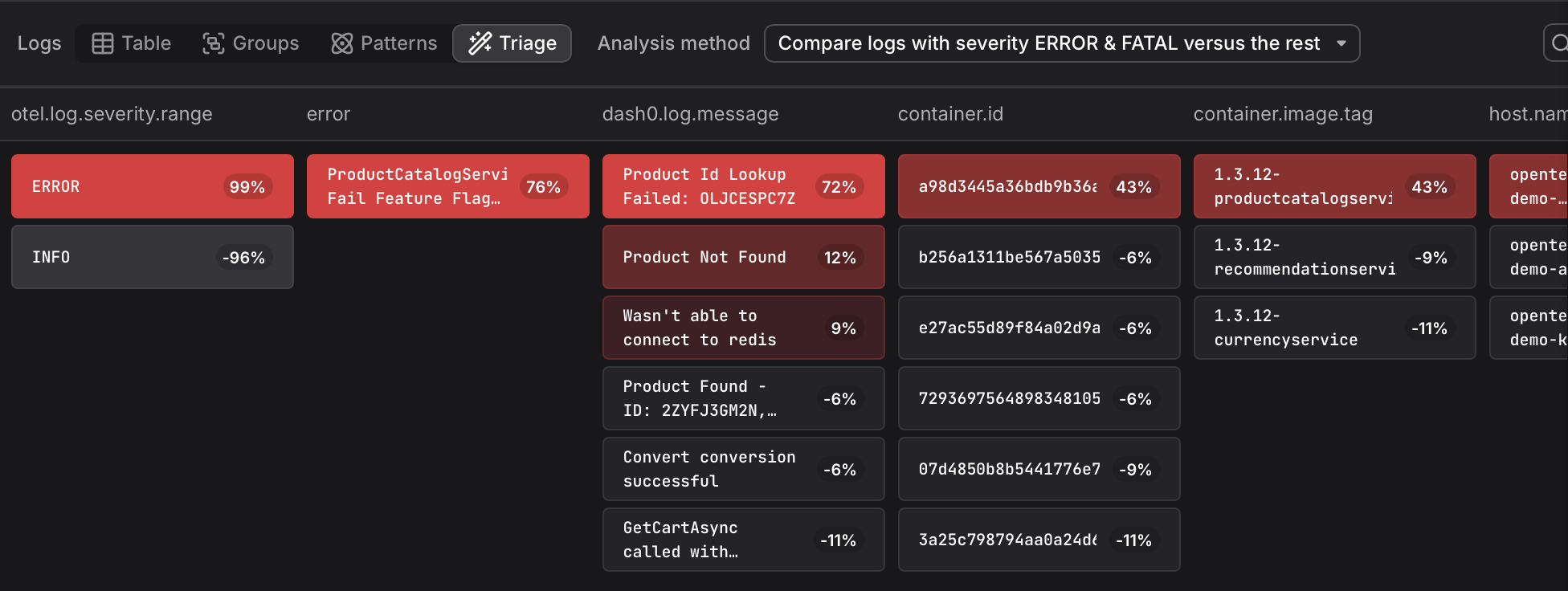
When launched from error mode, Triage automatically scopes to erroneous logs within your selection. You can add further criteria to narrow the analysis — for example, restricting to logs from a specific service or log pattern.
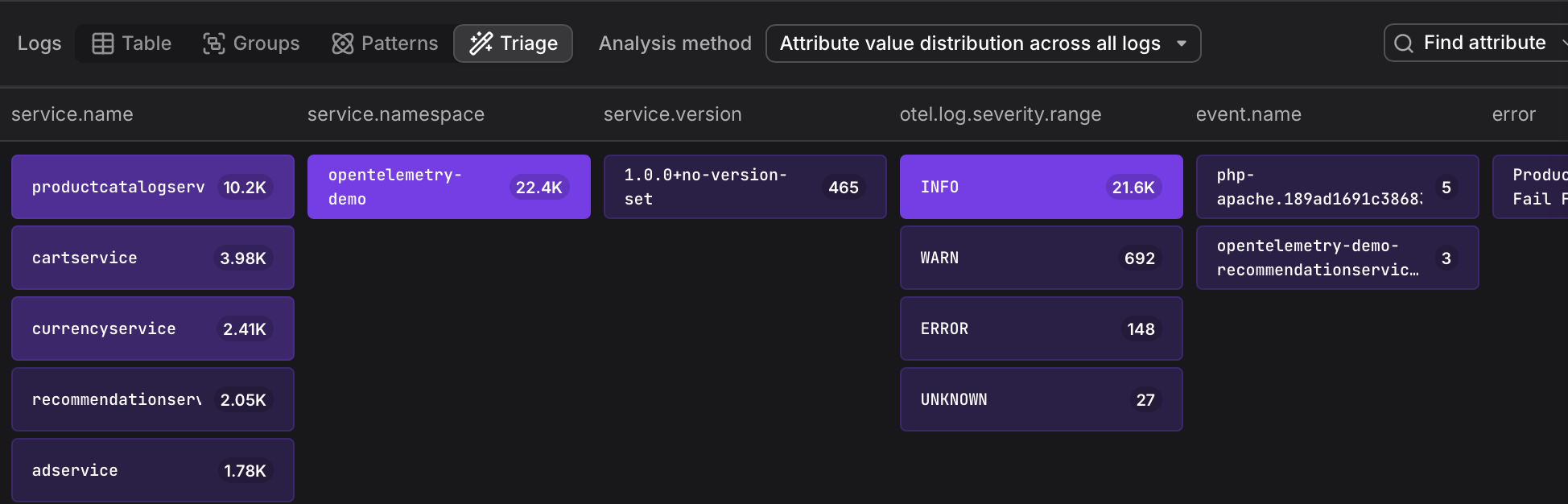
- Attribute values. With Triage, you can identify attribute values that are disproportionately concentrated in one group vs. the other. Results are shown as a distribution: the brighter a value, the higher its concentration in the analysis group.
Compare Selections
Triage supports two different time ranges.
- with global timeframe: compares logs in the selected region across the full visible time range
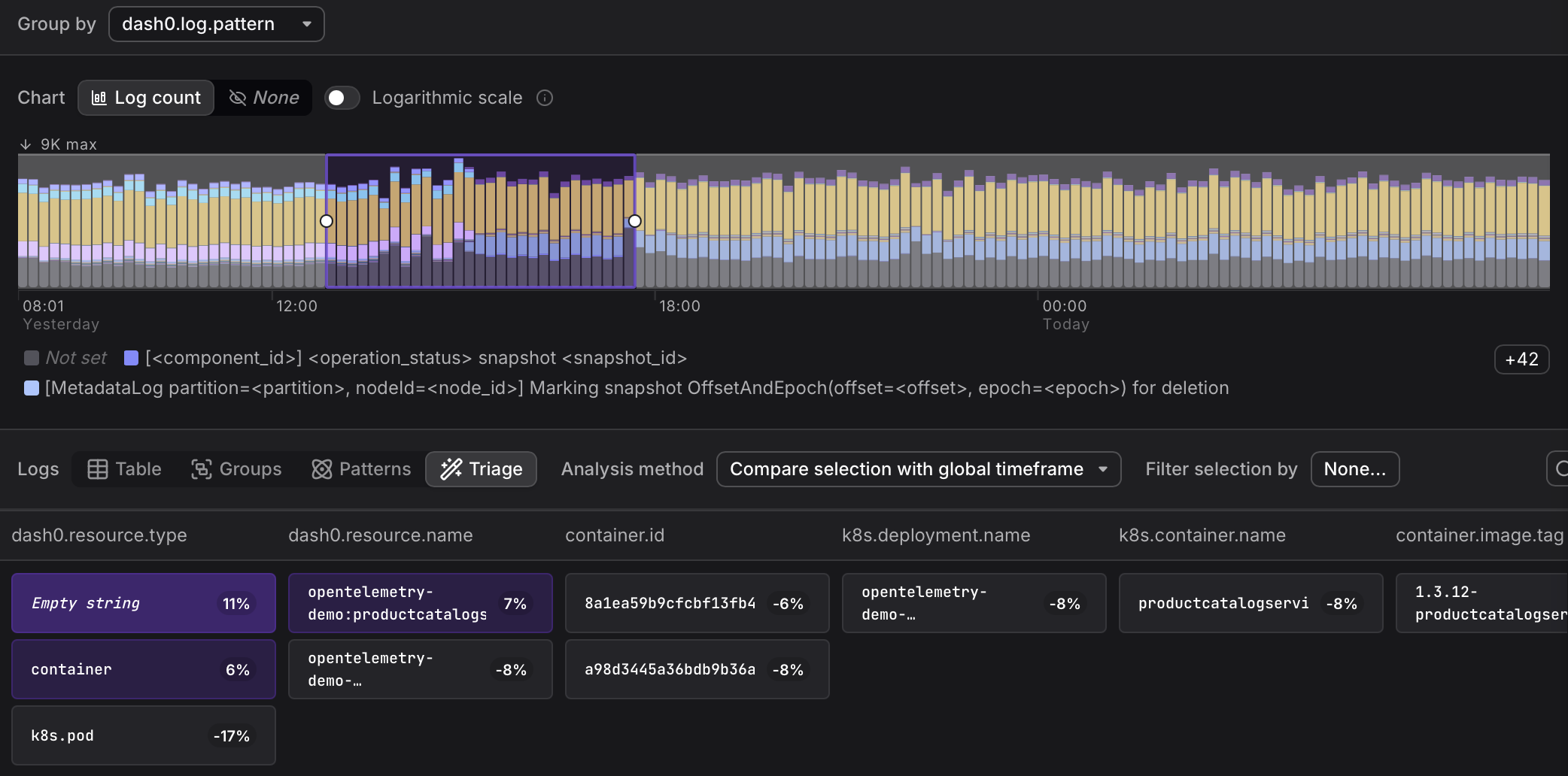
Use this to find what makes a region stand out from typical activity. For example: select a cluster of error logs and compare against the baseline to find which attributes — such as a specific customer ID, endpoint, or service — are concentrated in the failing logs. It also works well for volume spikes: select high-frequency log windows and compare them against the rest to surface common factors like a misbehaving downstream service or an unusual request pattern.
- with earlier in the global timeframe: compares logs in the selected region against the time period immediately before it
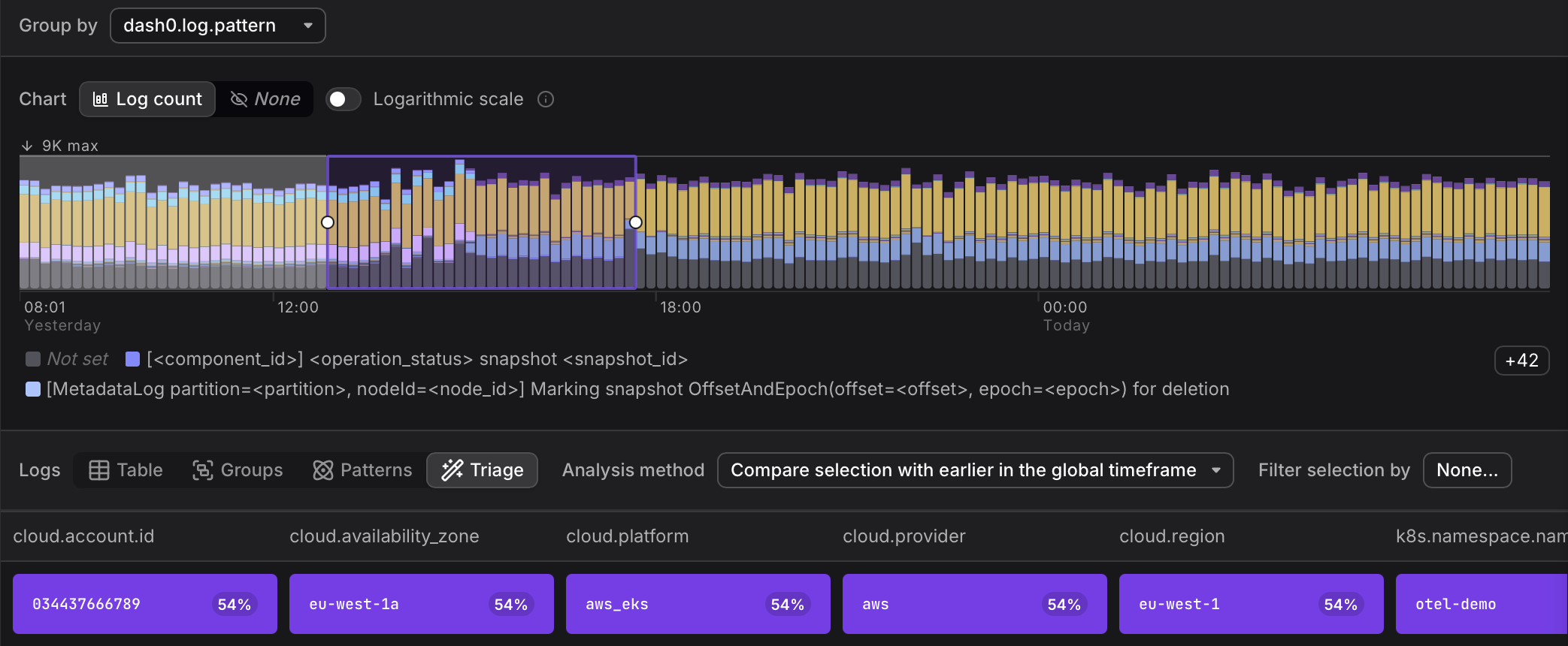
Use this to investigate what changed at a specific point in time. For example: select a window where error rate spiked and compare it against the period just before to find attributes that shifted — such as a new deployment.version value, a change in http.route distribution, or a host that started appearing after a rollout. This is also useful for catching gradual degradation: compare the tail end of a time range against its start to see what drifted.
Troubleshooting
Triage requires both an analysis group and a control group. If you navigate to Triage with a filter already applied that scopes all visible logs to errors — for example, by filtering to severity = ERROR — there are no remaining logs to serve as a control group, and Triage will show no results.
In this situation, the Remove filter button appears. Clicking Remove filter removes the severity filter, restoring a baseline population so that Triage can perform its comparison. The error logs remain the analysis group; the remaining logs become the control group.