
Last updated: October 9, 2026
Set Up AWS Integration
Setting up AWS monitoring in Dash0 requires deploying a CloudFormation template that creates IAM roles with cross-account access, enabling Dash0 to collect metrics, discover resources, and instrument Lambda functions automatically.
Prerequisites
- AWS Account Access: You need permissions to deploy CloudFormation stacks and create IAM roles in your AWS account.
- Dash0 Organization: An active Dash0 organization with access to the Infrastructure section.
- Dataset: A Dash0 dataset where discovered resources and metrics will be stored.
Step 1: Navigate to Connect AWS
In the Dash0 UI, navigate to Settings > Integrations, click on Add and select AWS.
Step 2: Select Dataset and Regions
The Connect AWS wizard guides you through three configuration steps:
1. Connect your dataset to store discovered resources:
Select the dataset where Dash0 will store AWS resource inventory and metrics. This determines where telemetry data from your AWS account will be routed.
2. Select the AWS regions where Dash0 should collect metrics:
Choose which AWS regions to monitor. Only metrics from the regions you select will be streamed to your dataset. You must select at least one region.
Regional selection applies to metric collection and resource discovery. You can modify the region list later if your infrastructure expands to additional regions.
3. Click the button below to open AWS CloudFormation and deploy the integration stack:
The wizard provides a Launch CloudFormation button that opens AWS CloudFormation in a new tab with the Dash0 template pre-loaded.
It's best to log in to the AWS account before adding the AWS integration to avoid issues with login redirects.
Step 3: Deploy the CloudFormation Stack
When you click Launch CloudFormation, AWS opens with the Dash0 integration template:
- Verify the AWS account and region in the CloudFormation console. Confirm you're in the desired account and the region where you want to deploy the root stack. If the region is incorrect, switch it in the AWS console before proceeding.
- Review the template parameters in the CloudFormation console. The template is pre-configured with your organization details and External ID.
- Acknowledge IAM resource creation by checking the box that confirms CloudFormation will create IAM resources.
- Click Create Stack to deploy the integration infrastructure.
The CloudFormation deployment takes a couple of minutes. The template creates:
- IAM roles with cross-account trust to Dash0, including External ID for security.
- StackSets that deploy per-region resources across your selected AWS regions.
- EventBridge rules to forward CloudTrail lifecycle events for resource inventory synchronization.
- CloudWatch integration resources for metrics streaming (via Kinesis Firehose where applicable).
The External ID in the IAM role trust policy is unique to your Dash0 organization and ensures that only your Dash0 account can assume the roles. All API calls to AWS include a session name formatted as dash0-{orgID}-{integrationID} for CloudTrail auditing.
Step 4: Discover and View Resources
After the CloudFormation stack deployment completes, Dash0 begins discovering resources in your AWS account:
- Lambda functions are discovered using AWS Resource Explorer across all selected regions.
- CloudWatch metrics begin streaming to your dataset.
- EventBridge forwards lifecycle events to keep the inventory synchronized in real time.
It may take a few minutes for the Lambda functions to appear in the AWS infrastructure section.
Navigate to Infrastructure > AWS > Lambda to see the discovered Lambda functions. The page provides two modes that you can switch between using the toggle buttons:
- View functions: Shows all discovered Lambda functions with invocation counts, error rates, duration metrics, and cold start data.
- Instrument: Allows you to select functions for auto-instrumentation with the Dash0 Lambda Extension (delivered as a Lambda Layer).
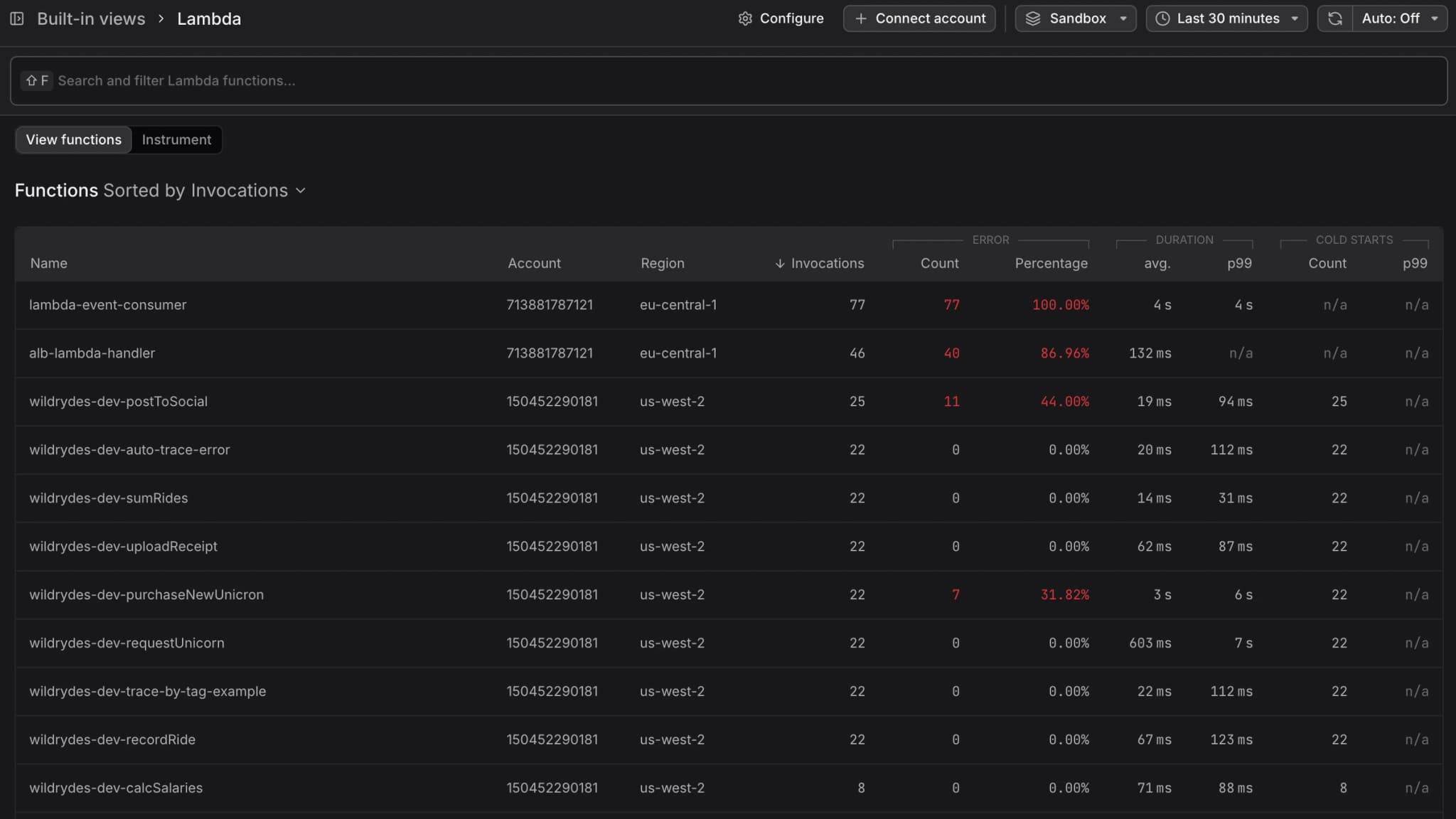
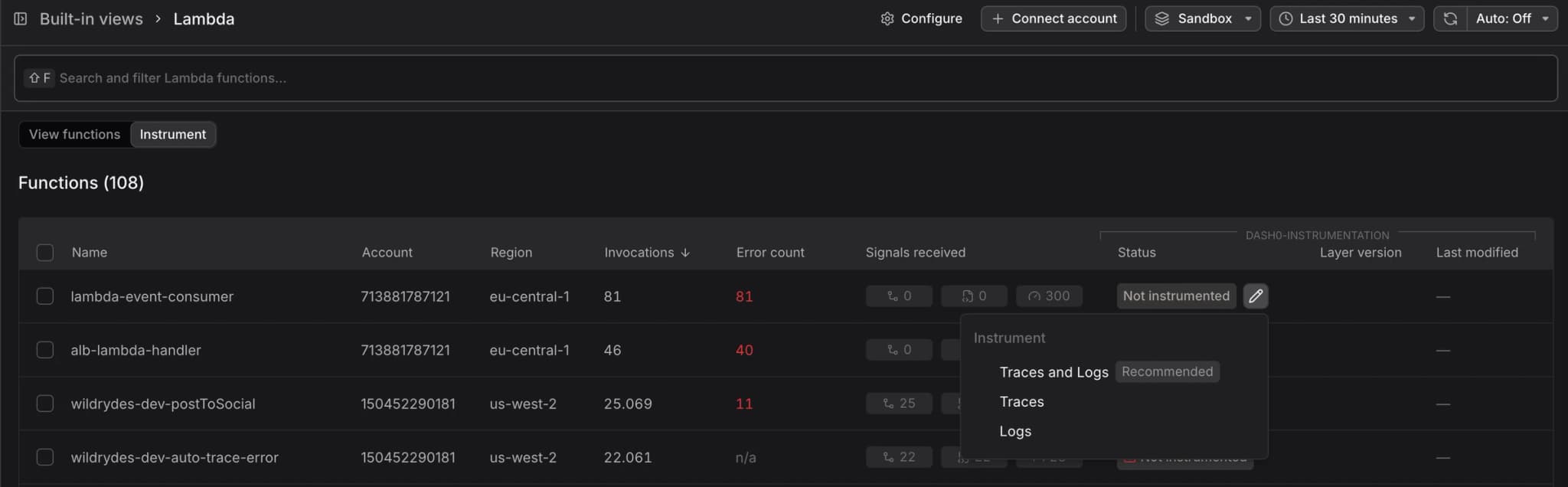
The initial discovery crawl may take a few minutes depending on the number of Lambda functions in your account. The function list updates automatically as new functions are discovered or existing functions are modified.
Step 5: Instrument Lambda Functions (Optional)
To instrument Lambda functions, see Set Up AWS Lambda Auto Instrumentation.
Managing the Integration
After the initial setup, you can manage your AWS integration settings:
View Integration Details:
The integration detail page displays:
- Account ID: Your 12-digit AWS account ID.
- CloudFormation: Stack region and stack name.
- Roles: IAM role ARNs, permission types (Read-Only or Resources Instrumentation), status (active/inactive), and last access timestamp.
- View Audit Logs: Link to audit logs showing all changes made to the integration.
Connect Additional Accounts:
To monitor multiple AWS accounts, repeat the setup process for each account. Each account requires its own CloudFormation stack deployment and has a separate integration entry in Dash0.
Permissions Reference
The IAM roles created by the CloudFormation template require the following permissions:
Read-Only Role:
resource-explorer-2:Searchlambda:GetFunctionlambda:GetFunctionConfigurationlambda:GetLayerVersionlambda:GetFunctionCodeSigningConfigec2:DescribeSubnetsec2:DescribeSecurityGroupscloudwatch:GetMetricData
Instrumentation Role:
- All permissions from the Read-Only Role
lambda:UpdateFunctionConfiguration
EC2 permissions are required only for validating VPC connectivity when Lambda functions are VPC-attached. Dash0 does not modify EC2 resources.
Removing Instrumentation
To remove Dash0 instrumentation from Lambda functions:
- Navigate to Infrastructure > AWS > Lambda in the Dash0 UI.
- Select the instrumented functions.
- Click Remove Instrumentation.
Dash0 will automatically remove the Dash0 Lambda Extension layer and environment variables, restoring the function to its previous configuration.
Troubleshooting
Verification fails with "Cannot assume role":
- Verify the CloudFormation stack deployed successfully without errors.
- Check the IAM role trust policy includes the correct Dash0 account ID and External ID.
- Ensure the External ID matches exactly what's shown in the Dash0 wizard.
- Verify your AWS account has the required permissions to create IAM roles with cross-account trust.
Functions not appearing after discovery:
- Wait 2-5 minutes for the initial discovery crawl to complete.
- Verify that AWS Resource Explorer is enabled in your AWS account and has indexed Lambda resources.
- Check the regional configuration to ensure the regions containing your functions are selected.
- Confirm the Read-Only IAM role has
resource-explorer-2:Searchpermission.
CloudFormation stack deployment fails:
- Check the CloudFormation console for detailed error messages.
- Verify you have permissions to create IAM roles, StackSets, and EventBridge rules.
- Ensure the External ID provided in the template parameters is correct.
- If deploying in a restricted environment, confirm your organization policies allow cross-account IAM role creation.
No metrics appearing in Dash0:
- Verify the CloudFormation stack deployed regional resources in the correct regions.
- Check that CloudWatch Metric Streams (if applicable) are forwarding data to Dash0.
- Confirm the dataset selected during setup is accessible and has the correct permissions.
- For Lambda-specific metrics, ensure functions have been invoked at least once during the selected time range.
Next Steps
- About AWS Lambda Monitoring — Learn about Lambda auto-instrumentation capabilities
- Set Up AWS Lambda Auto Instrumentation — Instrument Lambda functions via the Dash0 UI
- Trace Lambda Invocations — View traces with full Lambda context
- Debug Timeouts and Errors — Find failed invocations using synthetic traces
- Analyze Cold Starts — Measure and reduce cold start latency