
Last updated: October 1, 2026
Run Fails with Guardrail Failure
When a run status shows "guardrail_failure", Agent0 violated one or more guardrail constraints you configured. This is by design to ensure automations behave safely.
Required Tool Calls Not Met
The most common guardrail failure: Agent0 didn't call tools you marked as required.
Why this happens:
- Agent0 wrote a summary but didn't take the required action
- Prompt wasn't explicit enough about what to do
- Tool isn't available (blocked by allowed tools or integration not connected)
How to fix:
-
Check which tools were missing:
- Open the failed run
- Look at tool calls that were made
- Compare to your Required Tool Calls list in guardrails
-
Make the prompt more explicit:
123Query error rate for service {{label.service}}.Post your findings to #incidents. This is required. -
Verify tool is accessible:
- Check Allowed Tools includes the required tool
- For Slack: Verify Slack integration is connected
- For GitHub: Verify GitHub integration is connected
-
Test again:
- Use Test button with realistic variables
- Verify the required tool gets called
- Adjust prompt if needed
Agent0 gets one automatic retry when required tools are missing. If it still doesn't call them after the retry, the run fails with guardrail_failure.
Timeout Exceeded
Automation ran longer than the configured timeout.
Why this happens:
- Complex queries over large time ranges
- Too many services to analyze
- External API calls taking too long
- Infinite loops in conditional logic
How to fix:
-
Increase timeout:
- Go to Guardrails > Timeout
- Set a higher value (e.g., from 10m to 20m)
- Consider if the automation really needs that long
-
Simplify the prompt:
- Reduce time ranges for queries
- Limit number of services to analyze
- Break complex tasks into separate automations
-
Check for runaway logic:
- Review prompt for open-ended instructions like "keep querying until..."
- Add specific limits: "Query top 5 services" not "Query all services"
Tool Parameter Overrides Blocking Execution
Tool parameter overrides can inadvertently prevent tool calls from succeeding.
Why this happens:
- Overridden parameter is invalid (wrong channel ID, malformed timeframe)
- Override uses a variable that's empty for this trigger type
- Parameter name is misspelled (silently dropped)
How to fix:
-
Review tool parameter overrides:
- Go to Guardrails > Tool Parameter Overrides
- Check each override is still valid
- Verify parameter names match tool schema exactly
-
Check variable values:
- If override uses
{{variable}}, ensure that variable is populated for your trigger type - Example:
{{slack.channel.id}}is empty for schedule triggers
- If override uses
-
Test without overrides:
- Temporarily remove overrides
- Test to see if automation succeeds
- Add back overrides one at a time to find the problematic one
Network Level Blocking Tool
Network level restrictions can prevent sandbox-native operations from running.
Why this happens:
- No Network blocks sandbox operations (git/gh CLI, curl, webhooks)
- Tool needs network access but you have No Network set
How to fix:
-
Check which tools need Full Network:
- Connector tools work under any setting: Slack, GitHub API, Linear, Dash0 query tools all work with No Network
- Sandbox operations need Full Network: git/gh CLI, curl, webhooks
-
Update network level only if needed:
- Go to Guardrails > Network Access
- Change to Full Network only if using sandbox-native operations
- Save and test again
Most automations using Slack, GitHub, and Linear connector tools do NOT need Full Network. Only enable Full Network if you're using bash tools like gh CLI, git, or curl.
Credit Budget Exceeded
The automation's rolling credit budget was used up before the run started, so the run is blocked with a Guardrail Failure.
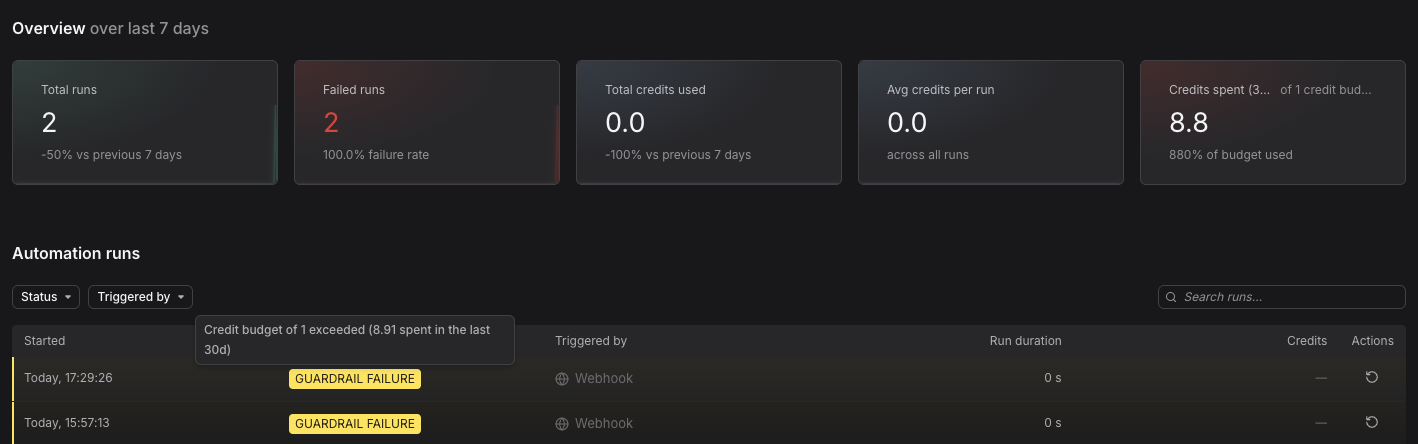
Why this happens:
- The automation ran more often than expected within its rolling window (webhook floods, noisy triggers, retries)
- Individual runs cost more credits than expected (long prompts, many tool calls)
- The Credit Budget configured in guardrails is too low for actual usage
How to fix:
-
Check the failure tooltip:
- Hover the GUARDRAIL FAILURE badge on the run in the automation's overview or Runs tab
- It shows the configured budget and the amount spent in the rolling window, for example:
Credit budget of 1 exceeded (8.91 spent in the last 30d)
-
Review recent spend:
- Check Total credits used and Avg credits per run in the automation's overview
- Identify whether one trigger type or a small number of runs is driving spend
-
Adjust the budget or the trigger:
- Go to Guardrails > Credit Budget and raise the budget or widen the window if the current usage is expected
- If usage is unexpected, fix the trigger (debounce, concurrency) or the prompt (fewer tool calls, tighter scope) instead of just raising the budget
An already active run is not canceled when the budget is hit, only new runs are blocked. This is why spend can briefly exceed the configured budget.
Allowed Tools Blocking Required Tool
If required tools aren't in the allowed list, the run fails immediately.
Why this happens:
- You set Allowed Tools but forgot to include a required tool
- Tool was denied in the Manage Tools dialog
How to fix:
-
Check allowed tools configuration:
- Go to Guardrails > Allowed Tools
- Ensure required tools are included
- Example: If
slackSendMessageis required, allowslack:slackSendMessageorslack:*
-
Check tool status in Manage Tools:
- Click Manage Tools button
- Find the required tool
- Ensure status is Allowed or Required, not Denied
-
Use default policy:
- If you're not sure what to allow, clear Allowed Tools entirely
- Default policy allows sensible tool access based on trigger type
Debugging Guardrail Failures
Systematic approach to identify which guardrail failed:
-
Check run status message:
- Opens the failed run
- Look for specific error message
- Usually says which guardrail was violated
-
Review tool calls:
- See which tools were actually called
- Compare to required tool calls list
- Identify what's missing
-
Check run duration:
- If runtime equals your timeout, timeout was exceeded
- Otherwise, issue is likely required tools or tool access
-
Test in isolation:
- Create a minimal test automation with same guardrails
- Simplify prompt to just call one required tool
- If that works, the issue is in your complex prompt logic
Further Reading
- About Troubleshooting — Overview of common automation issues
- Set Guardrails — Configure guardrails correctly, including credit budgets
- Agent0 Doesn't Call Expected Tools — More on tool access issues