Stack traces from minified JavaScript are now automatically translated into their original source locations.
Successful translated stacktrace
The translation works automatically as long as your JavaScript files and source maps are reachable via HTTP(S).
If your build tool generates source maps and deploys them alongside your JavaScript bundles, no additional configuration is required.
If your source maps are hosted behind authentication, you can configure a Source Map Integration to provide credentials (Basic Auth, Bearer token, or custom headers) for specific URL prefixes.
What’s included:
Automatic translation of minified JavaScript stack traces
Support for public and authenticated source maps
URL prefix–based integration configuration
Per-frame translation with detailed error feedback
Original stack trace always preserved
Each frame in a stack trace is translated independently. If a frame cannot be resolved, it remains in its original form and shows a warning icon. Hovering over the icon reveals the reason (for example, missing source map, authentication error, or file not found).
You can switch between the original and translated stack trace at any time using the toggle in the UI.
Every metric, attribute, and event that Dash0 adds to your telemetry is now defined in a public, machine-readable registry. The Dash0 Semantic Conventions give you a single place to look up what each field means, where it comes from, and how to query it.
At Dash0, we live and breathe OpenTelemetry Semantic Conventions. And in building Dash0, we have defined attributes we add to telemetry you send us, and metrics we make available to you out of the box like the synthetic metrics that you use a lot for alerting.
We like a lot of what we see in the OpenTelemetry Weaver project, which provides the tooling that the OpenTelemetry project uses to publish the OpenTelemetry Semantic Conventions.
Dash0 enriches incoming telemetry with attributes such as dash0.operation.name, dash0.resource.type, or dash0.log.pattern.
Until now, the meaning of these fields lived in internal documentation.
Making them public means you can discover every Dash0-specific attribute, metric, and event in one place. And chances are, you may discover the next Dash0 feature you love!
Every attribute Dash0 materialises on spans, logs, metrics, and web events is documented — from resource identity (dash0.resource.id, dash0.resource.name and dash0.resource.type) to AI-inferred log fields (dash0.log.ai.message_inferred).
Also OTLP protocol fields that Dash0 maps to queryable attributes (otel.trace.id, otel.span.kind, otel.log.severity.range, and many others) are included as well.
All dash0.* metrics are listed with their instrument, unit, and stability level.
Synthetic metrics like dash0.spans and dash0.spans.duration are clearly marked, along with their deprecated Prometheus aliases.
The registry also covers website monitoring (dash0.web.*), synthetic checks (dash0.synthetic_check.*), alerting (dash0.check.*), and so on.
The dash0.deployment event — that you can emit from CI/CD pipelines to mark a service deployment (for example using the brand new Dash0 CLI) is fully specified, including its required resource attributes and optional VCS metadata.
Every metric and attribute page includes an Open in Dash0 link that takes you straight to the relevant explorer with the right filters pre-applied.
Click a metric name to open it in the Metrics Explorer.
Click an attribute to jump to the Traces, Logs, Metrics, or Web Events Explorer with the right filters pre-set.
Agent0 now integrates with Linear, bridging project management and observability to bring issue context directly into debugging and investigation workflows in Dash0.
Linear integration for Agent0: Agent0 can now reference Linear issues, projects, and teams while investigating production behavior, so you can tie runtime signals to the work your team already tracks.
Invoke Agent0 from Linear: Mention @Dash0 in any Linear issue or comment to start an investigation without leaving Linear. Agent0 reads the issue context, runs analysis against your telemetry, and posts results back into the same thread, including tool execution steps and a deep link to the full session in Dash0.
Context preserved across tools: Agent0 responses posted into Linear include a deep link that reopens the investigation in Dash0 with organization, dataset, and time range already set.
Read-only access: Agent0 reads your Linear workspace but cannot create, modify, or close issues.
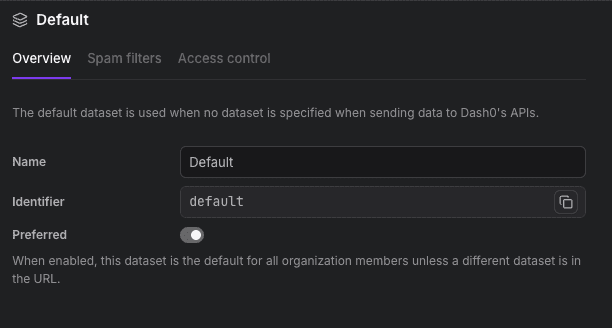
Admins can now mark any dataset as preferred for the organization. Dash0 opens the preferred dataset by default for all members of the organization unless a different dataset is specified in the URL or if they previously visited a different dataset.
Preferred dataset: Enable the Preferred toggle on any dataset's Overview page. Dash0 opens that dataset for all organization members when no dataset is encoded in the URL.
Note that if users already opened a dataset before, that previously stored dataset has precedence over the preferred organisation dataset.
Available to all Dash0 users. Changing the preferred dataset requires admin permissions.
Infrastructure as code changed how teams manage servers.
The same principle should apply to observability: your dashboards, alerting rules, views, and synthetic checks deserve version control, code review, and automated deployment.
The Dash0 CLI gives you full CRUD control over all four asset types, plus the apply command that brings GitOps workflows to your observability configuration.
list, get, create, update, delete: the same verbs, the same flags, the same output formats across every asset type. No need to learn a different interface for each one.
apply is the single command that ties it all together.Point it at a file or a directory, and it figures out the rest:
sh
# Apply a single file
dash0 apply -f dashboard.yaml

# Apply an entire directory recursively
dash0 apply -f assets/
The command auto-detects whether each asset needs to be created or updated. Multi-document YAML files (separated by ---) let you bundle related assets into a single file. Hidden files and directories are skipped, so your .git folder stays out of the way.
Every list and get command supports table, wide, json, yaml, and csv output. Use wide for a quick overview that includes dataset, origin, and URL. Use csv with --skip-header for machine-readable automation.
export DASH0_API_URL=... # Get the value at https://app.dash0.com/goto/settings/endpoints?endpoint_type=api_http
export DASH0_AUTH_TOKEN=... # Get the value at https://app.dash0.com/goto/settings/auth-tokens

# See what you have
dash0 dashboards list

# Export, tweak, and re-apply
dash0 dashboards get <id> -o yaml > my-dashboard.yaml
dash0 apply -f my-dashboard.yaml
Asset management is available in all stable releases of the Dash0 CLI: no experimental flag needed.
A slow API call rarely tells the whole story.
To understand why a request took 3 seconds, you need to see every hop it made: the database query, the downstream RPC, the cache miss that should not have happened.
Now you can explore all of that without leaving the terminal.
The Dash0 CLI introduces two commands for distributed tracing: spans query to search across spans, and traces get to reconstruct a full trace end-to-end.
The spans query command brings to spans the same filtering, output formats, and custom columns you already know from logs query:
sh
dash0 -X spans query \
    --from now-1h \
    --filter "service.name is checkout-service" \
    --filter "otel.span.status.code is ERROR"
The default table shows timestamp, duration, span name, status, service name, parent ID, trace ID, and span links. Swap in any OTLP attribute as a column to surface the dimensions that matter to your investigation:
Once you have a trace ID — from a span query, a log record, or an alerting rule — traces get fetches every span in the trace and displays them as an indented tree:
sh
dash0 -X traces get 0af7651916cd43dd8448eb211c80319c
Modern architectures do not always fit into a single trace. A message queue consumer might link back to the producer's trace; a batch job might reference the request that triggered it.
The --follow-span-links flag tells the CLI to chase those connections automatically:
sh
dash0 -X traces get 0af7651916cd43dd8448eb211c80319c --follow-span-links
The CLI walks span links recursively (up to 20 traces), displaying each linked trace under a clear header. You can set a custom lookback period for the linked traces, like --follow-span-links 2h, to control how far back the search reaches.
export DASH0_API_URL=... # Get the value at https://app.dash0.com/goto/settings/endpoints?endpoint_type=api_http
export DASH0_AUTH_TOKEN=... # Get the value at https://app.dash0.com/goto/settings/auth-tokens

dash0 -X spans query --from now-15m
Span and trace commands are experimental: enable them with -X and tell us how they fit into your workflow.
Every investigation involves logs at one point or another.
With the dash0 CLI, you can search, filter, and inspect log records stored in Dash0 without leaving your shell.
The --filter flag accepts the same expression language you use in the Dash0 UI so you can zero in on exactly the records that matter. Combine multiple filters (AND logic) to slice through millions of log lines in seconds:
Supported operators range from exact matches (is, is_not) and substring checks (contains, starts_with) to regex (matches), numeric comparisons (gt, gte, lt, lte), and presence tests (is_set, is_not_set). If you can describe the condition in the Dash0 Logging Explorer, the CLI can express it.
By default, logs query prints a clean table with timestamp, severity, and body. Need the full OTLP payload for a script? Switch to --output json. Feeding results into awk or a spreadsheet? Use --output csv.
Custom columns let you pull any attribute into view:
sh
dash0 -X logs query \
    --column time \
    --column service.name \
    --column body
Any OTLP attribute key, at resource, scope, or log record level, works as a column, so you see exactly the dimensions you care about.
Relative timestamps (now-15m, now-1h), machine-readable CSV output, and --skip-header make logs query a natural fit for shell scripts, CI checks, and AI-agent workflows. Pipe it into jq, grep, or your favorite data tool.
sh
# Count errors in the last 30 minutes
dash0 -X logs query \
    --from now-30m \
    --filter "otel.log.severity.range is ERROR" \
    -o csv --skip-header | wc -l
export DASH0_API_URL=... # Get the value at https://app.dash0.com/goto/settings/endpoints?endpoint_type=api_http
export DASH0_AUTH_TOKEN=... # Get the value at https://app.dash0.com/goto/settings/auth-tokens

dash0 -X logs query --from now-1h
Logs query is an experimental command: enable it with the -X flag and let us know what you think.
The core team API endpoints, starting with /teams, cover operations like:
Retrieving a list of all teams in your organization.
Creating new teams with specific access configurations.
Adding and removing members from teams.
Fetching details for a single team.
Updating existing team properties, such as the name.
Deleting teams.
CLI Snippets
sh
# List all teams
dash0 teams -X list

# Create a new team
dash0 teams -X create --name "Frontend Developers"

# Add members to a team
dash0 teams -X add-members <teamId> <memberIdOrEmail> <memberIdOrEmail> <memberIdOrEmail>

# Delete a team
dash0 teams -X delete <teamId>
The teams command is currently experimental (like all recently introduced commands), and therefore requires the –X/-–experimental flag.
Members Management
The API endpoints under /members let you manage individuals in your organization:
Listing all members in the organization.
Inviting new users to the organization.
Managing member roles and permissions.
CLI Snippets
sh
# List all members
dash0 members -X list

# Invite a new user
dash0 members -X invite "user@example.com"

# Invite a new user
dash0 members -X remove "user@example.com"
The members command is currently experimental (like all recently introduced commands), and therefore requires the –X/-–experimental flag.
The filter bar across all Dash0 explorer pages has new capabilities for managing filters across pages, resolving conflicts, and copying individual filters.
Pin filters: Pin any filter to carry it across pages. Navigate from Trace Explorer to Log Explorer, Services, or Resources and your pinned filters are already there. No need to re-enter the same context on every page.
Pinned filters showcase
Conflict detection: The filter bar now detects when two active filters check the same key with different values and shows a warning. This commonly happens when opening a link from a teammate that has filters already applied.
Conflict resolution: When a conflict is detected, Dash0 offers a merge — the conflicting values become a single filter that matches any of them. Accept with one click.
Conflicting filters with on demand resolution
Copy individual filters: Copy a single filter without copying your entire filter list. Expand a filter and click the copy icon.
Updated filter bar: Filters are more compact by default and expand on interaction to show available actions (pin, copy). They auto-collapse when not in use.
Collapsed filters
Available in: Trace Explorer, Log Explorer, Services, Resources, Websites, and Failed Checks.
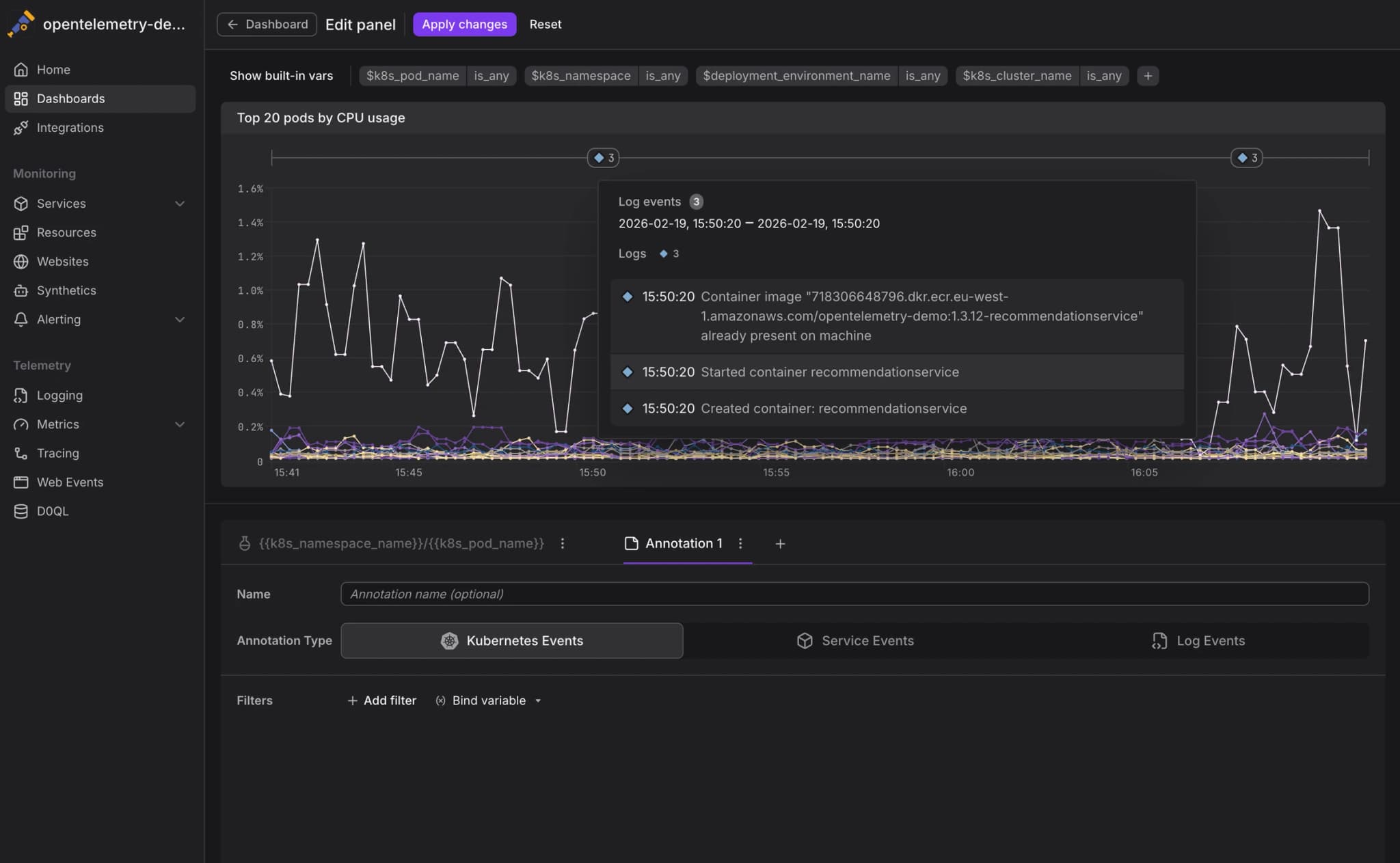
Overlay events on any dashboard chart to see what changed alongside your metrics.
A latency spike tells you something is wrong. Seeing a pod restart or a container reschedule seconds earlier tells you why. Dashboard annotations put those events directly on your charts.
When editing a panel, click Add annotation, pick an event type, scope it to a service, and add filters. You can add multiple annotations per panel to layer different event scopes on the same chart. Click any marker on the timeline to see full event details.
Annotations work with events already flowing into Dash0. If you’re not collecting events yet, the Dash0 Kubernetes operator (v0.92.1+) gathers Kubernetes events automatically from monitored namespaces. For application-level events, any structured log record with an otel.event.name attribute is recognized as a log event and can be used as an annotation source.
Telemetry export and API sync now support multi-cast to any number of backends
Starting with version 0.102.0 of the Dash0 Kubernetes Operator, you can configure any number and combination of backends that best fits your requirements and the operator will ensure the collectors send the data to all of them.
Together with the previously released per-namespace export and API sync configuration, this allows a very flexible routing to different backends.
For example, to send the data from one namespace to two different Dash0 datasets and in addition to a gRPC endpoint, you could use the following exports in your Dash0Monitoring config:
Dash0 now recognizes any structured log record using the `otel.event.name` attribute or field as a log event.
Log events in OpenTelemetry are a subset of log records with a special field, EventName, that specifies the type of event it represents. Log events of the same type are supposed to use the same schema for their body.
(Foreshadowing: soon you are going to care a lot about log events in Dash0. Dun dun DUN!)
EventName being a field in OTLP has been an issue: support for OTLP fields is very sparse beyond the Logs API in the SDKs (with notable SDKs not having support to this day) and the OpenTelemetry Collector. Most other logging agents that can send logs over OTLP do not support fields for log records beyond timestamp, body and attributes. And since attributes are generally well supported in the ecosystem, OpenTelemetry Semantic Conventions v1.39.0 introduced otel.event.name as an attribute-level fallback for the EventName field.
In compliance with the semantic conventions, Dash0 now supports otel.event.name as fallback for the EventName field. Log records ingested via OTLP that do not have the EventName field set, are nevertheless treated as log events also when the otel.event.name attribute is present. The same applies to other structured log formats: their logs are similarly handled as log events when the top-level otel.event.name field is set.