
Last updated:
Write SQL Queries
The SQL editor is available under Query Data > SQL in the left-hand navigation.
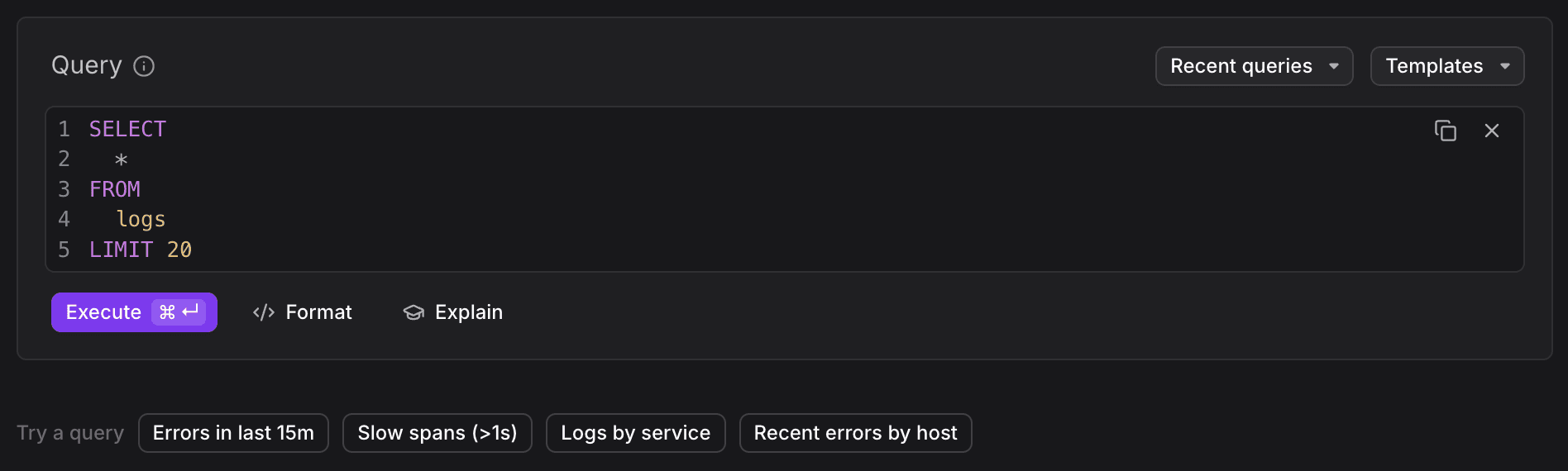
The editor provides syntax highlighting and auto-formats your query on demand. Three buttons are available below the editor.
-
Execute (
⌘ Enteron Mac,Ctrl Enteron Windows/Linux): runs the query against the current time window. -
Format: reformats the query to standard SQL indentation and style without changing its semantics.
-
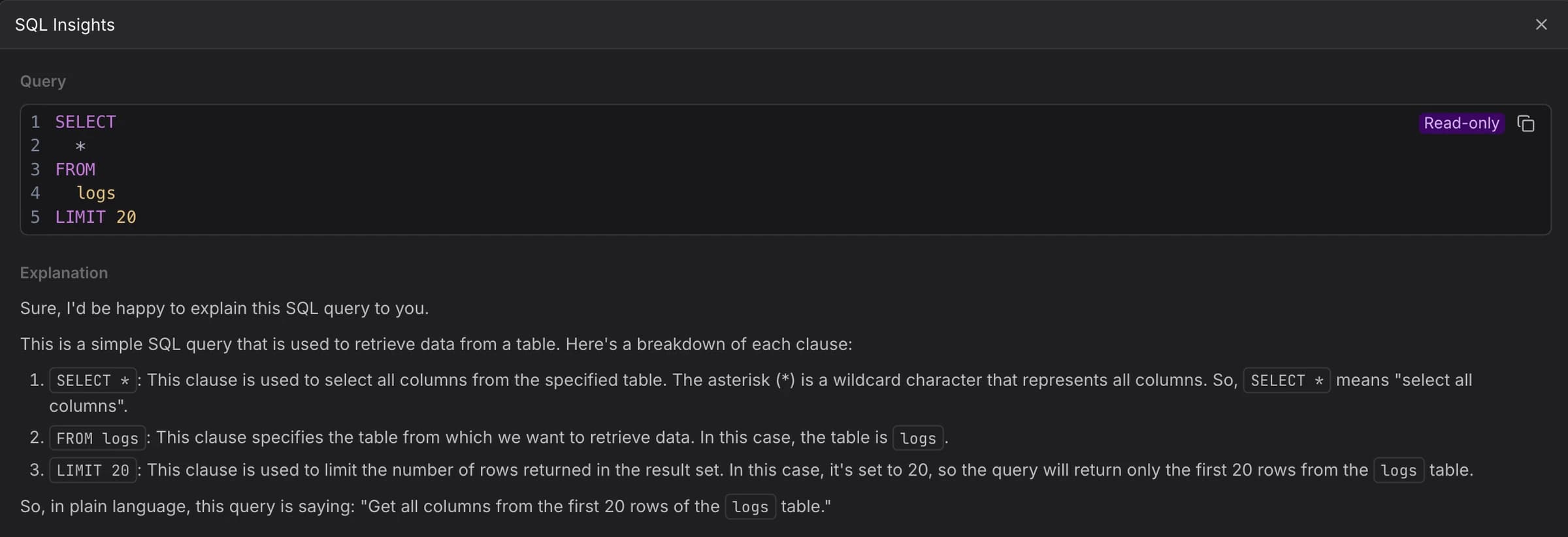
Explain: sends the query to an AI model and shows a plain-English breakdown of what each part does. This is useful when reading an unfamiliar template or debugging a complex join.
Supported Functions
Dash0 SQL supports a range of built-in functions for aggregation, string manipulation, date handling, array operations, math, logic, and JSON extraction.
For details, see Use Supported Functions.
Time Window
Dash0 SQL automatically applies the time range selected in the time picker to every query. You do not need to add a timestamp filter manually.
If you add an explicit filter on a timestamp column, it may conflict with the implicit time range.
See Troubleshoot SQL Queries for details.
Query Suggestions
When the editor is empty, a set of suggested queries appears below it, such as Errors in last 15m, Slow spans (>1s), Logs by service, and Recent errors by host.

Click any suggestion to load it into the editor.
Keyboard Shortcuts
| Action | Shortcut |
|---|---|
| Run query | ⌘ Enter (Mac) / Ctrl Enter (Windows/Linux) |
| Open templates | ⌘ T |
| Open recent queries | ⌘ H |
| Open saved views | ⌘ S |
Further Reading
- Use Supported Functions: explore the available functionality for querying SQL in Dash0.
- Use Query Templates: browse and run built-in templates by signal type.
- Manage Saved Queries: recent query history and saved views.
- Explore Your Schema: discover available tables, columns, and supported functions.
- Troubleshoot SQL Queries: common issues and fixes.