
Last updated:
Manage Saved Queries
Dash0 SQL provides two ways to revisit a query you have run before: recent query history and saved views. They serve different purposes and have different persistence characteristics.
| Recent queries | Saved views | |
|---|---|---|
| Storage | Browser local storage | Dash0 server |
| Persists after browser clear | No | Yes |
| Works across devices | No | Yes |
| Shareable with teammates | No | Yes |
| Capacity | Last 20 queries | Unlimited |
Access Recent Queries
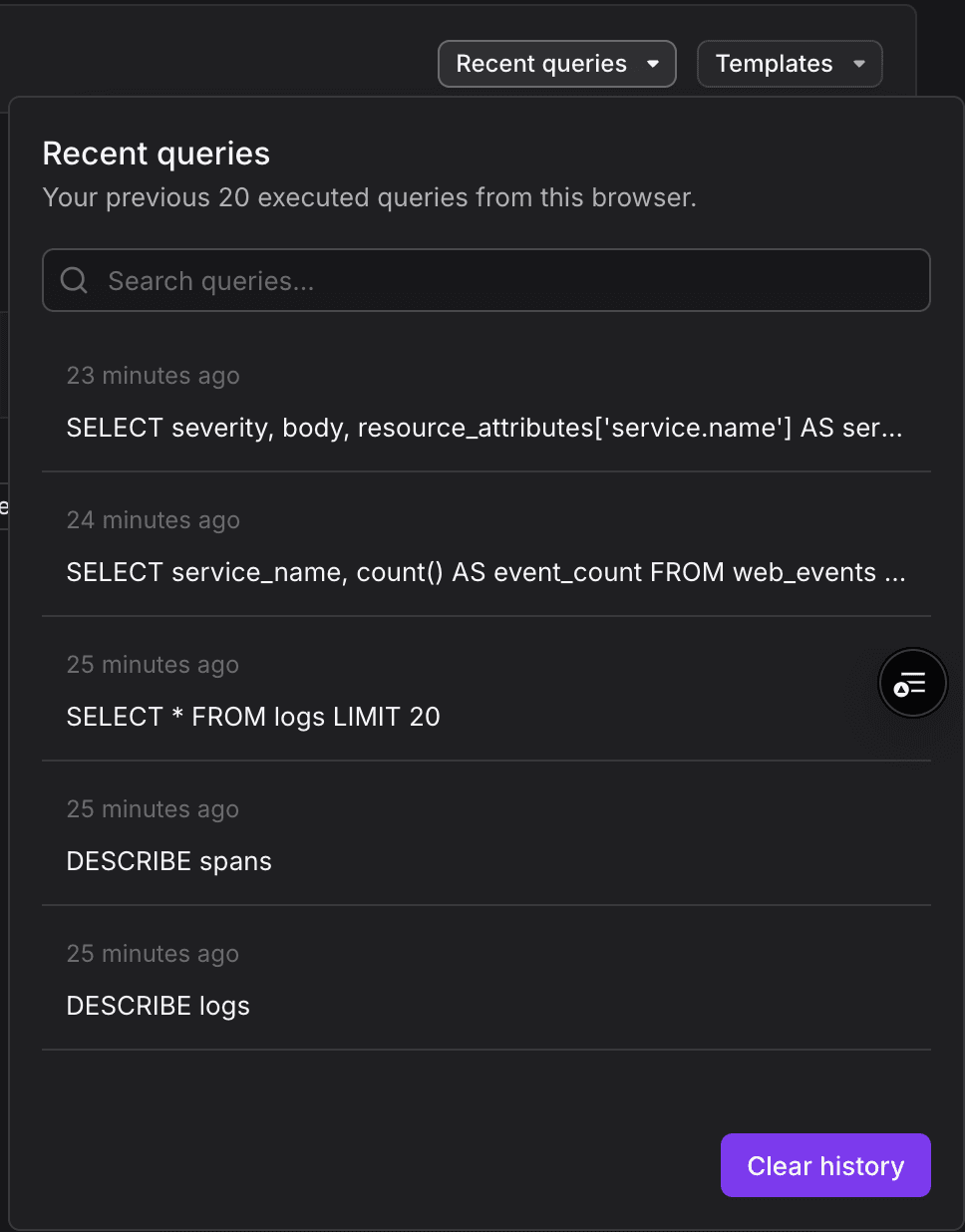
Every query you run is saved automatically to your browser history. Dash0 SQL keeps your last 20 queries.
-
Click Recent queries in the top-right of the editor panel.
-
Click any entry to load it into the editor.
-
Run or modify it from there.
Recent queries are stored in your browser's local storage. They are not shared with other users and will not persist if you clear your browser data. Use saved views for queries you want to keep long-term.
Access Saved Views
A saved view is a named query stored in Dash0. Unlike recent queries, saved views persist across sessions, devices, and browser clears. They can be shared with other users in your organization.
- Save a view. Write or load a query in the editor, click Save in the horizontal navigation bar, enter a name, then click Confirm. The view is now available in your Custom list.
- Open a saved view. Click your view in the Custom to open the query and load it into the editor.
- Share a saved view. In the Custom list, select a saved view, click the vertical ellipsis button, and click Share, then configure access to the view. The recipient must be a member of your Dash0 organization and be logged in to open the shared view.
- Delete a saved view. In the Custom list, select a saved view, click the vertical ellipsis button, and click Delete.
Further Reading
- Write SQL Queries: the editor, time window behavior, and keyboard shortcuts.
- Use Supported Functions: explore the available functionality for querying SQL in Dash0.
- Use Query Templates: browse and run built-in templates by signal type.
- Explore Your Schema: discover available tables, columns, and supported functions.
- Troubleshoot SQL Queries: common issues and fixes.