
Last updated:
Collect AWS CloudWatch Metrics
The AWS integration collects CloudWatch metrics by scraping them from your AWS account. Dash0 calls the CloudWatch API with the integration's read-only role. You choose the namespaces and metrics to collect on the integration's Metrics tab.
If you already send CloudWatch metrics to Dash0 through a metric stream, see Scraping vs. Metric Streams before you turn on scraping.
Requirements
- AWS integration: An AWS account connected to Dash0. See Set Up AWS Integration.
- CloudWatch metrics scraping: The
EnableMetricsScrapingparameter of the integration's CloudFormation stack (labeled CloudWatch metrics scraping in the AWS console) is set totrue. It defaults totrue, and stacks you launch from the Dash0 UI turn it on. - Read-only IAM role: With scraping turned on, the stack gives Dash0's read-only role permission to read CloudWatch metrics and resource tags in the integration's regions. Dash0 never stores AWS credentials.
Choose What to Collect
- Go to Settings → Integrations and open your AWS integration.
- Select the Metrics tab. Dash0 lists every CloudWatch namespace that has metrics in your account. Namespaces found in regions shows the regions Dash0 searched.
- Find a namespace with Search namespaces. Namespace cards show the name without the
AWS/prefix, for exampleLambdaforAWS/Lambda. - On a namespace that shows Collection off, click Turn on. Collection starts with every available metric of the namespace.
- Under Choose which metrics to collect, use the Collect column to select the metrics you need.
- Optionally, narrow the scrape to specific resources or regions with Conditions. See Filter AWS Metrics by Resource Tags.
- Click Save.
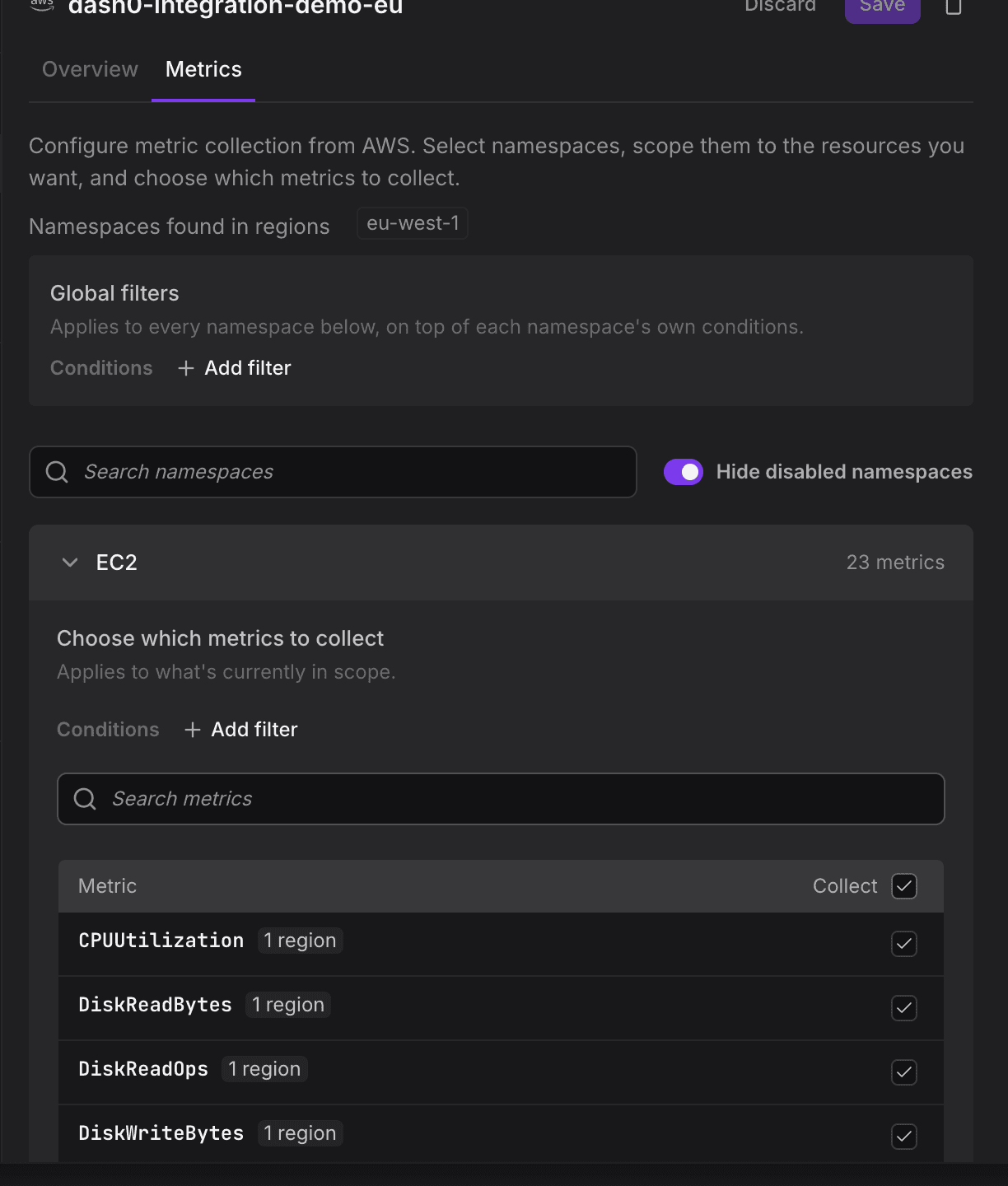
Dash0 collects each selected metric in every region of the integration that your filters allow. Each namespace card lists those regions under Collected from:. To stop collecting a namespace, use Disable metric collection on its card and confirm with Disable collection. Dash0 then stops collecting that namespace in every region.
To scrape only some of the integration's regions, add a filter on cloud.region and select the regions you want. The selection is a subset of the regions configured for the integration. Add it under Global filters to apply it to every namespace, or under a namespace's Conditions to apply it to that namespace only. See Filter AWS Metrics by Resource Tags.
How Scraping Works
- Schedule: Dash0 scrapes every 5 minutes.
- Resolution: Each datapoint covers 1 minute, the finest standard CloudWatch resolution.
- Delay: Dash0 requests data that is at least 2 minutes old, because CloudWatch needs time before new datapoints become queryable. Scraped metrics therefore arrive a few minutes after CloudWatch records them.
- Statistics: Dash0 requests
SampleCount,Sum,Minimum, andMaximumfor every metric and stores them as one summary metric. Dash0 does not requestAverage, because you can compute it asSumdivided bySampleCount. Percentile statistics are not collected.
How Dash0 Chooses Dimension Sets
CloudWatch often publishes the same metric for one resource under several dimension sets. For example, an Application Load Balancer publishes RequestCount per load balancer and per load balancer and Availability Zone. The per-load-balancer series is the total of the per-zone series, so collecting both stores the same data twice.
For each metric and resource, Dash0 keeps only the most specific dimension set and drops the sets that restate its total:
- Kept:
RequestCountbyLoadBalancerandAvailabilityZone. - Dropped:
RequestCountbyLoadBalanceralone.
You can still get the total with a query-time aggregation, such as sum by the load balancer. All collected statistics recombine across the dropped dimension, so no information is lost.
Dash0 makes this decision from the list of published metrics, before it requests any datapoints. Dropped series cost nothing: they cause no billable CloudWatch GetMetricData requests and no ingested data in Dash0.
The rule applies per metric. A metric that CloudWatch publishes under only one dimension set is always collected. When a resource has two dimension sets and neither contains the other, Dash0 keeps both.
Metric Names
Scraped metrics use the same OpenTelemetry metric names as metrics from a CloudWatch Metric Stream, for example aws.lambda.invocations for the Invocations metric in AWS/Lambda. Dashboards and check rules that select metrics by their OpenTelemetry name work with both collection paths.
To tell the two paths apart, use the instrumentation scope name. Scraped metrics carry the scope com.dash0.integration.aws-metrics. Metric stream metrics carry the scope github.com/open-telemetry/opentelemetry-collector-contrib/receiver/awsfirehosereceiver. In PromQL, filter on the otel_scope_name label, for example {otel_metric_name="aws.lambda.invocations", otel_scope_name="com.dash0.integration.aws-metrics"}.
The PromQL metric names differ. CloudWatch does not return units through the API that Dash0 scrapes, so scraped metrics carry no unit, while metric stream metrics do. Because Dash0 includes the unit in the PromQL name, the same metric has two PromQL names:
- Metric stream:
aws_lambda_invocations_Count_sum - Scraping:
aws_lambda_invocations_sum
To write PromQL queries that work with both paths, select the metric by its OpenTelemetry name, for example {otel_metric_name="aws.lambda.invocations"}. See Write PromQL Queries.
Resources and Tags
Without tag conditions, Dash0 scrapes every resource in the namespace, tagged or not. Dash0 attaches each metric to the AWS resource it describes, deriving the resource from the metric's dimensions where needed. When Dash0 cannot identify the resource, it attaches the metric to the AWS account.
Dash0 adds your AWS resource tags to the telemetry of each resource. See Use AWS Resource Tags in Dash0.
When Your Subscription Ends
Dash0 pauses metric scraping for an organization whose subscription is canceled, unpaid, or whose trial has ended. While scraping is paused, Dash0 makes no calls to CloudWatch in your account. Your namespace and metric selection is kept, and scraping resumes without reconfiguration when the subscription becomes active again.
Further Reading
- About AWS Monitoring — What the AWS integration collects and how it works
- Filter AWS Metrics by Resource Tags — Limit the scrape to tagged resources and selected regions
- Scraping vs. Metric Streams — Choose a collection path and switch without duplicate data
- Set Up AWS Integration — Deploy the CloudFormation stack
- Use AWS Resource Tags in Dash0 — Filter and group telemetry by AWS tags