
Last updated:
Filter AWS Metrics by Resource Tags
Filters on the AWS integration's Metrics tab decide which resources Dash0 scrapes CloudWatch metrics for. Use them to collect metrics only for the resources you care about, such as production workloads or a single team's services, and to keep the scrape out of regions you do not need.
A filter is a list of conditions. Each condition checks either an AWS resource tag or the AWS region. For how the scrape itself works and how to choose metrics, see Collect AWS CloudWatch Metrics.
Filters apply only to metrics Dash0 scrapes from CloudWatch. They do not apply to metrics you send through CloudWatch Metric Streams and Amazon Data Firehose. See Scraping vs. Metric Streams.
Filter Levels
The Metrics tab has two places to add conditions:
- Global filters: The bar above the namespace cards. Its conditions apply to every namespace.
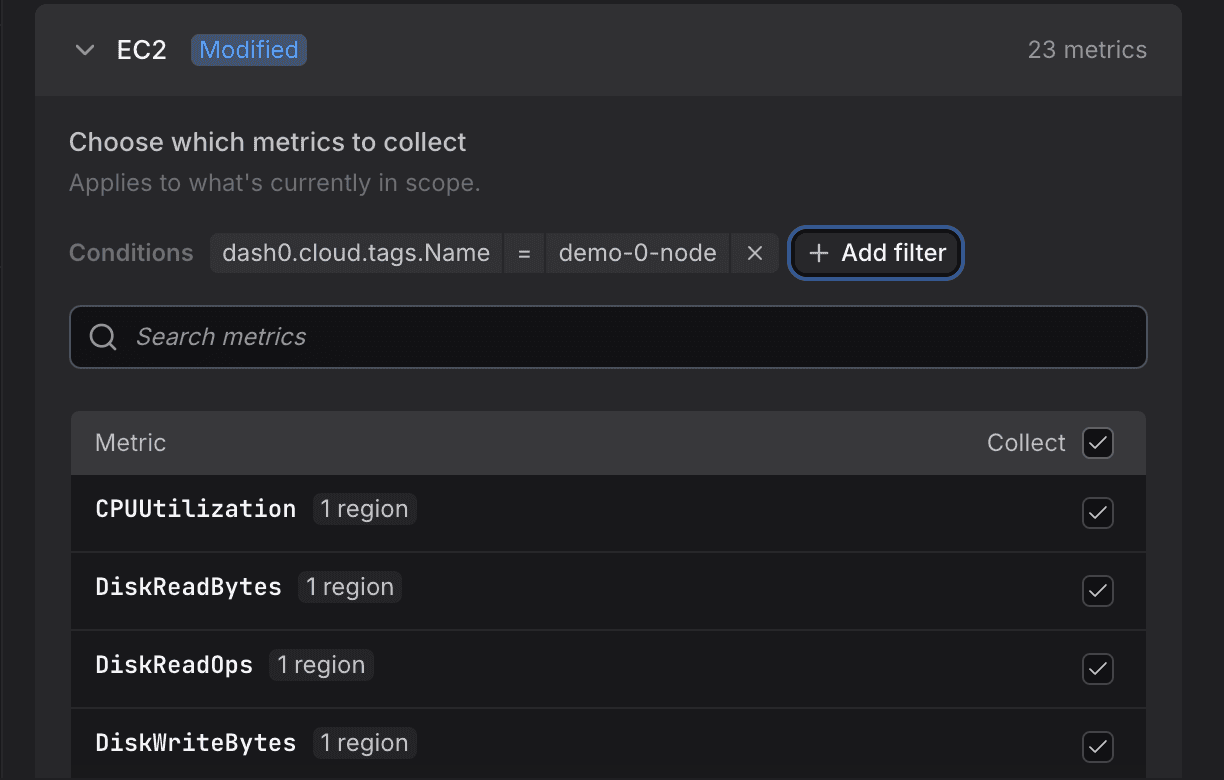
- Namespace conditions: The Conditions bar on each namespace card. Its conditions apply to that namespace only.
Dash0 combines all conditions with AND. A resource is scraped only when it matches every global filter condition and every condition of its namespace. For example, a global filter dash0.cloud.tags.environment is production combined with a Lambda condition dash0.cloud.tags.team is payments scrapes only Lambda functions tagged with both.
Supported Conditions
A condition uses one of two kinds of keys:
- Resource tag:
dash0.cloud.tags.<tag-key>, where<tag-key>is the AWS tag key as it is written in AWS. For example, the AWS tagteambecomesdash0.cloud.tags.team. - Region:
cloud.region, for exampleeu-west-1.
Conditions support these operators:
- is / is one of: The value equals the given value, or one of the given values, exactly.
- matches regex: The value matches a regular expression.
- contains: The value contains the given text.
- starts with: The value starts with the given text.
- ends with: The value ends with the given text.
- is set: The resource has the tag, with any value.
Negations (such as is not / is not one of or is not set) and numeric comparisons are not available. The scrape matches tags with positive conditions only, so it cannot express "this tag must be absent". The filter dialog offers only the supported keys and operators, and Dash0 rejects any other condition when you save.
Tag values are matched case-sensitively. Region values are matched case-insensitively.
Resources Without the Tag
A resource that does not carry a tag never matches a condition on that tag, including is set. As soon as a namespace has at least one tag condition, from its own Conditions or from the Global filters, Dash0 does not scrape untagged resources in that namespace.
If no resource matches the tag conditions, the namespace collects no metrics. Dash0 does not fall back to scraping the whole namespace.
Region conditions do not depend on tags and never exclude a resource for being untagged. How the scrape handles untagged resources without any tag condition is described in Collect AWS CloudWatch Metrics.
Filter by Region
Region conditions limit which of the integration's regions the scrape collects from. Dash0 skips every region a condition excludes, for that namespace or, with a global filter, for all namespaces.
Each namespace card lists the regions it collects from under Collected from:. Regions a region filter excludes appear struck through.
Region filters can only narrow the regions the integration already covers. To add or remove regions from the integration itself, see Set Up AWS Integration.
Add a Filter
Editing filters requires the Admin role.
- Open Settings → Integrations and select your AWS integration.
- Open the Metrics tab.
- Click Add filter in the Global filters bar to filter every namespace, or in a namespace card's Conditions bar to filter only that namespace.
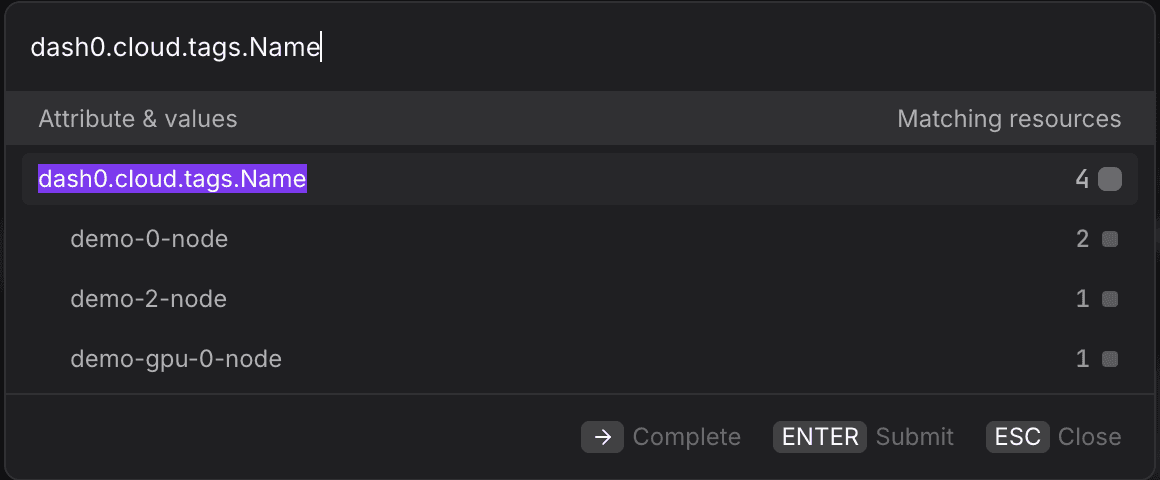
- Select a key, an operator, and a value.
- Click Save in the page header.
Changed filters show a Modified tag until you save them. Discard drops unsaved changes.
The filter dialog on a namespace card suggests tag keys from the resources Dash0 has already discovered for that namespace. Discovery starts once the namespace collects metrics, so suggestions can be empty for a namespace you just turned on.
How Filters Are Applied
Dash0 checks tag conditions against the tags AWS returns for each resource at scrape time, through the AWS Resource Groups Tagging API. A tag you add or change in AWS affects the next scrape without any change in Dash0.
Further Reading
- About AWS Monitoring — Overview of the AWS integration
- Collect AWS CloudWatch Metrics — Choose namespaces and metrics to scrape
- Scraping vs. Metric Streams — Compare the two ways to get CloudWatch metrics into Dash0
- Use AWS Resource Tags in Dash0 — Filter metrics, logs, and traces by AWS tags