
Last updated: May 30, 2026
Use Log AI
Once Log AI has processed your logs, you gain several capabilities that would otherwise require extensive manual configuration:
- Filter by mined patterns. Identify and isolate specific log patterns across your services.
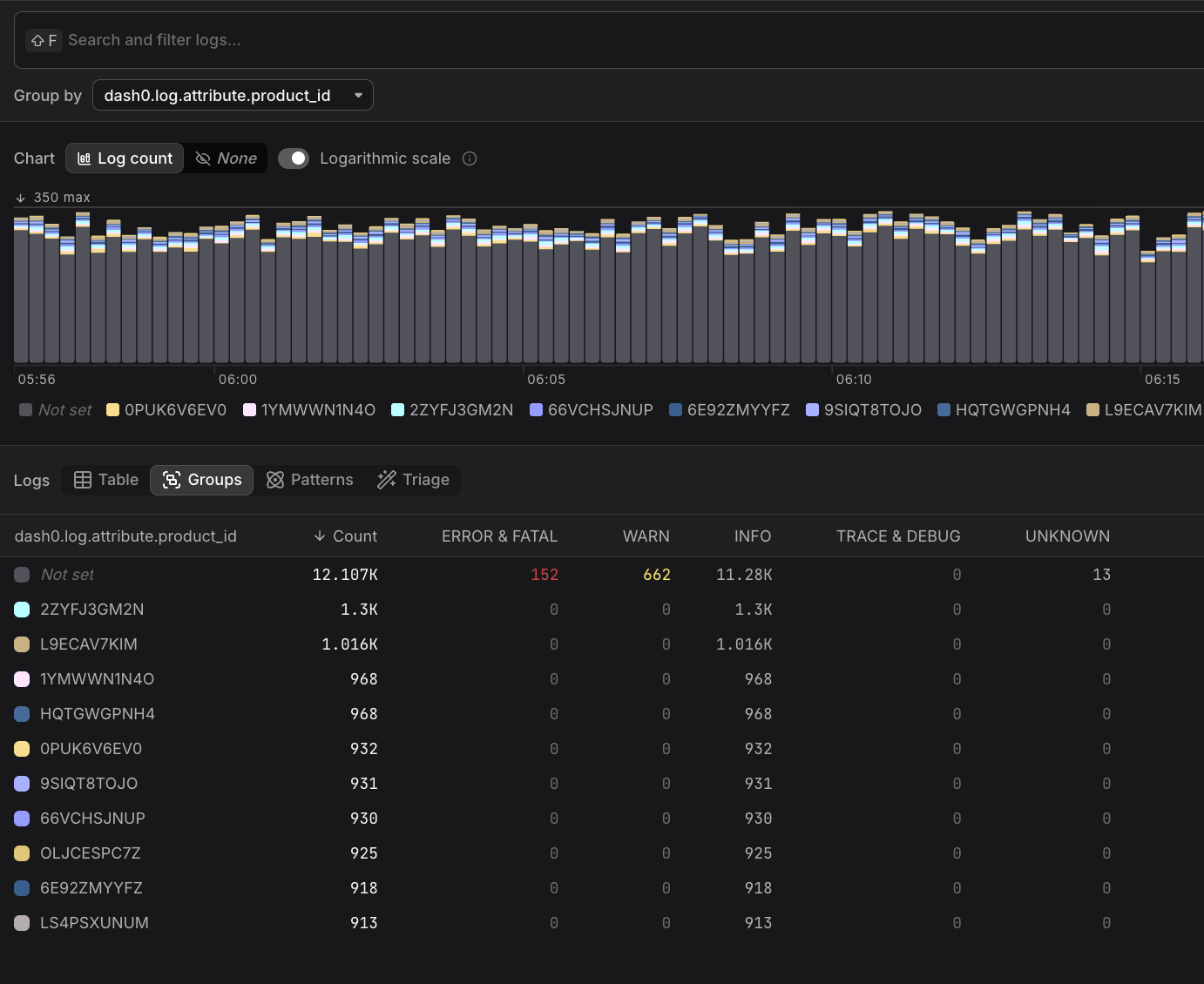
- Filter and group by extracted attributes. Use the dynamically named attributes (e.g.,
product_id) just like any other structured field — in filters, group-by queries, and dashboards. - Run pattern analysis (Triage). Compare what's common across error logs versus non-error logs. Because Log AI has both inferred severity and extracted attributes, you can run statistical analysis to find correlations — for example, which product IDs or parameter values are disproportionately associated with errors.
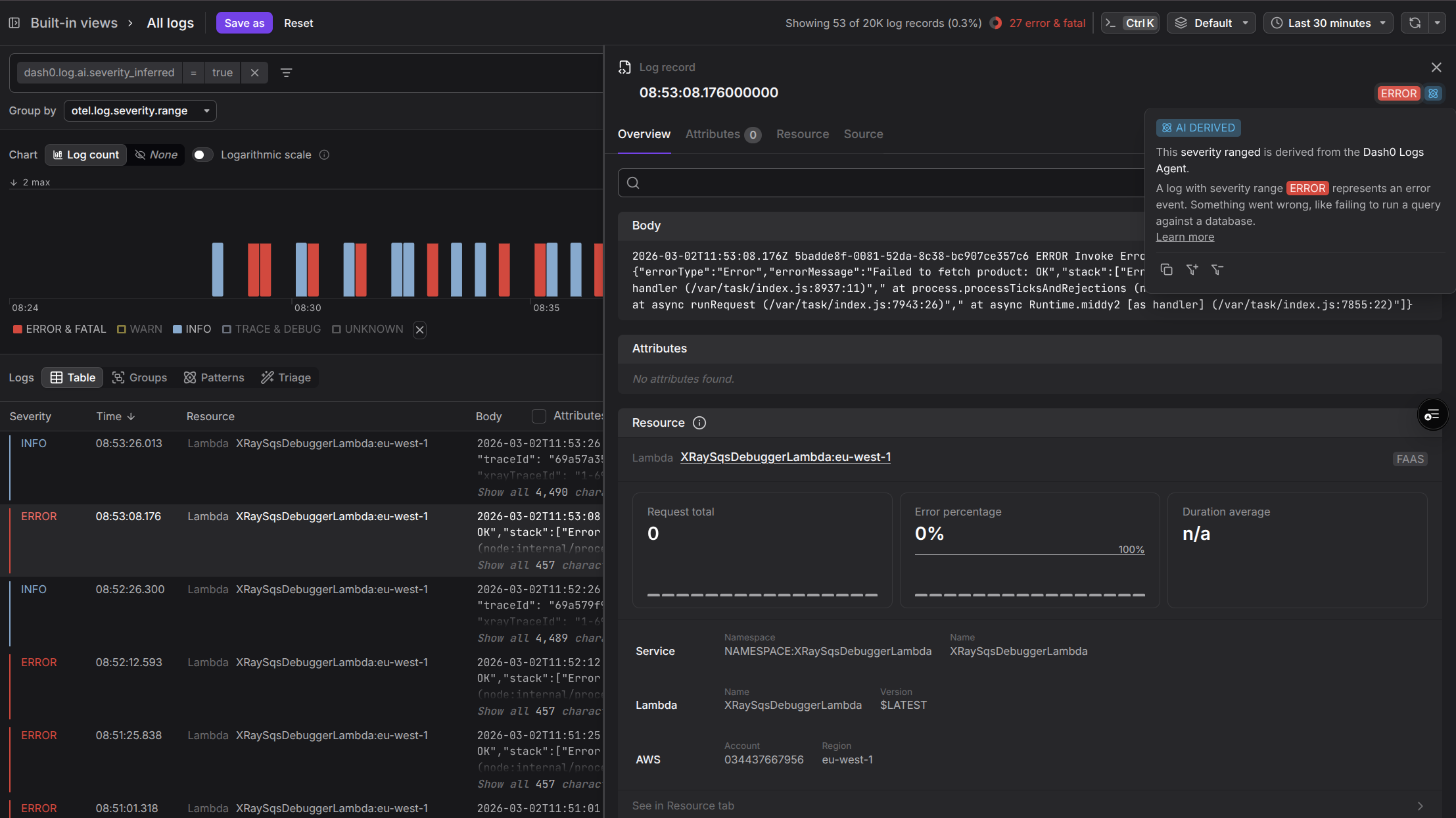
- Discover errors you'd otherwise miss. Log records whose severity was inferred are surfaced in error filters. Without Log AI, these records would have been invisible.
- There is nothing to configure. Log AI is always running. As soon as you send logs to Dash0, Log AI begins processing them.
- Log AI requires a warm-up period to build up enough data for accurate pattern mining. If you send a single log record and immediately check for patterns, they won't be there yet. Pattern mining needs a representative sample of log data to work with. This can take a few hours depending on log volume.
- Severity inference also takes some time to become fully active, and is not 100% guaranteed for every record — but it covers the vast majority of cases.
Filter by Log AI Attributes
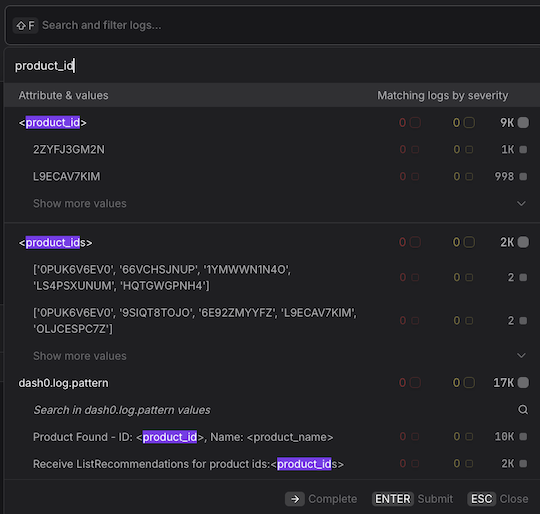
Log AI adds additional attributes to your log records that you can filter by:
- Inferred Severity. Filter to see only log records where the severity was determined by Log AI rather than present in the original data.
- Inferred Messages and Attributes. Filter to see records where Log AI extracted structured data from the log body.
These are available as filter options in the Log Explorer.
Triage Log AI Attributes
You can use your derived attributes to run pattern analysis, in the Log Triage tab.
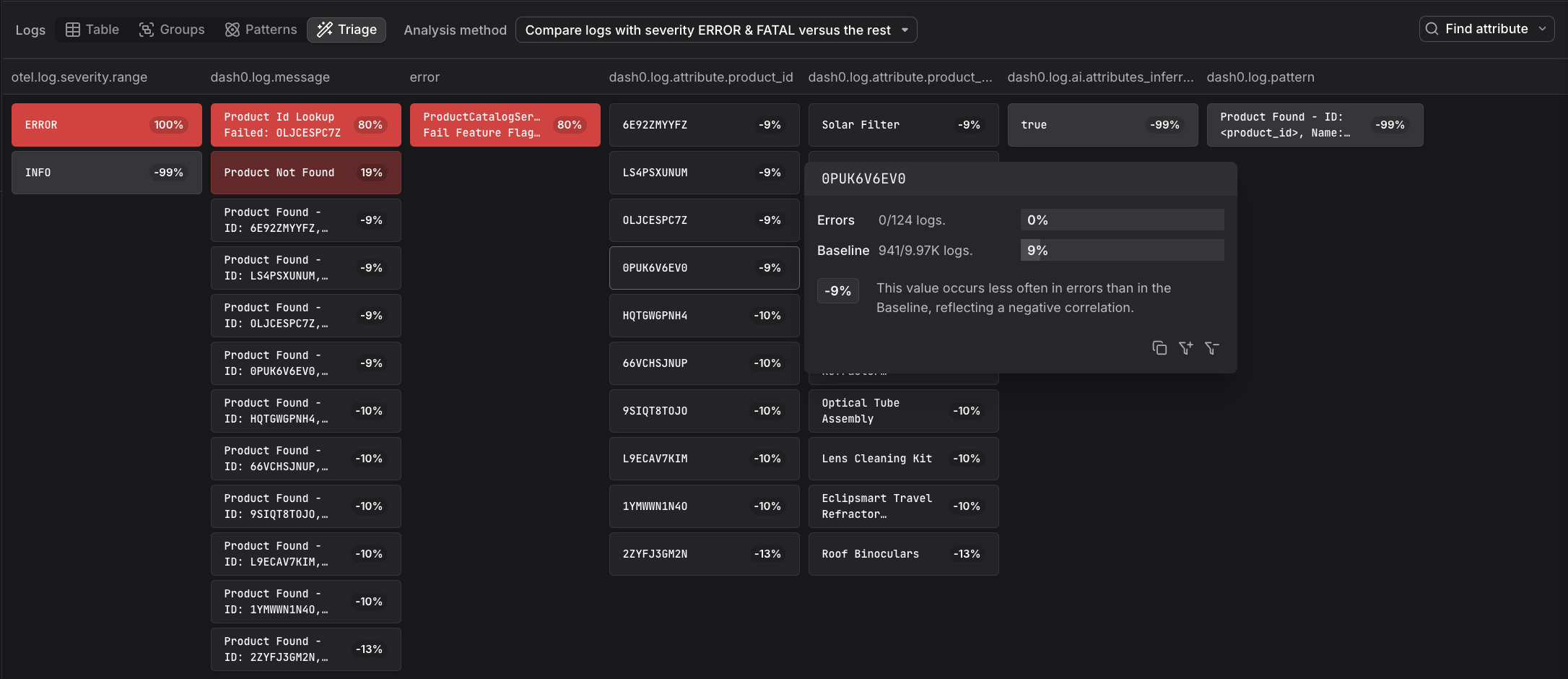
When you want to know what is common across error logs compared to everything that is not an error, you can use the real attributes mined from patterns. In the case above, you can see dash0.log.attribute.product_id and dash0.log.attribute.product_name being used.
Group Log AI Attributes
In the Log Groups tab, you can group the table by your attributes, for further insights and analysis.
Severity Inference Indicator
When a log record's severity was inferred, an indicator is displayed in the Log Sidebar so you know this value was determined by Log AI rather than provided by the source.
AI-Derived Attribute Indicators
When inspecting log records in the Log Sidebar, attributes that were extracted by Log AI are clearly marked as AI derived.
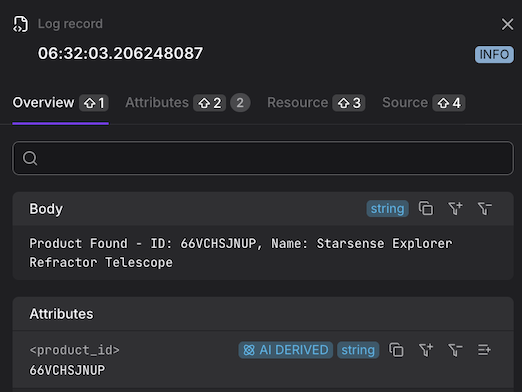
Pattern Hover Details
When viewing log patterns in the Log Patterns tab, you can hover to see details about which pattern was mined and where the extracted attributes are coming from.
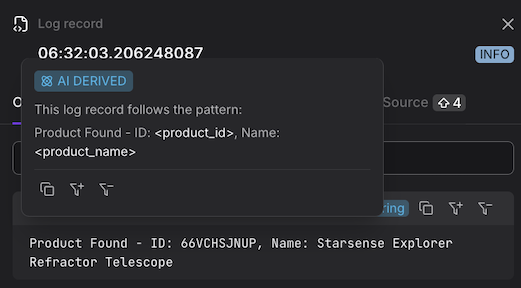
This lets you distinguish between attributes that were part of the original structured data and those that Log AI extracted from the log body.