
Last updated:
Create an Eval
Evals is in beta. Eval runs are not charged during the beta. Behavior and UI may change.
An eval belongs to the dataset selected in the Dash0 dataset picker. To create an eval, you need the Maintain permission on that dataset, granted to your role, a team, or you individually. Without it, the Create new button is hidden and existing evals open read-only. See Access Control.
Before you start, make sure the dataset receives GenAI spans with the attributes your prompt will reference.
Open the Eval Editor
- Select the dataset in the dataset picker.
- Open AI Observability → Evals.
- Click Create new. If the dataset has no evals yet, click New eval instead.
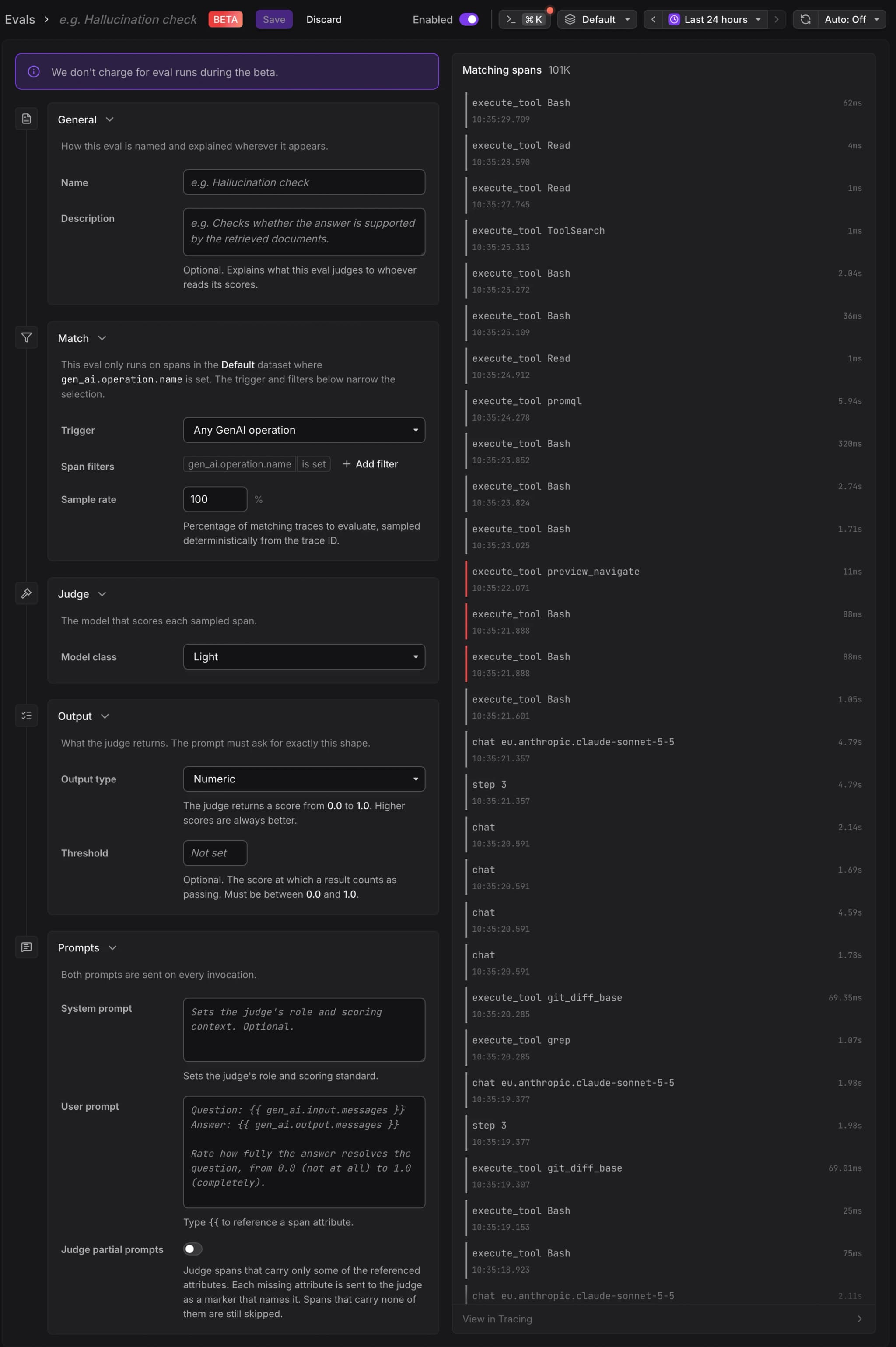
General
- Name: Required. Shown in the evals list, on charts, and in the span sidebar. For example,
Hallucination check. - Description: Optional. Explains what this eval judges to whoever reads its scores.
Match
The eval only runs on spans in the selected dataset where gen_ai.operation.name is set. Use the trigger and filters to narrow the selection further.
- Choose a Trigger. See Trigger for the filter each option adds.
- Under Span filters, click Add filter to narrow the selection further, for example by
gen_ai.agent.nameorservice.name. The filter works the same way as filters in the trace explorer. All filters must match. - Set the Sample rate: the percentage of matching traces to evaluate. New evals default to 100%.
On wide screens, the Matching spans panel previews up to 50 spans that match your filters in the selected time range. Use it to check that the filters select the spans you expect before you save.
A lower sample rate reduces credit usage on high-volume agents. Because sampling is deterministic by trace ID, a sampled trace has all of its matching spans judged.
Judge
Choose the Model class that scores each sampled span:
- Light: Fast, low-cost evaluations. This is the default.
- Standard: Balanced quality and cost.
Output
Choose the Output type. You cannot change it after the eval is created.
- Numeric: The judge returns a score from 0.0 to 1.0. Higher scores are always better. Optionally set a Threshold between 0.0 and 1.0. Scores at or above the threshold count as passing.
- Boolean: The judge returns true or false. Ask a yes/no question in the user prompt, phrased so true is the passing answer.
- Categorical: Click Add label for each label the judge may return, and set each label's intent to Positive, Neutral, or Negative. Labels must be unique. Include a catch-all label such as
other, because the judge always picks one of your labels. See Ask for the Right Output.
Prompts
Write the System prompt (optional) and the User prompt (required). Both prompts are sent to the judge for every sampled span. See Write Eval Prompts for how to reference span attributes and examples for each output type.
Turn on Judge partial prompts to also judge spans that carry only some of the attributes the user prompt references. It is off by default. See Judge Partial Prompts.
Save the Eval
Click Save. Dash0 returns you to the evals list, and the new eval starts judging matching spans as they arrive. It does not judge spans that were ingested before you saved it.
If Save is disabled, hover over it to see what is missing:
- Enter a name for this eval to save it.
- Add a user prompt for the judge to save this eval.
- The optional threshold must be between 0.0 and 1.0.
- Add at least one label, and make each label unique.
Each dataset requires a unique eval name, because results are keyed on the name.
Further Reading
- About Evals — What evals do, where to find them, and their limitations.
- GenAI Spans — Send the spans and attributes evals depend on.
- Analyze Eval Results — Read scores, outcomes, and labels per eval and per span.
- Manage Evals — Enable, edit, version, and delete evals.
- Write Eval Prompts — Reference span attributes and ask for the right output shape.