
Last updated:
Review and Manage Memories
Use Knowledge → Memories to review what Agent0 knows before you rely on it in another investigation. The page lists your memories and memories other users shared with you in the selected dataset.
Find a memory
Choose the dataset in Dash0's dataset picker, then narrow the list:
- Search for words in the memory's summary or content.
- Use Source to find memories saved in Dash0, Slack, Linear, an automation, or MCP.
- Use Scope to find memories about a particular service or other entity.
- Use Visibility to show Not shared, Shared with all users, or Shared with you. For what those states mean, see Control Memory Sharing and Access.
Scope filters match at least one selected value for each selected attribute. For example, selecting
service.name=checkout and service.name=payments finds either service. Adding
service.namespace=production narrows the result to memories that also have that namespace in
their scope. A memory without the selected scope attributes does not match.

Choose a view and sort order
Switch between cards and a table using the view controls. Dash0 remembers your choice in this browser, including when you open memories from another part of the product.
In card view, use the sort control to order memories by creation time or last read, in either direction. In table view, use the creation-time or last-read column headers. The default order shows the newest memories first.
Inspect a memory
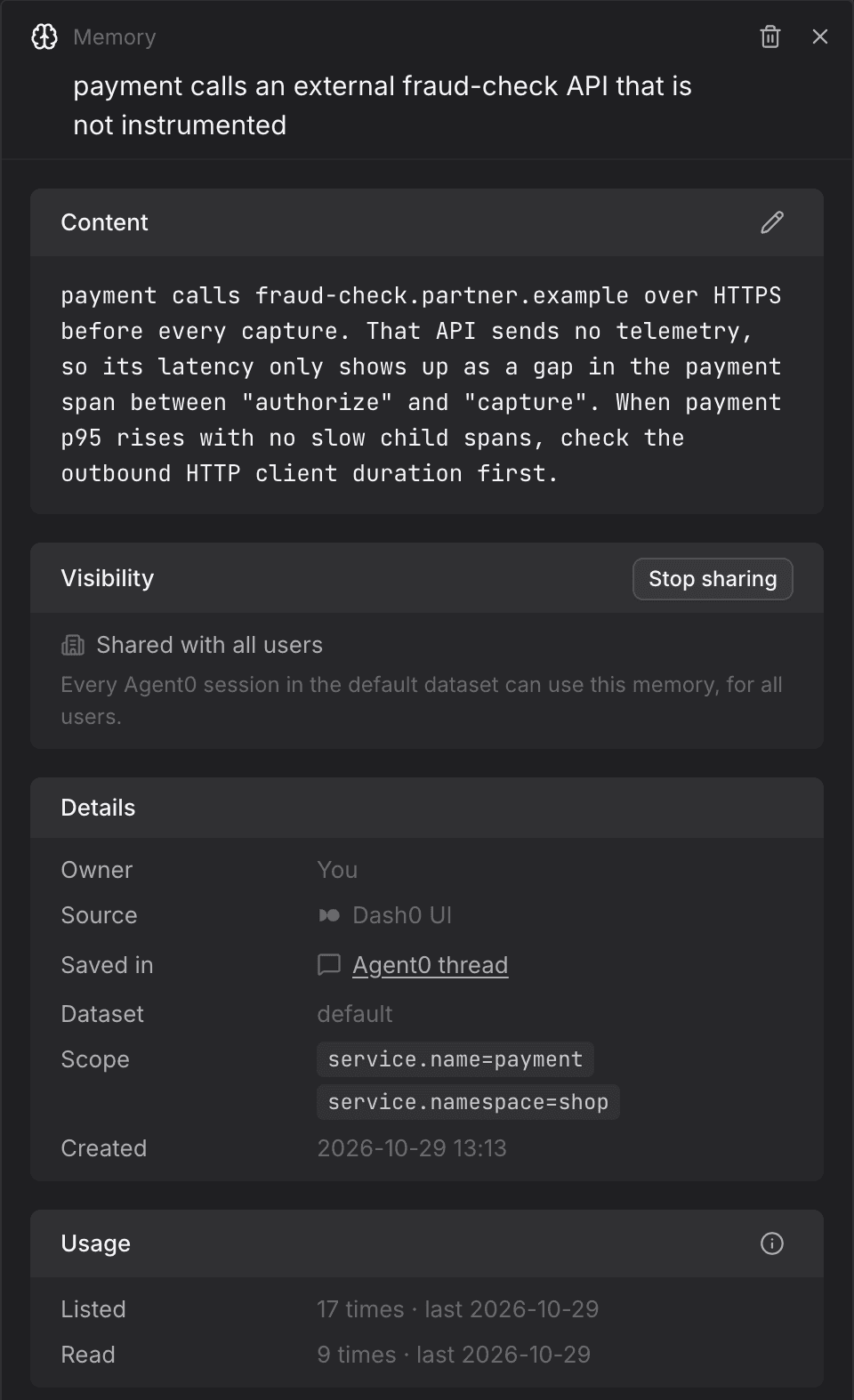
Select a memory to open its details. Read the full content before deciding whether to correct, share, or delete it. The details also show:
- Owner: You, another person, or an automation.
- Source and Saved in: Where Agent0 saved it. Follow Saved in to the original thread or, when available, the automation run's Agent0 thread.
- Dataset and Scope: Where the memory applies and the entities it is about. Scope tags that link to a service or another entity open that entity in Dash0.
- Created and updated times: When Agent0 first saved the memory and when it last changed.
- Usage: How often Agent0 listed the memory and how often it read the full content, with the latest usage times when available.
Being listed is not the same as being read. A memory can appear among the candidates Agent0 considers without Agent0 opening its full content. Opening a memory yourself in the Memories page does not count as an Agent0 read.
Correct a memory
You can edit memories you own. Memories shared with you and memories owned by an automation are not editable here.
- Open the memory's details and select the edit action.
- Correct the summary and content. Neither can be empty.
- Save your changes.
Future Agent0 reads use the corrected text. Editing a shared memory directly keeps it shared; you do not need to share it again. This differs from Agent0 saving a replacement.
If the memory changes while you are editing, Dash0 does not silently replace the newer version. You can load the latest version and discard your draft, or keep your draft and overwrite the latest version. Review the newer content before overwriting it.
Delete a memory
Open the memory's details, select Delete memory, and confirm the deletion. The memory is no longer available for future retrieval. There is no undo action in the UI. Deleting a shared memory also removes it for everyone who could use it.
You can delete your own memories. Organization admins can also delete memories other people shared, but that does not let them edit those memories or change their sharing. For automation memories, see Review an automation's memories.
You can also ask Agent0 to forget an unshared memory you own. Agent0 cannot use its forget action to delete a shared memory; delete that memory from the UI instead.
Further Reading
- About Memories — What Agent0 remembers across sessions
- Control Memory Sharing and Access — Decide who can use a memory
- Use Memories in Investigations — Find memories in chats, services, resources, and automations