
Last updated:
Set Up AI SDLC Insights
Setup has two parts: connect your coding harness so sessions and cost flow into Dash0, then connect GitHub to link that activity to pull requests.
Each harness has a ready-made integration in the Integration Hub, with copy-paste configuration that fills in your endpoint and token. Start there, copy the configuration, and you are minutes away from first signal.
Step 1: Find Your Dash0 Endpoint and Token
Every harness needs the same two values from Dash0:
- The OTLP endpoint: The URL the harness sends telemetry to, for example
https://ingress.<region>.aws.dash0.com. - An authorization token: A token used to authenticate against your organization.
Both are available in Settings → Auth Tokens and in the integration page for your harness.
If you manage more than one dataset, decide up front which dataset should receive coding-harness telemetry, and set it consistently across every harness and developer.
Step 2: Connect Your Coding Harness
Open the AI SDLC Insights integrations in the Integration Hub and select your harness. Each entry carries the installation and configuration steps for it.
Dash0 supports six coding harnesses:
All harnesses send telemetry to the same Dash0 endpoint from Step 1, and their sessions appear together in AI SDLC Insights.
Rolling this out to more than a handful of developers? Read Roll Out to Your Whole Organization before you ask anyone to install anything, because the zero-touch path for Claude Code replaces the per-developer install rather than following it.
Every connected harness lands in the same views, comparable on cost, adoption, and time to merge. Harness and Model are both first-class filters on every tab, so you can compare vendors directly or ignore the vendor split entirely. Models the pricing catalog cannot resolve appear in an explicit unpriced bucket rather than being silently counted as zero.
Step 3: Attribute Usage to Teams
AI SDLC Insights groups usage by team. Telemetry without a team is grouped under unknown, which is why an organization that has just started sending data sees most activity there.
Set a team on every harness so cost, adoption, and productivity break down cleanly per team. There are two ways to set it, and which one you reach for depends on how you provision developers:
- The harness config file:
team_name:in the YAML frontmatter ofdash0-agent-plugin.local.md, under the harness directory in the developer's home (~/.claude/,~/.cursor/,~/.codex/,~/.copilot/,~/.opencode-v2/). The Copilot app and Copilot CLI share the file in~/.copilot/. This works even where no shell environment is inherited, as with Claude Desktop and the GitHub Copilot app. - The
DASH0_TEAM_NAMEenvironment variable: The portable form, read by the Cursor, Codex, Copilot CLI, and OpenCode runtimes. The Copilot app sees it only when it is set in the app's launch environment, so use the config file there.
Point every developer at the same endpoint, token, and dataset, and store the token in a shared secret manager rather than distributing it by hand. Each developer's identity is read automatically from their local Git configuration (git config user.name), so per-user attribution works without extra setup as long as everyone has their Git identity configured. Keep omit_io at its default unless the team has agreed to capture prompt content.
The project-level and user-level config files do not merge. A repository that contains its own .claude/dash0-agent-plugin.local.md hides the user-level file entirely, so a centrally provisioned team name disappears for anyone working in that repository.
Distributing per-developer team names at scale is an organizational concern the plugin cannot solve. Whichever system already tracks team membership has to write the file or export the variable, and run again when someone moves teams.
Step 4: Connect GitHub for Productivity Metrics
Cost, Adoption, Tools and skills, and Sessions work from harness telemetry alone. Every metric that counts, times, or classifies a pull request needs pull request lifecycle data from your version control as well. That covers the whole Productivity tab, flow through the pipeline and assisted vs non-assisted cycle time on the Overview, AI penetration on Adoption, and cost per merged assisted PR on Cost. Connect GitHub so Dash0 can attribute pull requests back to the sessions that produced them.
Dash0 links a session to a pull request by repository and branch name, so a session that never reported a branch is not counted. Dash0 also counts only the pull requests it observed and never backfills, which means a repository connected today has no history before that day.
Follow Set Up GitHub Integration to connect it from Settings → Integrations in Dash0.
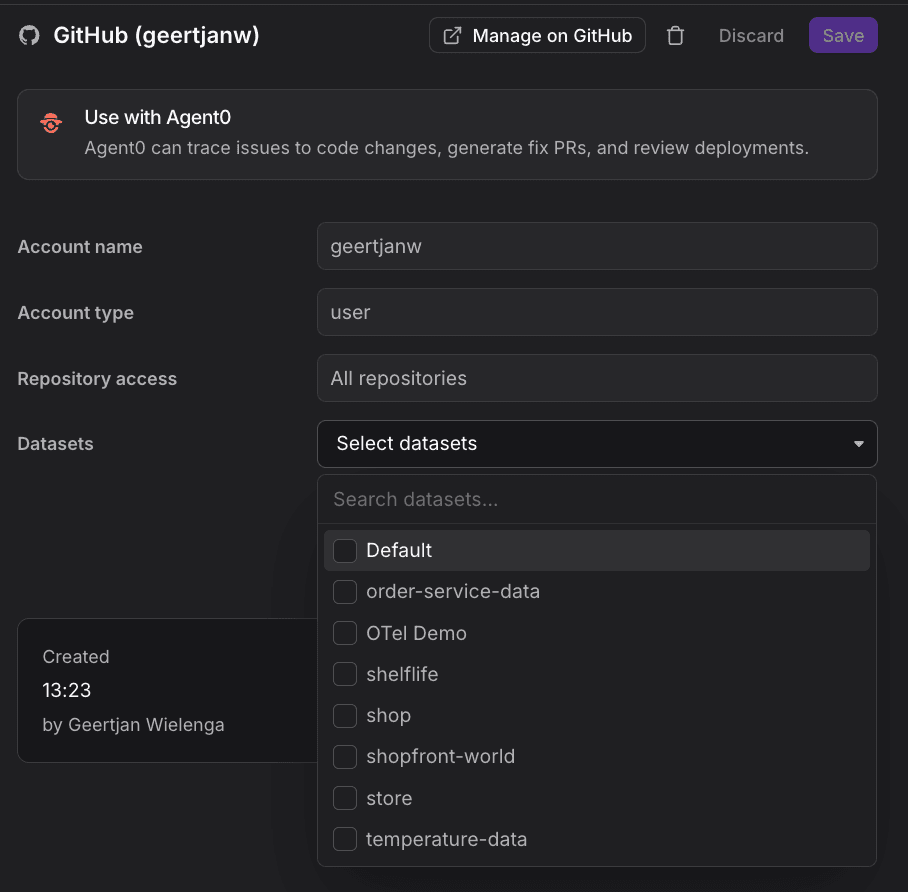
After connecting to GitHub, select the dataset in Dash0 where you want to send productivity metrics for AI SDLC Insights. Until GitHub is connected and enough merged pull requests are attributed, the Productivity tab shows a prompt to connect rather than populated metrics, and cycle time can read as zero. By default, nothing is connected. Once you select a dataset, metrics begin flowing into Dash0.
Step 5: Verify the Data Arrives
-
Run a short session in your harness that issues at least one prompt.
-
Open Darkplane → Insights in Dash0.
-
Set the time range to cover the session, for example Last 30 minutes.
-
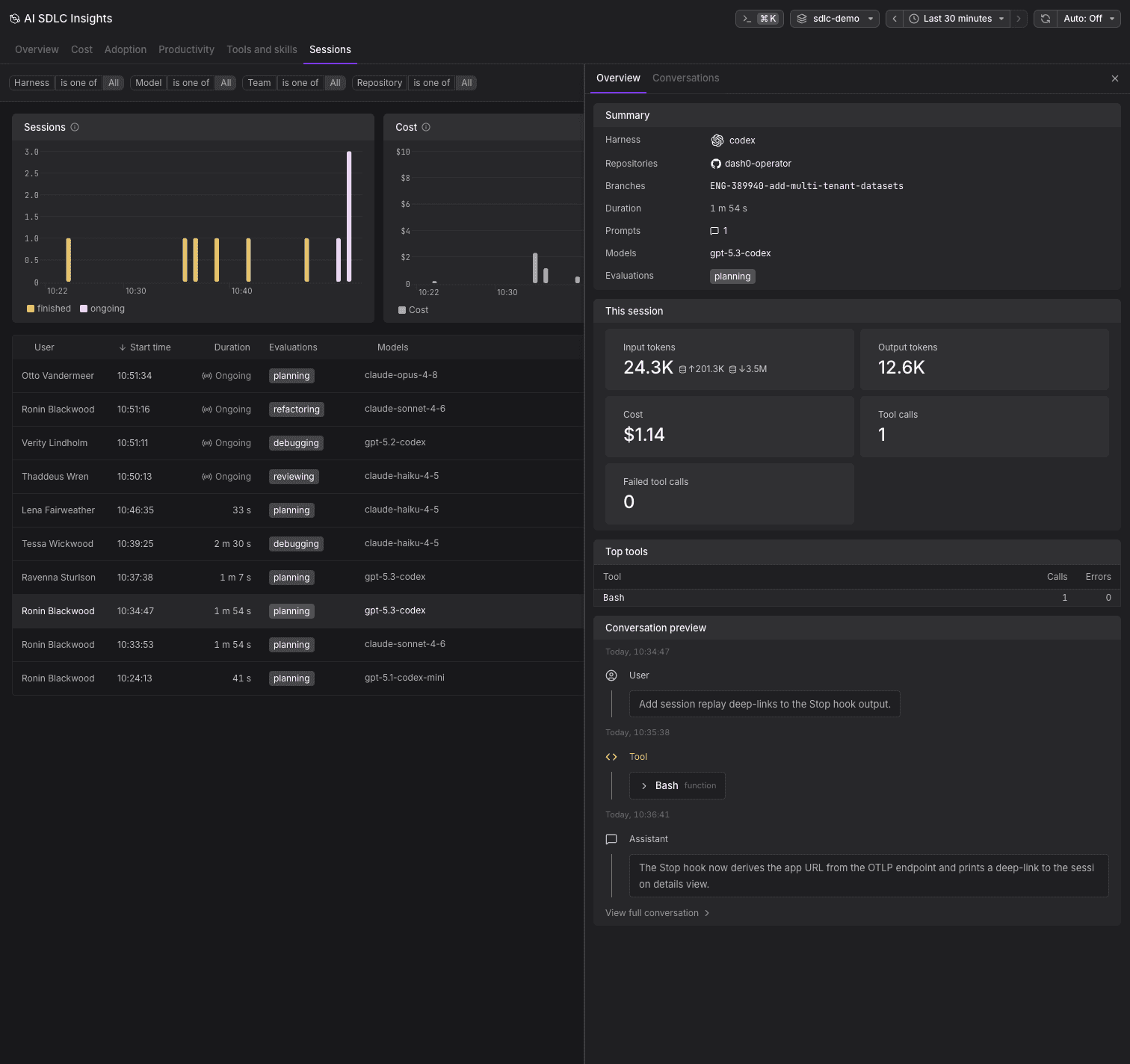
Confirm the session appears on the Sessions tab with a user, duration, model, and prompt count.
If sessions do not appear, see Troubleshoot AI SDLC Insights.
Roll Out to Your Whole Organization
Steps 1 to 5 describe what one developer does. At organization scale, how much of that you can remove depends on the harness. Claude Code is the only one with a central configuration channel. Cursor and OpenAI Codex are provisioned by running their installer unattended from whatever tool already manages developer machines. The other harnesses are configured per developer.
Claude Code: Managed Settings
Claude Code managed settings install and configure the plugin for every member with no per-developer steps. Managed values take top precedence and developers cannot override them. Two things have to happen, in this order:
- Install the plugin on members' machines. In the claude.ai Organization plugins admin page, set the Dash0 plugin to Required or Installed by default. This is the step that downloads the plugin, and it takes effect on the member's next session.
- Push the configuration. Add a payload naming the plugin under
enabledPluginsand its endpoint, token, and dataset underpluginConfigsin claude.ai → Admin Settings → Claude Code → Managed settings. This requires a Team or Enterprise plan and the Owner or Primary Owner role. Clients fetch it at startup and re-poll hourly.
The Claude Code integration page carries the payload with your own endpoint, token, and dataset filled in.
Managed settings only enable and configure a plugin. They never fetch one. Skipping step 1 is the most likely reason a rollout produces no telemetry: enabledPlugins names a plugin that was never downloaded, so there is nothing to load.
Two decisions are worth making before you push the payload:
- How the auth token reaches each machine. Putting
AUTH_TOKENin the payload is the only fully zero-touch option, and it leaves the token in plaintext on every machine in the fleet and in the console. Use an ingest-only token scoped to the single dataset you send to, so a leak can write telemetry there and read nothing. Rotation stays centralized. If policy forbids plaintext credentials at rest, omit the token and have each developer add it once through/plugin→ Configure, which stores it in the OS keychain, or on macOS ship a keychain service name for the plugin to read at runtime instead. - Whether developers may also self-install. They must not. A developer who already installed the plugin at user scope ends up with both installs enabled, and every span is exported twice under two independent configurations. Let managed settings be the single source of truth.
Leave the team name out of the payload. A managed value cannot be overridden, so setting it centrally tags every developer with the same team and leaves nobody able to correct it. Omitting it is safe, because pluginConfigs merges per key and each developer's own team name still passes through. Set it per developer as shown in Step 3.
Claude Code: The MDM Alternative
If you manage devices with MDM, deploy the same JSON as an on-disk managed-settings.json rather than through the console. The file path differs per operating system and has changed between Claude Code versions, so take it from the Claude Code settings reference rather than from any copy of it.
- The two channels do not merge. If the console delivers any keys at all, the on-disk file is ignored entirely. Pick one channel per organization.
- Server-managed settings are not delivered on Bedrock, Vertex, Foundry, or a custom
ANTHROPIC_BASE_URL. Use the on-disk file in those environments.
Cursor and OpenAI Codex: Unattended Installers
Neither harness has a central configuration channel. Run its installer unattended from your provisioning tool, passing the endpoint, token, and dataset as flags or as DASH0_OTLP_URL, DASH0_AUTH_TOKEN, and DASH0_DATASET environment variables. Each value supplied skips the matching prompt, so the installer runs with no interaction. The Cursor and OpenAI Codex integration pages carry the exact commands.
DASH0_AUTH_TOKEN is read by the installer only, which writes the token into the harness config file. The runtime never reads the token from the shell environment, which keeps it out of tool-spawned shells.
GitHub Copilot CLI: Per-Developer Configuration
Copilot CLI has no unattended path today. Each developer installs the plugin from the Dash0 marketplace and runs /dash0-configure once. That command writes the config file and also installs a shell launch wrapper, which is what turns on Copilot's native OpenTelemetry and supplies the per-turn token, cost, and model detail. A copilot started from a shell without the wrapper still emits spans, but without that detail.
GitHub Copilot App: Per-Developer Configuration
The Copilot app has no installer. Each developer asks Copilot in the app to install the Dash0 extension from the Dash0 agent plugin repository, then runs /dash0-configure in a new session after its first prompt. The Copilot app and Copilot CLI share ~/.copilot/dash0-agent-plugin.local.md, so a developer who already configured Copilot CLI only installs the extension.
OpenCode: Per-Developer Configuration
Each developer runs opencode plugin add @dash0/agent-plugin-opencode-v2 and opencode reload, then /dash0-configure in a session, then opencode reload again. Provisioning tools can set non-secret defaults, such as DASH0_OTLP_URL, DASH0_DATASET, and DASH0_TEAM_NAME, in the environment the OpenCode server starts with. A value in the config file takes precedence. The plugin never reads the token from DASH0_AUTH_TOKEN, so the token goes into ~/.opencode-v2/dash0-agent-plugin.local.md or, on macOS, a keychain item.
Network Prerequisites
Every machine needs HTTPS egress to two places:
github.com, where the plugin fetches its release binary on first run and verifies it against a published checksum. Without this the plugin installs but never exports.- Your Dash0 OTLP ingress, the endpoint from Step 1.
For container images, pre-bake the marketplace and plugin cache so nothing is downloaded at runtime.
Verify the Rollout
On a developer machine running Claude Code:
/status→ Setting sources listsEnterprise managed settings.claude plugin listshows exactly one Dash0 identity, withStatus: ✔ enabledandScope: managed. Two identities, or auserscope, means someone self-installed as well and spans are being exported twice.- The session banner reads
dash0: connected. - The session appears in Dash0 under the configured dataset, as in Step 5.
For the full managed-settings reference, including the payload for the Dash0 marketplace and the macOS keychain option, see the Dash0 agent plugin documentation.
Troubleshooting
- No sessions appear: Confirm the harness is configured with the correct endpoint and token, and that the selected time range covers the session.
- Authentication errors: Re-check the token and endpoint values against the integration page.
- Data lands in the wrong dataset: Verify the dataset value matches an existing dataset name.
- Everything is grouped under
unknown: Set a team on the harness as shown in Step 3. After an organization-wide rollout, check that the team name is not being set centrally, and that no repository carries its own.claude/dash0-agent-plugin.local.mdhiding the provisioned one. - A managed rollout produces no telemetry at all: The plugin was configured but never downloaded. Set it to Required or Installed by default in the claude.ai Organization plugins admin page, as shown in Roll Out to Your Whole Organization.
- Costs and session counts read roughly double: A developer self-installed the plugin on top of the managed install, so every span is exported twice. Confirm with
claude plugin list, which must show exactly one Dash0 identity. - Productivity tab is empty, or pull request metrics read as zero: Connect GitHub as shown in Step 4, and allow time for pull requests to merge and be attributed.
- No conversation content (Claude Code): This is expected when
omit_ioistrue. Set it tofalseto capture prompts and tool I/O.
To inspect what the Claude Code plugin sends, run it with debug output enabled:
DASH0_DEBUG=true DASH0_DEBUG_FILE=/tmp/dash0-debug.log claudeFor the full set of issues, including missing token metrics, duplicate sessions, multi-user attribution, and high data volume, see Troubleshoot AI SDLC Insights.
Further Reading
- About AI SDLC Insights: Overview of the feature.
- Data Privacy & Redaction: Redact sensitive content at the source or on ingestion.
- Key Concepts: How sessions, prompts, and teams map onto the data.
- Troubleshoot AI SDLC Insights: Solutions for common setup and telemetry issues.