
When nginx breaks, the error log is the first place to look, and usually the only one that actually tells you why. Failed upstream connections, permission denials, config parse failures, the request that's mysteriously returning 502s: they all end up there.
The error_log directive controls where the file lives and how much lands in it. Here's how to find it, make sense of what's in it, and configure it without accidentally turning it off.
Find your error log
Most Linux packages put it at /var/log/nginx/error.log, but that's just a convention. A package maintainer or a previous admin may have changed it, and directives can be buried in included config files. Rather than guessing, ask the binary for the compiled-in default:
1nginx -V 2>&1 | tr ' ' '\n' | grep error-log-path
1--error-log-path=/var/log/nginx/error.log
That's the fallback if nothing else is configured. To see what's actually running, dump the fully resolved config:
1nginx -T 2>/dev/null | grep error_log
12error_log /var/log/nginx/error.log warn;error_log /var/log/nginx/api.error.log error;
nginx -T expands every include, so you get the real picture, not just whatever's in nginx.conf.
Read a log entry
Every line follows the same format. Here's one from a reverse proxy that couldn't reach its backend:
12026/07/01 14:32:07 [error] 1234#1234: *5 connect() failed (111: Connection refused) while connecting to upstream, client: 203.0.113.7, server: example.com, request: "GET /api/users HTTP/1.1", upstream: "http://127.0.0.1:8080/api/users", host: "example.com"
Reading it left to right:
2026/07/01 14:32:07: local server time.[error]: the severity level.1234#1234: worker process ID and thread ID (pid#tid).*5: connection number. When one request generates several log lines, they all share this number. Grep for*5and you get the full story of that connection.connect() failed (111: Connection refused): the message. The parenthetical is the systemerrnoand its text. Errno 111 isECONNREFUSED, meaning nothing was listening on that upstream port.- Everything after is context: the client IP, which
server {}block matched, the request line, and the upstream nginx tried to reach.
Once you know the shape, most problems come down to pattern-matching. open() ... failed (2: No such file or directory) is a missing file. (13: Permission denied) is a filesystem permission problem. upstream timed out means the backend is responding, just slowly.
Configure the location and level
The error_log directive takes a destination and an optional severity level:
1error_log /var/log/nginx/error.log warn;
It works in the main, http, mail, stream, server, and location contexts. Lower-level settings override inherited ones, and each message goes only to the closest matching log. So you can run a quiet global log and crank up detail for one specific virtual host without affecting anything else:
123456789# nginx.conf (main context)error_log /var/log/nginx/error.log warn;http {server {server_name api.example.com;error_log /var/log/nginx/api.error.log info;}}
You can also stack multiple error_log directives at the same level (since 1.5.2) and nginx writes to all of them. Handy for sending everything to a general log while routing critical errors somewhere you can alert on:
12error_log /var/log/nginx/error.log warn;error_log /var/log/nginx/critical.error.log crit;
Severity levels
nginx has eight levels. Setting one captures that level and everything above it, so warn gets warn, error, crit, alert, and emerg, while leaving out the noisier stuff below. For a broader look at how these map to OpenTelemetry severity numbers, see Log Levels Explained.
| Level | What it means |
|---|---|
debug | Full request-handling detail (needs a debug build) |
info | Informational, non-urgent |
notice | Normal but worth noting |
warn | Unexpected, but nginx dealt with it |
error | Something actually failed (the default) |
crit | Needs attention |
alert | The server is in a bad state |
emerg | nginx can't start or reload; drop what you're doing |
The default, if you omit the level, is error. For production, warn is usually the sweet spot. Use info and debug for active debugging sessions and turn them back down before you forget.
The destination can also be stderr, a syslog: target for centralized collection, or a memory: buffer for low-overhead debugging. After any change, nginx -s reload (or systemctl reload nginx) to apply it.
Common pitfalls
error_log off doesn't turn off logging
nginx treats off as a filename and creates a literal file called off in its prefix directory. To actually suppress logs, redirect to /dev/null and raise the threshold:
1error_log /dev/null crit;
In Docker, the log file is a symlink to stderr
The official nginx image links /var/log/nginx/error.log to /dev/stderr and sets the default level to notice, not error. cat-ing that file inside a container shows you nothing. Use docker logs <container>, that's where the output actually goes.
Logs can stop appearing with no warning
If the nginx worker user loses write access to the log directory, or the disk fills up, nothing gets written. No error, no warning, just silence, which is the worst time to discover your logs have stopped. When you suspect logs are missing, check permissions and disk space first:
12ls -ld /var/log/nginxdf -h /var/log
If disk space is the culprit, log rotation with logrotate is the standard fix. nginx ships with a logrotate config out of the box on most distributions, but it's worth verifying it's active and the rotation interval matches your log volume.
debug requires a debug build
Setting the level to debug on a standard nginx binary does nothing. The binary has to be compiled with --with-debug:
1nginx -V 2>&1 | grep -o with-debug
No output means no debug logs, regardless of what the config says.
Final thoughts
One server with one log file is fine. Once you have more than a handful of servers, grepping machines one by one during an incident isn't. The OpenTelemetry Filelog Receiver can tail nginx logs and forward them over OTLP without touching your nginx config at all.
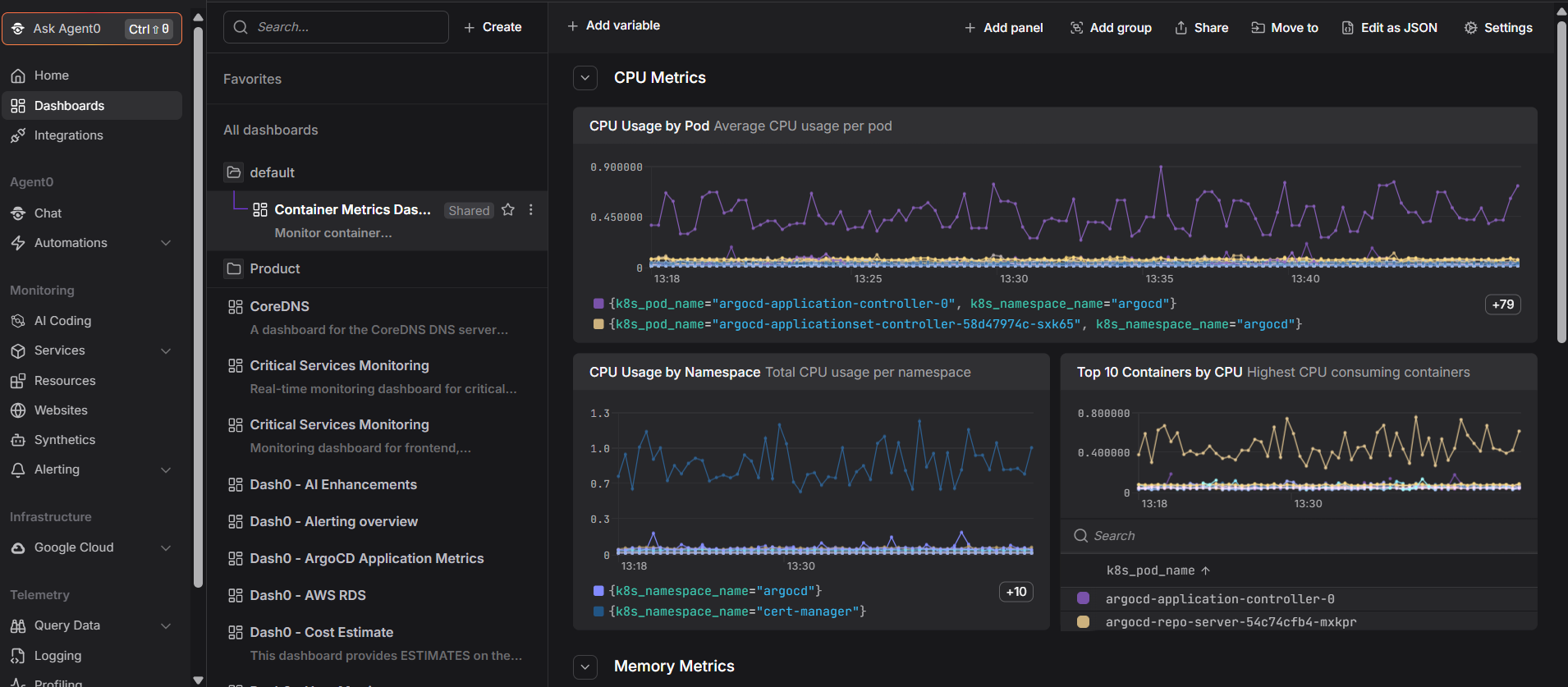
Dash0 is OpenTelemetry-native, so nginx logs arrive alongside metrics and distributed traces. Its log management lets you filter by severity, correlate a 502 with the distributed trace of the upstream request that caused it, and alert on error rates before users start noticing.
If you want to go further, structured JSON logging, conditional sampling, and a full OTel pipeline, Mastering NGINX Logs with JSON and OpenTelemetry picks up where this article leaves off.
 Start a free trial to see your nginx logs, metrics, and traces together. No credit card required.