
You need to clone a private repo during a Docker build, or maybe run an SSH-based deploy step from inside a running container. The obvious move (COPY id_rsa /root/.ssh/) is also how SSH keys end up permanently embedded in your image layers, ready for anyone with docker pull access to extract.
There are two distinct problems hiding under this question: getting SSH credentials available at build time without leaking them, and forwarding the host's SSH agent into a running container at runtime. They have different fixes, and this article covers both.
Why you can't just COPY the key
The temptation is to think a RUN rm at the end of the Dockerfile cleans up after a COPY id_rsa. It doesn't. Each Dockerfile instruction creates an immutable layer, and the key sits in the layer where it was COPYed regardless of what happens later.
You can verify this on any image built with the broken approach:
1docker history --no-trunc bad-image
You'll see the COPY instruction along with a layer roughly the size of your private key. And then this works:
123docker save bad-image -o leaked.tarmkdir extract && tar -xf leaked.tar -C extract# extract each layer.tar inside, find your id_rsa
The same applies to ARG SSH_PRIVATE_KEY. Build arguments are embedded in image metadata and visible via docker history --no-trunc. Squashing the image works but is fragile (you only have to forget once), and the old workaround of doing key operations in an intermediate stage and COPY --from=build for the artifact still leaves the key sitting in BuildKit's local cache on the build host.
The actual fix is to never write the key to a filesystem the image can see. BuildKit gives you exactly that.
The fix: BuildKit SSH mounts
BuildKit's --mount=type=ssh exposes your host's SSH agent socket to a single RUN instruction, then unmounts it. The key material never touches the image filesystem and isn't cached in build layers.
A minimal Dockerfile that clones a private repo:
123456789101112# syntax=docker/dockerfile:1FROM alpine:3.20RUN apk add --no-cache git openssh-client# Pre-populate known_hosts so the build doesn't hang on host key promptsRUN mkdir -p -m 0700 ~/.ssh && \ssh-keyscan github.com >> ~/.ssh/known_hosts# This RUN gets access to the host SSH agent; later RUNs do notRUN \git clone git@github.com:my-org/private-repo.git /src
Build it with the --ssh flag, which tells BuildKit which agent socket (or key) to forward:
1docker buildx build --ssh default -t my-app .
default resolves to the value of $SSH_AUTH_SOCK on the host. If you don't have an agent running yet:
12eval "$(ssh-agent -s)"ssh-add ~/.ssh/id_ed25519
During the build, BuildKit mounts a socket inside the build container and sets SSH_AUTH_SOCK to point at it. Git uses that socket to authenticate to GitHub. The socket only exists for the duration of that one RUN, and nothing from it gets cached in any layer.
You can confirm nothing leaked:
1docker history --no-trunc my-app
BuildKit strips the --mount=type=ssh directive from history output, so the entry for that step is just the resolved shell command (here, the git clone). The layer size reflects only what the RUN wrote to the filesystem (the cloned source), not the agent socket or any key material. Saving the image with docker save and grepping every extracted layer tarball for your public key, fingerprint, or BEGIN OPENSSH PRIVATE KEY turns up nothing.
Forwarding a specific key instead of the default agent
--ssh default works when the right key is loaded into your default agent. When you need a specific key (a deploy key separate from your personal key, for instance), give the mount an id and point --ssh at a key file:
12345678# syntax=docker/dockerfile:1FROM alpine:3.20RUN apk add --no-cache git openssh-clientRUN mkdir -p -m 0700 ~/.ssh && \ssh-keyscan github.com >> ~/.ssh/known_hostsRUN \git clone git@github.com:my-org/private-repo.git /src
123docker buildx build \--ssh deploy_key=$HOME/.ssh/deploy_key_ed25519 \-t my-app .
The key file is read on the host. BuildKit starts a temporary in-memory agent inside the build container holding just that key, then tears it down at the end of the RUN. If the key has a passphrase, pointing --ssh at a file directly won't work; load the key into an agent on the host first and pass the agent socket instead.
For builds in CI, deploy keys with read-only access to a single repo are the right primitive here. Personal keys with broader access shouldn't be in CI at all.
Multi-stage builds keep credentials and toolchains out of the final image
Even with SSH mounts, the source you clone may carry traces. A .git directory inside /src, dependency lockfiles with internal registry URLs, build tools that shouldn't ship to production. Multi-stage builds are how you isolate all of that.
12345678910111213141516# syntax=docker/dockerfile:1FROM golang:1.23-alpine AS buildWORKDIR /srcRUN apk add --no-cache git openssh-client && \mkdir -p -m 0700 ~/.ssh && \ssh-keyscan github.com >> ~/.ssh/known_hostsRUN \git clone git@github.com:my-org/private-lib.git ./private-libCOPY . .RUN CGO_ENABLED=0 go build -o /out/app ./cmd/appFROM gcr.io/distroless/static-debian12COPY /out/app /appENTRYPOINT ["/app"]
CGO_ENABLED=0 matters here: the gcr.io/distroless/static-debian12 runtime has no libc, so the binary you copy in needs to be statically linked. The Alpine Go image ships without a C compiler, so most builds end up CGO-free by accident, but setting the flag explicitly is what the distroless project's own example does and protects you the moment a dependency tries to use CGO.
The final image contains only the compiled binary on a distroless base. The build stage with all its credentials, source code, and toolchain is discarded. SSH mounts handle the secret-handling problem; the multi-stage split handles everything else that shouldn't ship to production. Use both together.
Runtime: forwarding the host SSH agent into a running container
The build-time story is settled. Runtime is messier. If a container needs to make SSH connections during its actual execution (a CI runner image, an Ansible container, a custom deployment tool), the standard approach is to forward the host's SSH agent socket via a bind mount.
On Linux:
1234docker run --rm -it \-v "$SSH_AUTH_SOCK:/ssh-agent" \-e SSH_AUTH_SOCK=/ssh-agent \alpine:3.20 sh -c 'apk add --no-cache openssh-client && ssh-add -l'
You should see the keys loaded in your host agent:
1256 SHA256:abc123XYZ... user@host (ED25519)
The container has access to your authentication capabilities, but the private key never leaves the agent process on the host. No key material crosses the container boundary.
On macOS, Docker Desktop runs containers inside a Linux virtual machine, so the host's $SSH_AUTH_SOCK path doesn't exist inside that VM. Docker Desktop ships a magic socket path for this:
1234docker run --rm -it \-v /run/host-services/ssh-auth.sock:/run/host-services/ssh-auth.sock \-e SSH_AUTH_SOCK=/run/host-services/ssh-auth.sock \alpine:3.20 sh -c 'apk add --no-cache openssh-client && ssh-add -l'
The /run/host-services/ssh-auth.sock path is bridged automatically to your host SSH agent by Docker Desktop. Binding $SSH_AUTH_SOCK directly the way you would on Linux will fail with Connection refused, because the socket simply doesn't exist inside the VM. Mount source and target to the same path; that's the form Docker's documentation uses, and it's the form Docker Desktop's own SSH agent forwarding feature is built around.
Common pitfalls
A few things bite people regularly.
Running the container as a non-root user (docker run -u 1000:1000) fails in confusing ways with SSH. SSH checks that the effective user ID exists in the container's /etc/passwd, and if it doesn't, you get No user exists for uid 1000 (older OpenSSH releases printed You don't exist, go away! for the same condition) no matter how correct the rest of the setup is. The fix is to create a matching user entry in the Dockerfile or pass --user $(id -u):$(id -g) with a base image that already includes that UID.
BuildKit may not actually be enabled. On Docker Engine before v23, BuildKit was opt-in. If --mount=type=ssh returns Unknown flag or is incompatible with the current builder, export DOCKER_BUILDKIT=1 or use docker buildx build explicitly. Docker 23 and later use BuildKit by default, but legacy CI runners or self-hosted setups may still default to the old builder.
Skipping ssh-keyscan is the failure mode that shows up most in CI. Without a pre-populated known_hosts, the first git operation either hangs waiting for interactive host key confirmation or fails outright in a non-interactive build. Always seed known_hosts before any SSH-based RUN. Don't paper over this with StrictHostKeyChecking no; that turns a one-time setup task into a permanent man-in-the-middle vulnerability for every build.
Bind-mounting ~/.ssh at runtime is the runtime equivalent of COPY id_rsa. If you find yourself running -v ~/.ssh:/root/.ssh to give a container SSH access, stop. That hands the container read access to every private key on your host, including ones it has no business touching. Forward the agent socket instead. The agent keeps keys in memory and only signs challenges on request, which means a compromised container can use the keys while it's running but can't exfiltrate them.
Final thoughts
SSH credential handling is one of those areas where the wrong shortcut creates a vulnerability that survives for the lifetime of the image. BuildKit's --mount=type=ssh at build time and $SSH_AUTH_SOCK forwarding at runtime are the two patterns that cover almost every case, and neither writes a key anywhere it can be extracted later.
Once your builds are clean, the next thing worth watching is what those containers actually do at runtime and where they fail under load.
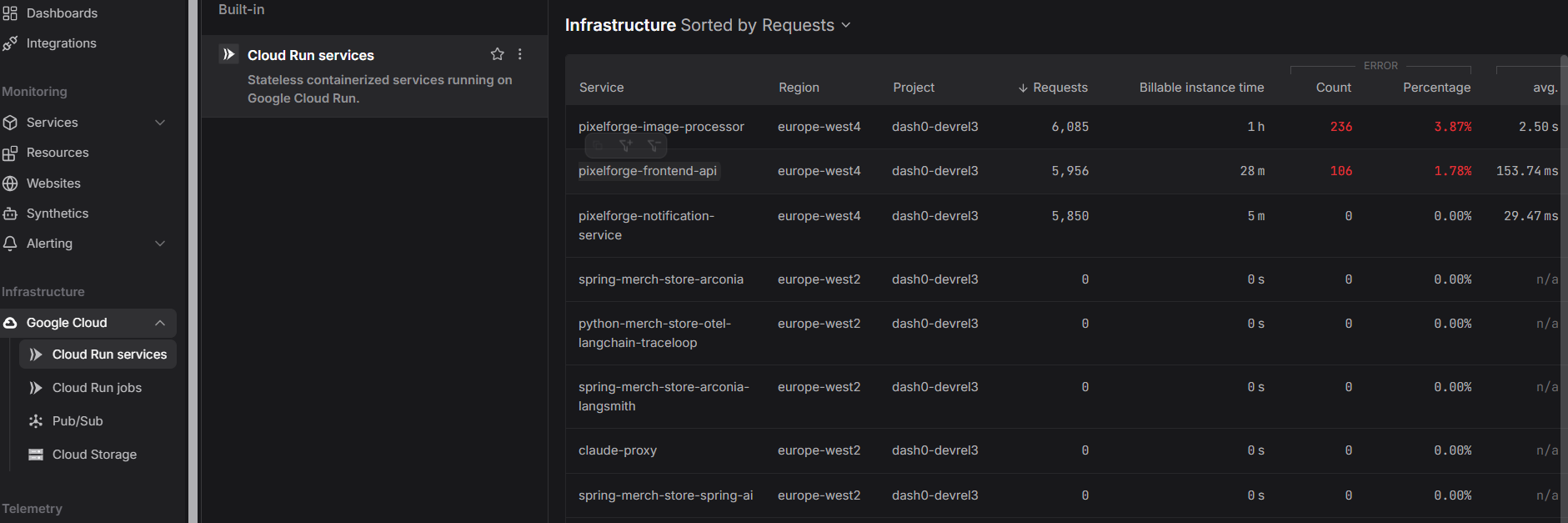
Dash0's infrastructure monitoring tracks container resource usage alongside real-time Docker logs and distributed traces, so you can see what's happening inside your workloads without docker exec-ing in and bind-mounting half your home directory.
 Start a free trial to monitor your containers, builds, and deploys from one place. No credit card required.