
You want a shell inside a running container, and SSH is the tool you reach for out of habit. For containers, it's almost always the wrong one. SSH expects a long-lived machine with a daemon listening on port 22 and a user account to log into, and a container is none of those things: it's a single process tree wrapped in namespaces, designed to be replaced rather than logged into.
The good news is that you don't need SSH at all. Docker ships a command that drops you straight into a running container, and even the stripped-down images with no shell have a clean way in. The one command people reach for and regret is docker attach, so it's worth knowing what that actually does before you use it.
Why SSH is the wrong approach
To SSH into a container, you'd have to install and run an sshd daemon inside it, expose port 22, manage host keys, and create credentials. Every one of those steps works against what a container is for.
Running sshd means a second long-lived process alongside your application, so the container is no longer one process doing one job. It inflates the image with the SSH server and its dependencies, and it widens the attack surface with a network-facing service and a set of credentials to manage and rotate. It also breaks the model that makes containers predictable: they're meant to be immutable and disposable, rebuilt from an image rather than logged into and modified in place. If you SSH in to change a file, that change lives only in the container's writable layer and vanishes the moment it's replaced (see Docker image vs container for why that layer is ephemeral). The next deploy wipes it out, and you're left wondering why your fix didn't stick.
There's a narrow exception. If your actual goal is SSH access for something like SFTP file transfer or a bastion-style jump host, then an SSH server is the workload, and running it in a container is fine. That's different from using SSH as a debugging back door, which is what most people mean when they search for this.
Use docker exec for a shell
The Docker-native way to get a shell inside a running container is docker exec. It starts a new process inside an already running container, sharing the same namespaces as the main process, which is exactly the interactive session you were after.
First, find the container's name or ID:
1docker ps
12CONTAINER ID IMAGE COMMAND CREATED STATUS PORTS NAMESa4f8c9e12345 nginx:latest "/docker-entrypoint.…" 3 minutes ago Up 3 minutes 80/tcp web
Then open a shell. Many production images are built on slim or Alpine bases that don't include Bash, so try sh first, since it's almost always present:
1docker exec -it web sh
The -i flag keeps stdin open and -t allocates a pseudo-terminal, which together give you a working interactive prompt. If the image does ship Bash, you'll get a nicer experience with it:
1docker exec -it web bash
You'll land at a root prompt inside the container, where you can run anything the image includes. For example, list the Nginx config directory:
1ls /etc/nginx
1conf.d fastcgi_params koi-utf koi-win mime.types modules nginx.conf scgi_params uwsgi_params win-utf
A couple of flags are worth knowing. Use -w to start in a specific directory, and -u to run as a different user, which is handy when the container runs as non-root but you need to inspect something only root can read:
1docker exec -it -u root -w /app web sh
When you're done, type exit. The shell process ends and the container keeps running, because exec only added a process; it didn't touch the main one. If you're using Compose, the equivalent targets a service by name rather than a container ID:
1docker compose exec web sh
How docker attach differs from exec
docker attach looks similar but does something fundamentally different, and reaching for it by mistake is a common way to accidentally kill a container.
exec starts a new process. attach connects your terminal to the existing main process (PID 1) that the container is already running, wiring your stdin, stdout, and stderr to that process's streams. Instead of a fresh shell, you get a live view of whatever the container's primary process is doing right now.
1docker attach web
What happens next depends entirely on what PID 1 is. If the container's main process is a shell, you get that shell. If it's a web server, you're staring at its log output, and your keystrokes go to a process that isn't expecting them. The dangerous part is the exit: pressing Ctrl-C while attached sends SIGINT to PID 1, which usually stops the container. To disconnect without killing it, use the detach sequence Ctrl-P followed by Ctrl-Q instead.
The rule of thumb is simple. If you want a shell to poke around, use exec. Reach for attach only when you specifically want to interact with the main process, for example a container running an interactive REPL as its entrypoint.
Debugging distroless and minimal images
docker exec -it web sh fails the moment you try it on a distroless or scratch-based image:
12OCI runtime exec failed: exec failed: unable to start container process:exec: "sh": executable file not found in $PATH
That error isn't a bug. Distroless images ship only your application binary and its runtime dependencies, with no shell, no package manager, and no tools, which is the whole point: a smaller image and a much smaller attack surface. The cost is that the moment something goes wrong, none of your usual commands exist inside the container.
The cleanest option on Docker Desktop is docker debug, which attaches a shell to the container and mounts a toolbox of debugging utilities into it:
1docker debug web
It sideloads its tools into a /nix directory that the container itself never sees, and that directory is removed when you exit, so the image stays clean. Note that docker debug requires a paid Docker Pro, Team, or Business subscription.
If you're not on Docker Desktop, or you'd rather not depend on a subscription, start an ephemeral debug container that shares the target's namespaces. This sideloads a fully equipped image like nicolaka/netshoot next to the broken container without modifying it:
12345docker run -it --rm \--pid container:web \--network container:web \--cap-add SYS_PTRACE \nicolaka/netshoot
Sharing the PID namespace means you can see the target's processes, and sharing the network namespace means tools like curl, dig, and ss see exactly what the application sees, so you can reproduce a connectivity problem from the same vantage point. Because you're in the shared PID namespace, the target's main process is PID 1, and its filesystem is reachable through the proc filesystem:
1ls /proc/1/root/app
The cdebug open-source CLI wraps this same idea with friendlier defaults, automatically rooting the debug session in the target container's filesystem so you browse the application's files directly.
Watch out for
The most common trap is committing to the SSH path before realizing docker exec already does what you need. The second is reaching for docker attach expecting a shell and stopping the container with Ctrl-C. Keep the distinction clear: exec adds a process and is safe to exit, while attach connects to the running process and exits on its terms, not yours.
One more thing about debug containers in production. The ephemeral debug image and docker debug's toolbox don't persist, which is good, but be deliberate about when you use them. The reason your production image has no shell is that an attacker with access to a running container also has no shell. Sideloading a full toolset is the right call during an incident, but it's not something to leave running.
Final thoughts
Needing a shell inside a container is usually a sign you're trying to see something the container isn't telling you from the outside. Maybe a process died on startup, or a config file silently failed to load, or a connection keeps timing out. docker exec gets you in for a one-off look, but if you're SSH-ing or exec-ing in repeatedly to read the same logs or re-run the same diagnostics, that's a signal you're missing instrumentation, not access.
Dash0's infrastructure monitoring tracks container resource usage alongside real-time logs and distributed traces, so you can answer most of those questions without opening a shell at all, including on the distroless images where a shell isn't an option in the first place.
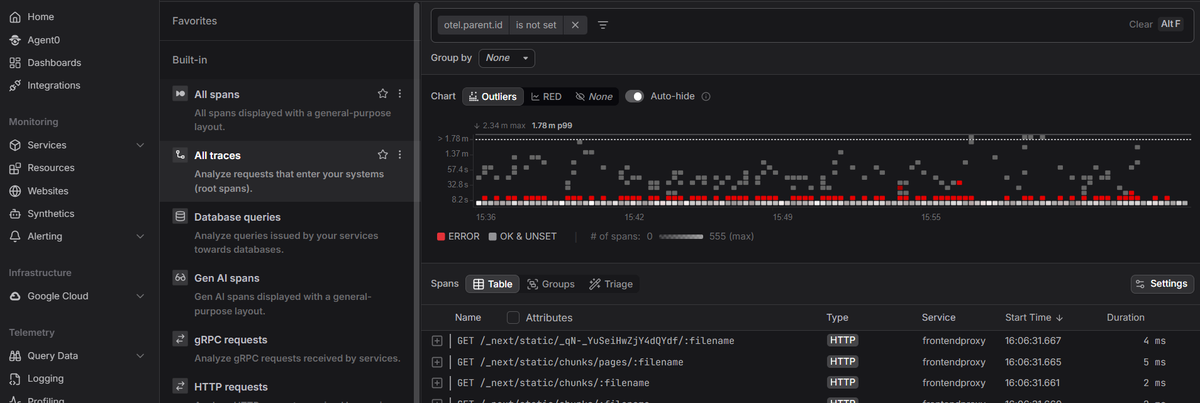 Start a free trial to see your containers, logs, and traces in one view. No credit card required.