
Docker containers write to stdout and stderr by default, and unless you tell Docker otherwise, those streams get captured by the json-file driver into files Docker manages internally. That's fine for some cases, but often you want logs somewhere specific, with rotation that won't fill your disk, or shipped to a system where you can actually search them.
This article covers the practical options: a one-off docker logs > file capture, configuring the json-file or local driver to write where you want with proper rotation, switching to syslog or fluentd for centralized logging, and applying the same setup across services in Docker Compose. If you just need to read logs from a running container without persisting them, see how to view Docker container logs.
The quick redirect: docker logs to a file
For a one-off snapshot, pipe the output of docker logs straight to a file:
1docker logs my-container > container.log 2>&1
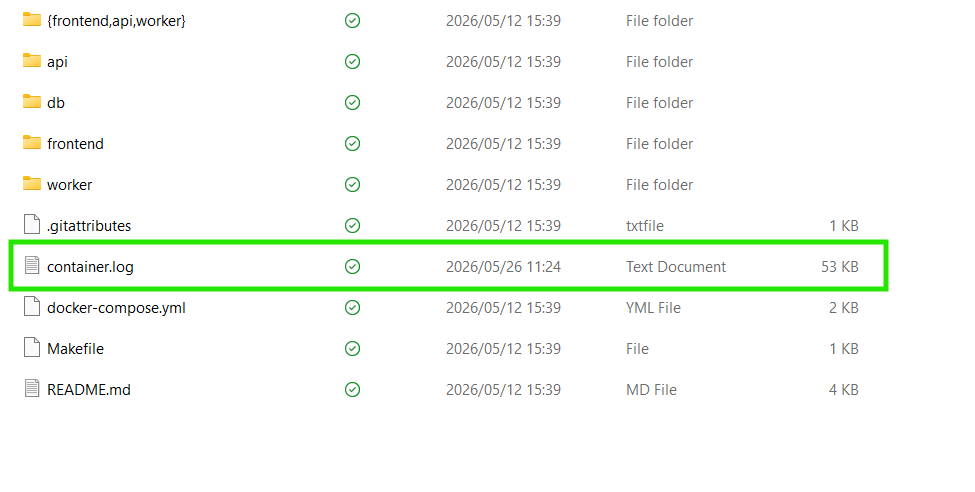 The
The 2>&1 matters. docker logs mirrors the container's two streams: stdout goes to your shell's stdout, stderr to your shell's stderr. A plain > only captures one half. To follow logs as they arrive and write them continuously, add --follow:
1docker logs --follow my-container > container.log 2>&1 &
This works for debugging, but it's a shell process running on the side that survives only as long as the host shell does. For anything beyond ad-hoc capture, configure the logging driver itself.
Where json-file logs already live
If you haven't changed anything, Docker is already writing your container logs to disk using the json-file driver. Find the exact path with:
1docker inspect --format='{{.LogPath}}' my-container
The output points to a file under /var/lib/docker/containers/:
1/var/lib/docker/containers/a4f8c9e12345.../a4f8c9e12345...-json.log
Each line is a JSON object with the log message, the originating stream (stdout or stderr), and a timestamp:
1{"log":"Listening on port 8080\n","stream":"stdout","time":"2026-05-22T10:14:02.123456789Z"}
These files belong to the Docker daemon. Reading them is fine. Rotating or truncating them with logrotate or similar tools is not, because Docker assumes exclusive access and external interference can corrupt the log state or prevent containers from being removed.
If you want a copy of these logs somewhere else, configure a driver explicitly rather than touching /var/lib/docker.
Configure the driver per container
Pass --log-driver and --log-opt to docker run. This example uses json-file with rotation:
123456docker run -d \--name api \--log-driver json-file \--log-opt max-size=10m \--log-opt max-file=3 \myapp/api:latest
max-size=10m caps each log file at 10 megabytes. max-file=3 keeps three rotated files before discarding the oldest. With these set, the container can use at most 30 MB of disk for logs. Without them, json-file has no upper bound, and a chatty container will quietly fill your disk until the daemon falls over. This is the single most common cause of "my Docker host ran out of space," and it's the first thing to fix on any production host.
You can verify the driver and options after the fact:
1docker inspect --format='{{.HostConfig.LogConfig}}' api
1{Type:json-file Config:map[max-file:3 max-size:10m]}
Configure the daemon-wide default
To apply the same setup to every new container without repeating yourself, edit /etc/docker/daemon.json:
1234567{"log-driver": "json-file","log-opts": {"max-size": "10m","max-file": "3"}}
Restart Docker (sudo systemctl restart docker on most Linux distros) for the changes to take effect. Note that the values are strings even when they look numeric. daemon.json requires this format, and "max-file": 3 (unquoted) will cause the daemon to reject the file.
One thing that catches people: existing containers don't pick up the new defaults. Only containers created after the restart use them. To migrate, recreate the containers.
If you're starting fresh, consider the local driver instead of json-file:
123{"log-driver": "local"}
The local driver is functionally similar. docker logs still works the same way, but it uses a more efficient binary format, compresses rotated files automatically, and ships with sensible rotation defaults (20 MB per file, 5 files kept). It exists specifically because the json-file format is wasteful and lacks rotation, and Docker can't change the default to local without breaking tools that depend on the json-file layout (Kubernetes, which symlinks the json-file paths into /var/log/containers, being the biggest one).
Apply logging in Docker Compose
For Compose stacks, put the configuration under the logging key per service:
1234567891011121314151617services:api:image: myapp/api:latestlogging:driver: json-fileoptions:max-size: "10m"max-file: "3"worker:image: myapp/worker:latestlogging:driver: json-fileoptions:max-size: "20m"max-file: "5"
If you're applying the same settings everywhere, a YAML anchor keeps the config DRY:
1234567891011121314x-logging: &default-loggingdriver: json-fileoptions:max-size: "10m"max-file: "3"services:api:image: myapp/api:latestlogging: *default-loggingworker:image: myapp/worker:latestlogging: *default-logging
The extension field (x-logging) is ignored by Compose itself. The anchor (&default-logging) lets you reference the block from each service. Override per-service when one workload needs different limits. For more advanced Compose logging patterns, see the Docker Compose logs guide.
Ship logs off the host with syslog or fluentd
When you want logs leaving the host, to a central syslog server, a log aggregator, or an OpenTelemetry pipeline, switch to a forwarding driver.
For syslog:
12345docker run -d \--log-driver syslog \--log-opt syslog-address=tcp://logs.example.com:514 \--log-opt tag="{{.Name}}" \myapp/api:latest
For fluentd:
12345docker run -d \--log-driver fluentd \--log-opt fluentd-address=localhost:24224 \--log-opt tag="docker.{{.Name}}" \myapp/api:latest
Other drivers exist for journald (systemd's journal), gelf (Graylog), awslogs (CloudWatch), and splunk. Each has its own --log-opt keys. Check the Docker logging driver docs for the full reference.
Common pitfalls
docker logs still works with remote drivers, thanks to dual logging. Since Docker 20.10, when you use a remote driver like syslog, fluentd, or splunk, Docker automatically maintains a local cache (using the local driver internally) alongside the forwarding. That cache is what docker logs reads. By default it rotates at 5 files of 20 MB each. If you don't need local logs and want to reclaim that disk, disable the cache by setting "cache-disabled": "true" in log-opts. For drivers that already support reading logs (json-file, local, journald), dual logging isn't used at all.
Boolean and numeric values in daemon.json must be quoted. "max-file": 3 will fail to parse. It has to be "max-file": "3". The Docker daemon won't start cleanly if the file is invalid, so validate the JSON syntax with jq . /etc/docker/daemon.json before restarting, and check journalctl -u docker afterward if the daemon doesn't come back up.
The fluentd driver is unforgiving by default. If the fluentd collector is unreachable when a container starts, the container exits immediately rather than running with logs going nowhere. Set --log-opt fluentd-async=true so Docker connects in the background and buffers records until the collector is reachable. For resilience after the container is already running (in case the collector goes down later), also add --log-opt mode=non-blocking — Docker will drop logs when the buffer fills rather than blocking stdout writes.
Per-container settings override the daemon default. If a container is still writing json-file logs after you set local in daemon.json, check whether it was started with explicit --log-driver flags, or whether your Compose file has its own logging: block. The most specific setting wins.
External log rotation tools corrupt json-file logs. A logrotate config that truncates /var/lib/docker/containers/*/*-json.log will eventually result in containers that can't be removed, or partial JSON lines that crash downstream collectors. Use Docker's built-in max-size and max-file, not host-level rotation.
Centralize logs from every container
Configuring drivers and rotation keeps disk usage under control, but you still need a place to search and correlate logs across containers, hosts, and services. The OpenTelemetry Collector's filelog receiver can tail the json-file paths and forward them to any OTLP (OpenTelemetry Protocol) backend.
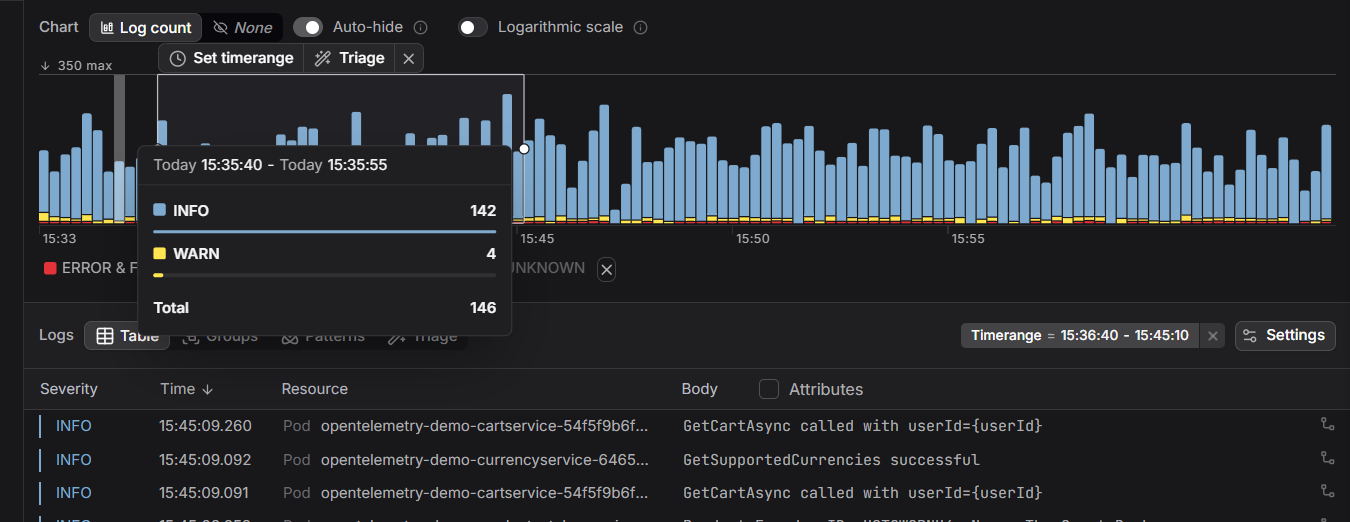
Dash0's log management ingests container logs as structured OpenTelemetry data, correlated with infrastructure metrics and distributed traces from the same workloads. For an end-to-end walkthrough of Docker log handling, see the Mastering Docker logs guide.
 Start a free trial to see your container logs, metrics, and traces in one view. No credit card required.