
docker exec is how you run a command inside a container that's already running. You're not starting a new container — you're attaching a new process to an existing one, with access to its filesystem, environment variables, and network namespace.
This article covers the common patterns: getting an interactive shell, running one-off commands, targeting a specific user, and the classic mistake of reaching for docker attach when you meant docker exec.
Getting an interactive shell
The most common use case is dropping into a shell to poke around. Here's the command you'll use most:
1docker exec -it <container_name_or_id> /bin/bash
The -i flag keeps stdin open so you can type. The -t flag allocates a pseudo-TTY, which gives you a proper terminal, line editing, color output, the works. You almost always want both together. Without -t, commands like top or anything that draws to the screen won't behave. Without -i, you can't interact at all.
If the container doesn't have bash (common in Alpine-based images), try sh instead:
1docker exec -it <container_name_or_id> /bin/sh
To find the container name or ID, run:
1docker ps
You'll see output like this:
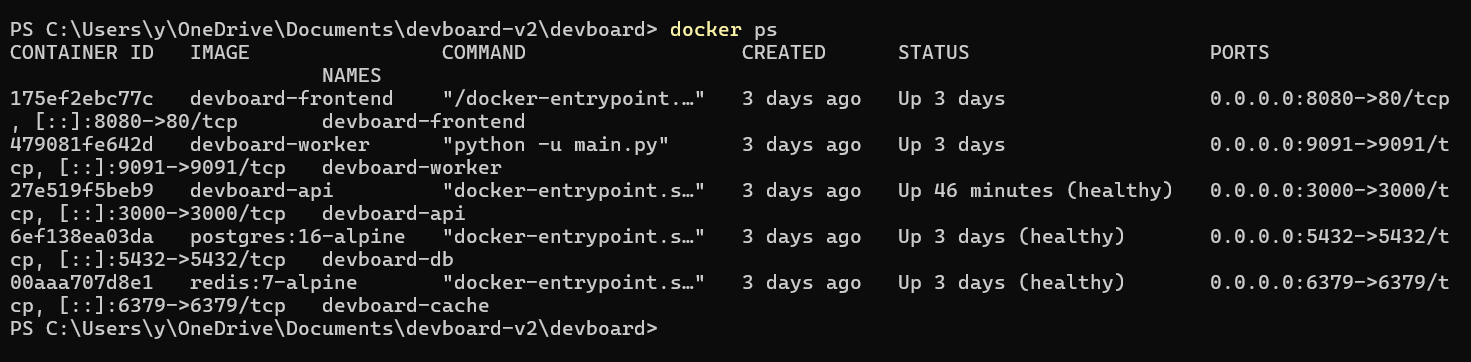 Either the container ID (
a3f82c1d9e04) or the name (web) works with docker exec. You can also use just the first few characters of the ID as long as they're unambiguous, so docker exec -it a3f /bin/sh is fine.
Running a one-off command
You don't always need an interactive session. If you want to check an environment variable, inspect a file, or run a quick diagnostic, just pass the command directly:
1docker exec <container_name> env
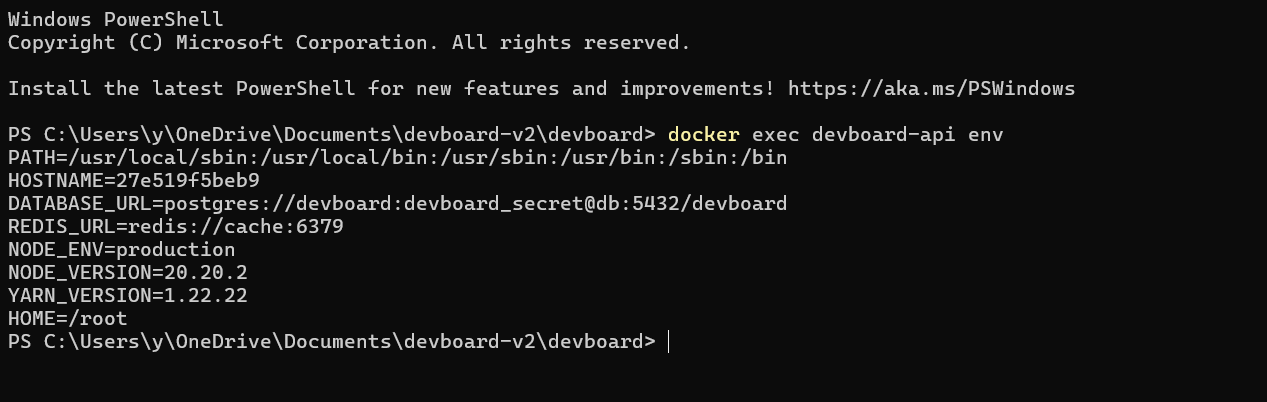 Or read a config file (using
 web, the container name from our earlier docker ps example):
1docker exec web cat /etc/nginx/nginx.conf
No -it needed here. You're capturing stdout, not driving an interactive session.
Database containers are one of the most common reasons to reach for docker exec. Rather than installing a database client on your host machine, you can run queries directly against a container using the client that ships inside the image:
1docker exec <postgres_container> psql -U <username> -d <database> -c "SELECT COUNT(*) FROM updates;"
Once inside the psql session, \dt lists all tables in the current database, useful for verifying schema after a fresh deploy or checking that migrations ran correctly:
 No
No -it flags needed here either, you're capturing output, not driving an interactive session. The same pattern works for inspecting schema, running migrations manually, or verifying seed data after a fresh docker compose up.
Running as a specific user
By default, docker exec runs as the user defined by the container image (often root, sometimes a less privileged service user). You can override this with -u:
1docker exec -u www-data -it web /bin/bash
This matters when the process inside the container runs as a non-root user and you want to match its permissions, for example to reproduce a permission error or read files that root would access differently due to ACLs.
You can pass a username, a UID, or uid:gid:
1docker exec -u 1000:1000 -it web /bin/sh
docker exec vs docker attach
This is where people get burned. docker attach connects your terminal to the container's main process (PID 1), attaching to its stdin, stdout, and stderr. It doesn't start a new process. That means:
- You're looking at whatever the main process is already outputting (log lines, a running server, etc.)
- If you press
Ctrl+C, you send SIGINT to PID 1, which will stop the container - There's no way to "exit" cleanly without killing the container
The detach sequence is Ctrl+P, Ctrl+Q, which most people don't know and don't remember until after they've killed a container they didn't mean to.
Use docker attach only when you specifically need to interact with or observe PID 1, for example if the main process is an interactive program. For everything else, use docker exec.
When exec fails
A few things can cause docker exec to fail in non-obvious ways.
If the container has already exited, you'll get:
1Error response from daemon: container a3f82c1d9e04 is not running
docker exec only works on running containers. Check with docker ps -a (the -a shows stopped containers too) and restart it if needed.
If the shell binary doesn't exist in the image, you'll get:
1OCI runtime exec failed: exec failed: unable to start container process: exec: "/bin/bash": stat /bin/bash: no such file or directory: unknown
Distroless and scratch-based images intentionally ship without a shell. In that case, you can't exec into a shell at all. You'd need to either rebuild the image with a debug variant or copy a static binary in. Some runtimes support ephemeral debug containers for exactly this scenario (kubectl debug in Kubernetes does this, though that's outside Docker's scope).
Final thoughts
docker exec -it <container> /bin/bash will cover 90% of what you need. Remember the -it flags, try sh if bash isn't available, and keep docker attach in your back pocket for the narrow case where you actually need it.
When you're debugging a live service issue, manually exec-ing into containers leaves no audit trail and no correlation with what the service was doing at that moment. Dash0 gives you real-time logs, metrics, and distributed traces across your containers without the guesswork, so you can diagnose issues before you ever need to open a shell.
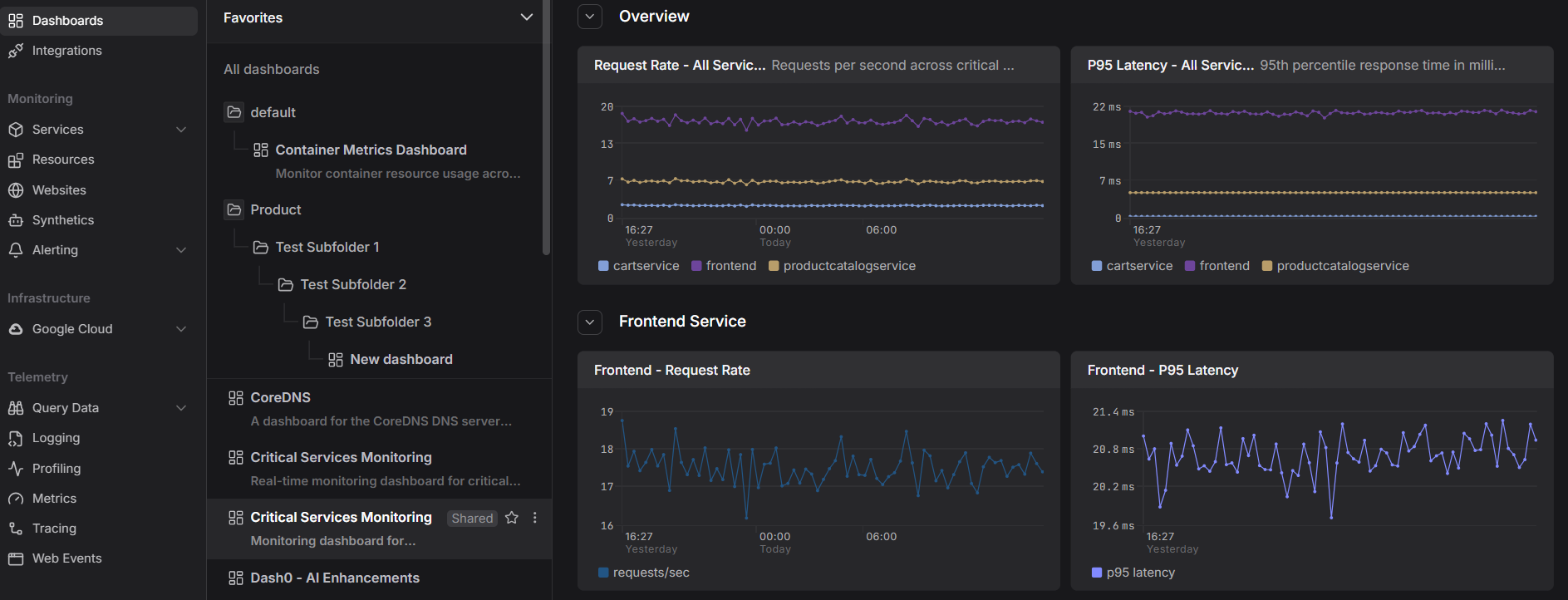 Start a free trial, no credit card required.