
The docker logs command has flags for tailing and following output, but there's no --clear or --truncate. Container logs are written by the logging driver straight to the host filesystem, and Docker treats those files as its own. Clearing them is your job, not a CLI feature.
The safe way to do that on a running container, the rotation settings that keep it from filling your disk in the first place, and a few reasons docker logs sometimes keeps returning old entries even after you think you cleared them — all below.
Truncate the log file directly
Every container has a log file path that you can pull from docker inspect. Get it for a single container:
1docker inspect --format='{{.LogPath}}' my-container
You'll see something like:
1/var/lib/docker/containers/3f8a1c9d5e7b.../3f8a1c9d5e7b...-json.log
That's the active log file. To clear it without stopping the container, truncate it to zero bytes:
1sudo truncate -s 0 $(docker inspect --format='{{.LogPath}}' my-container)
The container keeps running, the daemon keeps writing to the same file descriptor, and docker logs immediately stops returning the old content. Disk space comes back right away.
To clear logs for every container on the host in one shot:
1sudo truncate -s 0 /var/lib/docker/containers/*/*-json.log
Run that with sudo (or as root) since the containers directory is locked down to the Docker daemon user.
Why truncate and not rm
This is the single biggest mistake people make when clearing Docker logs. If you rm the JSON file, the disk space doesn't actually come back, and your next docker logs call returns confusing output.
The reason: the Docker daemon opens the log file once when the container starts and holds that file descriptor open for the container's lifetime. Running rm only unlinks the directory entry. The inode itself stays alive as long as the daemon holds the descriptor, so Docker keeps writing to a ghost file you can no longer see in the filesystem. Space stays allocated. The only way to release it is to restart the daemon or recreate the container.
truncate -s 0 is different. It zeroes the file in place without unlinking it. The file descriptor stays valid, Docker keeps writing to the same inode, and disk space is freed immediately. Always reach for truncate over rm for live containers.
Configure rotation so this doesn't happen again
Manual truncation is fine as an emergency fix, but the actual fix is log rotation, configured at the daemon level. Edit /etc/docker/daemon.json to enable rotation for the json-file driver:
12345678{"log-driver": "json-file","log-opts": {"max-size": "10m","max-file": "3","compress": "true"}}
This caps each log file at 10 MB, keeps up to three rotated files per container, and gzip-compresses the rotated copies (compression is off by default — usually worth turning on). When the active file hits the size limit, Docker renames it to <id>-json.log.1, starts a fresh active file, and deletes the oldest rotated file once you exceed max-file.
Apply the change:
1sudo systemctl restart docker
Two caveats worth calling out. The values have to be strings: "max-file": 3 is invalid for log-opts, so quote everything, including the numeric values. And the new settings only apply to containers created after the daemon restart. Anything already running keeps using whatever log options it was started with, which is usually no rotation at all. You need to stop and recreate those containers (docker rm followed by docker run, or docker compose up -d --force-recreate) for the new policy to take effect.
For per-container overrides, pass the same options to docker run:
123456docker run -d \--log-driver json-file \--log-opt max-size=50m \--log-opt max-file=5 \--name high-volume-app \my-image
Why docker logs still show old entries after you cleared them
You truncated the file. You checked du -sh and the disk space is gone. But docker logs my-container still spits out megabytes of old log lines. Three things tend to cause this.
Rotated files are still on disk
docker logs doesn't only read the active log file. It also reads any rotated files alongside it (<id>-json.log.1, <id>-json.log.2, and so on). If you only truncated the file at LogPath, the rotated copies are still there with the old content. List the directory to confirm:
1sudo ls -lh $(dirname $(docker inspect --format='{{.LogPath}}' my-container))
To clear everything, glob the rotated files too:
1sudo truncate -s 0 /var/lib/docker/containers/<id>/<id>-json.log*
The dual logging cache is keeping a copy
If the container is using a remote logging driver (splunk, gcplogs, awslogs, fluentd, syslog), Docker Engine 20.10 and later maintain a local cache so that docker logs keeps working anyway. The cache lives in container-cached.log files inside /var/lib/docker/containers/<id>/, and it rotates separately from your main log driver (default: 5 files of 20 MB each). Truncating the JSON log file does nothing in this case, because there is no JSON log file. The cache is the source.
You can disable this behavior at container creation with --log-opt cache-disabled=true. For existing containers, you either recreate them or truncate the cached files directly. This only applies to remote drivers; json-file, local, and journald already support docker logs natively and don't use the dual cache.
You used rm, not truncate
Covered above, but worth restating since it's the most common cause of "the file is gone but the logs keep coming." The daemon is writing to an unlinked inode that nothing else can see. Either restart the container to release the file descriptor, or do it right next time with truncate.
One thing that catches people out: docker restart does not clear logs. Restarting just stops and starts the container's process while the log file persists for the container's entire lifecycle. Only docker rm followed by a fresh docker run actually destroys the log file along with the container.
Centralizing logs is the longer-term fix
Clearing logs is symptom-level work. Storing container logs as JSON files on the local disk doesn't scale past one host. Once you're running more than a handful of containers, you want logs forwarded to a backend where you can search across all of them in one place and correlate them with the metrics and traces from the same workload.
Dash0's log management ingests container logs over OpenTelemetry, alongside infrastructure metrics and distributed traces, so you can pivot from a container's restart count straight into the log lines that explain it. For more on how Docker handles logs across different drivers, see our guide on mastering Docker logs.
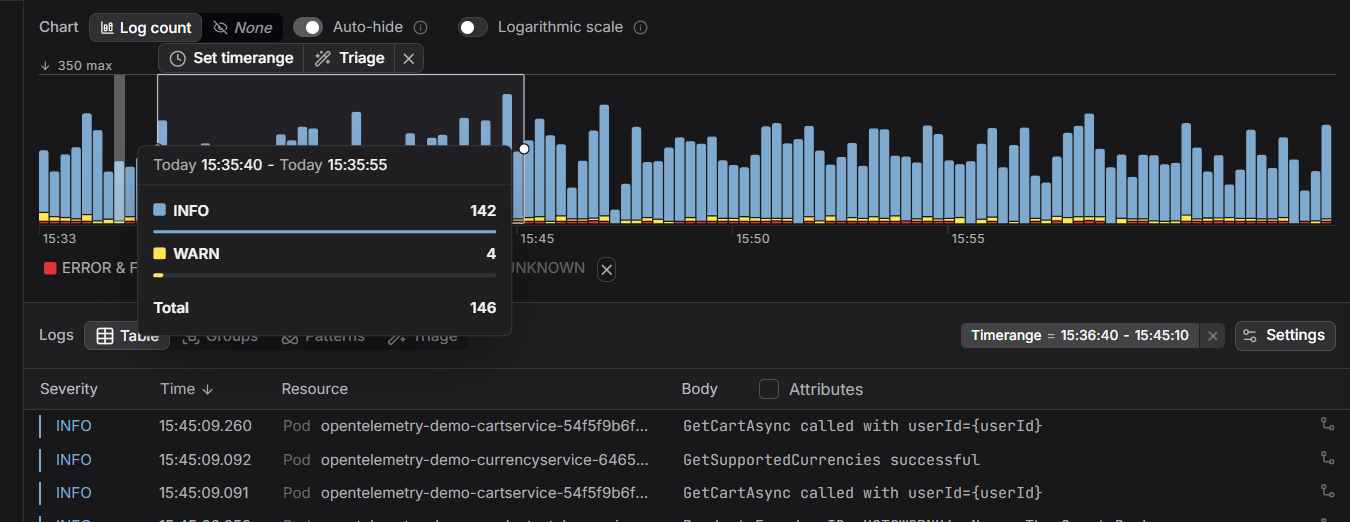 Start a free trial to centralize your container logs and stop fighting disk space alerts. No credit card required.