

Observability is a marathon, not a sprint. While our default dark interface is a favorite for many, we know that lighting conditions and personal preferences vary throughout the day. To give you more flexibility in how you monitor your systems, we’re introducing a Light Mode option for the entire Dash0 UI.
Designed for clarity We’ve carefully adapted our interface to ensure that the transition to a lighter palette feels natural. Every component—from the Service Map to complex trace views—has been refined to maintain the visual hierarchy you're used to. Whether you’re working in a sunlit room or simply prefer a paper-like aesthetic, the new theme provides a clean, focused environment for your data.
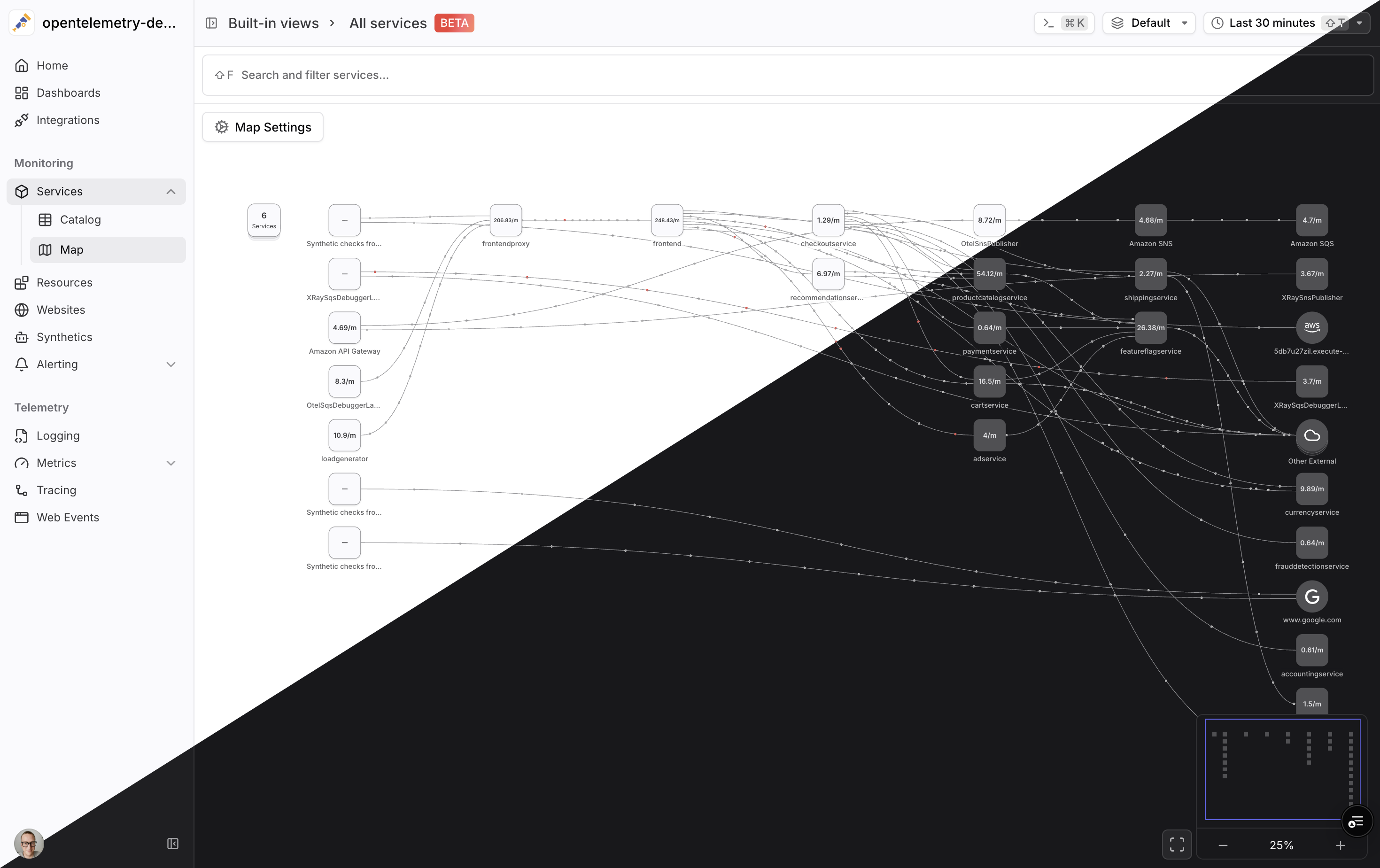
What’s new:
-
Visual Flexibility — Easily switch between Light and Dark modes to match your surroundings or personal workflow.
-
Consistent Semantics — We’ve tuned our color palette so that critical status indicators and OTel metrics remain clear and recognizable against the lighter background.
-
Automatic Switching — Set Dash0 to "System" mode to have the UI automatically sync with your OS theme as the day turns into night.
How to switch The fastest way to change your theme is via the Command Menu:
-
Press
CMD+K(orCTRL+K) to open the menu. -
Type "Theme" and select your preferred mode.
Alternatively, you can click on your profile avatar in the sidebar to find the theme selector under your account settings.