
Getting Nginx running in Docker takes one command. Getting it running the way you actually want, with your own config, serving your own content, and not falling over the first time you lock down the container, takes a few more decisions. Most of them the official image makes for you in ways that aren't obvious until something breaks.
This article gets you from docker run to a production-shaped setup, and covers the two things that trip people up most: the template mechanism baked into the image, and the permission errors you hit the moment you try to run it as a non-root user.
The fastest possible start
The official image serves a default welcome page out of the box. This runs it and maps container port 80 to port 8080 on your host:
1docker run -d --name web -p 8080:80 nginx
You'll see the container ID printed back, confirming it started:
1a3f7d2e1b4c589...
Hit http://localhost:8080 and you'll get the Nginx welcome page. The -d runs it detached, and --name web gives you something friendlier than a container ID to reference later.
That nginx with no tag pulls latest, which tracks the mainline branch (currently 1.31.x). For anything you'll run more than once, pin a tag instead of inheriting whatever latest points at the day you rebuild.
Which tag to use
The official image publishes a lot of tags, and the naming is more meaningful than it looks. The parts that matter:
nginx:1.31/nginx:mainline: the mainline branch, where new features land. This is whatlatestpoints at.nginx:1.30/nginx:stable: the stable branch. Only bug and security fixes get backported, no new features. This is the safer choice for infrastructure you don't want surprising you.-alpine: built on Alpine Linux instead of Debian, roughly 5 MB base versus ~70 MB. Smaller attack surface and faster pulls, at the cost of musl libc instead of glibc, which occasionally matters if you're compiling dynamic modules.-otel: ships with the OpenTelemetry module preinstalled, so you can emit traces from Nginx without building it yourself. If you're instrumenting your stack, this variant saves you a custom build.-perl: includes the Perl module, which was removed from the default images years ago.
For most production reverse proxies, nginx:1.30-alpine (pin the minor version, get the small image) is a sensible default. If you want distributed tracing out of Nginx, reach for nginx:1.30-alpine-otel.
Serving your own static content
The document root inside the container is /usr/share/nginx/html. Mount a host directory over it and Nginx serves your files:
123456mkdir -p ./siteecho "<h1>Served from Docker</h1>" > ./site/index.htmldocker run -d --name web -p 8080:80 \-v "$(pwd)/site:/usr/share/nginx/html:ro" \nginx
The :ro mounts the volume read-only, which is the right call for static content. The web server has no reason to write to the directory it's serving.
For anything you're shipping rather than iterating on locally, bake the files into an image instead of mounting them, so the container is self-contained:
12FROM nginx:1.30-alpineCOPY site/ /usr/share/nginx/html/
Custom configuration
There are two mount points worth knowing. The main config lives at /etc/nginx/nginx.conf, and it ends with an include /etc/nginx/conf.d/*.conf;. For most changes you don't want to replace the whole main config. You want to drop a server block into conf.d.
This mounts a single site config over the default one:
123docker run -d --name web -p 8080:80 \-v "$(pwd)/default.conf:/etc/nginx/conf.d/default.conf:ro" \nginx
A minimal reverse proxy default.conf pointing at another container on the same Docker network:
123456789101112server {listen 80;server_name _;location / {proxy_pass http://app:3000;proxy_set_header Host $host;proxy_set_header X-Real-IP $remote_addr;proxy_set_header X-Forwarded-For $proxy_add_x_forwarded_for;proxy_set_header X-Forwarded-Proto $scheme;}}
The app in proxy_pass resolves because Docker's embedded DNS lets containers on the same user-defined network find each other by name. Create the network with docker network create web and pass --network web to both containers, or let Compose handle it. Until the peer container is up on that network, nginx -t will report host not found in upstream "app"; that's the name lookup failing, not a syntax error in your config.
If you need to see what the default config looks like before overriding it, pull it out of the image without starting a full container:
1docker run --rm --entrypoint=cat nginx /etc/nginx/nginx.conf > nginx.conf
Environment variables in config with templates
Nginx config doesn't natively read environment variables, which surprises people coming from apps that do. The official image works around this with a template mechanism: any file in /etc/nginx/templates/ ending in .template gets run through envsubst at container start, with the result written to /etc/nginx/conf.d/.
Create default.conf.template:
123456789server {listen 80;server_name ${SERVER_NAME};location / {proxy_pass http://${BACKEND_HOST}:${BACKEND_PORT};proxy_set_header Host $host;}}
Then mount it as a template and pass the values as environment variables:
123456docker run -d --name web -p 8080:80 \-v "$(pwd)/default.conf.template:/etc/nginx/templates/default.conf.template:ro" \-e SERVER_NAME=example.com \-e BACKEND_HOST=app \-e BACKEND_PORT=3000 \nginx
One catch worth understanding: the image doesn't blindly substitute every ${...} in the file. Its entrypoint builds a list of the environment variables that are actually defined and passes only those to envsubst, so only your defined variables get replaced, whether you write them as $VAR or ${VAR}. Nginx's own runtime variables like $host are left untouched because they aren't environment variables, so you don't need to do anything special to protect them. The one thing to avoid is naming one of your own environment variables after an Nginx variable, since that name would then get substituted wherever it appears. If you want tighter control, set NGINX_ENVSUBST_FILTER to a prefix so only your own variables (say, APP_*) are eligible for substitution.
Running as a non-root user
Most production hardening efforts run into trouble here. The default image starts its master process as root so it can bind port 80 and write to /var/cache/nginx, then drops worker processes to an unprivileged user. The moment you try to run the whole thing as non-root, whether with --user, a USER directive, or a Kubernetes runAsNonRoot policy, you get errors like:
1nginx: [emerg] open() "/run/nginx.pid" failed (13: Permission denied)
and, if you've also set a read-only root filesystem:
1nginx: [emerg] mkdir() "/var/cache/nginx/client_temp" failed (30: Read-only file system)
You have two options. The easier one is nginxinc/nginx-unprivileged, which is preconfigured for exactly this: it listens on 8080 instead of 80, removes the user directive, and moves the PID file and temp paths to writable locations.
123FROM nginxinc/nginx-unprivileged:1.30-alpineCOPY default.conf /etc/nginx/conf.d/default.confEXPOSE 8080
Note the listen port changes to 8080. A non-root process can't bind ports below 1024 in most runtimes, so your server block and docker run -p mapping both need to target 8080.
If you'd rather stick with the official image, you have to make the writable paths writable yourself. Point the PID file and temp directories at /tmp in your config's http and top-level context:
12345678910pid /tmp/nginx.pid;http {client_body_temp_path /tmp/client_temp;proxy_temp_path /tmp/proxy_temp;fastcgi_temp_path /tmp/fastcgi_temp;uwsgi_temp_path /tmp/uwsgi_temp;scgi_temp_path /tmp/scgi_temp;# ... rest of your http config}
In most cases the unprivileged image is less work and less to get wrong, so start there before hand-rolling the paths.
A note on the read-only root filesystem
Setting read_only: true on the container is good hardening, but Nginx needs a handful of writable paths to function: the temp directories above plus the PID file. The standard pattern is a read-only root filesystem with tmpfs mounts for the paths that must be writable:
1234567891011services:web:image: nginxinc/nginx-unprivileged:1.30-alpineports:- "8080:8080"read_only: truetmpfs:- /tmp- /var/cache/nginxvolumes:- ./default.conf:/etc/nginx/conf.d/default.conf:ro
You get an immutable container image with only the ephemeral scratch space it needs left writable, and that scratch space vanishes when the container stops.
Useful operational commands
Once it's running, these are the commands you'll reach for.
Test the config before reloading:
1docker exec web nginx -t
12nginx: the configuration file /etc/nginx/nginx.conf syntax is oknginx: configuration file /etc/nginx/nginx.conf test is successful
Reload the config with zero downtime:
1docker exec web nginx -s reload
Print the full effective config (every included file, concatenated):
1docker exec web nginx -T
Follow access and error logs:
1docker logs -f web
Nginx in the official image writes access logs to stdout and error logs to stderr by default, so docker logs shows everything without extra configuration. That also means your existing Docker logging driver captures it automatically.
Final thoughts
A single container behind docker run is fine to start with, but production Nginx tends to accumulate the things that are easy to misconfigure silently: TLS termination, upstream health, connection limits, and request latency that only shows up under load. Nginx emits access logs, error logs, and (via the -otel image) traces, but only if something is collecting and correlating them.
Dash0 gives you OpenTelemetry-native observability for exactly that: ship Nginx's logs, request metrics, and distributed traces into one place and see them alongside the backends Nginx is proxying to, so a spike in 502s leads you straight to the upstream that's actually failing.
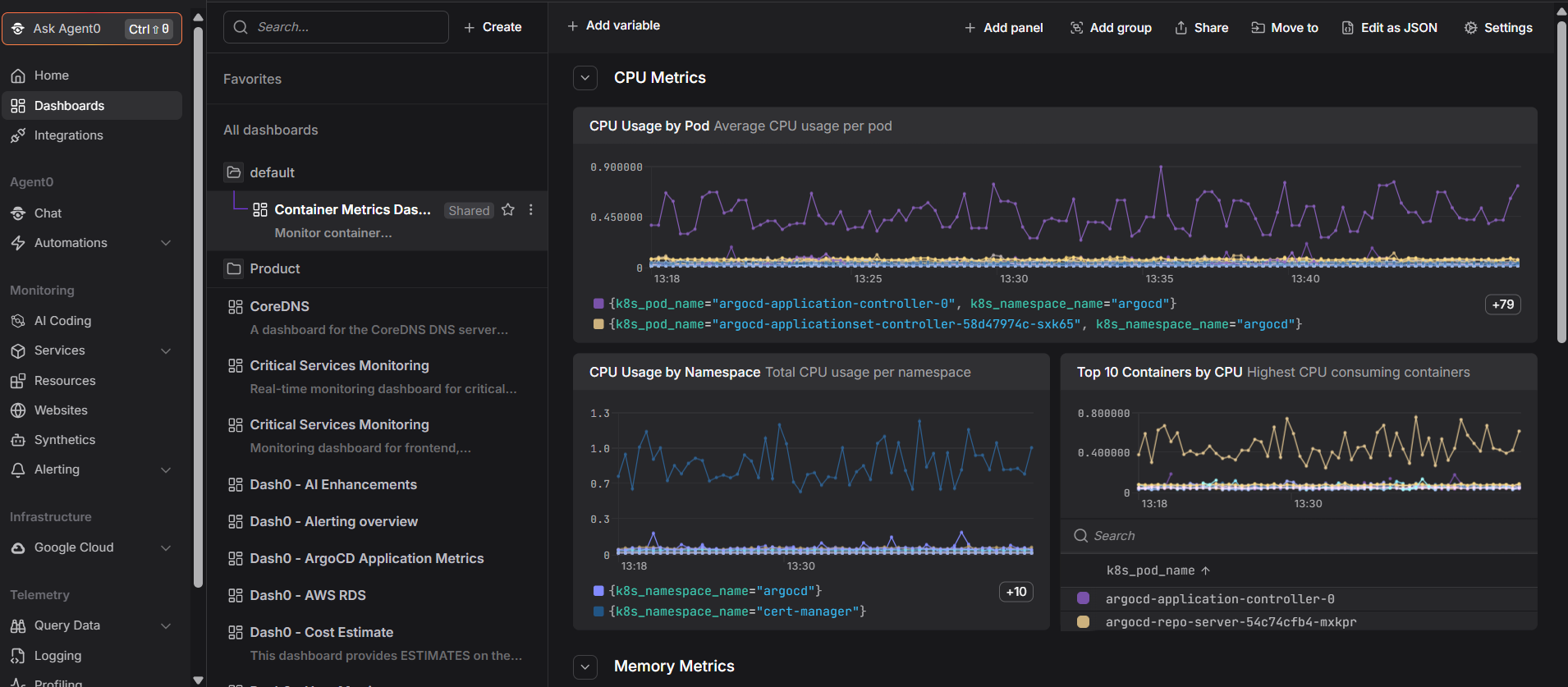 Start a free trial and point your Nginx container's OpenTelemetry output at Dash0 to see your proxy and everything behind it in a single view. No credit card required.