
"Start a container" means two different things in Docker depending on whether the container already exists. If you have an image and want a fresh container, you use docker run. If you have a stopped container you want to bring back, you use docker start. Mixing these up is the most common source of "why isn't this working" moments for people new to Docker.
The reason both commands exist is that creating a container and starting it are two separate operations under the hood. Docker exposes them as docker create and docker start, with docker run being the convenience wrapper that does both at once. It's a small distinction, but it's the one that explains most of the confusion in this article.
This article walks through how to start containers in each scenario, which flags actually matter, and the failure modes that aren't obvious from the docs.
The container lifecycle in one paragraph
A container moves through a small set of states: created, running, paused, exited, and dead. docker create takes an image and produces a container in the created state, which means the writable layer exists and the configuration is locked in, but no process is running. docker start transitions a created or exited container into running by launching its main process. docker run chains those two together. Once a container exits, it stays around as a stopped artifact until you remove it with docker rm, which is what makes docker start possible later.
This lifecycle is why docker run --name web nginx followed later by docker run --name web nginx fails with a name conflict. The first container still exists; you wanted docker start web.
Starting a new container with docker run
docker run is the right command when you don't have an existing container yet. It pulls the image if needed, creates the container, and starts it.
A typical web server example:
1docker run -d -p 8080:80 --name web nginx:latest
What you should see:
1a4f8c9e12345b8d7e3f1a9c2b4d6e8f0a1c3e5b7d9f2a4c6e8b0d2f4a6c8e0b2
That long hash is the container ID. Docker prints it and returns control to your shell because of the -d flag. Verify the container is running:
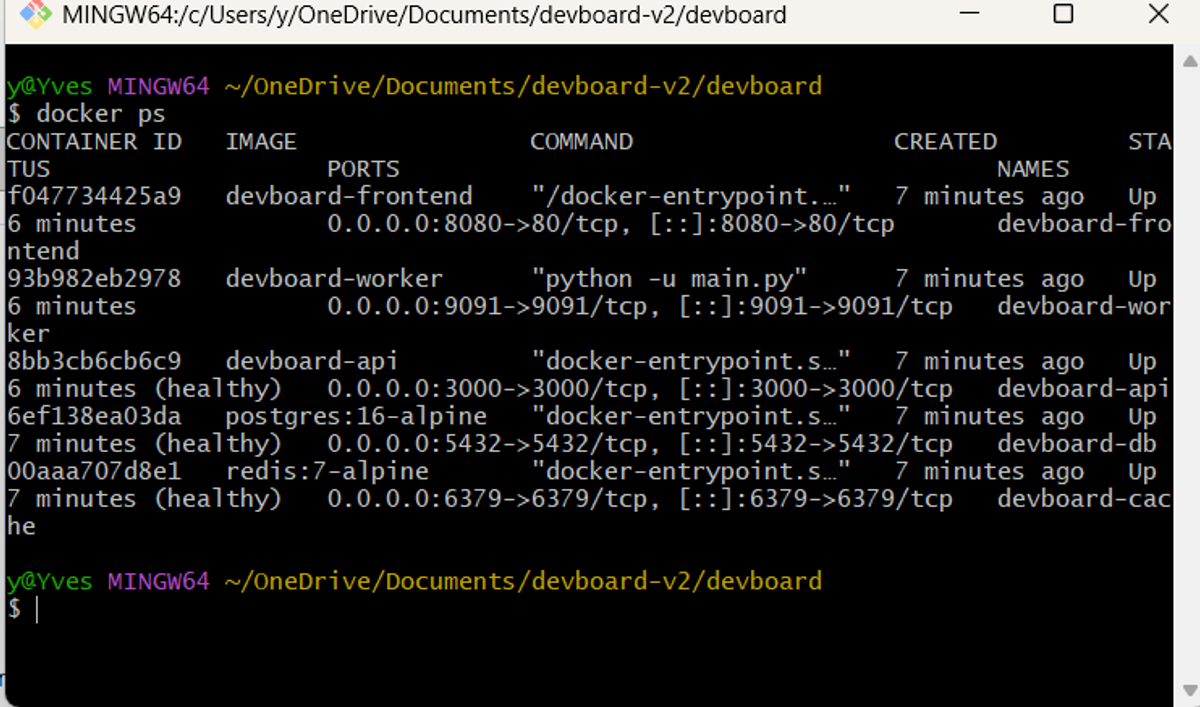
docker ps lists all currently running containers. It shows you a snapshot of what's active right now, such as container ID, image name, how long it's been running, port mappings, and the container name.
1docker ps
The four flags in that docker run command cover most real-world use cases.
-d (detached) runs the container in the background. Without it, your terminal attaches to the container's stdout and stderr, and Ctrl-C will stop the container. Use detached mode for anything that's supposed to run as a service.
-p 8080:80 (publish) maps host port 8080 to container port 80. The format is always host:container, which trips people up. Swap them and you'll get a connection refused on the port you actually wanted.
--name web gives the container a stable, readable name. Without it, Docker assigns a random name like vibrant_kepler and you'll be copy-pasting container IDs forever.
-e KEY=value sets environment variables. Use it for config like -e POSTGRES_PASSWORD=secret or -e LOG_LEVEL=debug. You can repeat -e as many times as needed, or use --env-file to load them from a file.
Two more flags are worth knowing about. --rm deletes the container automatically when it exits, which is what you want for one-off commands and short-lived scripts so you don't accumulate dead containers. --restart unless-stopped tells Docker to restart the container if it crashes or if the host reboots, unless you explicitly stopped it. That's the right choice for long-running services on a single Docker host. There are other restart policies (no, on-failure, always), but unless-stopped is the one most people end up wanting.
Starting a stopped container with docker start
Once a container exists in the exited or created state, docker start brings it back without losing its writable layer:
1docker start web
1web
Docker prints the container name on success and that's it. To confirm the container is running:
1docker ps --filter "name=web"
12CONTAINER ID IMAGE COMMAND STATUS PORTS NAMESa4f8c9e12345 nginx:latest "/docker-entrypoint.…" Up 2 seconds 0.0.0.0:8080->80/tcp web
Notice that the port mapping, name, environment variables, and every other configuration option you set with docker run are preserved. That's the key thing docker start gives you: configuration persistence across restarts. You don't re-specify any flags.
The two docker start flags that matter:
-a(attach) attaches your terminal to the container's stdout and stderr, the same way running without-ddoes fordocker run. Useful when you want to see what a previously-detached container is doing on startup.-i(interactive) keeps stdin open. Pair it with-awhen you need to interact with a container that was originally created with-it.
To find containers you can start, list everything including stopped ones:
1docker ps -a
123CONTAINER ID IMAGE COMMAND STATUS NAMESa4f8c9e12345 nginx:latest "/docker-entrypoint.…" Exited (0) 5 minutes ago webb7d2f8a91234 postgres:16 "docker-entrypoint.s…" Exited (137) 2 hours ago db
The exit code in the STATUS column matters. Exited (0) means a clean exit. Exited (137) means the container was killed by SIGKILL, usually because of an out-of-memory event or a forceful docker kill (137 = 128 + 9, where 9 is the SIGKILL signal number; see Docker's documented exit codes). Exited (1) or any other non-zero code means the application itself errored out, and docker start will likely fail again the same way unless you've fixed whatever caused the original exit.
docker create as the explicit middle step
docker create produces a container in the created state without starting it:
1docker create --name web -p 8080:80 nginx:latest
1c3a9b1d45678e2f0a8c4b6d2e9f1a3c5b7d9e1f3a5c7b9d1e3f5a7c9b1d3e5f7
Your hash will differ. You'd then start it later with:
1docker start web
In day-to-day Docker work, you almost never need this. docker run is what you'll reach for. But docker create becomes useful in a few specific cases: you want to copy files into the container with docker cp before its main process starts, you're scripting a workflow where container creation and startup happen in different stages, or you want to validate that an image and configuration combination is valid without running anything yet.
The mental model is that docker run is shorthand for docker create plus docker start -a, and the two underlying commands are always there if you need to split them apart.
Starting containers with Docker Compose
If you're managing more than one container, you're probably using Docker Compose. The mental model maps directly: docker compose up is the Compose equivalent of docker run, and docker compose start is the equivalent of docker start.
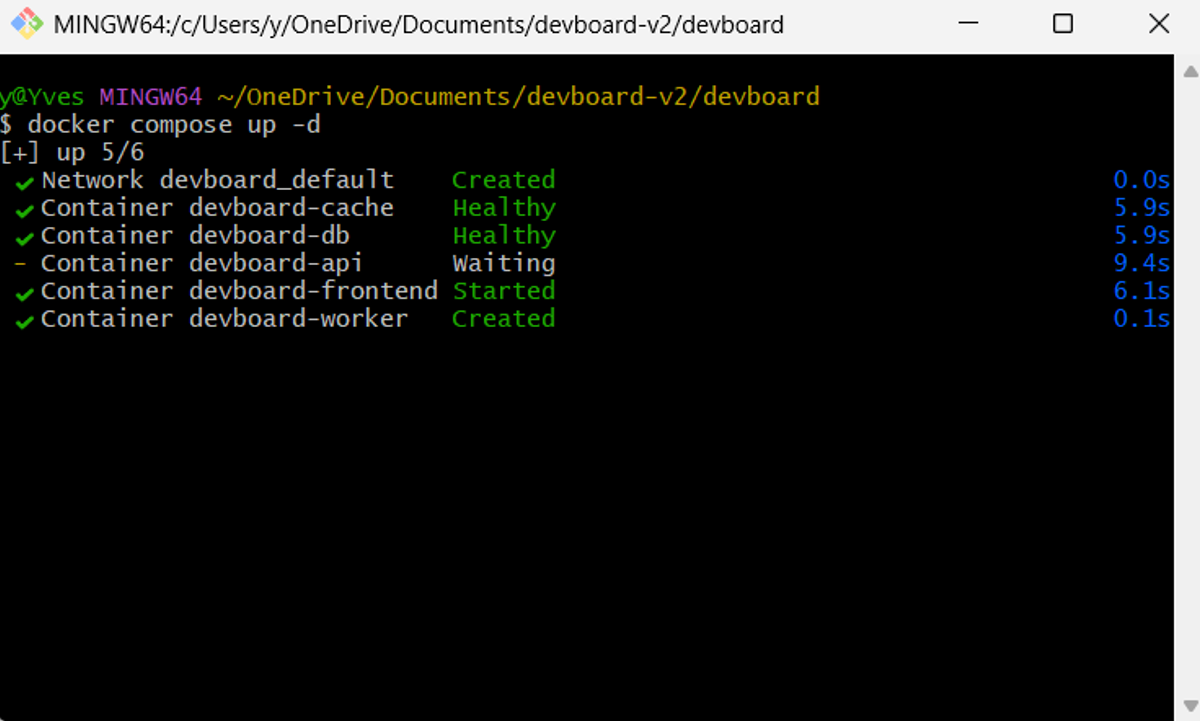
The first time you bring up a project, use docker compose up -d. Compose creates all the containers, wires up the network, and starts everything in dependency order:
1docker compose up -d
Once those containers exist in a stopped state, docker compose start resumes them without recreating anything. Port mappings, environment variables, and volumes all preserved:
1docker compose start
The stopping side works the same way. docker compose stop halts everything and leaves the containers intact for next time. docker compose down goes further and removes the containers too, so the next up starts fresh. Add -v only when you want to wipe persistent volumes as well, that includes your database.
Compose containers are still plain Docker containers, so docker logs, docker exec, and docker restart all work against them by container name alongside the equivalent docker compose commands.
Common pitfalls
The container exits immediately after starting
This usually means the container's main process completed or errored out. Check the logs:
1docker logs web
A container exists to run a process. When that process ends, the container exits, regardless of how you started it. If your container exits immediately, the issue is in the application or its entrypoint, not in how you started it. Running docker start -a web is useful here because it attaches stdout and stderr so you can see the failure in real time.
Port conflicts when restarting a stopped container
If you ran docker run -p 8080:80 ... for one container, then started a different container while the first was still around with the same port mapping, the second one fails with a port-already-in-use error. Stopped containers don't hold ports, but running ones do. Check docker ps before troubleshooting anything else.
Trying to change configuration with docker start
A common mistake is running something like docker start -p 9090:80 web expecting to remap the port. There's no -p flag on docker start. Port mappings, environment variables, volumes, and most other configuration is set at create time and is immutable afterward. To change them, you need to remove the container with docker rm web and recreate it with new flags. The docker update command exists, but only modifies a narrow set of runtime settings — primarily CPU and memory limits, plus the restart policy — not networking, env vars, ports, or volumes.
This immutability is a feature, not a limitation. It's what makes containers reproducible. If you find yourself wanting to mutate a running container's config, that's usually a sign the config belongs in a Dockerfile, a compose file, or an orchestrator manifest instead of in your shell history.
Confusing docker start with docker exec
docker start brings a stopped container back. docker exec runs an additional command inside an already-running container. If you want a shell inside a running container, that's docker exec -it web sh, not docker start. Beginners sometimes try to "start a shell" by running docker start web and wondering why nothing interactive happens.
Using docker run instead of docker start, leaving zombie containers
If you originally ran docker run --name web ..., stopped the container, then ran the exact same docker run command again expecting it to resume, you'll get a name conflict error. Either start the existing container with docker start web, or remove it first with docker rm web before running again. Using --rm on the original docker run avoids this entirely for throwaway containers.
Final thoughts
Most of what trips people up with starting containers comes down to two ideas: run creates and starts, start resumes; and configuration is fixed at create time. Once those two are clear, the rest of the lifecycle commands fit into place.
The harder problem is what happens after containers are running reliably. A container that starts cleanly can still hit memory pressure, network issues, or downstream dependency failures that only show up under load. Docker logs are ephemeral by default, container metrics aren't visible without instrumentation, and tracing a request through a multi-container application is impossible without proper observability tooling.
Dash0 is an OpenTelemetry-native observability platform that ingests container telemetry as OTLP without proprietary agents and without forced ingestion-side sampling, so the data you collect is the data you keep. Infrastructure monitoring correlates container resource usage with full-resolution logs and distributed traces using standard OpenTelemetry semantic conventions, so the same semantic attributes work whether you're debugging a single container or a Kubernetes cluster.
 Start a free trial to monitor your containers, hosts, and services in one place. No credit card required.