
docker restart <container> stops a running container and starts it again, in that order, against the same container instance. The container ID, name, network settings, mounted volumes, and writable filesystem layer all survive the round trip. The process inside the container does not.
The command exists because most of the time you don't actually need a fresh container. You need the process inside it to come back up after a hang, a memory leak, or a config file the app reads on startup.
This article covers the basic command, the signal flow Docker uses to shut the process down, the difference between docker restart and docker stop && docker start, restart policies for automatic recovery, and the cases where restart doesn't do what you expect.
The basic command
To restart a single running container, pass its name or ID.
1docker restart web
Docker prints the container name back when it succeeds.
 You can pass multiple containers in one call:
1docker restart web api worker
To restart every running container at once:
1docker restart $(docker ps -q)
docker ps -q returns just the IDs of running containers, which the outer docker restart consumes. If you want stopped containers included as well, use docker ps -aq instead, but think about whether you really want to start containers that exited for a reason.
What actually happens during a restart
docker restart is a stop followed by a start, both targeting the same container. The stop phase is where most of the surprises live.
Docker sends SIGTERM to PID 1 inside the container. If your CMD runs the application directly, that's your app. If it runs a shell wrapper, that's the shell, which matters more than it sounds, see the pitfall on signal propagation below. The container's STOPSIGNAL (set in the Dockerfile or via --stop-signal) overrides the default if configured. The process gets a configurable grace period to clean up: finish in-flight requests, flush buffers, close database connections. The default is 10 seconds for Linux containers and 30 seconds for Windows containers.
If the process is still running when the timeout expires, Docker sends SIGKILL. SIGKILL is not catchable. The kernel terminates the process immediately, mid-write if necessary.
You can override the timeout per-restart with -t:
1docker restart -t 30 web
This gives the container 30 seconds to exit gracefully before the SIGKILL. (docker stop uses the same flag, so the muscle memory transfers.) For databases, message brokers, or anything that flushes to disk on shutdown, the default 10 seconds is often too aggressive. A Postgres container that gets SIGKILLed mid-checkpoint will recover on next start, but it's not free, and on busy systems you'll see the WAL replay in the logs.
Once the container has stopped, Docker starts it again from the same writable layer. Any files the application wrote to the container's filesystem during its previous run are still there. Volumes are remounted. The IP address might change if you're using the default bridge network, which is one of the reasons production deployments use named networks.
Restart vs. stop and start
On the surface, these two sequences do the same thing:
1docker restart web
1docker stop web && docker start web
For most workloads they do. docker restart is a single API call, so any tooling watching Docker events sees a tighter sequence. There's also a reported edge case involving overlay filesystem state where running stop and start as separate commands resolves stale file handles that a restart leaves in place. You'd notice it as files that should have been cleaned up by a process exit still being held open after the restart, usually surfacing as disk space that doesn't free up. It's rare enough that you shouldn't reach for the explicit two-command sequence by default, but it's worth knowing about.
If you want to change anything about how the container runs, neither command helps you. Restart preserves the container's original configuration: environment variables, port mappings, mounted volumes, command arguments. Changing any of those requires docker rm and a new docker run. This is one of the most common sources of "I restarted it but my changes aren't there" confusion. More on that below.
Restart policies for automatic recovery
Manually restarting containers is fine for development. In production, you want containers to come back on their own when they crash or when the host reboots. That's what restart policies are for.
Set the policy when you create the container with --restart:
1docker run -d --restart unless-stopped --name web nginx
The four available policies are:
no: the default. Don't restart on exit, ever.on-failure[:max-retries]: restart only if the container exits with a non-zero status. Optionally cap the retries.always: restart whenever the container exits, regardless of exit code. Also starts the container when the Docker daemon starts.unless-stopped: same asalways, except the container does not start automatically after a daemon restart if you had explicitly stopped it before. The contrast withalwaysis the key point:alwaysbrings the container back on daemon start no matter how it was last stopped, whileunless-stoppedrespects an explicitdocker stop.
For long-running services, unless-stopped is almost always what you want. It survives crashes and reboots, but respects an intentional docker stop for maintenance. always will fight you if you stop a container manually before rebooting the host.
For batch jobs that exit successfully, use on-failure. It restarts only on real failures and lets the job stay finished when it completes normally:
1docker run -d --restart on-failure:3 --name nightly-backup backup-image
You can change the policy on an existing container without recreating it:
1docker update --restart unless-stopped web
A few non-obvious behaviors are worth knowing. A restart policy only takes effect after the container has run successfully for at least 10 seconds, which prevents containers that crash on startup from spinning up forever. If you docker stop a container manually, the policy is suspended until either the container is started manually or the Docker daemon restarts. Docker uses an exponential backoff between restart attempts, so a container that keeps crashing won't hammer your CPU.
Restarting with Docker Compose
For Compose projects, the equivalent is:
1docker compose restart
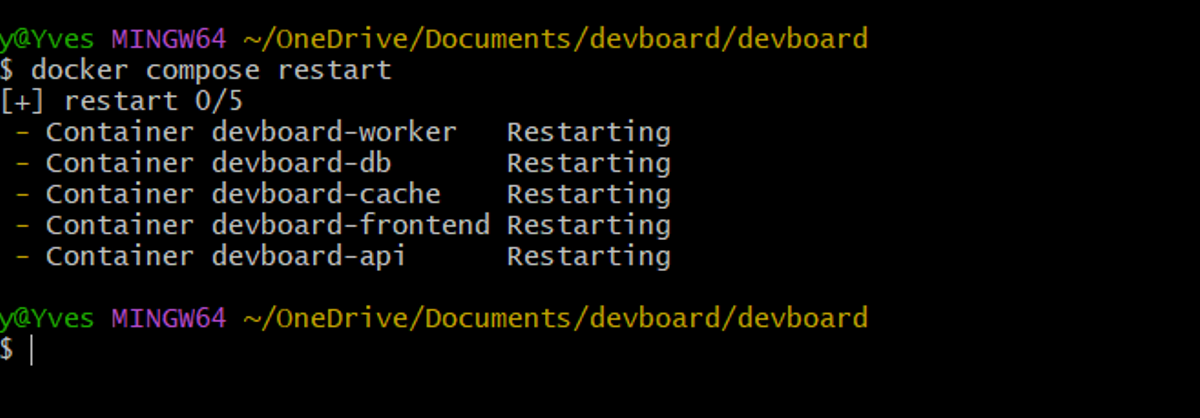 This restarts every service in the stack. To restart one service:
1docker compose restart web
Compose's restart is the same stop-and-start as the CLI, with all the same caveats. In particular, it does not pick up changes to your docker-compose.yml file. If you've edited the compose file (changed an environment variable, added a port, swapped an image tag), you need:
1docker compose up -d
This recreates only the services whose configuration has changed. Containers whose config is unchanged stay running, untouched.
Common pitfalls
Config changes don't take effect after restart
This is the single most common issue with docker restart. Environment variables, port mappings, mount points, and the command itself are baked into the container at creation time. Restart preserves the container, which means it preserves all of these. If you edited a .env file or changed docker-compose.yml, restart is the wrong tool. You need docker compose up -d (which recreates changed services) or docker rm followed by docker run with the new flags.
The exception is files inside mounted volumes or bind mounts. Those are read by the application at runtime, so a restart is enough to pick them up, assuming the application re-reads the file on startup rather than only on first boot.
Restart loops with always
If your application crashes immediately on startup and you've set --restart always, the container will keep coming back, hit the same crash, and come back again, forever. Docker's exponential backoff slows it down, but it doesn't stop it. Check the restart count with docker inspect:
1docker inspect --format='{{.RestartCount}}' web
A double-digit restart count on a freshly-deployed container almost always means the application can't start with its current config. Look at docker logs web for the actual error before adjusting the policy. The pattern is the Docker analogue of Kubernetes' CrashLoopBackOff, and the diagnostic approach is similar: get the logs, fix the config, then worry about the policy.
Containers from docker run without -d won't survive a restart in the way you'd expect
If you started a container in the foreground (no -d) and it has a restart policy, the policy still works, but your terminal session is gone the moment the container first exits. The container itself keeps restarting in the background. docker ps will show it running, but you'll have to attach to it again with docker container attach.
SIGTERM-unaware applications get killed hard
Many older processes, and a lot of shell scripts run as PID 1, don't propagate signals to their children. If you're running CMD ["sh", "-c", "myapp"], the shell receives SIGTERM but doesn't pass it on, so your app gets SIGKILLed after the timeout with no chance to clean up. Use exec form (CMD ["myapp"]) or run with --init so a proper init process forwards signals. The same signal-propagation failure mode is covered in detail in Dash0's guide to Kubernetes exit code 143, which walks through what the SIGTERM grace window actually looks like from inside a misbehaving container.
Restart doesn't fix daemon-level problems
If the Docker daemon itself is misbehaving, restarting individual containers won't help. That's a systemctl restart docker situation, which restarts every container with a restart policy and stops everything else. Use it deliberately, not reflexively.
Final thoughts
A clean restart is one of the cheapest debugging tools you have. It clears in-memory state, reopens file descriptors, and gives a stuck process a path back to a known-good state. It's also a frequent source of "it worked when I restarted it" tickets that come back two days later, because restart treats the symptom and rarely the cause.
The harder problem is knowing when a container is unhealthy in the first place, before it's bad enough that someone notices and runs docker restart. That requires visibility into container logs, resource usage, and the application's own signals (often surfaced via a Docker health check), correlated with the lifecycle events that tell you whether a container is healthy, restarting, or in a crash loop.
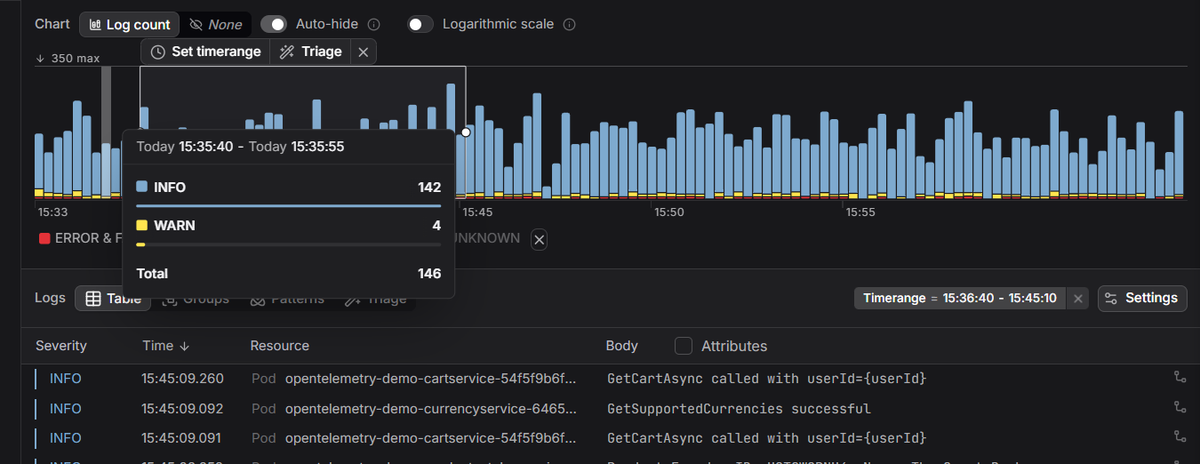
Dash0's infrastructure monitoring treats container telemetry as part of one signal graph, so a restart event sits next to the memory creep that preceded it, the slow requests that hit during the SIGTERM grace window, and the logs from the crash itself. As the AI Nervous System for Production, Dash0 surfaces those correlations automatically rather than asking you to dashboard your way to them.
 Start a free trial and see what your containers were trying to tell you.