
The error in full reads Got permission denied while trying to connect to the Docker daemon socket at unix:///var/run/docker.sock, and it shows up the first time you run docker after a fresh install. Almost always it means your user account isn't a member of the docker group.
The Docker daemon listens on a Unix socket owned by root:docker with mode 0660. Only root and members of the docker group can read or write to it, so any other user gets refused at the socket boundary before Docker even sees the command. The fix is a one-liner plus a session refresh that a lot of guides skip, which is why people end up with three browser tabs open and still no working docker ps.
Confirm what you're looking at
Before changing anything, look at the socket and your current groups.
1ls -l /var/run/docker.sock
1srw-rw---- 1 root docker 0 May 23 14:22 /var/run/docker.sock
The root docker ownership and srw-rw---- mode is what you want. Now check whether your user is in that group:
1groups
If docker isn't in the output, that's your problem. If the socket is owned by root:root instead of root:docker, the docker group either doesn't exist yet or the daemon was started before the group existed. Recreating the group and restarting Docker fixes it, which I'll cover below.
Add your user to the docker group
This is the fix the official Docker post-install docs recommend:
12sudo groupadd dockersudo usermod -aG docker $USER
The groupadd is harmless if the group already exists. Most package-manager installs (apt install docker-ce, dnf install docker-ce) create the group automatically, but it's worth running on systems where it didn't. The -a in usermod -aG matters: without it, -G replaces the user's secondary groups instead of appending, which silently boots you out of sudo, wheel, and anything else you depend on.
Activate the group in your current session
This is the step that trips up most people. Group membership is loaded when your session starts, so usermod updates the system but doesn't update your shell. You'll keep seeing "permission denied" until you refresh the session.
The quickest way is to spawn a subshell with the new group active:
1newgrp docker
That new membership only applies to that shell, though. Close it and you're back to the old groups. It's fine for a quick test, bad as a long-term workflow.
The cleanest fix is to log out fully and log back in. On a desktop session that means logging out of the window manager, not just closing a terminal. On SSH, disconnect and reconnect. On Windows Subsystem for Linux (WSL), run wsl --shutdown from PowerShell and reopen the terminal. Once you're back in, confirm:
1groups
1yourname adm sudo docker
Then run the standard smoke test:
1docker run hello-world
You should see output like this:
1234567Unable to find image 'hello-world:latest' locallylatest: Pulling from library/hello-world...Status: Downloaded newer image for hello-world:latestHello from Docker!This message shows that your installation appears to be working correctly.
No permission errors and you're done.
If you ran docker with sudo before fixing this
A common follow-on issue: if you ran sudo docker even once before adding yourself to the group, Docker created ~/.docker/ owned by root. The next time you run docker as your own user, you'll see warnings like WARNING: Error loading config file: /home/you/.docker/config.json - stat /home/you/.docker/config.json: permission denied. Fix the ownership — we reference $HOME here rather than /home/$USER (like Docker's official docs use) so this also works on systems where the user's home isn't under /home:
12sudo chown "$USER":"$USER" "$HOME/.docker" -Rsudo chmod g+rwx "$HOME/.docker" -R
Alternative: run Docker rootless
Adding your user to the docker group is functionally equivalent to giving them root on the host. Anyone in the group can run docker run -v /:/host --privileged ... and read or write any file on the system. For a single-developer workstation that's usually fine. For shared servers, build agents, or anything multi-tenant, it isn't.
Rootless Docker runs the entire daemon as your user, with no root involvement. The setup script ships in the docker-ce-rootless-extras package, which is normally installed alongside docker-ce. If dockerd-rootless-setuptool.sh isn't on your $PATH, install it explicitly:
1sudo apt-get install -y docker-ce-rootless-extras # or the dnf equivalent on RPM-based distros
Then run the setup tool as your non-root user:
1dockerd-rootless-setuptool.sh install
After installation, point the Docker CLI at your user's socket instead of /var/run/docker.sock:
1export DOCKER_HOST=unix:///run/user/$(id -u)/docker.sock
You give up a few capabilities, most notably binding to ports below 1024 without extra setup and some storage driver differences, but you also lose the "docker group equals root" footgun. The Docker rootless documentation covers the constraints in detail.
Common pitfalls
chmod 666 /var/run/docker.sock is not a fix. It shows up in a lot of Stack Overflow answers because it makes the error go away. It also gives every user and every process on the system root-equivalent access to your host, including any service account running a web app you don't fully trust. And it resets on the next Docker restart, so you'll be back to fixing it again next reboot. Use the group.
newgrp doesn't fix services or IDEs. If you're running Docker from systemd, a CI agent, an IDE, or any process that started before you added yourself to the group, that process has the old group set and won't see the change. Either restart the service or log out fully so every process inherits the new groups when you log back in. This trips people up most often with VS Code's integrated terminal: restart VS Code itself, not just the terminal pane.
WSL 2 with Docker Desktop is a different beast. When you install Docker Desktop on Windows and enable WSL integration, the daemon runs inside a Windows-managed VM, not inside your WSL distro. Permission errors there usually mean Docker Desktop isn't running, your WSL distro isn't on WSL 2, or the integration isn't enabled for that distro in Docker Desktop's settings. Check wsl -l -v from PowerShell to confirm the version, and toggle the distro under Settings → Resources → WSL Integration.
Snap installs of Docker have their own quirks. Ubuntu's snap package installs Docker into a confined environment with its data directory under /var/snap/docker/common/var-lib-docker/ and config at /var/snap/docker/current/config/daemon.json. The socket itself is still at /run/docker.sock (which /var/run/docker.sock symlinks to on modern systems), so the standard group fix applies — but after adding yourself to the docker group, you'll need to bounce the snap with sudo snap disable docker && sudo snap enable docker so the daemon recreates the socket with your membership in mind. On Ubuntu Core, adding users to system groups isn't permitted at all. For predictable behavior on classic Ubuntu, prefer docker-ce from Docker's official APT repository over the snap.
The docker group might not exist. On minimal distros or after some installation paths, getent group docker returns nothing. Create it with sudo groupadd docker, then restart the daemon with sudo systemctl restart docker so it picks up the new group when it recreates the socket on startup.
Final thoughts
Permission errors talking to the Docker daemon almost always come down to group membership. Add yourself to the docker group, refresh the session (log out fully, not just the terminal), and run docker run hello-world to confirm. If you previously ran sudo docker, fix the ownership of ~/.docker. On shared machines or anything multi-tenant, prefer rootless Docker over the group. Convenience isn't worth giving every group member root-equivalent access to the host.
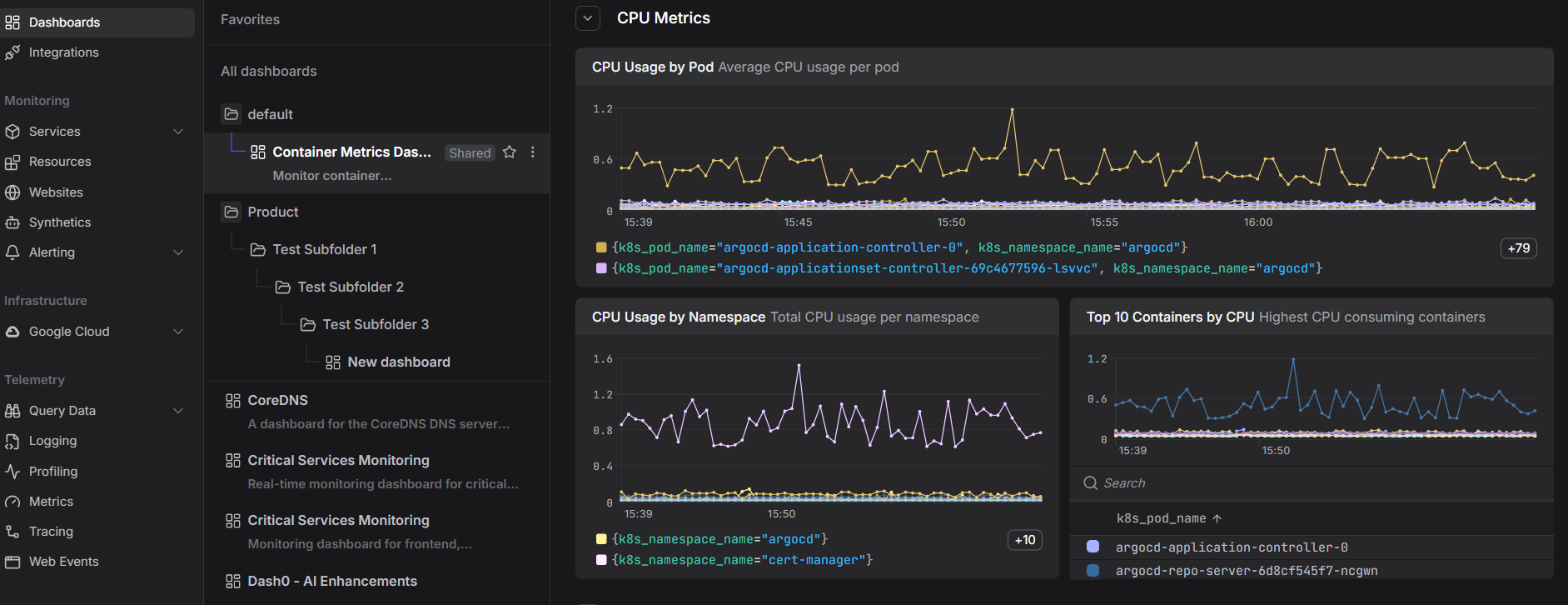
Once Docker runs cleanly, the next problems are operational: visibility into container resource usage, log retention beyond container restarts, and tracing requests across services that span multiple containers. Dash0's infrastructure monitoring ingests container metrics, logs, and distributed traces through standard OpenTelemetry collectors, so you can correlate "this container is misbehaving" with "this request path is slow" without stitching tools together.
 Start a free trial to see your container fleet, logs, and traces in one place. No credit card required.