
You hit a 404 from Nginx and the browser tells you nothing useful. That's because "404 Not Found" is a symptom, not a root cause. Nginx itself, a backend application, or something in between made that decision, and they each need a different fix.
The diagnostic steps below will tell you which layer is responsible. Then you can pick the right fix: wrong document root, broken try_files, location block mismatch, or reverse proxy path issue.
Start with the error log
Before you touch a config file, check what Nginx actually logged. Guessing at root causes without looking at the logs wastes time.
The error log is usually at /var/log/nginx/error.log. Run this to see the most recent entries:
1sudo tail -n 50 /var/log/nginx/error.log
For a filesystem 404, you'll see something like this:
12[error] 1234#1234: *42 "/var/www/myapp/public/about" is not found (2: No such file or directory),client: 203.0.113.5, server: example.com, request: "GET /about HTTP/1.1", host: "example.com"
That path, /var/www/myapp/public/about, is exactly where Nginx looked. If the file exists somewhere else, the log tells you what to fix.
If you're not sure where your error log is configured, sudo nginx -T | grep error_log will show you.
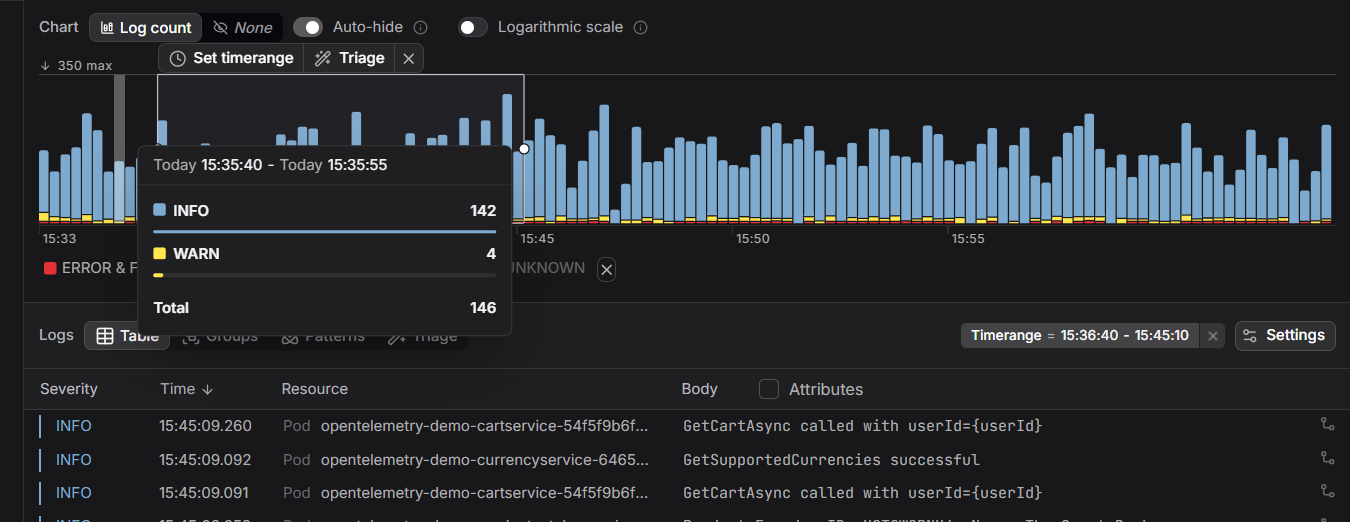
If you're sending Nginx logs to Dash0, Dash0 parses them automatically (including HTTP status codes and severity inference), so you can query and alert on 404 rates without any manual parsing setup.
For reverse proxy setups, the error log won't show a filesystem path because the 404 came from the backend. In that case, filter the access log:
1sudo grep ' 404 ' /var/log/nginx/access.log | tail -n 20
The entries look like:
1203.0.113.5 - - [02/Jul/2026:12:34:56 +0000] "GET /api/users HTTP/1.1" 404 162 "-" "curl/8.7.1"
If the path looks correct, the problem is likely upstream. More on that below.
Reproduce from the server
Before changing anything on a live server, send the failing request from the Nginx host itself. This removes DNS, CDN, and browser cache from the equation:
1curl -I -H "Host: example.com" http://127.0.0.1/about
If this returns 200, the issue isn't in Nginx. Something at the network edge (CDN, load balancer, stale DNS) is routing you to the wrong origin. If it also returns 404, the problem is local and you can fix it without second-guessing your environment.
Wrong document root
The most common cause of static-file 404s is a misconfigured root directive. Nginx builds the filesystem path by appending the request URI to the root value. If root points to the wrong directory, every request fails.
Check your active config:
1sudo nginx -T | grep -A5 'server_name example.com'
Look for the root directive in the matching server or location block. Then verify the path exists and contains the expected files:
1ls -la /var/www/myapp/public/
If the directory is empty or missing, your deployment didn't put files where Nginx expected them. Fix either the deployment or the root directive.
One thing worth knowing: root appends the URI. So root /var/www/html with a request for /about makes Nginx look for /var/www/html/about. If you're serving from a sub-path like /app/ and want Nginx to serve from /var/www/html without that prefix, use alias instead of root:
123location /app/ {alias /var/www/html/;}
With alias, Nginx replaces the location prefix rather than appending to it. Get this wrong and you get 404s that look completely baffling.
Broken try_files for SPAs and PHP apps
Single-page applications (React, Vue, Angular) and most PHP frameworks don't serve separate files for each route. A request for /dashboard has no corresponding file on disk; the application handles routing internally. Without a proper try_files directive, Nginx sees a request for a nonexistent file and returns 404.
The standard fix for a SPA:
123location / {try_files $uri $uri/ /index.html;}
This tells Nginx to try the exact file, then a directory index, and fall back to index.html if neither exists. The SPA then handles routing on the client side.
For PHP apps like Laravel or WordPress:
123location / {try_files $uri $uri/ /index.php?$query_string;}
Without this fallback, any URL that doesn't map to a real file returns 404. This is why the homepage works but every other page doesn't.
Wrong server block is handling the request
If you're running multiple virtual hosts and only one hostname returns 404, check that your server_name is correct. Nginx picks the server block that matches the Host header. If no block matches, requests go to the default server, which may have a completely different root.
Check which server block owns a request:
1sudo nginx -T | grep -B2 -A10 'server_name example.com'
A common gotcha: if you have a catch-all default server block without a root directive, or with root pointing to an empty directory, unmatched requests return 404 with no obvious log entry explaining why.
Location block matching intercepts the wrong path
Nginx processes location blocks in a defined priority order: exact matches (=), then prefix matches ordered by specificity, with the longest prefix winning. If a broad location block (like location /) absorbs requests intended for a more specific one, you'll get 404s from the wrong handler.
A typical problem in API-plus-static setups:
12345678910# Might look like it catches everything, but /api/ below takes prioritylocation / {root /var/www/html;try_files $uri $uri/ /index.html;}# Longer prefix wins — this correctly handles /api/* requestslocation /api/ {proxy_pass http://127.0.0.1:3000;}
The order doesn't matter here — the longer prefix /api/ wins over /. But if you're using regex locations or ^~ modifiers, the matching rules change. When in doubt, add add_header X-Debug-Location $request_uri temporarily and check response headers to confirm which block handled the request.
Reverse proxy returning 404 from the backend
When Nginx proxies requests to a backend (Node.js, a Go service, Python), the 404 might be coming from the backend, not from Nginx. The error log won't show a filesystem path; it'll show the proxied response.
Test the backend directly from the Nginx host:
1curl -I http://127.0.0.1:3000/api/users
If this returns 404, the route doesn't exist in the backend. That's an application problem, not an Nginx problem. Fix the application route or confirm the API path matches what your client is calling.
If the direct request works but the proxied request fails, the issue is usually that proxy_pass is stripping or rewriting the path. Compare these two:
123456789# Strips /api/ before forwarding — backend sees /userslocation /api/ {proxy_pass http://127.0.0.1:3000/;}# Preserves /api/ — backend sees /api/userslocation /api/ {proxy_pass http://127.0.0.1:3000;}
The trailing slash in proxy_pass replaces the matched prefix. If your backend expects /api/users but Nginx sends /users, you'll get a 404 every time.
File permissions
Nginx returns 403 Forbidden when a file exists but can't be read, and sometimes 404 when it can't even traverse the directory tree. Check that the Nginx worker user (www-data on Debian/Ubuntu, nginx on RHEL/CentOS) can read the files:
1ls -la /var/www/myapp/public/
For a more direct test, impersonate the Nginx worker user:
12345# Debian/Ubuntusudo -u www-data ls /var/www/myapp/public/# RHEL/CentOSsudo -u nginx ls /var/www/myapp/public/
This immediately surfaces traversal failures that ls -la can miss — for example, an intermediate directory owned by another user with 700 permissions.
Also verify that all parent directories are executable by the Nginx user. If /var/www has 700 permissions owned by another user, Nginx can't reach files inside it even if the files themselves have correct permissions.
After changing config: test before reloading
Never reload Nginx with an untested config. This command tests syntax without touching the running process:
1sudo nginx -t
Expected output:
12nginx: the configuration file /etc/nginx/nginx.conf syntax is oknginx: configuration file /etc/nginx/nginx.conf test is successful
Then reload:
1sudo systemctl reload nginx
Common pitfalls
Restarting instead of reloading. A full restart disconnects active connections. systemctl reload nginx sends SIGHUP and does a graceful config swap. Use restart only when you've changed things that reload won't pick up, like socket files or binary upgrades.
Confusing Nginx's 404 with the backend's 404. A browser just shows "404 Not Found" with the Nginx server signature regardless of which layer returned it. Always test the backend directly before deciding the problem is in your Nginx config.
Case sensitivity. File paths on Linux are case-sensitive. A request for /About won't match a file named about or About.html. This catches developers who built on macOS locally, where the filesystem is case-insensitive by default.
Stale configs after deployment. If you deployed a new build to a different path than Nginx expects, and the old path still has files, curl from the server works but users see 404 from a CDN pointing at the new empty path. Always verify the document root matches your deployment target.
Once you've resolved the immediate issue, set up monitoring for 404 spikes. Unexpected bursts often signal a misconfigured deployment, a CDN cache invalidation gone wrong, or a client calling a renamed API endpoint.
Dash0's infrastructure monitoring captures HTTP response codes from your Nginx instances alongside distributed traces and logs, so you can correlate a 404 spike with the deployment that caused it without jumping between dashboards. If you want to go deeper on Nginx log formats and OpenTelemetry enrichment, the Mastering NGINX Logs with JSON and OpenTelemetry guide covers structured logging, OTel Collector setup, and Dash0 integration end to end.
 Start a free trial to get full-stack visibility into your Nginx stack. No credit card required.