
Technology
Cloudflare Workers
Monitor Cloudflare Workers applications with distributed tracing and logging via OpenTelemetry export to Dash0.
Overview
Overview
Cloudflare Workers is a serverless computing platform that runs on Cloudflare's global network, enabling you to deploy code at the edge for ultra-low latency. Workers applications can natively export OpenTelemetry-compliant traces and logs to help you understand request flows, performance characteristics, and troubleshoot issues across distributed edge locations.
By sending Cloudflare Workers telemetry to Dash0, you gain unified visibility into your edge applications alongside your backend services, enabling end-to-end observability across your entire application stack.
Use Cases
- Monitor request latency and performance across Cloudflare's edge network
- Track error rates and debug issues in edge functions
- Analyze Worker execution patterns and identify performance bottlenecks
- View logs and traces from your edge functions in a unified observability platform
- Alert on performance degradation or errors in production Workers
- Understand usage patterns across geographic regions and optimize edge function performance
Setup
Overview
Cloudflare Workers natively supports OpenTelemetry export for both traces (beta) and logs. This integration configures your Workers to send telemetry data directly to Dash0's ingestion endpoints using OTLP (OpenTelemetry Protocol). Once configured, your Workers will automatically export trace spans for request handling and any logs you emit during execution.
Prerequisites
Before setting up Cloudflare Workers monitoring, ensure:
- You have an active Dash0 account (free 14-day trial available)
- You have a deployed Worker application that you want to monitor
- You have access to your Cloudflare account's Workers Observability settings
Step 1: Get Your Dash0 Authorization Token and Endpoint
- Log in to your Dash0 account
- Navigate to Organization Settings
- In the Endpoints section, find your ingestion endpoints:
- Traces endpoint: Your OTLP traces endpoint URL ending in
/v1/traces - Logs endpoint: Your OTLP logs endpoint URL ending in
/v1/logs
- Traces endpoint: Your OTLP traces endpoint URL ending in
- Create or copy your Authorization Token from the same section
Step 2: Configure Cloudflare Destinations
Navigate to your Cloudflare account's Workers Observability section to create destinations that point to Dash0.
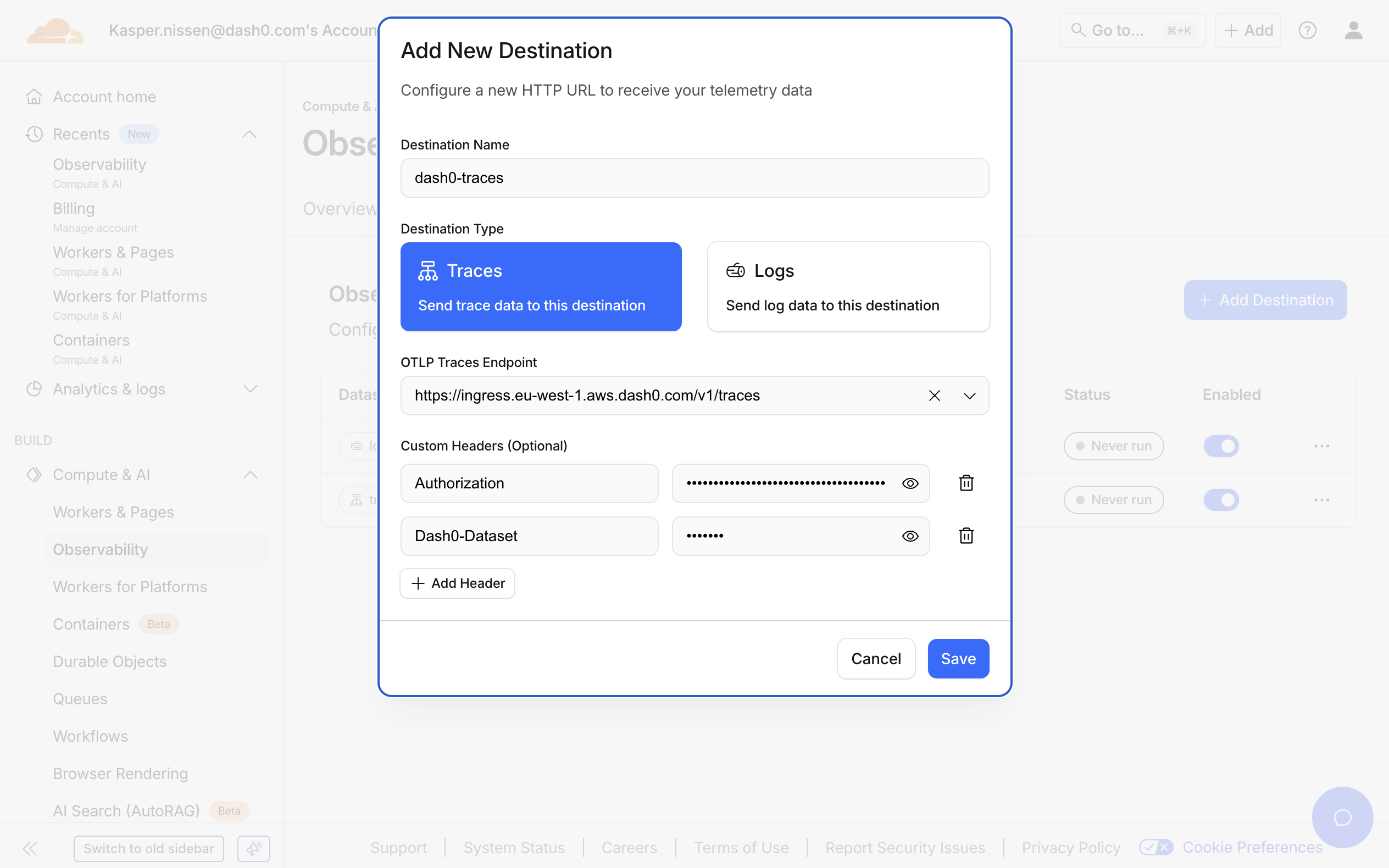
Configure Trace Destination (beta)
- Click Add destination
- Configure your trace destination:
- Destination Name:
dash0-traces(or any descriptive name) - Destination Type: Select Traces
- OTLP Endpoint: Your Dash0 traces endpoint URL from Organization Settings (ends in
/v1/traces) - Custom Headers: Add the authentication header:
- Header name:
Authorization - Header value:
Bearer {{token}}
- Header name:
- Optional - Dataset Header: If you want to send data to a specific dataset:
- Header name:
Dash0-Dataset - Header value: Your dataset name (e.g.,
default)
- Header name:
- Destination Name:
- Click Save
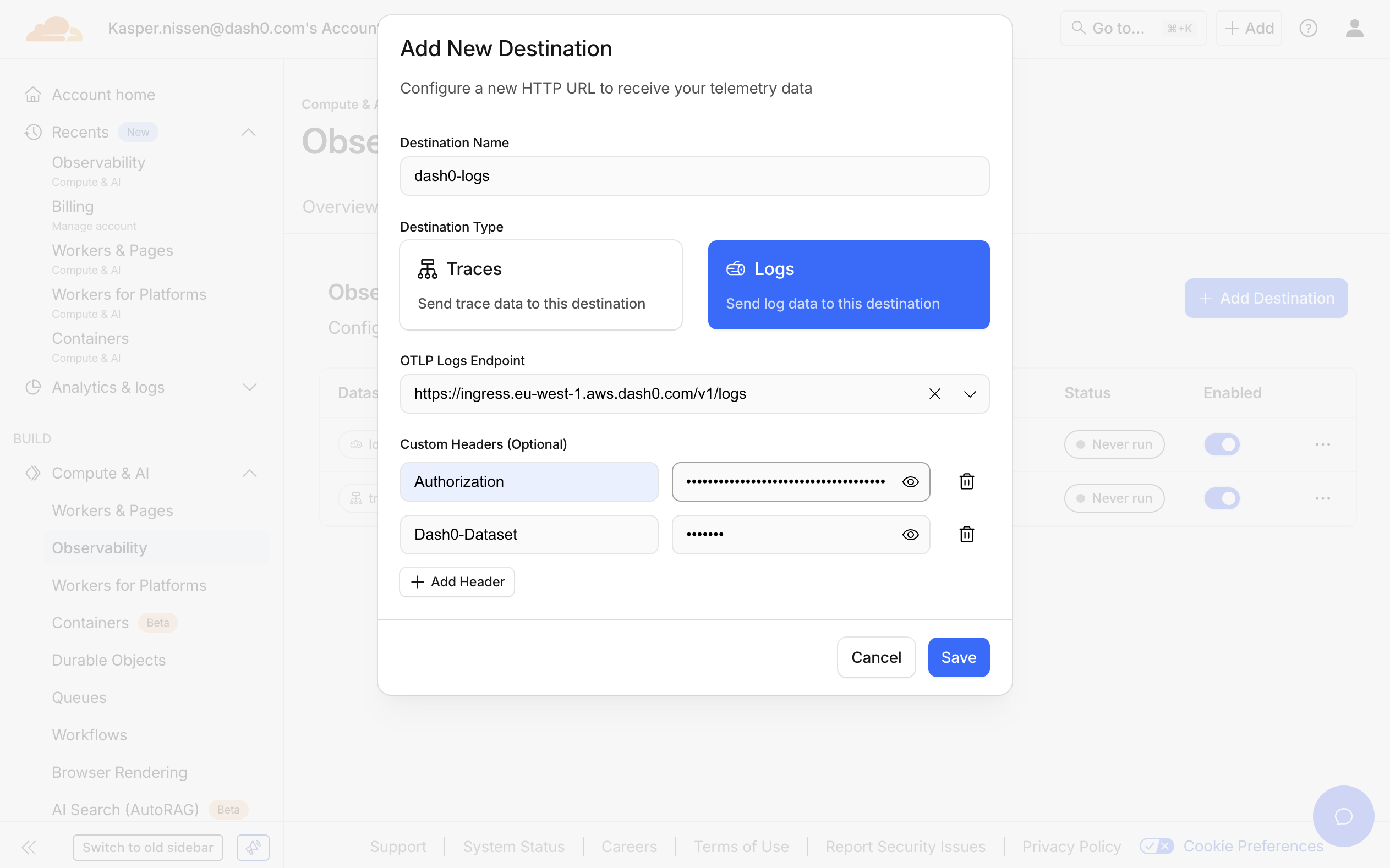
Configure Logs Destination (beta)
- Click Add destination again
- Configure your logs destination:
- Destination Name:
dash0-logs(or any descriptive name) - Destination Type: Select Logs
- OTLP Endpoint: Your Dash0 logs endpoint URL from Organization Settings (ends in
/v1/logs) - Custom Headers: Add the authentication header:
- Header name:
Authorization - Header value:
Bearer {{token}}(same as above)
- Header name:
- Optional - Dataset Header: If you want to send data to a specific dataset:
- Header name:
Dash0-Dataset - Header value: Your dataset name (e.g.,
default)
- Header name:
- Destination Name:
- Click Save
Step 3: Configure Your Worker
With your destinations created in the Cloudflare dashboard, update your Worker's wrangler.toml configuration file to
enable telemetry export:
[observability.traces]
enabled = true
# Must match the destination name in the dashboard
destinations = ["dash0-traces"]

[observability.logs]
enabled = true
# Must match the destination name in the dashboard
destinations = ["dash0-logs"]
Alternatively, if using JSON configuration (wrangler.json):
{
  "observability": {
    "traces": {
      "enabled": true,
      "destinations": ["dash0-traces"]
    },
    "logs": {
      "enabled": true,
      "destinations": ["dash0-logs"]
    }
  }
}
After updating your configuration, deploy your Worker for the changes to take effect:
wrangler deployVerification
- Trigger some requests to your Worker application
- Navigate to the Traces section in your Dash0 dashboard
- Look for traces with
service.nameattribute matching your Worker name - Navigate to the Logs section to see log entries from your Worker
- Verify that traces and logs contain the expected attributes and data