
Lambda has run container images since 2020, so you can package a function as a Docker image up to 10 GB and pull it from Amazon Elastic Container Registry (ECR) instead of cramming code and dependencies into a 250 MB ZIP. The constraint people miss is that Lambda doesn't run an arbitrary container. It runs your handler in response to events, and the image has to implement the Lambda Runtime API for that to happen.
What follows is the full loop from Dockerfile to live function, how to make a non-AWS base image work, and the gotchas that break container deployments without telling you why.
Build and deploy a container image
The fast path is an AWS base image. It ships with the language runtime, the Lambda Runtime Interface Client (RIC) that brokers requests between Lambda and your handler, and a Runtime Interface Emulator (RIE) for local testing. You add your code, and it works.
Here's a minimal Python function and its Dockerfile. The CMD points at your handler in module.function form, and ${LAMBDA_TASK_ROOT} is where Lambda looks for code.
12345# lambda_function.pyimport sysdef handler(event, context):return f"Hello from Lambda on Python {sys.version}"
12345678FROM public.ecr.aws/lambda/python:3.13COPY requirements.txt ${LAMBDA_TASK_ROOT}RUN pip install -r requirements.txtCOPY lambda_function.py ${LAMBDA_TASK_ROOT}CMD [ "lambda_function.handler" ]
The sample handler imports only the standard library, but the Dockerfile still copies a requirements.txt, so create an empty one next to your code before building (touch requirements.txt). Skip it and the COPY step fails with a "not found" error. Real functions list their dependencies in that file.
You don't need a USER instruction. Lambda runs your container as a least-privileged Linux user it defines itself, which is different from Docker's default of running as root.
Building and deploying needs the AWS CLI v2 and Docker 25.0.0 or later with the buildx plugin. Build the image with buildx, where two flags are not optional:
1docker buildx build --platform linux/amd64 --provenance=false -t docker-image:test .
--platform forces a single target architecture, because Lambda rejects multi-architecture images. --provenance=false stops buildx from attaching a provenance attestation, which turns the output into a multi-manifest image that Lambda also rejects. Skip that flag and your create-function call fails later with an opaque error, so it's worth getting right up front. If you're targeting Graviton, build with linux/arm64 instead and use the matching base image tag.
Before pushing anything, test locally. The AWS base image has the emulator baked in, so you can run the container and hit it like the real Runtime API:
1docker run --platform linux/amd64 -p 9000:8080 docker-image:test
From another terminal, post an event to the local invocation endpoint:
1curl "http://localhost:9000/2015-03-31/functions/function/invocations" -d '{}'
You'll get the handler's return value back:
1"Hello from Lambda on Python 3.13.1 (main) ..."
Once that works, authenticate Docker to ECR, create a repository, tag the image, and push it. Replace 111122223333 with your account ID and pick the region you want the function in.
12345678aws ecr get-login-password --region us-east-1 \| docker login --username AWS --password-stdin 111122223333.dkr.ecr.us-east-1.amazonaws.comaws ecr create-repository --repository-name hello-world --region us-east-1 \--image-scanning-configuration scanOnPush=truedocker tag docker-image:test 111122223333.dkr.ecr.us-east-1.amazonaws.com/hello-world:latestdocker push 111122223333.dkr.ecr.us-east-1.amazonaws.com/hello-world:latest
The ECR repository has to live in the same region as the function. With the image pushed, create the function against its URI, passing --package-type Image:
12345aws lambda create-function \--function-name hello-world \--package-type Image \--code ImageUri=111122223333.dkr.ecr.us-east-1.amazonaws.com/hello-world:latest \--role arn:aws:iam::111122223333:role/lambda-ex
Invoke it to confirm:
1aws lambda invoke --function-name hello-world response.json
1234{"ExecutedVersion": "$LATEST","StatusCode": 200}
The handler's output lands in response.json. That's the whole loop.
Using a non-AWS or OS-only base image
The AWS base image is convenient, but you don't have to use it. Maybe you want a Debian or Alpine base for a smaller footprint, a language version AWS doesn't publish, or a compiled runtime like Rust or Go. The rule is simple: if the base image isn't an AWS Lambda image, you have to add the runtime interface client yourself, because that's the piece implementing the Runtime API.
For Python the client is the awslambdaric package. A multi-stage build keeps the final image lean by installing the client in a build stage and copying only what's needed into a slim runtime stage:
12345678910FROM python:3.13 AS buildWORKDIR /functionCOPY . .RUN pip install --target /function awslambdaricFROM python:3.13-slimWORKDIR /functionCOPY /function /functionENTRYPOINT [ "/usr/local/bin/python", "-m", "awslambdaric" ]CMD [ "lambda_function.handler" ]
This slim build works because awslambdaric ships prebuilt wheels for standard glibc-based images like this one, so pip never has to compile anything. A musl-based image such as Alpine has no compatible wheel, so you'd need to add a C/C++ build toolchain (g++, make, cmake, libcurl4-openssl-dev) in the build stage for pip to build the client from source.
The catch with non-AWS images is local testing. They don't include the emulator, so you download the Runtime Interface Emulator separately and mount it as the entrypoint when you run the container. It's the same curl invocation against port 9000 once it's running. AWS publishes a runtime interface client for Node.js, Java, .NET, Go, Ruby, and Rust as well, so the same pattern carries across languages.
When Lambda containers make sense versus ECS or EKS
Packaging as a container doesn't turn Lambda into a general-purpose container runtime, and this is where teams get the model wrong. Lambda still bills per invocation, scales to zero, caps execution at 15 minutes, and only runs in response to an event. Containers change the packaging format, not the execution model.
Reach for Lambda container images when you have an event-driven, bursty workload that happens to need a large artifact: an inference function pulling in PyTorch, a media job shelling out to ffmpeg, anything that blows past the 250 MB ZIP ceiling. You get scale-to-zero economics with a 10 GB envelope and standard Docker tooling.
Reach for Amazon ECS or EKS when the workload is a long-running service rather than a reaction to events. A web server handling steady traffic, anything that needs to run longer than 15 minutes, a process that holds persistent connections, or a workload where you want fine-grained control over networking, sidecars, and scheduling all point away from Lambda. If your function is warm essentially all the time, you're paying Lambda's premium for elasticity you aren't using, and a Fargate task is usually cheaper and simpler.
Common pitfalls
The biggest surprise is that re-pushing an image to the same tag does not update your function. Lambda resolves the tag to a specific image digest at deploy time and pins to it. Push a new :latest and the function keeps running the old digest until you explicitly redeploy:
1234aws lambda update-function-code \--function-name hello-world \--image-uri 111122223333.dkr.ecr.us-east-1.amazonaws.com/hello-world:latest \--publish
SnapStart is the other one that catches people. It's the most effective cold-start mitigation for Java, Python, and .NET, and it does not work with container images at all. If your latency budget depends on SnapStart, you have to ship a ZIP. Provisioned Concurrency does work with containers, so that's the lever you're left with for predictable cold starts.
On cold starts generally, the fear that a 10 GB image means a 40x slower cold start is mostly unfounded. AWS solved the data-movement problem with on-demand, block-level loading, deduplicating popular base layers and streaming only the chunks a function actually touches on startup. Image size still matters, just far less than the raw number suggests. The practical takeaway is to put your dependency layers above your application code layer in the Dockerfile so the expensive layers stay cached across deploys.
One more lifecycle quirk: after you push, the function sits in Pending while Lambda optimizes the image, and it only becomes invokable once it reaches Active. A function left idle for several weeks goes Inactive, and its first invocation after that gets rejected while Lambda re-optimizes. Build that re-warm behavior into any health check that pokes rarely-used functions.
Final thoughts
Running Docker on Lambda comes down to four things: build for a single architecture with --provenance=false, test against the emulator before you push, redeploy explicitly after every image change, and remember that Lambda stays event-driven and capped at 15 minutes no matter how you package it. If your function is essentially always warm, that's the signal to look at ECS or EKS instead.
Once these functions are in production, the next problem is seeing what they do, since container cold starts, init duration, and per-invocation latency are invisible without instrumentation. Dash0 is OpenTelemetry-native, so its infrastructure monitoring tracks Lambda execution alongside real-time logs and distributed traces without a proprietary agent to wire in, and you can connect a slow cold start to the request that triggered it from one place.
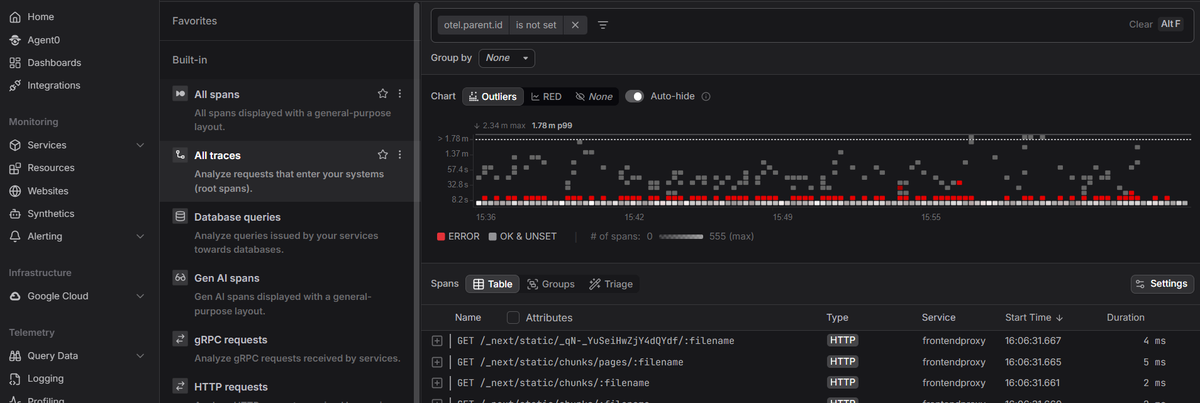 Start a free trial to see your functions, logs, and traces in a single view. No credit card required.