
docker: Error response from daemon: ... no space left on device almost always means /var/lib/docker has filled up with image layers, stopped containers, dangling volumes, and BuildKit cache that nobody cleaned up. Less often, the same error means something subtler: the filesystem still has bytes free, but you've run out of inodes because overlay2 created millions of tiny files.
This walkthrough covers diagnosing which one you're actually hitting, reclaiming space safely with the right prune commands, and moving Docker's data directory when your root partition is just too small.
Start with docker system df
Before deleting anything, find out where the space went:
1docker system df
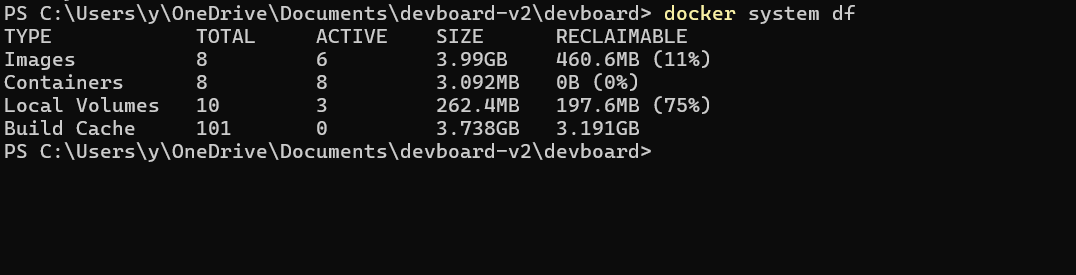 The
The RECLAIMABLE column is what docker system prune could free. If Build Cache is the biggest reclaimable chunk, you've got a CI/CD pipeline or a frequently rebuilt Dockerfile filling the cache. If Images dominate, you're hoarding old tags. If Volumes are high, something is creating anonymous volumes you're not tracking.
Use the verbose flag when you want to see the individual offenders:
1docker system df -v
This lists every image, container, and volume with its size, so you can spot the 4GB node-modules:latest from six months ago. The full output format is documented in the docker system df reference.
Check whether you're actually out of inodes
If docker system df shows reasonable usage but the error persists, check inodes:
1df -i /var/lib/docker
12Filesystem Inodes IUsed IFree IUse% Mounted on/dev/sda1 655360 655360 0 100% /
When IUse% hits 100, the filesystem refuses new files even with terabytes of free bytes. Overlay2 creates one inode for every file in every image layer, and a Python image with site-packages can contribute tens of thousands of inodes on its own. Pruning is the fix; the inode table on ext4 is fixed at format time and can't grow.
Free space with prune commands
Start with the safest cleanup and escalate only if you need more space:
1234567891011# Stopped containers onlydocker container prune -f# Dangling (untagged) imagesdocker image prune -f# All images not used by any container — more aggressivedocker image prune -a -f# Build cache onlydocker builder prune -f
If your reclaimable space is dominated by Build Cache, docker buildx prune gives you finer control over BuildKit's cache:
12345# Remove cache entries unused for 24 hoursdocker buildx prune --filter "until=24h" -f# Keep at least 5GB of free disk after pruningdocker buildx prune --min-free-space=5gb -f
When you want one command to clean everything reclaimable in one shot:
1docker system prune -a --volumes -f
That removes all stopped containers, all networks not in use, all images without a running container, all build cache, and all volumes without a running container. The --volumes flag is the one to watch. If your database container is stopped and uses an anonymous volume, that data is gone. Drop --volumes if you have named volumes you care about. The full filter syntax is in the docker system prune reference.
For periodic CI cleanup, time-based filters work better than pruning everything:
1docker system prune -a --filter "until=168h" -f
This keeps anything used in the past week and prunes the rest.
Move /var/lib/docker to a bigger partition
If you keep cleaning up and keep filling up, the real fix is to move Docker's data directory to a partition with more headroom. The data-root setting in /etc/docker/daemon.json controls where Docker stores everything.
Stop Docker, copy the existing data, point the daemon at the new location, restart:
12345678910111213141516# Stop Docker (and its socket, or systemd will respawn it)sudo systemctl stop dockersudo systemctl stop docker.socket# Copy existing data preserving permissions and ownershipsudo rsync -aP /var/lib/docker/ /mnt/docker-data/# Update daemon configurationsudo tee /etc/docker/daemon.json <<'EOF'{"data-root": "/mnt/docker-data"}EOF# Start Dockersudo systemctl start docker
Verify Docker is using the new location:
1docker info | grep "Docker Root Dir"
1Docker Root Dir: /mnt/docker-data
Confirm your containers and images are intact, then remove the old data:
1sudo rm -rf /var/lib/docker
If /etc/docker/daemon.json already has other settings, merge data-root into the existing JSON instead of overwriting the file. Older tutorials might tell you to set a graph key. That option was deprecated in Docker 17.05 in favor of the more descriptive data-root and removed in Docker 23.0. Use data-root in anything you write today.
Common pitfalls
A few traps that catch people the first time they go cleaning up a Docker host.
Don't rm -rf /var/lib/docker/overlay2/* while Docker is running
The daemon caches metadata about layers in memory and writes references to them in its internal state. Wiping the directory underneath it leaves Docker pointing at layers that no longer exist, and the next docker ps will fail with cryptic errors about missing diff directories. If you really need to nuke everything, stop Docker first, remove the whole /var/lib/docker, and start it back up to recreate a clean directory structure.
docker system df numbers won't match du -sh /var/lib/docker
Docker counts layers logically; the filesystem counts the bytes overlay2 actually uses, including whiteout files and merged directory overhead. The two numbers diverging by a few hundred megabytes is normal. If they diverge by tens of gigabytes, you probably have orphaned overlay directories from a Docker crash. A full prune followed by a Docker restart usually settles them, and if it doesn't, the systemd journal will show which layer IDs the daemon is failing to reference.
BuildKit cache grows silently
Legacy build cache was strictly capped. BuildKit has default GC policies, but they're generous enough that on busy CI hosts the cache can still grow to many gigabytes before any record is evicted. Set an explicit budget in daemon.json so the limit matches your disk:
12345678{"builder": {"gc": {"enabled": true,"defaultKeepStorage": "20GB"}}}
Restart Docker after the change. BuildKit will now garbage-collect cache entries when the total size goes past 20GB, keeping the most recently used ones.
Watch for log file accumulation
docker system prune doesn't touch container logs. A long-running container with the default json-file log driver and no rotation can write tens of gigabytes of logs to /var/lib/docker/containers/<id>/<id>-json.log before anyone notices. Set log rotation in daemon.json:
1234567{"log-driver": "json-file","log-opts": {"max-size": "10m","max-file": "3"}}
That caps each container at three 10MB log files.
Final thoughts
Cleaning up after the fact works, but you'll keep hitting this error if you don't track disk usage on your Docker hosts. Set up an alert on /var/lib/docker filesystem usage at 80% so you have time to react before builds start failing in CI or pulls start timing out in production.
Dash0's infrastructure monitoring tracks host disk usage alongside container resource metrics, real-time logs, and distributed traces, so you can correlate a sudden build failure with the filesystem filling up rather than chasing the wrong layer in your CI pipeline.
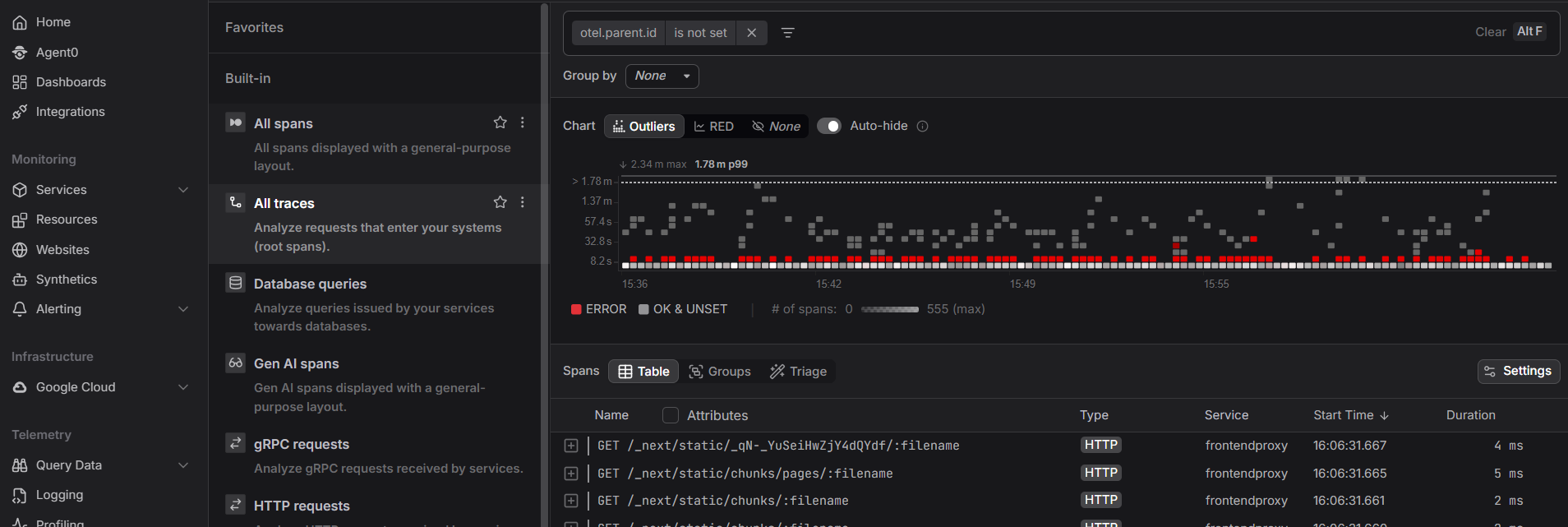 Start a free trial to see your container hosts, image builds, and runtime metrics in one view. No credit card required.