
Last updated: April 16, 2026
Use Agent0
Agent0 is available from multiple entry points so you can reach it without breaking your workflow.
You can start a conversation from scratch, or launch it directly from the view you're already working in to carry over context automatically.
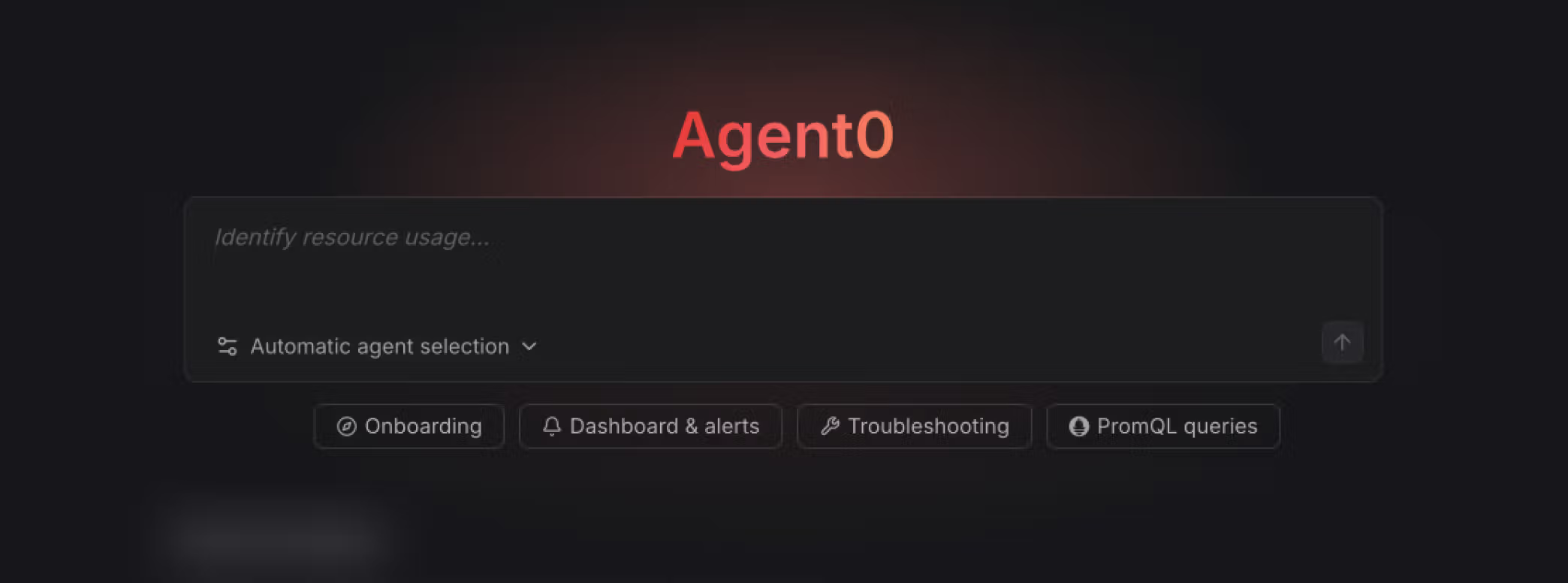
- Chat interface — Open the Agent0 panel directly and type any question in natural language.
-
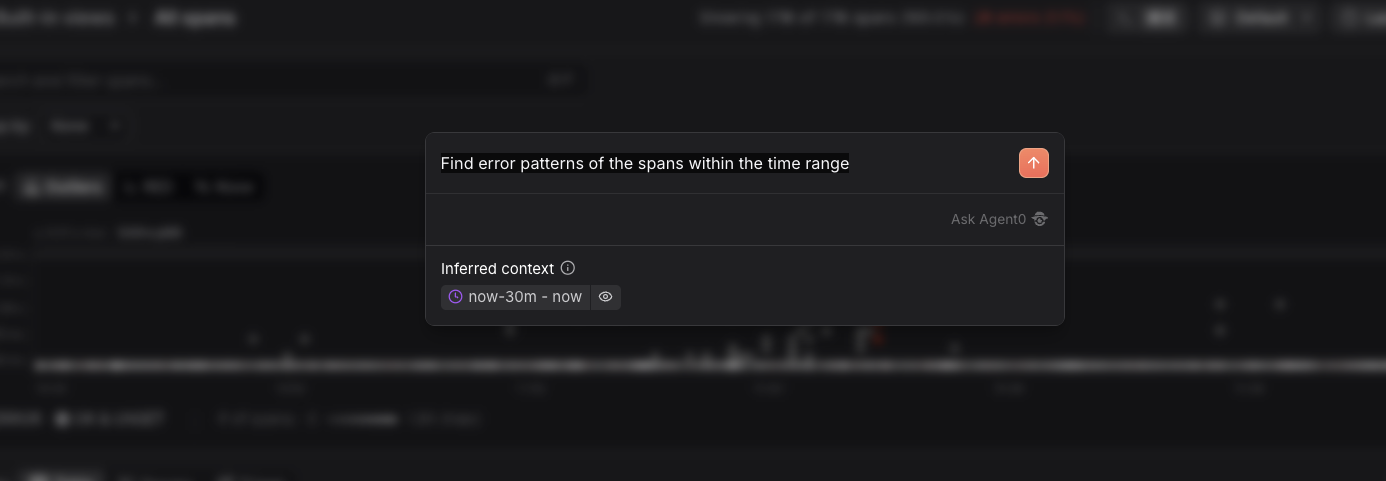
Command palette (⌘K / Ctrl+K) — From any screen, open the palette and type your question. Application context is automatically included.
-
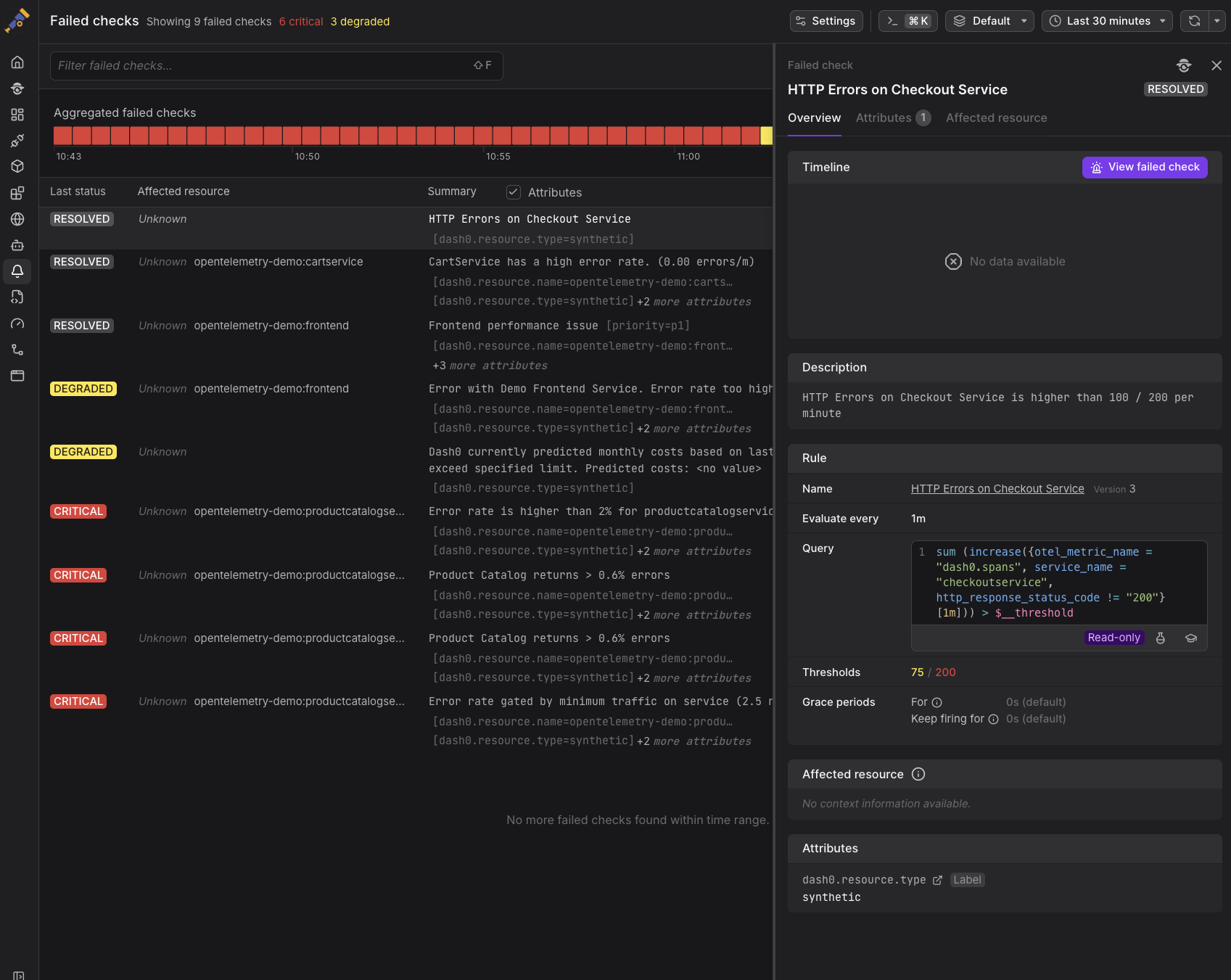
In-view buttons — Look for the Agent0 button in the upper-right corner of alert detail views and other supported pages.
-
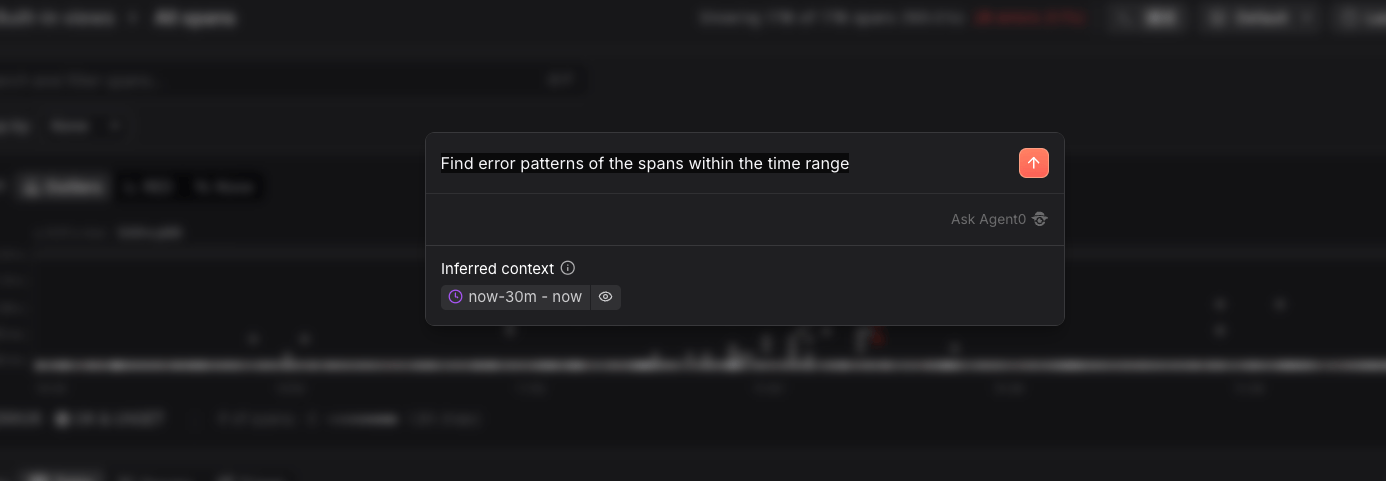
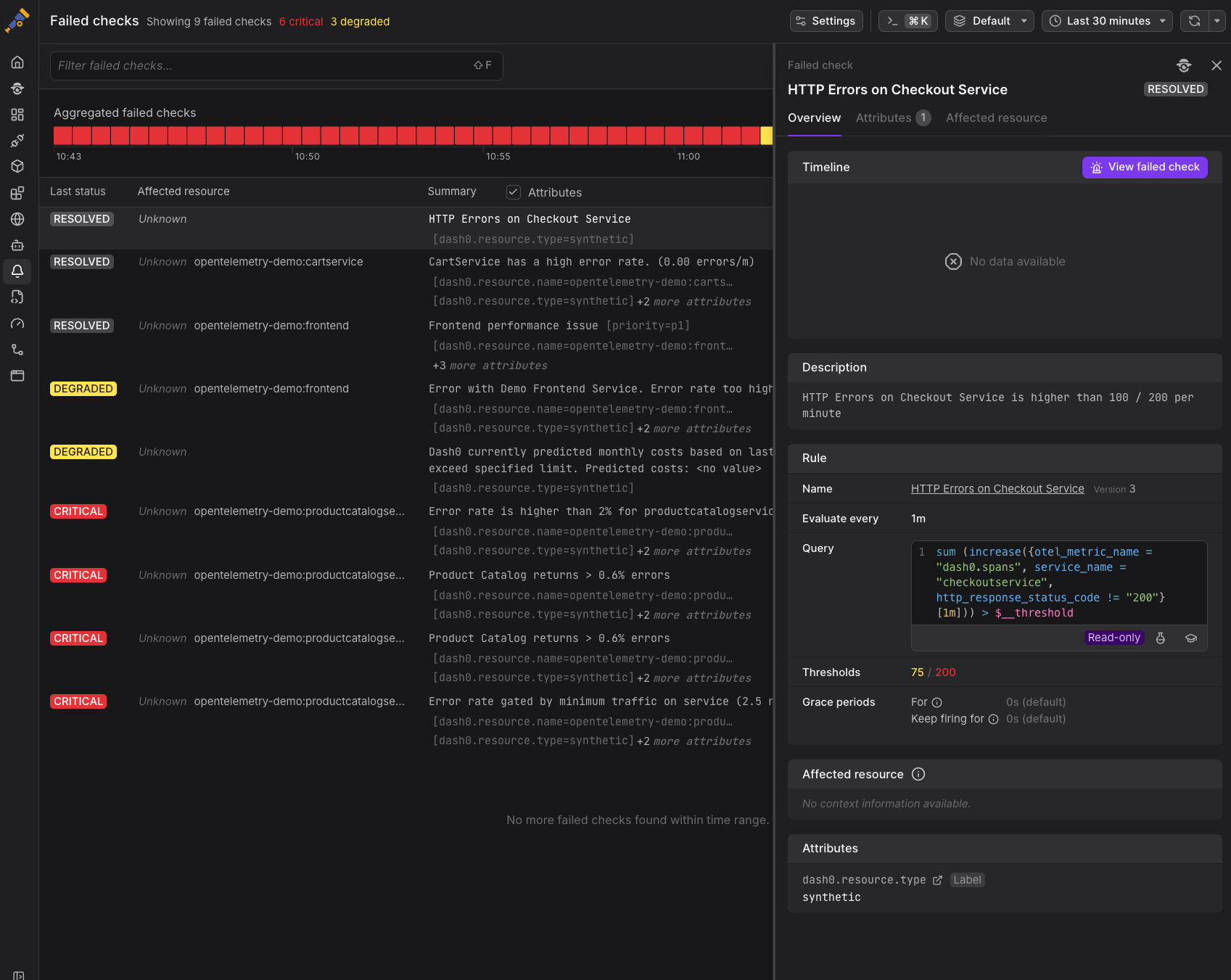
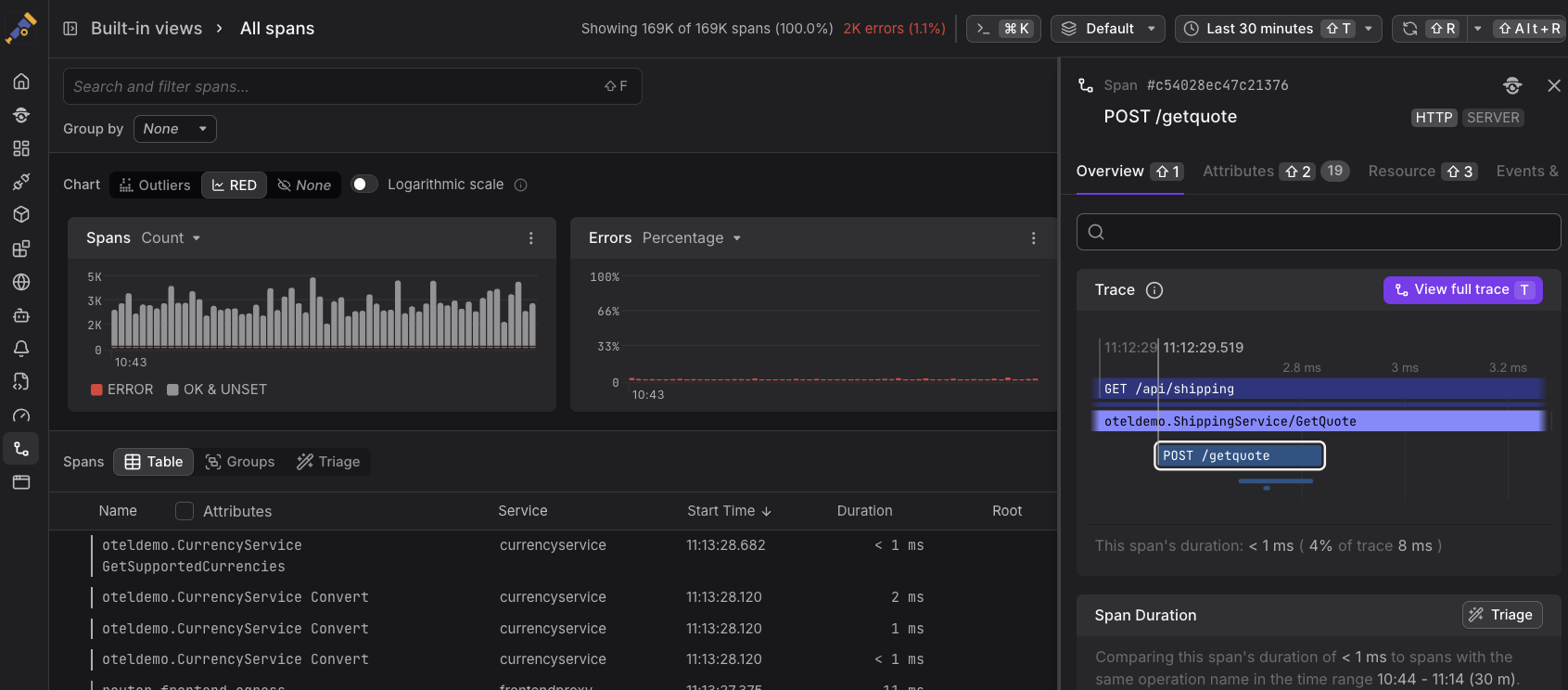
Quick actions — When you identify a failing alert, an interesting span, or unusual chart patterns, Dash0 lets you trigger Agent0 directly from the UI — automatically loading the relevant context so you can start root cause analysis faster:
-
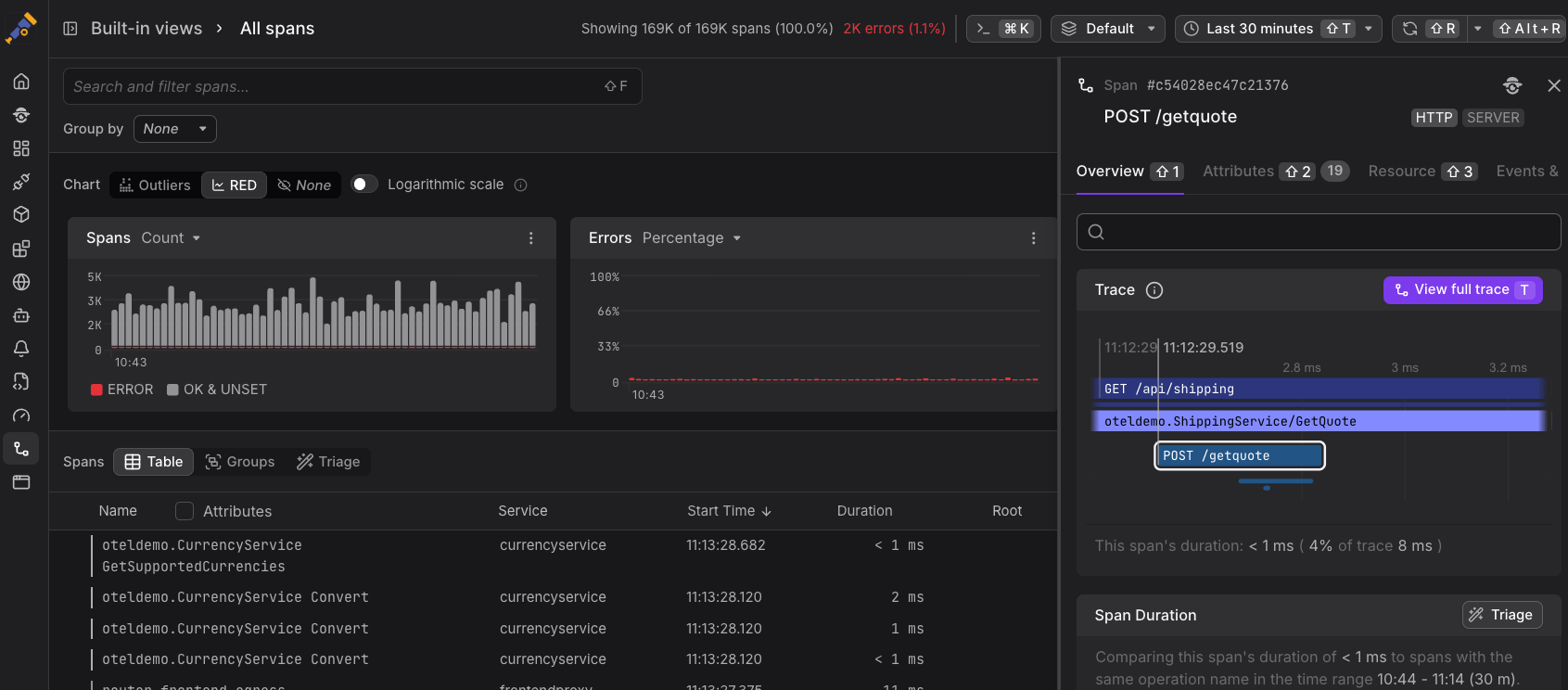
Explorer charts:
-
Via Ask Agent0 for a selected context window
-
Via Analyze with Agent0 for a full chart analysis
-
-
Span sidepanel in Trace Explorer:
-
Failed checks:
-
Tips & Tricks
A few habits can significantly improve the quality and speed of Agent0's responses. These tips are drawn from common patterns observed across teams using the tool in production.
- Be specific. Include service names, time ranges, or error details for faster, more accurate results.
- Steer the format. Request tables, summaries, or other layouts — Agent0 adapts.
- Use context triggers. Start from within a specific view (via ⌘K or the button) so you don't have to describe what you're looking at.
- Inspect tool invocations. Click tool calls in responses to verify exactly what data was retrieved.
- Iterate. Agent0 maintains conversation context — ask follow-up questions to drill deeper without restating the setup.