
Docker containers are immutable at runtime, you can't patch a running container the way you'd apt upgrade a server. The image layer is read-only, so "updating" a container always means pulling a newer image and recreating the container from it. Once you understand that, the rest is just knowing which command to use.
This article covers the pull-recreate pattern for standalone containers and Docker Compose, explains the separate docker update command (which does something much narrower than you might expect), and flags a few things that trip up newcomers.
Why you can't update a container in-place
When Docker starts a container, it layers a thin writable layer on top of a read-only image. Any changes you make inside a running container, installing packages, editing files, live in that writable layer, not in the image. Stop the container and recreate it, and that writable layer is gone.
This is intentional. Immutability makes containers reproducible and predictable. The trade-off is that updating software means replacing the container entirely, not patching it while it runs. The image is the unit of change.
The pull-recreate pattern
For a standalone container, updating means three steps: pull the new image, stop the old container, start a new one from the updated image.
Pull the latest version of an image:
1docker pull nginx:latest
Expected output:
1234latest: Pulling from library/nginxDigest: sha256:...Status: Downloaded newer image for nginx:latestdocker.io/library/nginx:latest
If the digest on the last line shows Status: Image is up to date, there's nothing new to deploy.
Now stop and remove the old container, then start a fresh one:
123docker stop my-nginxdocker rm my-nginxdocker run -d --name my-nginx -p 80:80 nginx:latest
The new container uses the updated image. Your volumes are unaffected because they exist independently of the container lifecycle, as long as you mounted them with -v or --mount, they'll reattach when the new container starts.
Updating with Docker Compose
Docker Compose makes this easier. Pull updated images for all services in your compose.yaml:
Note, you'll see that some images are local, so they are skipped.
1docker compose pull
 Then recreate any containers whose image changed:
1docker compose up -d
 Compose compares the image digest of the running container against the local image. If they differ, it recreates the container. If nothing changed, it leaves it alone.
To combine both steps and always pull before starting, useful in CI/CD pipelines or when you want to guarantee you're running the latest image:
1docker compose up -d --pull always
The --pull always flag tells Compose to pull the image from the registry before starting each service, regardless of whether a local copy exists. Without it, Compose uses whatever image is already cached locally, which might be stale if someone else pushed a new version since you last pulled.
Note: docker compose (no hyphen) is the current Compose plugin, available since Docker Engine 20.10. If you're on an older setup and docker compose isn't recognized, you may still have the legacy docker-compose standalone binary, but upgrading is worth it.
For more on working with logs across multi-container Compose setups, see Docker Compose Logs: A Complete Guide.
What docker update actually does
Here's the common source of confusion: docker update does not update the container's image. It updates runtime resource constraints on a running container, things like CPU and memory limits.
1docker update --memory 512m --cpus 1.5 my-nginx
This is useful when you need to adjust resource limits without stopping a container. You can change memory limits (--memory, --memory-swap), CPU limits (--cpus, --cpu-shares, --cpu-period, --cpu-quota), restart policy (--restart), and block I/O weight (--blkio-weight).
What docker update cannot do: change the image, environment variables, port bindings, volume mounts, or network configuration. For any of those, you need the full pull-recreate cycle.
If you want to observe how these resource constraints affect your containers in practice, Monitoring Container Resource Usage with Docker Stats walks through how to track CPU and memory consumption over time.
Common pitfalls
The latest tag is just a convention, some images update it frequently, others rarely. Always check docker pull output for Status: Downloaded newer image vs Status: Image is up to date before assuming you got something new. For production deployments, pinning to a specific digest (nginx@sha256:...) is more reliable than relying on a tag.
If you pull a new image but don't remove the old container, docker run with the same name fails. Use docker rm first, or use docker run --rm for containers you don't need to keep around after they stop.
Files written inside a container and not in a mounted volume are gone when the container is removed. If your container writes state to /app/data without a volume mount, that data disappears on every update. Mount a volume for anything you care about before you start relying on container restarts.
Finally, if your pipeline runs docker compose up -d without pulling first, it'll start containers from the locally cached image, which may be hours or days old. Add --pull always or a separate docker compose pull step before up in any automated workflow.
Final thoughts
Updating a Docker container is always a replace operation, not a patch operation. The pull-recreate pattern, docker pull, stop, remove, start, applies whether you're managing containers directly or through Compose. Use docker compose up --pull always to keep it a one-liner in automation. Reserve docker update for the narrower job it's designed for: adjusting CPU and memory limits on a running container without restarting it.
Once you're deploying containers regularly, you need to know what actually happened after the restart. Dash0 gives you container metrics, logs, and traces in a single view, so you can confirm the new image is healthy and catch regressions early. For a deeper look at what's available from your containers out of the box, see Mastering Docker Logs: A Comprehensive Tutorial.
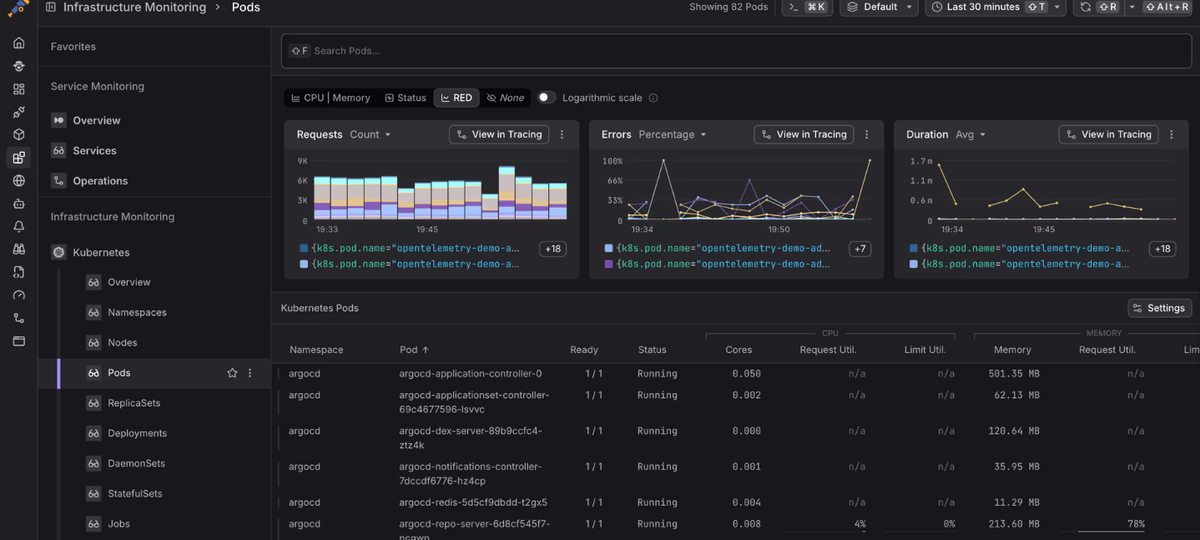 Start a free trial to see your container metrics, logs, and traces in one view.