
docker stop sends SIGTERM to the main process inside the container, waits up to 10 seconds for it to exit cleanly, then escalates to SIGKILL if it hasn't. That two-step sequence is intentional: your application gets a heads-up to flush buffers, close database connections, and finish in-flight requests before the runtime pulls the plug.
Most of the time this works exactly as you'd expect. Occasionally it doesn't. The container might ignore SIGTERM, the timeout might be too short, or you might be working with a process that was never written to handle signals properly. This article covers the standard stop workflow and the specific cases where you need to reach for something different.
The basic stop command
First, find the container you want to stop. If you want a live view of what each container is consuming while you decide, docker stats is a useful companion.
1docker ps
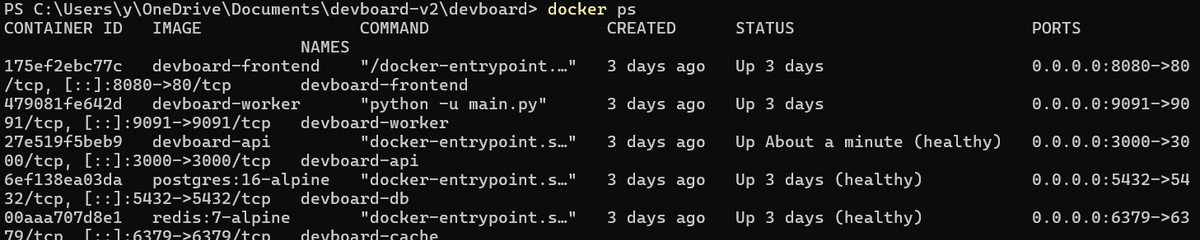 Stop it by name or ID:
1docker stop my-nginx
Docker will print the container name when it stops. Run docker ps -a to confirm:
1docker ps -a
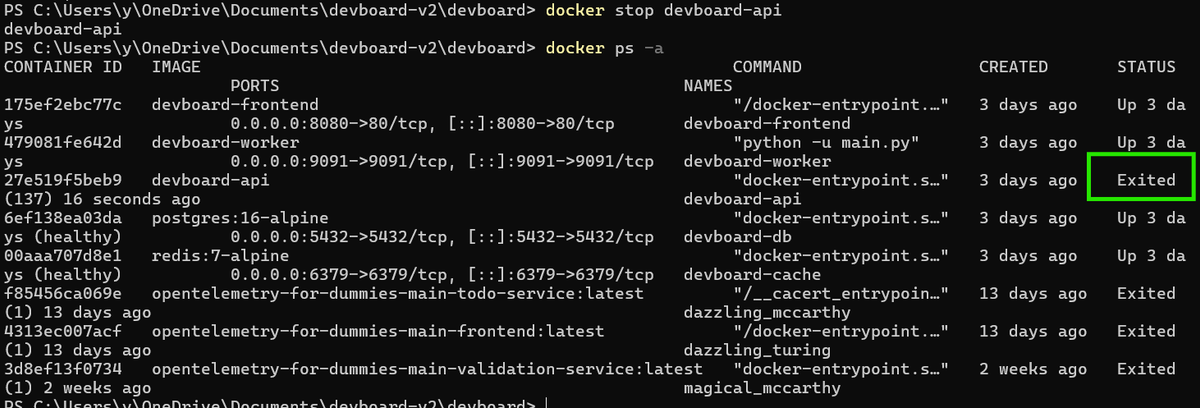 Exited (0) means the process shut down cleanly. If you see Exited (137), the container was killed with SIGKILL, either because it didn't respond within the timeout or because you ran docker kill directly.
Adjusting the timeout
The default 10-second grace period is fine for most workloads, but not all. A database flushing a large write buffer might need 30 seconds; a toy container with no cleanup logic needs zero. Use -t to set it explicitly:
12345# Wait up to 30 seconds before force-killingdocker stop -t 30 my-postgres# No grace period; escalates to SIGKILL immediatelydocker stop -t 0 my-nginx
If your application consistently needs more than 10 seconds to shut down cleanly, set a default at container creation instead of specifying it every time:
1docker run -d --stop-timeout 30 --name my-postgres postgres:16
Stopping multiple containers
Pass multiple names or IDs in a single command:
1docker stop container-a container-b container-c
To stop every running container at once, use docker ps -q, which outputs only container IDs (one per line), and pass those as arguments to docker stop:
1docker stop $(docker ps -q)
If nothing is running, the command exits silently.
Forceful shutdown with docker kill
When a container is genuinely stuck. Not responding to SIGTERM, wedged in an uninterruptible sleep, completely unresponsive. That's when you reach for docker kill:
1docker kill my-nginx
This sends SIGKILL directly, bypassing the grace period entirely. The process is terminated at the kernel level with no chance to clean up. Use this as a last resort: data corruption is possible if the container was mid-write when killed.
You can also send specific signals via --signal if your application handles something other than SIGTERM:
1docker kill --signal SIGUSR1 my-app
Why docker stop sometimes does nothing
docker stop sends SIGTERM to PID 1 inside the container. If your process isn't PID 1, it may never receive the signal.
This is a common trap with shell scripts. There are two distinct scenarios.
Scenario A: the shell is PID 1
If your CMD uses shell form, Docker wraps the command in /bin/sh -c:
12# Shell form: /bin/sh is PID 1, your app is a child processCMD ./start.sh
The shell receives SIGTERM but doesn't forward it to child processes, so your application never sees the signal. The fix is to switch to exec form, which runs the command directly without a shell wrapper:
12# Exec form: start.sh is PID 1 and receives SIGTERM directlyCMD ["./start.sh"]
Scenario B: the script is PID 1 but spawns your app as a child
Even with exec form, if your entrypoint script launches the application without exec, the app is still a child process that won't receive SIGTERM. The fix is to use exec in your entrypoint script so the application replaces the shell as PID 1:
12#!/bin/shexec my-application --config /etc/app/config.yaml
If you can't change the container, you can override which signal Docker sends on stop:
1docker run -d --stop-signal SIGQUIT --name my-app my-image
Or set STOPSIGNAL in the Dockerfile to make it permanent:
1STOPSIGNAL SIGQUIT
Final thoughts
For day-to-day container management, docker stop with its default timeout is all you need. When you're building services that handle real workloads, accepting connections, writing to disk, coordinating with other systems, it's worth making sure your containers actually respond to SIGTERM. A container that ignores shutdown signals will always burn through the timeout and get killed forcefully. That makes rolling updates and graceful restarts much harder to reason about. Docker health checks are a natural complement here: they let the runtime know when a container is truly ready or stuck, rather than guessing from the process state alone.
The Docker documentation for docker stop covers the full flag reference if you need it.
If you're running containerized workloads in production, tracking container restarts and exit codes over time is a natural signal to watch. Dash0's infrastructure monitoring surfaces container health alongside logs and distributed traces, so you can tell whether that Exited (137) was a one-off or the start of a pattern.
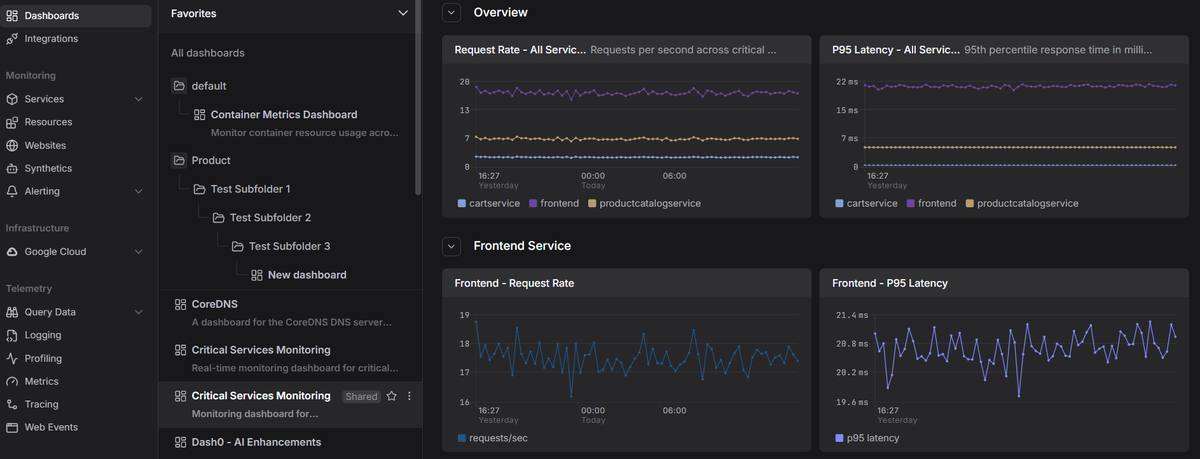 Start a free trial to correlate your container metrics, logs, and traces in Dash0.